1. Вовед
This manual provides essential information for setting up, operating, and maintaining your Microsoft Bluetooth Mouse - Forest Camo. Designed for precise scrolling and navigation, this compact and modern mouse offers wireless convenience for various computing platforms.
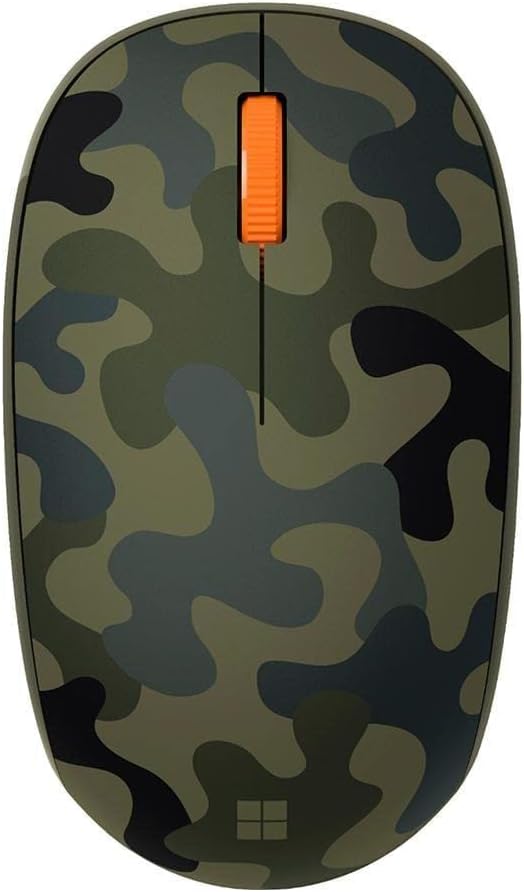
Figure 1: Microsoft Bluetooth Mouse - Forest Camo
2. Содржина на пакетот
- Microsoft Bluetooth Mouse - Forest Camo
- 1 AA Alkaline Battery (pre-installed)
3. Поставување и спарување
3.1. Инсталација на батерија
The mouse comes with a pre-installed AA battery. To activate the mouse, locate the battery compartment on the underside of the mouse. Remove any protective pull-tab if present. Ensure the battery is correctly seated according to the polarity indicators.

Figure 2: Underside of the mouse with battery compartment
3.2. Bluetooth спарување
- Turn on the mouse by sliding the power switch (usually located on the underside) to the 'On' position. A small LED indicator may light up.
- On your computer (PC or Mac), open your Bluetooth settings.
- Select 'Add Bluetooth or other device' (Windows) or 'Bluetooth Preferences' (Mac).
- The computer should detect 'Microsoft Bluetooth Mouse'. Select it from the list of available devices.
- Follow any on-screen prompts to complete the pairing process. The LED on the mouse may change from flashing to solid to indicate a successful connection.
The mouse is compatible with Windows 10, Windows 8.1, and Mac operating systems.
4. Упатства за работа
The Microsoft Bluetooth Mouse features a standard three-button design with a scroll wheel for intuitive navigation.
- Копче со лев клик: Се користи за избирање предмети, отворање files и активирање на функциите.
- Копче со десен клик: Се користи за пристап до контекстуални менија и дополнителни опции.
- Тркало за лизгање: Свртете нагоре или надолу за да скролувате низ документите и web pages. The scroll wheel can also be pressed down for a middle-click function, depending on your software settings.
To conserve battery life, turn off the mouse when not in use for extended periods.
5. Карактеристики
- Compact and modern design for comfortable use.
- Wireless Bluetooth connectivity, eliminating the need for a USB dongle.
- Fast tracking sensor for precise navigation.
- До 12 месеци траење на батеријата на една AA батерија.
- Designed for both right and left-hand use.
6. Спецификации
| Карактеристика | Детал |
|---|---|
| Број на модел | 8KX-00003 |
| Бренд | Мајкрософт |
| Боја | Forest Camo |
| Технологија за поврзување | Bluetooth |
| Детекција на движење | Оптички |
| Хардверска платформа | Лаптоп, компјутер |
| Оперативен систем | Windows 10, Windows 8.1 |
| Тежина на ставката | 3.84 унци |
| Димензии на производот (ДxШxВ) | 3.11 x 5.83 x 2.01 инчи |
| Просечен век на траење на батеријата | 12 месеци |
| Потребни се батерии | 1 АА (вклучено) |

Figure 3: Mouse dimensions
7 Смена на проблеми
7.1. Mouse Not Connecting
- Ensure the mouse is turned on and the battery is correctly installed.
- Check your computer's Bluetooth settings to confirm Bluetooth is enabled.
- Try re-pairing the mouse by removing it from your device list and adding it again.
- Ensure the mouse is within range of your computer (typically up to 10 meters).
7.2. Повремена врска или доцнење
- Заменете ја AA батеријата со нова.
- Minimize interference from other wireless devices operating on the same frequency.
- Ensure your computer's Bluetooth drivers are up to date.
8. Одржување
8.1. Чистење
За чистење на глувчето, користете мека крпа без влакненца, нежно тријте јаampened with water or a mild cleaning solution. Avoid harsh chemicals or abrasive materials. Do not allow moisture to enter any openings.
8.2. Замена на батеријата
When the mouse's performance degrades or the LED indicator suggests low battery, replace the AA battery. Open the battery compartment on the underside, remove the old battery, and insert a new AA battery, observing correct polarity.
9. Гаранција и поддршка
For warranty information, technical support, or further assistance, please refer to the official Microsoft support webвеб-страницата или контактирајте ја службата за корисници на Microsoft. Зачувајте го доказот за купување за гаранциски барања.
Посетете го Мајкрософт продавница за дополнителни информации и ресурси за производот.


