Вовед
This user manual provides comprehensive instructions for the wendeekun 4G LTE Modem Dongle (Model: B08Z7YRVGS). This device is designed to provide high-speed 4G LTE internet access by simply inserting a SIM card, allowing you to create and share network hotspots. It supports up to 10 associated users and offers a convenient plug-and-play experience across various operating systems.
Производот завршиview
The wendeekun 4G LTE Modem Dongle is a compact and portable device that provides wireless internet connectivity. It features a USB interface for power and data transfer, a SIM card slot, and an LED status indicator.

Слика 1: Предна страна view of the wendeekun 4G LTE Modem Dongle, showing the 4G LTE WiFi Modem branding.

Слика 2: The modem dongle with its USB connector exposed, ready for connection to a computer or power source.

Слика 3: Заден дел view of the modem dongle, displaying technical specifications such as DL: 150Mbps UL: 50Mbps and WiFi Cat4.
Клучни карактеристики:
- Лесен за употреба: USB interface for plug-and-play functionality.
- High-speed Connectivity: Supports up to 150Mbps downlink and 50Mbps uplink (4G LTE CAT4).
- Слот за SIM картичка: Enables 4G internet access and hotspot sharing without broadband.
- Индикатор за статусот на ЛЕР: Provides visual feedback on device status.
- Memory Card Expansion: Supports expansion with a small memory card up to 32GB (not included).
- Широка компатибилност: Compatible with Windows, OS X, Android, and Linux operating systems.
- Преносен дизајн: Small and convenient for on-the-go use.
Содржина на пакетот:
- 1 x Modem Dongle
- 1 x Упатство за употреба
- Note: SIM card is not included.
Водич за поставување
Follow these steps to set up your wendeekun 4G LTE Modem Dongle and establish an internet connection.
1. Инсталација на SIM картичка
- Prepare a Micro SIM card (not included).
- Gently open the back cover of the modem dongle.
- Insert the Micro SIM card into the designated slot, ensuring correct orientation.
- Добро затворете го задниот капак.
2. Connecting the Dongle
- Insert the modem dongle into a computer's USB port or any other compatible USB power supply port.
- The LED status indicator will illuminate, indicating the device is powered on.
3. Поврзување на мрежата
Once the dongle is connected, you can connect your devices to its Wi-Fi network.
For Windows (7/8/10/Vista):
- Отвори Контролен панел > Мрежа и Интернет > Центар за мрежи и споделување.
- Изберете Поврзете се на мрежата.
- In the list of available networks, select the Wi-Fi network with the SSID: 4G MIFI**** (или 4GUFI_**** for UFI models).
- Enter the Default Password: 1234567890 и кликнете OK.
- Wait for the connection status to show "Connected".
За телефони со Android:
- Одете на Поставки.
- Допрете го Wi-Fi switch to turn on Wi-Fi.
- In the list, select the network that matches the device's SSID (e.g., 4G MIFI****).
- Enter the correct password (1234567890) and tap Поврзете се.
Забелешка: The SSID and default password are typically printed on the device or included in the packaging.
Упатства за работа
Once connected, your modem dongle functions as a portable Wi-Fi hotspot.
Мрежно споделување
The dongle allows up to 10 associated users to connect simultaneously to its Wi-Fi network, sharing the 4G LTE internet connection.
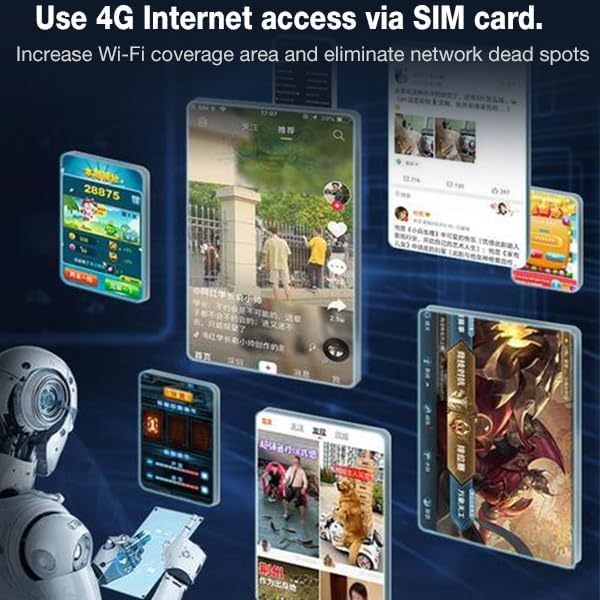
Слика 4: Visual representation of using the modem dongle for 4G internet access via a SIM card, increasing Wi-Fi coverage and eliminating network dead spots.
LED индикатор за статус
The LED indicator provides visual cues about the device's operational status. Refer to the device's specific LED patterns for detailed status information (e.g., connected, searching for network, no SIM).
Memory Card Expansion
The modem dongle supports the expansion of storage via a small memory card (up to 32GB, not included). This feature allows for additional data storage directly on the device.
Одржување
To ensure the longevity and optimal performance of your modem dongle, follow these general maintenance guidelines:
- Одржувајте го уредот чист и без прашина. Користете мека, сува крпа за чистење.
- Избегнувајте изложување на уредот на екстремни температури, директна сончева светлина или висока влажност.
- Не го испуштајте или изложувајте го уредот на силни удари.
- Чувајте го уредот на ладно и суво место кога не го користите.
- Ensure the USB port and SIM card slot are free from debris.
Решавање проблеми
If you encounter issues with your modem dongle, refer to the following common troubleshooting steps:
No Internet Connection After Reconnecting
If the product is unplugged and then plugged back into the same USB port, you may need to re-initiate the connection:
- Click the installed software or connection utility again to re-establish the connection.
Device Not Recognized / No Power
- Ensure the dongle is fully inserted into the USB port.
- Try a different USB port on your computer or a different USB power adapter.
- Verify that the USB port is functional.
Не може да се поврзе со Wi-Fi мрежа
- Double-check the Wi-Fi SSID and password. Ensure you are entering the default password 1234567890 unless you have changed it.
- Проверете дали SIM-картичката е правилно вметната и дали е активна со план за податоци.
- Restart the modem dongle by unplugging and re-plugging it.
- Check if the LED status indicator shows any error states.
Бавна брзина на Интернет
- Ensure you are within good signal range of your cellular network.
- Reduce the number of connected devices if multiple users are sharing the connection.
- Check your SIM card's data plan for any speed limitations or data caps.
Спецификации
| Карактеристика | Детал |
|---|---|
| Модел | B08Z7YRVGS |
| Фреквенција | 4G / LTE-FDD: B1 / B3 / B5 (850/1800/2100MHz) 4G / LTE-TDD: B38 / B39 / B40 / B41 (1900/2300/2500/2600MHz) 3G / WCDMA: B1 (2100MHz) |
| Врв стапка | LTE FDD: DL/UL 150M / 50 Mbps (category 4) |
| Internet Standard | 2.4G, 802.11 b/g/n |
| Режим на прикажување | LED индикатор за статус |
| Пристаниште за напојување | USB2.0 |
| Тип на SIM картичка | Микро SIM |
| Port Input Voltage | 5V / 1A |
| Поддржани оперативни системи | Windows / Vista / 7 / 8 / 10 / OS X / Android / Linux |
| Associated Users | До 10 |
| Јазик | Chinese and English shared |
| Поставки за APN | Поддржано |
| Мрежни поставки | Поддржано |
| Поставки на уредот | Поддржано |
| Поставка за рутирање | Поддржано |
| Поставување на заштитен ѕид | Поддржано |
| Димензии (Д x Ш x В) | 0.39 x 0.39 x 0.39 инчи |
| Тежина на ставката | 1.52 унци |
| Производител | wendeekun |
Поддршка за корисници
wendeekun is committed to providing quality service and support for its products. If you have any questions, encounter issues, or require assistance with your 4G LTE Modem Dongle, please contact our professional customer service team.
- 24-Hour Online Support: Our team is available to assist you with any product-related inquiries.
- For contact information, please refer to the product packaging or the official wendeekun webсајт.