1. Вовед
Thank you for choosing the MageGee MK1 Mechanical Gaming Keyboard and Mouse Combo. This product is designed to enhance your gaming and work experience with its responsive mechanical keys, customizable LED backlighting, and ergonomic design. This manual provides detailed instructions for setup, operation, maintenance, and troubleshooting to ensure optimal performance.
The combo includes an 87-key mechanical keyboard with blue switches, an ergonomic gaming mouse, and a large mouse pad. The compact keyboard design saves desk space while offering a tactile and audible typing experience, suitable for both gaming and office tasks.

Слика 1.1: Готовоview of the MageGee MK1 87-key mechanical keyboard with blue backlighting.
2. Упатства за поставување
Follow these steps to set up your MageGee MK1 Keyboard and Mouse Combo:
- Отпакувајте ги компонентите: Carefully remove the keyboard, mouse, and mouse pad from their packaging.
- Поврзете ја тастатурата: Приклучете го USB конекторот на тастатурата во достапна USB порта на вашиот компјутер.
- Поврзете го глувчето: Plug the USB connector of the mouse into another available USB port on your computer.
- Поставете ја подлогата за глувче: Position the large mouse pad on your desk for optimal mouse movement.
- Инсталација на драјвери: The keyboard and mouse are plug-and-play devices. Your operating system (Windows 10, 8, 7, Vista, XP, or limited Mac OS support) should automatically detect and install the necessary drivers. No additional software installation is typically required.
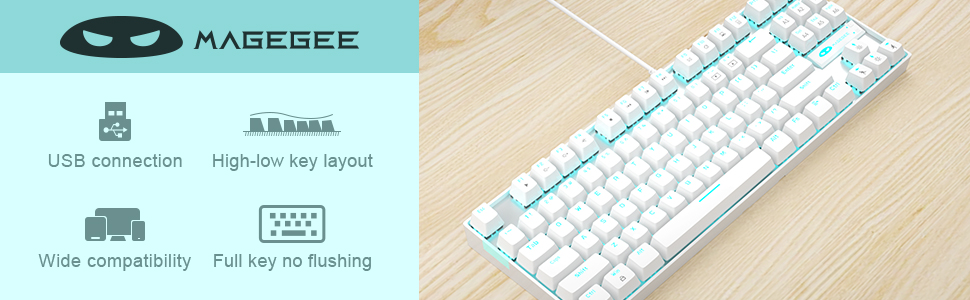
Image 2.1: Key features of the MageGee MK1 keyboard, including USB connection and wide compatibility.
3. Упатства за работа
3.1 Функции на тастатурата
The MK1 keyboard features 87 mechanical keys with blue switches, providing a distinct tactile bump and audible click for precise feedback. The compact layout is designed for efficiency and comfort.
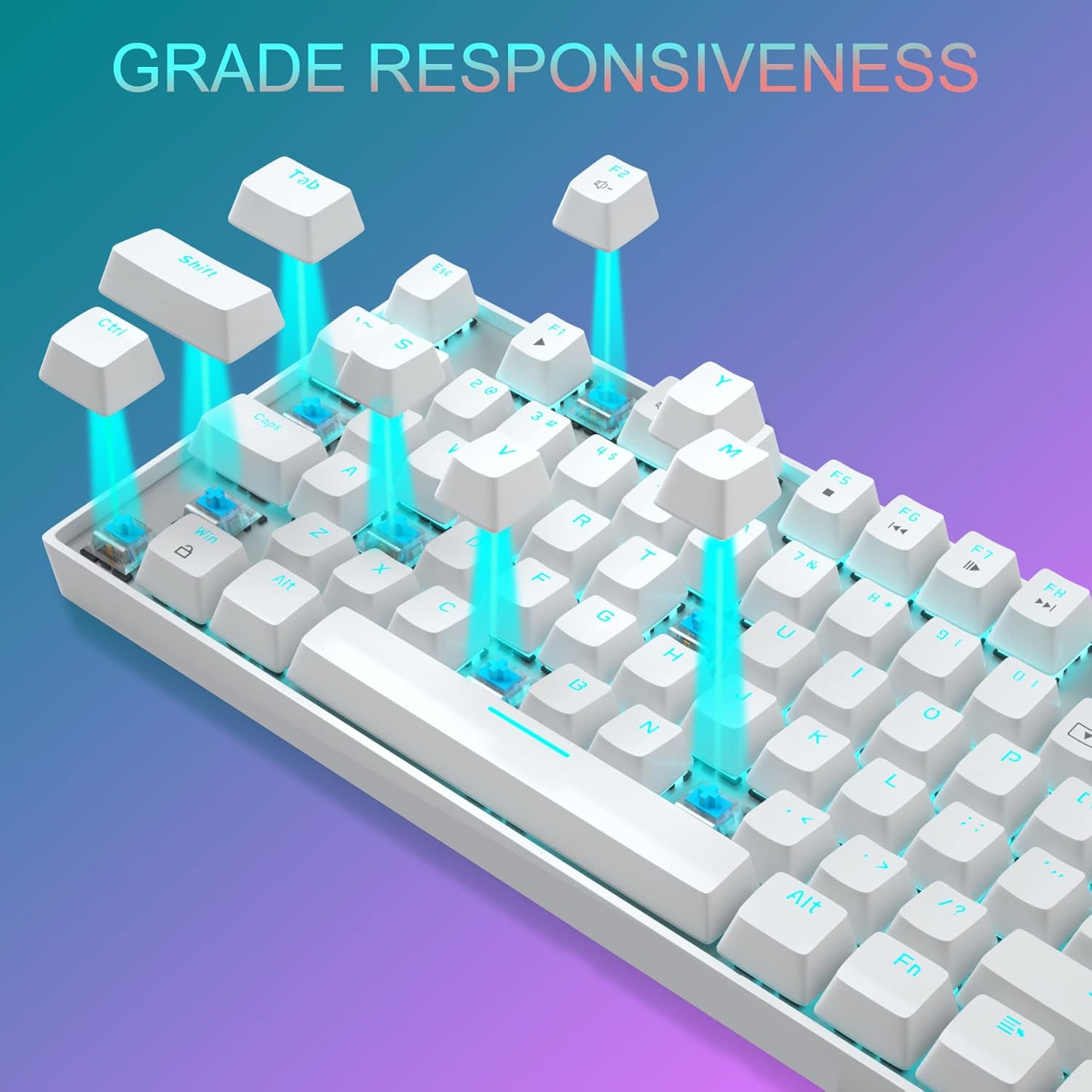
Слика 3.1: Крупен план view of the keyboard demonstrating the blue mechanical switches for responsive typing.
3.1.1 Backlighting Modes
The keyboard supports 24 different LED breathing backlight modes. Use the following key combinations to control the backlighting:
- FN + INS: Cycle through various preset lighting modes.
- FN + HOME: Cycle through additional lighting effects.
- FN + PGUP: Прилагодете ја осветленоста на задното осветлување (4 нивоа).
- FN + PGDN: Adjust breathing speed (4 levels).
- FN + DEL: Change backlight color in certain modes.
- FN + КРАЈ: Activate or deactivate specific lighting patterns.
You can also customize lighting effects by pressing FN + 1/2/3/4/5 key combinations. The WASD and ARROW keys are interchangeable for user preference.
3.1.2 Мултимедијални клучеви
The keyboard includes 12 multimedia function keys, accessible by pressing the FN key in combination with the F1-F12 keys. These provide quick access to common functions:

Image 3.2: Chart detailing the FN key combinations for multimedia controls.
- FN + F1: Медиа плеер
- FN + F2: Намалување на јачината на звукот
- FN + F3: Јачина на звук нагоре
- FN + F4: Исклучи звук
- FN + F5: Стоп
- FN + F6: Претходна песна
- FN + F7: Пушти/Пауза
- FN + F8: Следна песна
- FN + F9: Е-пошта
- FN + F10: Web/Дома
- FN + F11: Мојот компјутер
- FN + F12: Калкулатор
3.2 Функции на глувчето
The gaming mouse features 7 programmable buttons and adjustable DPI settings for precision control.
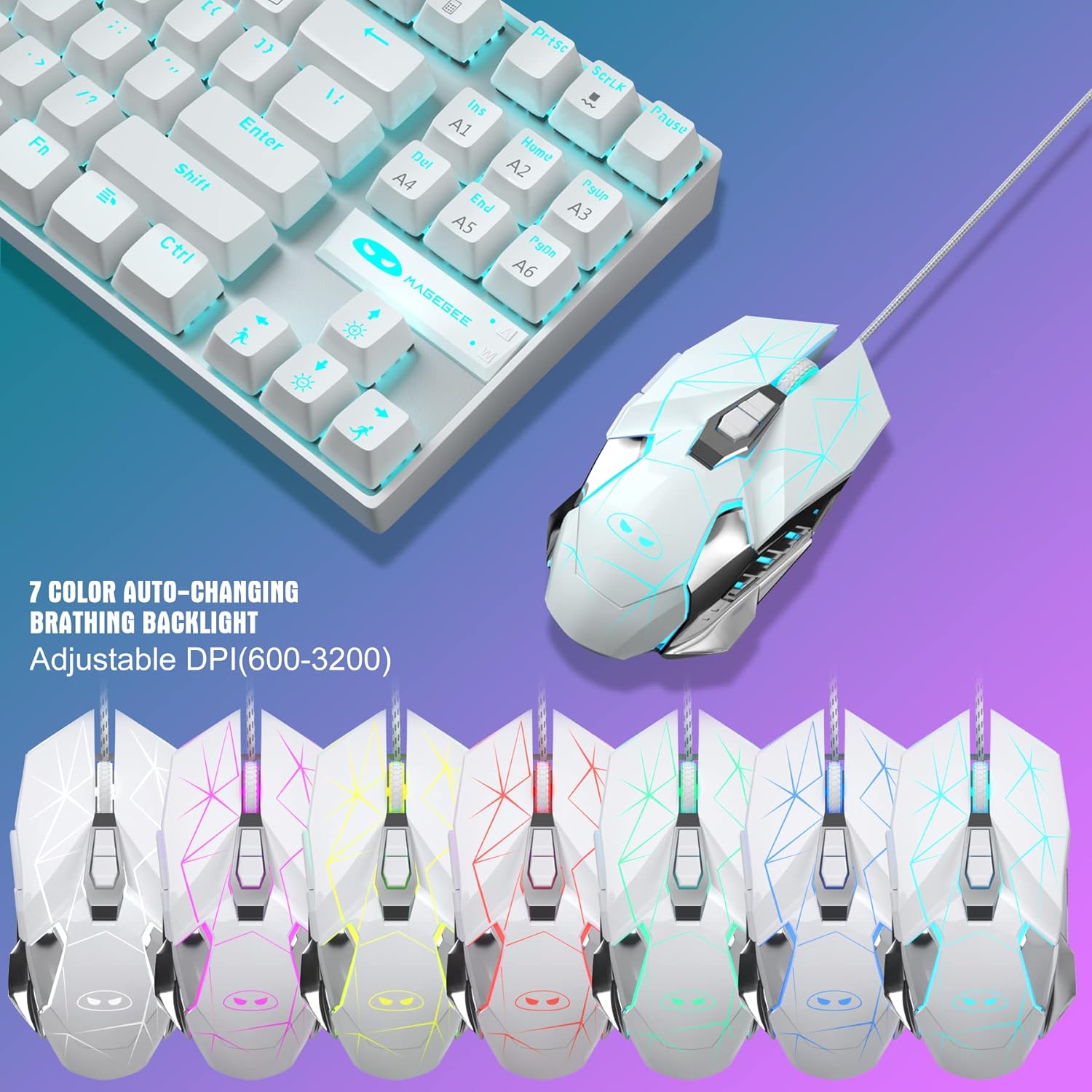
Image 3.3: The MageGee gaming mouse, showcasing its ergonomic design and customizable backlighting.
3.2.1 Прилагодување на DPI
The mouse offers 6 adjustable DPI levels (600, 800, 1200, 1600, 2400, 3200). Press the DPI button (usually located behind the scroll wheel) to cycle through these settings in real-time. Each DPI level is indicated by a different backlight color:
- Жолта
- Сино
- Виолетова
- Зелена
- Црвено
- цијан
3.2.2 Mouse Backlight Control
The mouse backlight color changes with the DPI setting. To control the mouse backlight, press the "Forward + DPI" keys simultaneously. This combination allows you to select a single preferred color, enable automatic color flashing, or turn off the backlight.
3.3 Mouse Pad
The included large mouse pad (300x250 mm) features a silk-processed cloth surface for smooth, ultra-precise mouse movements. Its advanced multi-layer surface provides thousands of light-reflecting microscopic points for accurate tracking. The underside is made of natural processed foam rubber, ensuring a stable grip on various surfaces. Stitched edges prevent fraying and curling, enhancing durability. The mouse pad is waterproof and washable for easy cleaning.
4. Одржување
Proper maintenance ensures the longevity and performance of your keyboard and mouse combo:
- Чистење на тастатурата: Use a soft, dry cloth to wipe down the keycaps and chassis. For deeper cleaning, you can use compressed air to remove dust and debris from between the keys. Avoid using harsh chemicals or abrasive materials.
- Чистење на глувчето: Wipe the mouse surface with a soft, slightly damp cloth. Ensure no liquid enters the internal components. Clean the optical sensor area regularly to maintain tracking accuracy.
- Чистење на подлогата за глувче: The mouse pad is waterproof and washable. You can gently hand wash it with mild soap and water, then air dry completely before use.
- Складирање: When not in use for extended periods, store the combo in a clean, dry environment away from direct sunlight and extreme temperatures.
5 Смена на проблеми
If you encounter issues with your MageGee MK1 combo, refer to the following common solutions:
- Тастатурата/глушецот не реагираат:
- Ensure both USB cables are securely plugged into your computer's USB ports.
- Обидете се да ги поврзете уредите во различни USB порти.
- Рестартирајте го компјутерот.
- Тестирајте ја тастатурата/глушецот на друг компјутер за да утврдите дали проблемот е до уредот или до вашиот систем.
- Задното осветлување не работи или е неправилно:
- Ensure the backlight is not turned off (check FN key combinations).
- Adjust brightness using FN + PGUP.
- Cycle through different lighting modes using FN + INS/HOME.
- Проблеми со следење на глувчето:
- Clean the mouse sensor and the mouse pad surface.
- Adjust the DPI setting to a level suitable for your use.
- Ensure the mouse pad is on a flat, stable surface.
- Клучевите не се регистрираат:
- Осигурајте се дека тастатурата е правилно поврзана.
- Исчистете ја околината на засегнатиот клуч за да ги отстраните сите остатоци.
- If specific keys consistently fail, contact customer support.
6. Спецификации
| Бренд | МејџГи |
| Модел | МК1 |
| Тип на тастатура | Механичка тастатура за игри |
| Тип на прекинувач | Сини прекинувачи |
| Распоред на копчињата | 87 Keys (Compact) |
| Задно осветлување | LED Backlit (24 modes, adjustable brightness/speed) |
| Поврзување | Жичен USB |
| Нивоа на DPI на глувчето | 600, 800, 1200, 1600, 2400, 3200 |
| Копчиња на глувчето | 7 Програмабилни копчиња |
| Големина на подлогата за глувче | 300 x 250 mm |
| Компатибилност | Windows 10/8/7/Vista/XP, Limited Mac OS support |
| Тежина на ставката | 2.59 фунти (приближно) |
| Димензии на пакетот | 14.92 x 8.94 x 1.77 инчи (приближно) |
7. Гаранција и поддршка
The MageGee MK1 Mechanical Gaming Keyboard and Mouse Combo comes with a full 1-year manufacturer's warranty from the date of purchase. This warranty covers defects in materials and workmanship under normal use.
For any questions, technical assistance, or warranty claims, please do not hesitate to contact our friendly customer service team. We are available 24 hours a day, 7 days a week to provide support.
Please refer to the contact information provided with your product packaging or visit the official MageGee webстраница за најактуелни детали за поддршка.