1. Вовед
This manual provides instructions for the Monoprice Dark Matter 27-inch 165Hz Gaming Monitor. This monitor features an IPS panel, a 165Hz refresh rate, and a 1920x1080p Full HD resolution. It includes Adaptive Sync technology for smooth visuals and offers multiple connectivity options, including HDMI and DisplayPort inputs.
2. Информации за безбедност
- Прочитајте ги сите упатства пред да го користите мониторот.
- Држете го мониторот подалеку од вода или дрваamp средини.
- Не блокирајте ги отворите за вентилација.
- Користете само адаптерот за напојување што го обезбедува производителот.
- Избегнувајте поставување на мониторот на нестабилни површини.
- Исклучете го кабелот за напојување за време на грмотевици или кога не се користи подолг период.
- Целото сервисирање префрлете го на квалификуван персонал.
3. Содржина на пакетот
Потврдете дека вашиот пакет ги содржи следниве ставки:
- Monoprice Dark Matter 27-inch Gaming Monitor
- Поставка за монитор (основа и врат)
- Адаптер за напојување и кабел за напојување
- HDMI кабел
- Упатство за употреба (овој документ)
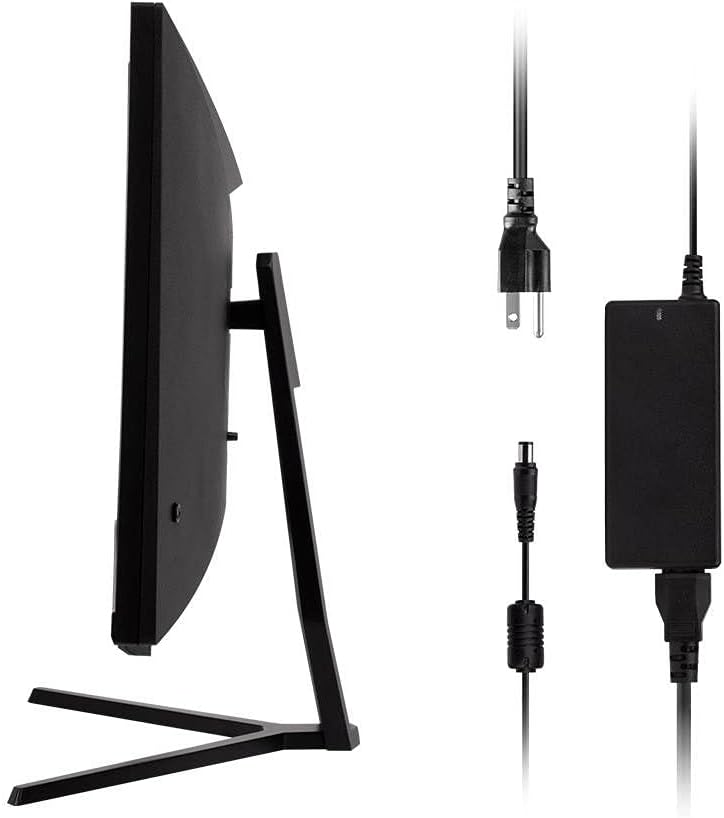
Image: Monitor side view with included power adapter and cable.
4. Надгледувајте гоview
Предна страна View
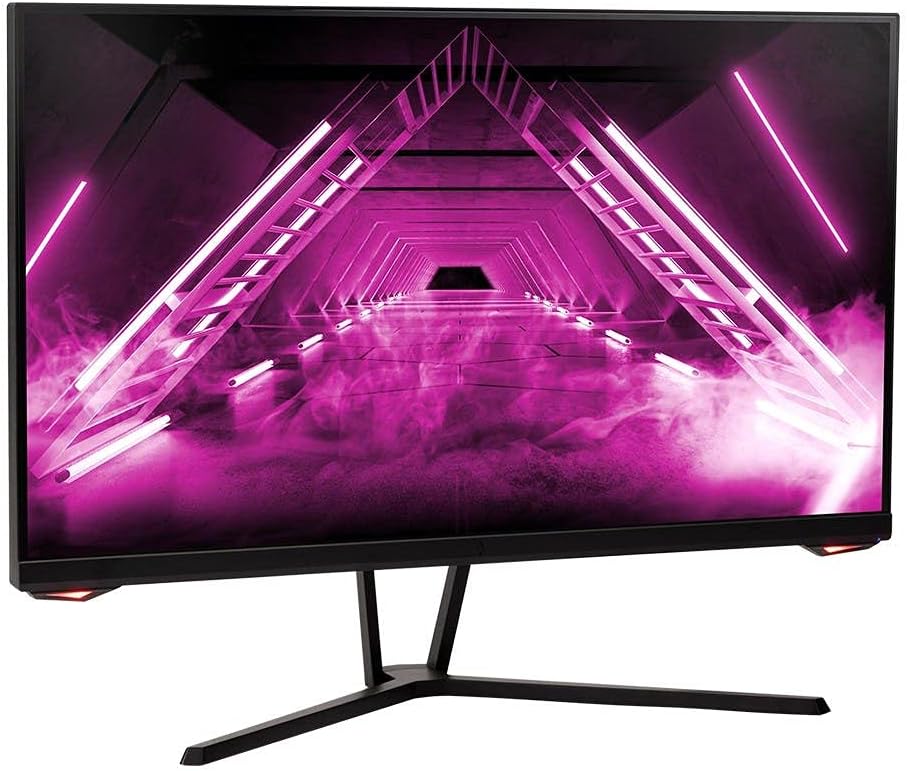
Слика: напред view на мониторот.
Заден дел View и порти
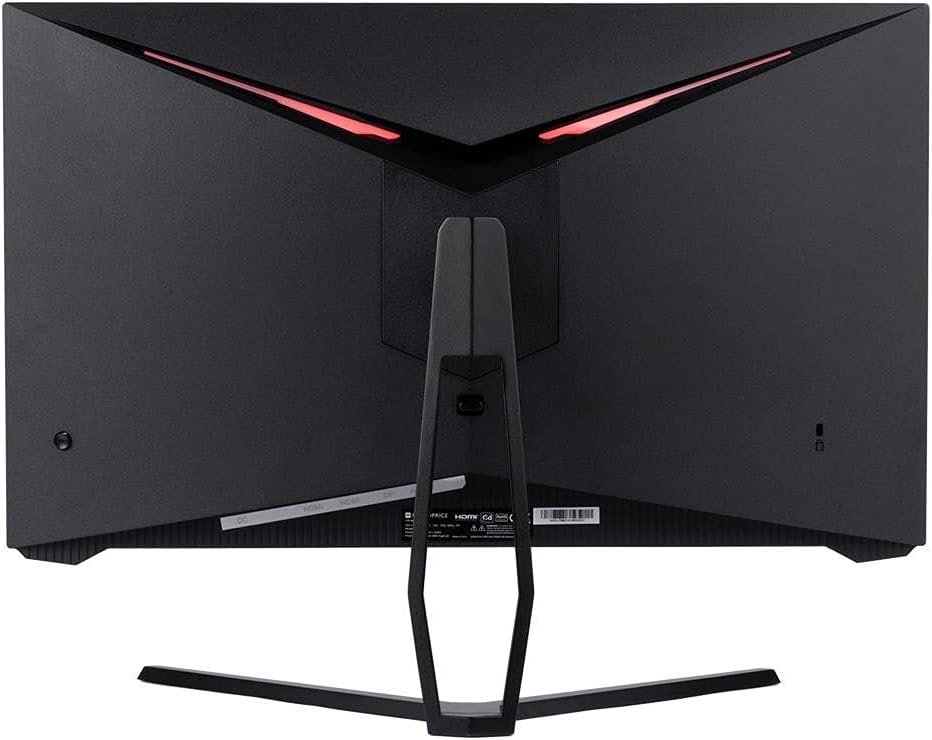
Слика: Заден дел view of the monitor, highlighting the VESA mount and stand attachment.

Image: Close-up of the monitor's input ports.
5. Поставување
5.1 Склопување на држачот
- Внимателно извадете го мониторот од пакувањето, држејќи го заштитен на мека површина.
- Attach the stand neck to the monitor's rear panel by aligning the tabs and securing any screws if present.
- Attach the stand base to the stand neck, ensuring it is firmly secured.
- Поставете го склопениот монитор на стабилна, рамна површина.
5.2 Монтирање VESA
The monitor supports a 75x75mm VESA mount pattern. To use a wall or desk mount:
- Remove the pre-attached stand by unscrewing it from the monitor's rear panel.
- Attach your VESA-compatible mount to the monitor using the appropriate screws (not included).
- Ensure the mount is securely fastened before releasing мониторот.
5.3 Поврзување со компјутер
Поврзете го мониторот со компјутерот користејќи еден од следниве методи:
- DisplayPort: Поврзете го едниот крај од DisplayPort кабелот со излезот DisplayPort на графичката картичка на вашиот компјутер, а другиот крај со влезот DisplayPort на мониторот.
- HDMI: Connect one end of an HDMI cable to an HDMI output on your computer's graphics card and the other end to one of the HDMI inputs on the monitor.
After connecting the video cable, connect the power adapter to the monitor's DC input and then plug the power cable into a wall outlet.
6. Ракување со мониторот
6.1 Вклучување/исклучување
Press the power button, typically located on the rear or bottom of the monitor, to turn the monitor on or off. The power indicator light will illuminate when the monitor is on.
6.2 Мени за приказ на екран (OSD).
The OSD menu allows you to adjust various monitor settings. Access the OSD menu by pressing the menu button (often a joystick or a series of buttons) on the monitor. Navigate through the options using the directional controls and confirm selections.
Вообичаените поставки на OSD вклучуваат:
- Поставки за слика: Осветленост, контраст, острина, температура на бојата.
- Избор на внесување: Изберете помеѓу DisplayPort и HDMI влезови.
- Аудио: Volume control for the audio output.
- Карактеристики на игри: Overdrive, FreeSync/Adaptive Sync settings.
6.3 Клучни карактеристики
- Стапка на освежување 165Hz: This monitor supports a 165Hz refresh rate, providing smoother motion and reduced input lag compared to standard 60Hz monitors. Ensure your graphics card and system settings are configured to utilize this refresh rate.
- Адаптивна синхронизација: This technology synchronizes the monitor's refresh rate with your graphics card's frame rate, eliminating screen tearing and stuttering for a smoother gaming experience. Enable Adaptive Sync in your graphics card's control panel and the monitor's OSD menu.
- Full HD резолуција (1920x1080p): The monitor displays content at 1920x1080 pixels, offering clear and detailed visuals.
7. Одржување
To maintain your monitor and ensure its longevity:
- Чистење на екранот: Нежно избришете го екранот со мека крпа што не остава влакненца. За тврдокорни дамки, користете раствор за чистење специфичен за мониторот нанесен на крпата, а не директно на екранот.
- Чистење на Casing: Користете мека, сува крпа за да го избришете мониторот casing. Избегнувајте абразивни средства за чистење.
- Вентилација: Ensure the monitor's ventilation openings are clear of dust and obstructions to prevent overheating.
- Исклучено: Turn off the monitor when not in use for extended periods.
8 Смена на проблеми
Доколку наидете на проблеми со вашиот монитор, погледнете го следното упатство за решавање проблеми:
| Проблем | Можна причина | Решение |
|---|---|---|
| Нема слика на екранот / LED диодата за напојување е исклучена / LED диодата за напојување е исклучена | Monitor not powered on; Power cable loose; Power outlet faulty. | Press the power button; Check power cable connections; Try a different power outlet. |
| Нема слика / порака „Нема сигнал“ | Video cable loose; Incorrect input selected; Computer not outputting signal. | Check video cable connections; Select the correct input via OSD; Ensure computer is on and outputting video. |
| Screen flickers or goes black intermittently | Loose video cable; Graphics driver issue; Monitor overheating; Faulty cable. | Ensure video cable is secure; Update graphics drivers; Ensure adequate ventilation around the monitor; Try a different video cable. |
| Прегревање / чад | Blocked ventilation; Internal component issue. | Immediately unplug the monitor. Ensure ventilation is clear. Do not use the monitor if smoke is present. Contact support. |
| Red line or other display artifacts | Faulty panel; Graphics card issue. | Test with a different video cable and computer. If the issue persists, contact support. |
| Backlight turns off, requires power cycle | Power management settings; Internal fault. | Check computer's power saving settings. If issue persists, contact support. |
9. Спецификации
| Карактеристика | Спецификација |
|---|---|
| Број на модел | 142771 |
| Големина на екранот | 27 инчи |
| Тип на панел | IPS |
| Резолуција | 1920 x 1080 (FHD 1080p) |
| Стапка на освежување | 165 Hz |
| Сооднос на аспект | 16:9 |
| Видео влезови | 2x HDMI 1.4, 1x DisplayPort 1.2a |
| Планината ВЕСА | 75х75мм |
| Димензии (ДxШxВ) | 28.8 x 7.1 x 19.3 инчи |
| Тежина на ставката | 15.77 фунти |
10. Гаранција и поддршка
10.1 Информации за гаранцијата
This Monoprice monitor is backed by a 1 Year PixelPerfect Guarantee. This warranty covers defects in materials and workmanship under normal use for one year from the date of purchase. Please refer to Monoprice's official webсајт за целосна гаранција услови и услови.
10.2 Поддршка за корисници
For technical assistance, warranty claims, or further information, please contact Monoprice Customer Support. Contact details can typically be found on the official Monoprice webстраницата или вашата документација за купување.
11. Видео ресурси
Не се пронајдени официјални видеа од продавачот за овој модел.