1. Вовед
This manual provides comprehensive instructions for the setup, operation, maintenance, and troubleshooting of your DrayTek Vigor 2866 Series Router. Designed for business environments, this high-performance router offers robust connectivity and security features.
Please read this manual carefully before using the device to ensure proper installation and optimal performance.
2. Производот завршиview
The DrayTek Vigor 2866 Series is a versatile multi-WAN VPN router engineered for demanding network environments. Key features include:
- G.Fast and Ethernet Load Balancer: Connects to Ultrafast G.fast and Superfast VDSL2 FTTC with an integrated DSL modem. Supports load balancing with Ethernet WAN for enhanced resiliency and throughput.
- VPN рутер со високи перформанси: Facilitates secure, high-speed connections for up to 32 VPN tunnels, supporting DrayTek SSL VPN and OpenVPN for remote access.
- 5+1 Gigabit LAN Ports with VLANs: Provides 6 Gigabit LAN ports for direct connection of computers, servers, and network storage. Supports up to 8 separate VLAN networks, including options for Hotspot Captive Portal and guest networks.
- Feature-Rich Functionality: Includes Quality of Service (QoS), Route Policy, Hotspot Web Portal, VPN Matcher, and DrayDDNS.
- VigorACS SD-WAN Central Management: Enables remote management and powerful SD-WAN features via the VigorACS 3 platform for centralized network control across multiple sites.
2.1. Содржина на пакетот
Проверете дали сите артикли се присутни во пакувањето:
- DrayTek Vigor 2866 Router
- Кабли за етернет
- Antennas (if applicable to your model variant)
- Единица за напојување
2.2. Physical Description and Ports
Familiarize yourself with the router's physical layout and port configurations.
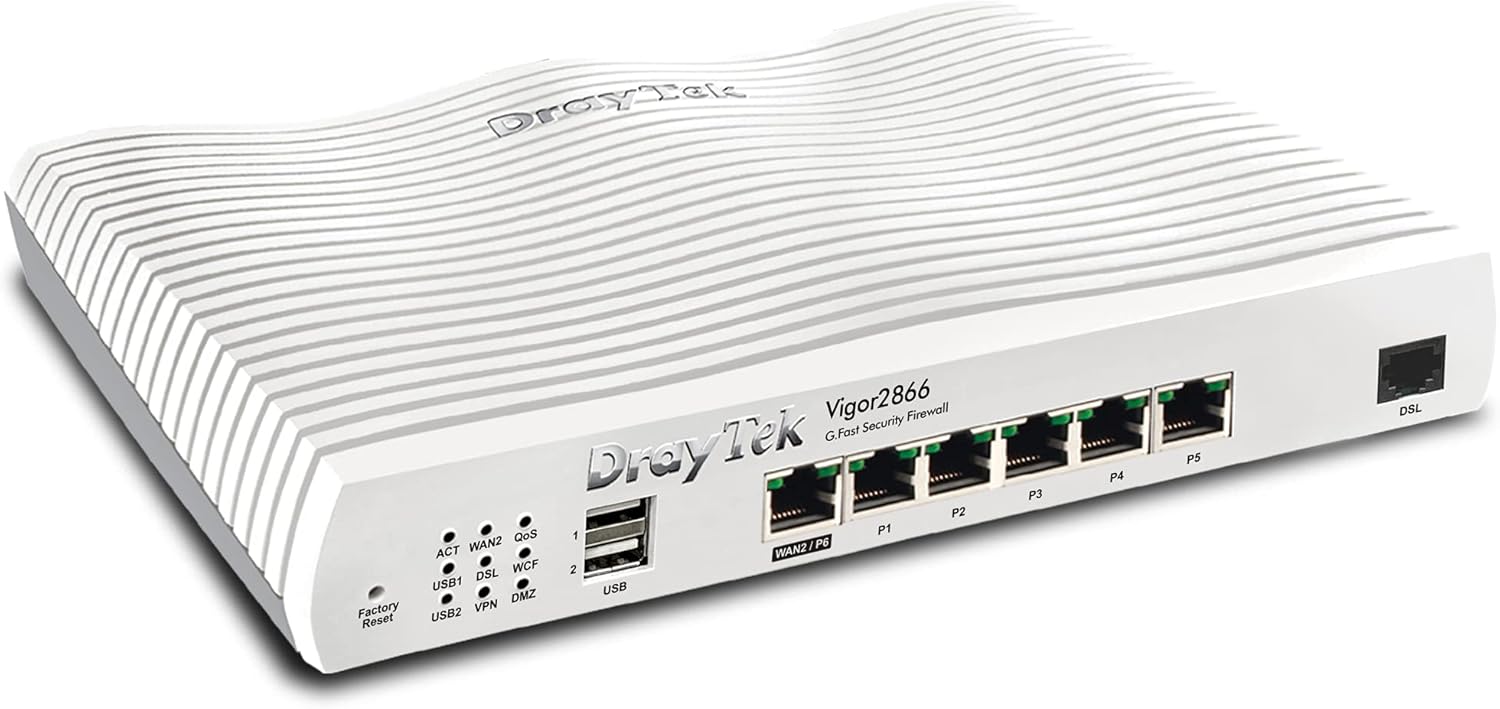
Слика 1: Напред десно view of the DrayTek Vigor 2866 Router. This image shows the compact design and the array of ports on the front panel.

Слика 2: Детално view of the DrayTek Vigor 2866 Router's front panel with labeled ports and indicators.
- 1. Индикатори за статус на LED: Provide visual feedback on the router's operational status, including WAN activity, DSL connection, VPN status, and USB activity.
- 2. USB 2.0 Ports: Two USB ports for connecting external devices such as 3G/4G USB modems for backup WAN or USB storage.
- 3. 1GbE RJ-45 LAN/WAN Port (WAN2/P6): A versatile Gigabit Ethernet port that can function as either a LAN port or a secondary WAN port for fiber (FTTP) or other Ethernet-based internet connections.
- 4. 5x 1GbE RJ-45 LAN Ports (P1-P5): Five Gigabit Ethernet ports for connecting local network devices such as computers, switches, and network-attached storage (NAS).
- 5. G.Fast / VDSL2 / ADSL2+ RJ-11 Port (DSL): The primary WAN port for connecting to G.Fast, VDSL2 (FTTC), or ADSL2+ broadband lines.
3. Поставување
3.1. Почетна хардверска врска
- Поврзување за напојување: Connect the provided power adapter to the router's power input and then to a wall outlet. Ensure the power switch is in the OFF position before connecting, then turn it ON.
- DSL/WAN Connection:
- For G.Fast/VDSL2/ADSL2+ (FTTC): Connect your DSL line from the wall socket to the RJ-11 DSL port on the router.
- For FTTP (Fiber to the Premises) or Ethernet WAN: Connect the Ethernet cable from your Optical Network Terminal (ONT) or existing modem to the WAN2/P6 port on the router.
- LAN врска: Connect an Ethernet cable from one of the LAN ports (P1-P5) on the router to your computer or network switch.
- Antenna Installation (if applicable): If your model includes external antennas, screw them firmly onto the connectors at the rear of the router.
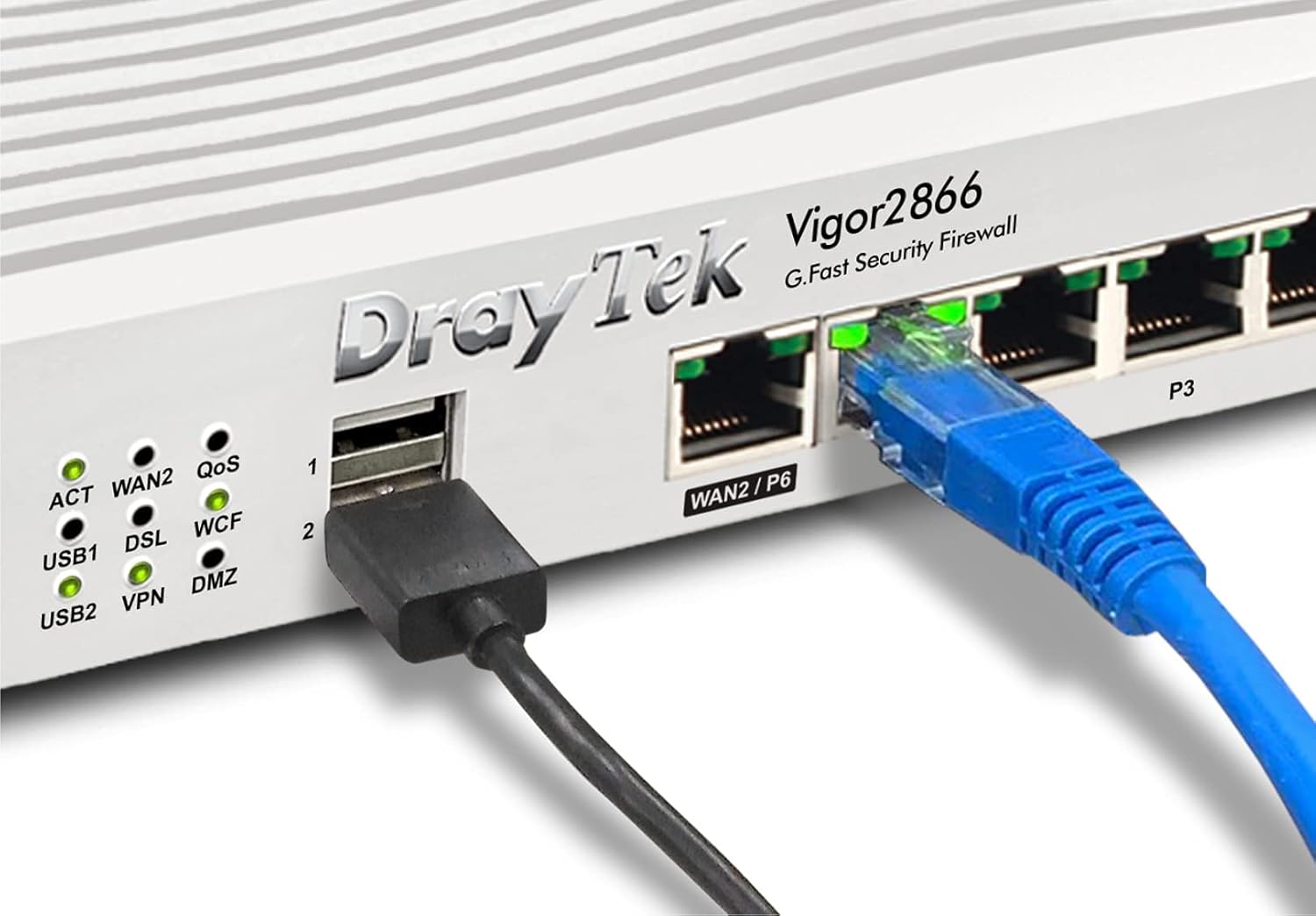
Слика 3: Прample of cable connections to the DrayTek Vigor 2866 Router, showing an Ethernet cable connected to a LAN port and a USB device connected.
3.2. Почетен пристап до конфигурација
За пристап до рутерот web конфигурациски интерфејс:
- Осигурајте се дека вашиот компјутер е поврзан со LAN порт на рутерот.
- Отвори a web прелистувач (на пример, Chrome, Firefox, Edge).
- Во лентата за адреси, внесете ја стандардната IP адреса: 192.168.1.1 и притиснете Enter.
- Ќе се појави барање за најавување. Внесете го стандардното корисничко име и лозинка (обично админ for both, or as specified on a label on the router).
- Follow the on-screen wizard for initial setup, including changing default login credentials and configuring your internet connection (WAN settings).
4. Упатства за работа
4.1. Internet Connection Management
The Vigor 2866 supports multiple WAN interfaces for flexible internet connectivity and load balancing.
- WAN1 (DSL): Configured for G.Fast, VDSL2, or ADSL2+ connections. Access the WAN > Општо поставување menu to configure your ISP details.
- WAN2 (Ethernet): Configured for FTTP or other Ethernet-based connections. Access the WAN > Општо поставување menu to configure IP settings (DHCP, Static IP, PPPoE).
- Load Balance/Failover: Одете до WAN > Load Balance/Route Policy to configure how internet traffic is distributed across multiple WANs or to set up failover for redundancy.
4.2. VPN конфигурација
The router supports various VPN protocols for secure remote access and site-to-site connectivity.
- SSL VPN: For easy and secure remote access for individual users. Configure under VPN and Remote Access > SSL VPN.
- IPsec/PPTP/L2TP VPN: For site-to-site tunnels or traditional remote access. Configure under VPN and Remote Access > LAN to LAN or Remote Dial-in User.
4.3. Firewall and Content Filtering
Enhance network security using the built-in firewall and content filtering features.
- Правила за заштитен ѕид: Define rules to control inbound and outbound traffic under Firewall > Filter Setup.
- Филтрирање содржина: Искористете URL Content Filter, Web Content Filter (WCF), and Application Filter to manage internet access and block undesirable content. Access these features under CSM (Content Security Management).
5. Одржување
5.1. Ажурирања на фирмверот
Regularly update the router's firmware to ensure optimal performance, security, and access to new features.
- Посетете го официјалниот DrayTek webсајт (www.draytek.co.uk/support/downloads) to download the latest firmware for your Vigor 2866 model.
- Пристапете до рутерот web интерфејс.
- Одете до Одржување на системот > Надградба на фирмверот.
- Прелистајте до преземениот фирмвер file and initiate the upgrade process. Do not power off the router during the upgrade.
5.2. Конфигурација на резервна копија и враќање
It is recommended to back up your router's configuration settings before making significant changes or performing firmware updates.
- Резервна копија: Одете на Одржување на системот > Резервна копија на конфигурацијата to save your current settings to your computer.
- Врати: Use the same menu to upload a previously saved configuration file.
5.3. Фабрички ресетирање
If the router becomes unresponsive or you need to revert all settings to their default state, perform a factory reset.
- Ресетирање на софтверот: Одете до System Maintenance > Reboot System and select "Restore to Factory Default Settings".
- Ресетирање на хардвер: With the router powered on, use a paperclip to press and hold the 'Factory Reset' button (located on the front panel, near the USB ports) for approximately 5-10 seconds until the ACT LED starts blinking rapidly. Release the button and wait for the router to reboot.
6 Смена на проблеми
This section addresses common issues you might encounter with your DrayTek Vigor 2866 router.
6.1. Нема интернет конекција
- Проверете ги каблите: Ensure all Ethernet and DSL cables are securely connected to the correct ports on the router and your modem/wall socket.
- LED индикатори: Observe the WAN/DSL LED indicators on the router. If they are off or blinking incorrectly, refer to the LED status guide in the full user manual or DrayTek's support resources.
- ISP Credentials: Verify that your ISP username and password are correctly entered in the router's WAN settings.
- Modem/ONT Status: If using an external modem or ONT, check its status lights to ensure it has an active connection to your ISP.
- Reboot Cycle: Power cycle your modem/ONT, then the router, and finally your computer. Wait a few minutes between each step.
6.2. Не може да се пристапи Web Интерфејс
- IP адреса: Confirm you are using the correct default IP address (192.168.1.1). If you changed it, use the new IP.
- Мрежни поставки: Уверете се дека мрежниот адаптер на вашиот компјутер е поставен автоматски да добива IP адреса (DHCP).
- Заштитен ѕид/Антивирус: Temporarily disable any software firewalls or antivirus programs on your computer that might be blocking access.
- Кеш на прелистувачот: Исчистете ја вашата web кешот и колачињата на прелистувачот или обидете се со друг прелистувач.
- Ресетирање на фабриката: As a last resort, perform a factory reset (see Section 5.3) to revert to default settings, then try accessing the interface again.
6.3. Бавни перформанси на мрежата
- Bandwidth Usage: Проверете го рутерот Управување со пропусниот опсег or Traffic Graph sections to identify any devices or applications consuming excessive bandwidth.
- Поставки за QoS: Review your Quality of Service (QoS) settings under Bandwidth Management > QoS to ensure critical applications are prioritized correctly.
- Фирмвер: Ensure your router's firmware is up to date (see Section 5.1).
- Квалитет на кабел: Use high-quality Ethernet cables (Cat5e or Cat6) for wired connections.
7. Спецификации
| Карактеристика | Опис |
|---|---|
| Име на моделот | Енергија 2866 |
| Број на модел | V2866-K |
| Димензии (В x Ш x Д) | 4.4 x 24.1 x 16.5 cm (1.73 x 9.49 x 6.5 инчи) |
| Тежина | 1.38 кг (3.04 фунти) |
| Интерфејси на WAN | 1x G.Fast/VDSL2/ADSL2+ (RJ-11), 1x Gigabit Ethernet (RJ-45, configurable as LAN/WAN) |
| LAN интерфејси | 5x Gigabit Ethernet (RJ-45) |
| USB порти | 2x USB 2.0 (for 3G/4G modem or storage) |
| VPN тунели | Up to 32 VPN tunnels (IPsec, PPTP, L2TP, SSL VPN) |
| Заштитен ѕид | SPI (Stateful Packet Inspection), DoS/DDoS Prevention, Object-based Firewall |
| Филтрирање содржина | URL Content Filter, Web Content Filter (WCF), Application Filter |
| Управување | Web-based UI, CLI (Telnet/SSH), SNMP, TR-069 (VigorACS) |
| Напојување | Надворешен адаптер за напојување |
| Оперативен систем | RouterOS (Внатрешно) |
8. Гаранција и поддршка
For detailed warranty information, please refer to the warranty card included with your product or visit the official DrayTek webсајт.
For technical support, firmware downloads, and additional resources, please visit the DrayTek support portal:
You may also contact DrayTek customer service through the contact information provided on their webсајт.