1. Вовед
This manual provides essential information for the proper setup, operation, and maintenance of your Digital Persona U.are.u 4500 USB Fingerprint Reader. This device is designed to provide reliable and secure biometric authentication using advanced optical fingerprint scanning technology.
Важна забелешка: This product package includes only the fingerprint reader device. Software, drivers, and detailed manuals are not provided on a physical CD and must be obtained separately or downloaded as part of your specific application's requirements.

Слика 1.1: Пакување на производот
2. Карактеристики
The Digital Persona U.are.u 4500 Fingerprint Reader incorporates several key features for enhanced performance and user experience:
- Optical Scanning Technology: Utilizes advanced optical technology for superior image quality and product reliability.
- High Durability (HD): Engineered for robust performance and longevity.
- Advanced Recognition: Capable of recognizing even challenging fingerprints, including dry, moist, or rough ones.
- Висока резолуција: Features a pixel resolution of 512 dpi for detailed fingerprint capture.
- Сина LED индикатор: A soft, cool blue LED provides visual feedback and blends into various environments.
- Препознавање од 360 степени: Allows for fingerprint capture from any angle, enhancing usability.
- Компактен дизајн: Мал и пренослив за удобна употреба.
- SDK Availability: Compatible with DigitalPersona SDK packages for custom application development.

Слика 2.1: Клучни карактеристикиview
3. Поставување
Follow these steps to set up your Digital Persona U.are.u 4500 Fingerprint Reader:
- Отпакувајте го уредот: Carefully remove the fingerprint reader from its packaging.
- Отстранете ја заштитната фолија: If present, gently peel off any protective film from the sensor surface.
- Поврзете се со компјутер: Plug the USB cable of the fingerprint reader into an available USB port on your computer.
- Инсталација на драјвери: Your operating system may automatically detect and install generic drivers. However, for full functionality, you will need to install the specific drivers and software compatible with the Digital Persona U.are.u 4500. These are typically provided with the application you intend to use (e.g., DigitalPersona Pro Workstation, DigitalPersona Pro Kiosk, DigitalPersona Online, DigitalPersona Personal, or any DigitalPersona SDK packages). Refer to your software's documentation for driver installation instructions.
- Потврдете ја врската: Once drivers are installed, the blue LED on the device should illuminate, indicating it is powered and ready for use.

Слика 3.1: Предна страна View of the Fingerprint Reader

Figure 3.2: USB Cable Connection Point
4. Упатства за работа
To use the Digital Persona U.are.u 4500 Fingerprint Reader for authentication or enrollment:
- Подгответе го прстот: Ensure your finger is clean and free from excessive moisture or dryness. The device is designed to work with dry, moist, or rough fingerprints, but extreme conditions may affect performance.
- Place Finger on Sensor: Gently place the pad of your finger flat onto the illuminated sensor area of the reader. Ensure full contact with the sensor surface.
- Одржување на позицијата: Hold your finger steady on the sensor until the software indicates a successful scan or enrollment. The device supports 360-degree recognition, meaning the orientation of your finger does not significantly impact the scan.
- Follow Software Prompts: Your specific application software will guide you through the enrollment or authentication process, indicating when to place or remove your finger.

Figure 4.1: Finger Placement for 360-Degree Recognition
5. Одржување
Proper maintenance ensures the longevity and optimal performance of your fingerprint reader:
- Чистење на сензорот: Regularly clean the sensor surface with a soft, lint-free cloth. If necessary, slightly dampen the cloth with water or a mild, non-abrasive cleaner. Do not use harsh chemicals, alcohol, or abrasive materials, as these can damage the sensor.
- Избегнувајте гребнатини: Do not use sharp objects or excessive force on the sensor surface, as this can cause scratches and impair performance.
- Складирање: When not in use, store the device in a clean, dry environment away from direct sunlight and extreme temperatures.
6 Смена на проблеми
If you encounter issues with your fingerprint reader, try the following troubleshooting steps:
- Уредот не е препознаен:
- Ensure the USB cable is securely plugged into both the device and the computer.
- Обидете се да го поврзете уредот на друга USB порта.
- Рестартирајте го компјутерот.
- Verify that the necessary drivers are correctly installed. You may need to reinstall them.
- Poor Fingerprint Reading:
- Ensure your finger is clean and dry (or slightly moist, as appropriate).
- Clean the sensor surface as described in the Maintenance section.
- Try different fingers or adjust the placement of your finger on the sensor to ensure full contact.
- Ensure the software you are using is up-to-date and compatible with the U.are.u 4500.
- Blue LED Not On:
- Проверете ја USB-врската и обидете се со друг порт.
- Проверете дали USB-портите на вашиот компјутер работат правилно.
For further assistance, please refer to the support resources provided by Digital Persona or your software vendor.
7. Спецификации
| Спецификација | Вредност |
|---|---|
| Име на моделот | U.are.u 4500 |
| Бренд | BSTUOKEY (Manufacturer: DP) |
| Тип на скенер | Отпечаток од прст |
| Технологија за поврзување | USB |
| Резолуција | 512 dpi |
| Длабочина на боја | 8 bpp |
| Тип на извор на светлина | LED |
| Технологија на оптички сензор | Оптички |
| Тежина на ставката | 4.2 унци (0.12 килограми) |
| Димензии на пакетот | 7.87 x 4.72 x 2.76 инчи |
| Земја на потекло | Кина |
| Датум прв на располагање | 20 јуни 2019 година |
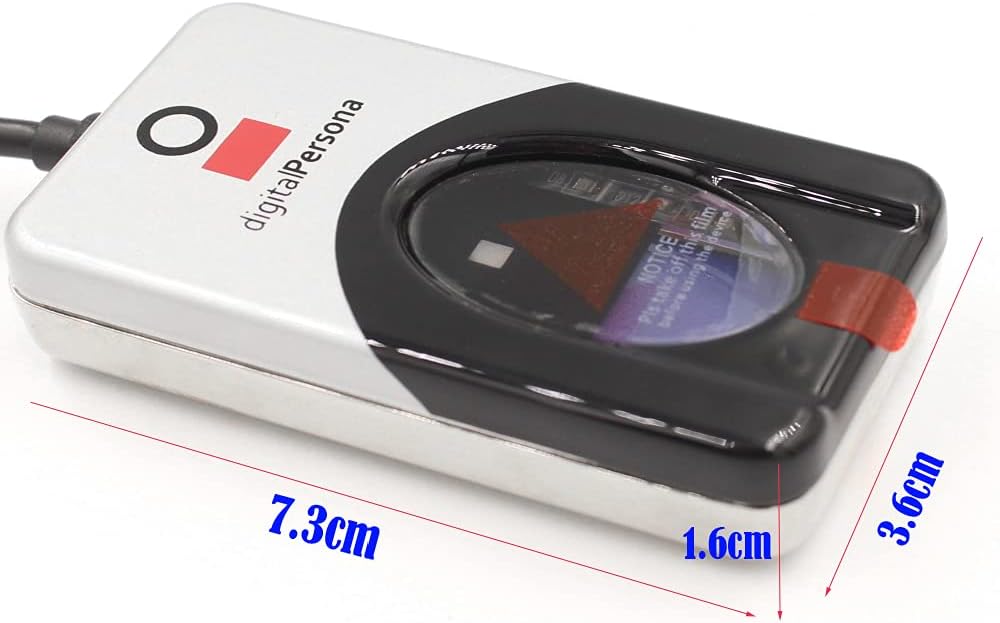
Слика 7.1: Димензии на уредот
8. Гаранција и поддршка
For information regarding product warranty, technical support, or service, please contact the vendor or refer to the official Digital Persona support channels. The device is designed to integrate with various Digital Persona SDK packages, and support for these integrations is typically provided by Digital Persona directly or through your software solution provider.


