
Вовед
This manual provides comprehensive instructions for the setup, operation, maintenance, and troubleshooting of your Avision AD340G Compact High Speed Duplex Document Scanner. Please read this manual thoroughly before using the scanner to ensure proper and safe operation.
Информации за безбедност
Следете ги следниве безбедносни мерки за да спречите повреда и оштетување на скенерот:
- Користете го само адаптерот за напојување што е испорачан со скенерот.
- Не го изложувајте скенерот на вода или прекумерна влажност.
- Поставете го скенерот на стабилна, рамна површина.
- Keep the scanner away from direct sunlight and heat sources.
- Unplug the scanner before cleaning or if it will not be used for an extended period.
Содржина на пакетот
Проверете дали сите артикли се присутни во пакувањето:
- Avision AD340G Document Scanner
- Адаптер за напојување
- USB кабел
- Водич за брз почеток
- Софтверско ЦД (или упатства за преземање)
Производот завршиview
Familiarize yourself with the main components of the Avision AD340G scanner.
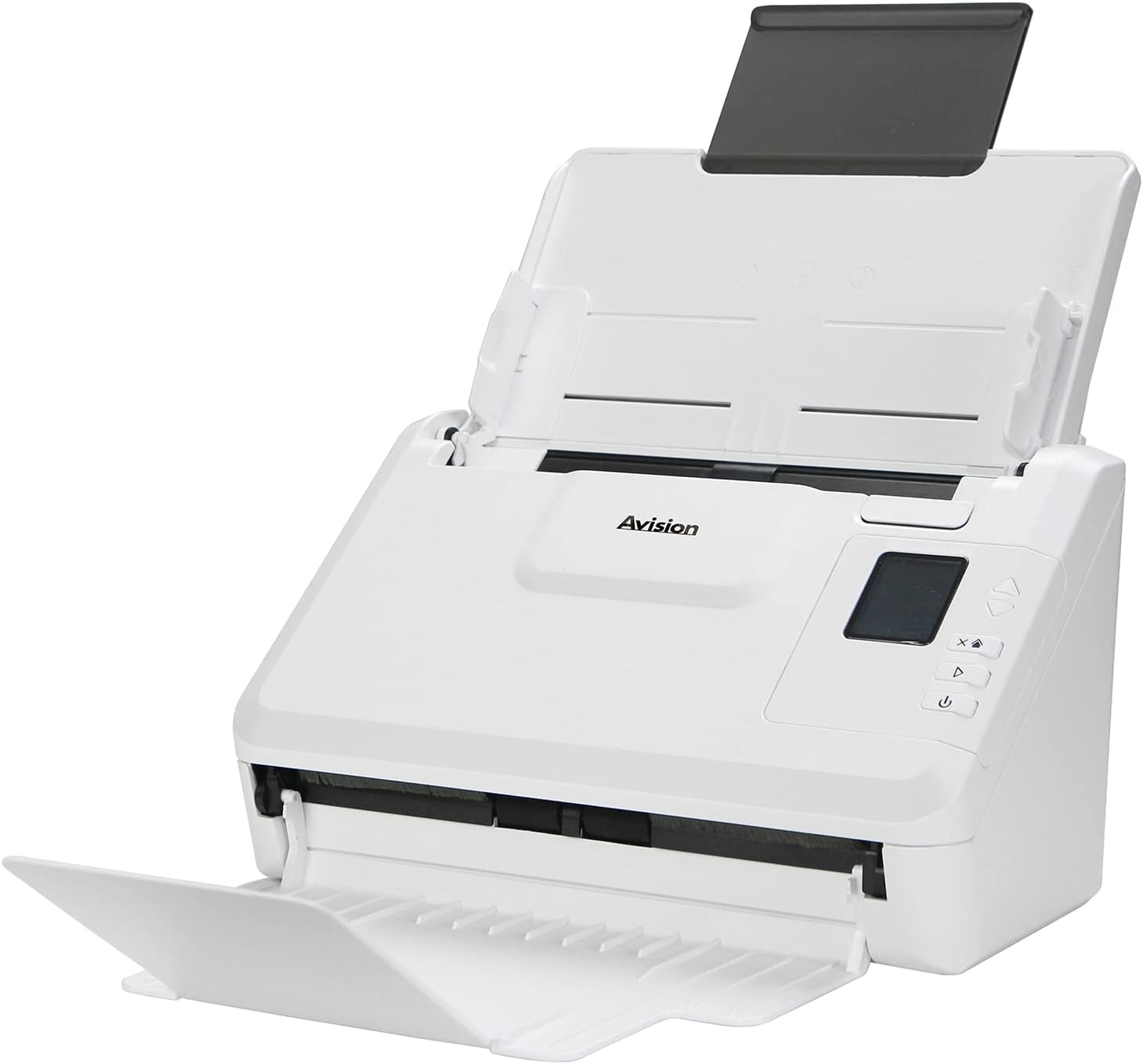
Слика: The Avision AD340G scanner shown with its input and output trays extended, ready for document feeding. This view highlights the compact design and accessible paper path.
- Document Feeder Tray: Каде се вчитуваат документи за скенирање.
- Излезна фиока: Каде се исфрлаат скенираните документи.
- Контролен панел: Buttons and display for scanner operation.
- USB порта: За поврзување со компјутер.
- Приклучок за напојување: За поврзување на адаптерот за напојување.
Поставување
1. Физичко поставување
- Распакувајте го скенерот: Внимателно извадете го скенерот и сите додатоци од пакувањето.
- Поставете го скенерот: Position the scanner on a flat, stable surface with adequate space for the input and output trays.
- Поврзете напојување:
- Connect the power adapter to the scanner's power port.
- Приклучете го адаптерот за струја во штекер.
- Поврзете се со компјутер:
- Поврзете го едниот крај од USB кабелот со USB-портата на скенерот.
- Поврзете го другиот крај на USB-кабелот со достапна USB-порта на вашиот компјутер.
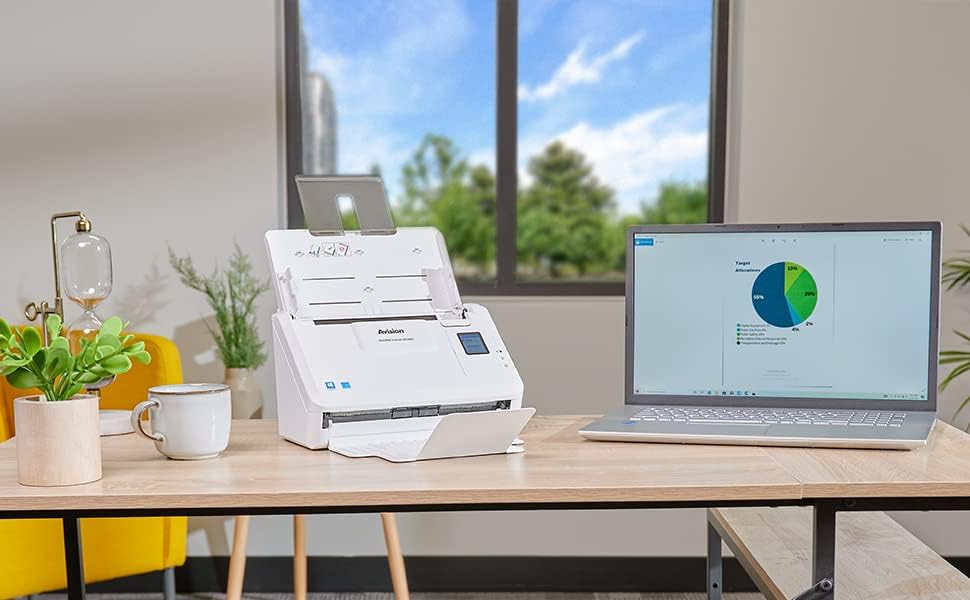
Слика: The Avision AD340G scanner set up on a desk next to a laptop, illustrating a typical connected environment. This shows the scanner's compact footprint when in use.
2. Инсталација на софтвер
Install the necessary drivers and scanning software from the provided CD or by downloading them from the official Avision webсајт.
- Insert the software CD into your computer's CD/DVD drive, or navigate to the Avision support website to download the latest drivers and utilities for the AD340G model.
- Follow the on-screen instructions to complete the installation. This typically includes installing the TWAIN/ISIS drivers and the Avision scanning utility software.
- Рестартирајте го компјутерот доколку се побара.
Работење со скенер
1. Вчитување документи
- Open the document feeder tray and extend the output tray.
- Прилагодете ги водилките за хартија за да одговараат на ширината на вашите документи.
- Place the documents face-down in the input tray, ensuring they are neatly stacked and aligned. The scanner supports up to 50 sheets.

Слика: A hand carefully placing a stack of documents into the input tray of the Avision AD340G scanner, demonstrating the correct loading procedure.
2. Постапка за скенирање
- Вклучете го скенерот со притискање на копчето за вклучување.
- Launch the Avision scanning software on your computer.
- Изберете го посакуваниот професионалец за скенирањеfile (e.g., color, grayscale, black & white, resolution). The AD340G supports duplex scanning (both sides simultaneously).
- Кликнете на копчето „Скенирај“ во софтверот или притиснете го копчето за скенирање на контролната табла на скенерот.
- The scanner will feed and process the documents. Once scanning is complete, the images will appear in the software.
- Review the scanned images, make any necessary adjustments (e.g., rotate, crop), and save them to your desired location and format (e.g., PDF, JPEG, TIFF).
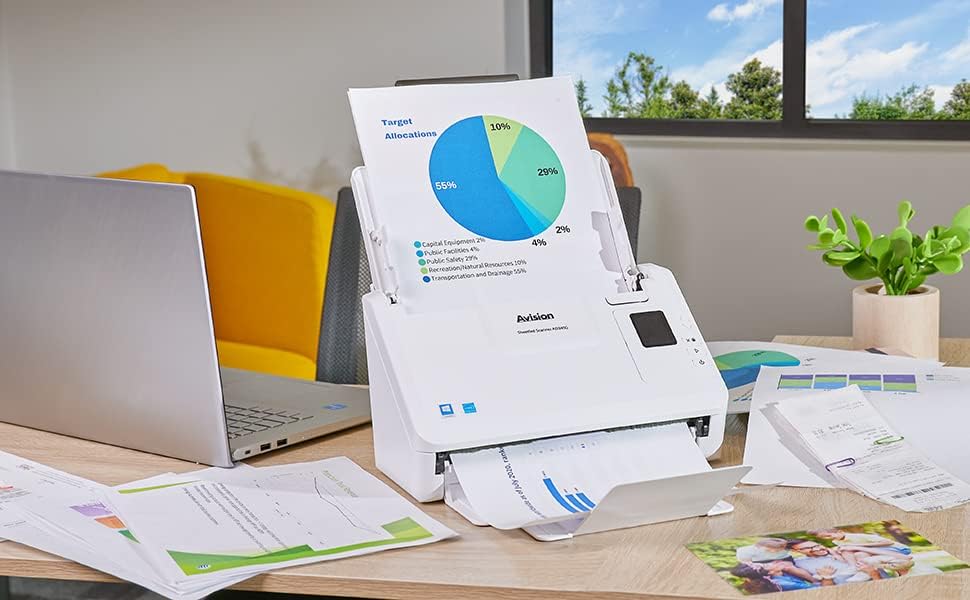
Слика: The Avision AD340G scanner in operation, feeding a document with a pie chart. This illustrates the scanner's ability to handle various document types efficiently.
Одржување
Чистење на скенерот
Редовното чистење обезбедува оптимални перформанси и го продолжува животниот век на вашиот скенер.
- Исклучување и исклучување: Always turn off the scanner and disconnect the power adapter and USB cable before cleaning.
- Чиста надворешност: Wipe the exterior of the scanner with a soft, lint-free cloth lightly dampизмиено со вода или со благ, неабразивен чистач.
- Clean Interior (Rollers and Glass):
- Open the scanner cover to access the rollers and glass scanning surfaces.
- Gently wipe the feed rollers with a clean, lint-free cloth. If necessary, use a small amount of isopropyl alcohol on the cloth for stubborn residue.
- Clean the glass scanning strips with a soft cloth and glass cleaner (non-ammonia based).
- Оставете ги сите компоненти целосно да се исушат пред да го затворите капакот и повторно да го вклучите напојувањето.
Решавање проблеми
| Проблем | Можна причина | Решение |
|---|---|---|
| Скенерот не се вклучува. | Кабелот за напојување не е поврзан; проблем со штекерот. | Проверете дали кабелот за напојување е безбедно поврзан. Обидете се со друг штекер. |
| Documents jam frequently. | Misaligned paper guides; worn rollers; dirty rollers. | Adjust paper guides. Clean the feed rollers. If problem persists, rollers may need replacement. |
| Скенираните слики се заматени или имаат линии. | Dirty scanning glass; incorrect resolution settings. | Clean the scanning glass. Adjust scanning resolution in the software. |
| Скенерот не е откриен од компјутерот. | USB cable disconnected; driver not installed or corrupted. | Check USB cable connection. Reinstall scanner drivers. Try a different USB port. |
Спецификации
Key technical specifications for the Avision AD340G Document Scanner:
- Модел: AD340G
- Тип на скенер: ADF Duplex Document Scanner
- Поврзување: USB
- Резолуција: 600 dpi (оптички)
- Брзина на скенирање: 40 ppm (pages per minute) / 80 ipm (images per minute)
- Длабочина на боја: 48 bits input / 24 bits output
- Стандарден капацитет на листови: 50 листови
- Технологија на оптички сензор: CIS (сензор за слика за контакт)
- Димензии на производот: 11 x 6.1 x 6.5 инчи
- Тежина на ставката: 8 фунти
- Минимални системски барања: Windows XP/7/8/10
Гаранција и поддршка
For warranty information, technical support, or service inquiries, please refer to the warranty card included with your product or visit the official Avision webстраница. Контакт информациите за поддршка на корисници обично може да се најдат на веб-страницата на производителот. webсајт.
Avision Official Webсајт: www.avision.com


