1. Вовед
This manual provides comprehensive instructions for the safe and efficient operation of your CLABEL 220B Thermal Bluetooth Label Printer. This portable, inkless label maker is designed for various applications in small businesses, offices, and homes, supporting label widths from 20mm to 50mm.
2. Содржина на пакетот
Ве молиме проверете дали сите артикли наведени подолу се вклучени во вашиот пакет:
- CLABEL 220B Thermal Bluetooth Label Printer
- 1 Roll of Thermal Labels
- USB кабел за полнење
- Упатство за употреба (овој документ)
3. Производот завршиview
Familiarize yourself with the components of your CLABEL 220B printer.
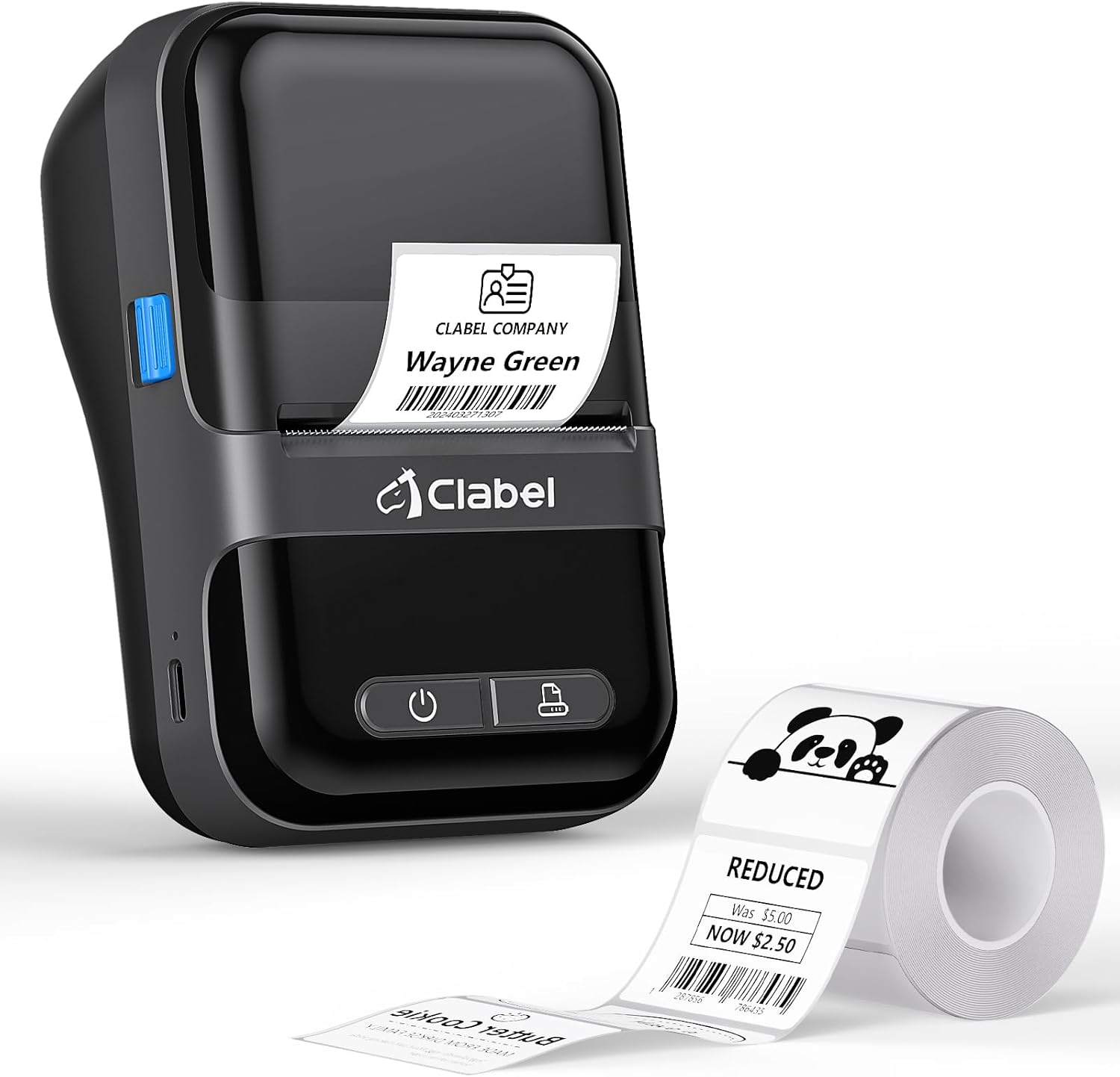
Image: The CLABEL 220B printer, showcasing its compact design, a printed label emerging from the output slot, and a roll of blank labels.
The printer features a power button, a feed button, and a label compartment. The charging port is typically located on the side or back.
4. Поставување
4.1. Полнење на печатачот
Before initial use, fully charge the printer. Connect the provided USB cable to the printer's charging port and to a 5V-2A power adapter (not included) or a computer's USB port. The charging indicator light will show the charging status.
4.2. Вчитување етикети
Follow these steps to correctly load the thermal labels:

Image: Step-by-step guide for label installation, showing opening the cover, setting jam protection, inserting labels, and closing the cover.
- Отворете го капакот на печатачот.
- Set the jam protection to "OPEN" if applicable.
- Insert the label roll into the compartment, ensuring the printable side faces up and the labels are aligned on the left.
- Pull out a small length of labels and close the cover securely.
5. Поврзување
5.1. Mobile Phone Connection (Bluetooth)
The CLABEL 220B supports connection with iOS and Android devices via Bluetooth.

Image: Mobile phone connection steps, illustrating downloading the 'Clabel trade' app, enabling Bluetooth, and connecting to the printer within the app.
- Download the "CLABEL trade" app from your device's app store (iOS App Store or Android Google Play Store).
- Проверете дали Bluetooth е овозможен на вашиот мобилен телефон.
- Open the "CLABEL trade" app and connect to your printer from the device list.
5.2. PC Connection (USB)
For Windows PCs, connect the printer using the provided USB cable.

Image: Computer connection steps, detailing turning on the printer, connecting via USB, downloading the driver/app, and printing.
- Вклучете го печатачот.
- Connect the printer to your computer via the USB cable.
- Download the necessary driver or application from the official CLABEL brand webсајт.
- Open the application, create or select a label, and initiate printing.
6. Упатства за работа
6.1. Using the CLABEL Trade App
The "CLABEL trade" app offers extensive features for label creation and management:
- Access over 30 business label templates.
- Utilize more than 450 common symbols for various applications.
- Create and customize your own label templates.
- Edit and typeset labels with text, barcodes, QR codes, images, and more.
6.2. Batch Printing
The printer supports batch printing, allowing you to import data from Excel tables to print multiple labels efficiently. This feature helps improve printing efficiency by setting the printing quantity without repetitive operations.
6.3. Recommended Label Sizes and Uses
The CLABEL 220B printer supports labels with a width of 20-50mm and a length of 15-100mm, accommodating various styles and applications.

Image: Recommended label sizes for business applications, including price tags, barcodes, logos, and product information (e.g., 40x40mm, 50x50mm).

Image: Recommended label sizes for food applications, such as bakery items, ingredient lists, and price & date labels (e.g., 40x30mm, 50x40mm).

Image: Recommended label sizes for office organization, including labels for letters, addresses, folders, and cables (e.g., 25x78mm, 50x30mm).
7. Одржување
To ensure optimal performance and longevity of your CLABEL 220B printer, follow these maintenance guidelines:
- Чистење на главата за печатење: Regularly clean the thermal print head with an alcohol swab to remove dust or adhesive residue. Ensure the printer is off and cooled down before cleaning.
- Надворешно чистење: Wipe the exterior of the printer with a soft, dry cloth. Avoid using harsh chemicals or abrasive materials.
- Складирање: Чувајте го печатачот на ладно и суво место, подалеку од директна сончева светлина и екстремни температури.
- Нега на батеријата: For long-term storage, charge the battery to about 50% every three months to prevent deep discharge.
8 Смена на проблеми
If you encounter issues with your CLABEL 220B printer, refer to the following common problems and solutions:
| Проблем | Можна причина | Решение |
|---|---|---|
| Печатачот не се вклучува | Проблем со слаба батерија или напојување | Charge the printer fully. Ensure the power button is pressed correctly. |
| Poor print quality (light or spotty) | Dirty print head, incorrect label type, or low battery | Clean the print head. Ensure you are using thermal labels. Charge the printer. Adjust print density in the app if available. |
| Labels are misaligned or jammed | Labels not loaded correctly | Open the cover, re-align the label roll, and ensure it's properly seated. Refer to Section 4.2. |
| Не може да се поврзе преку Bluetooth | Bluetooth off, app issue, or printer not discoverable | Ensure Bluetooth is enabled on your phone and the printer is on. Restart the app and printer. Try re-pairing the device. |
| PC connection issues | Driver not installed, incorrect cable, or software issue | Install the correct driver from the CLABEL website. Ensure the USB cable is functional. Restart PC and printer. |
If the problem persists, please contact CLABEL customer support for further assistance.
9. Спецификации
Key technical specifications for the CLABEL 220B Thermal Bluetooth Label Printer:
- Модел: 220B
- Технологија на печатење: Термички
- Поврзување: Bluetooth, USB
- Излез од печатач: Монохроматски
- Максимална резолуција за печатење: 203 DPI
- Максимална големина на медиум: 25-50mm (width)
- Компатибилни уреди: Smartphones (iOS, Android), Windows XP or above
- Капацитет на батеријата: 2200 mAh
- Потрошувачка на енергија: 2.2 вати (во режим на вклучено)
- Димензии на производот: 4.65" Д x 4.6" Ш x 2.88" В
- Тежина на ставката: 14.1 унци (400 грама)
10. Гаранција и поддршка
The CLABEL 220B Thermal Bluetooth Label Printer comes with a limited warranty. For specific warranty terms and conditions, please refer to the documentation included with your purchase or visit the official CLABEL webсајт.
For additional support, including detailed user guides and installation manuals, please refer to the following resources:
- Official CLABEL Webсајт: CLABEL Store
- Упатство за корисникот (PDF): Преземете го упатството за употреба
- Упатство за инсталација (PDF): Преземи го упатството за инсталација
For technical assistance or customer service inquiries, please contact CLABEL support through their official channels.


