Вовед
This manual provides essential information for setting up, operating, maintaining, and troubleshooting your HP 15 Laptop. Please read this guide thoroughly to ensure proper use and to maximize the performance and longevity of your device.
Започнување: Поставување
1. Unboxing Your Laptop
Carefully remove the laptop and all accessories from the packaging. Ensure all components are present: the HP 15 Laptop, AC power adapter, and any included documentation.
2. Поврзување на напојување
Connect the AC power adapter to the laptop's power port and then plug it into a wall outlet. It is recommended to fully charge the battery before the first use.
3. Првично стартување и поставување на Windows
Press the power button located on the keyboard deck. The laptop will power on, and you will be guided through the Windows 11 Home setup process. Follow the on-screen instructions to configure your language, region, network, and user account.
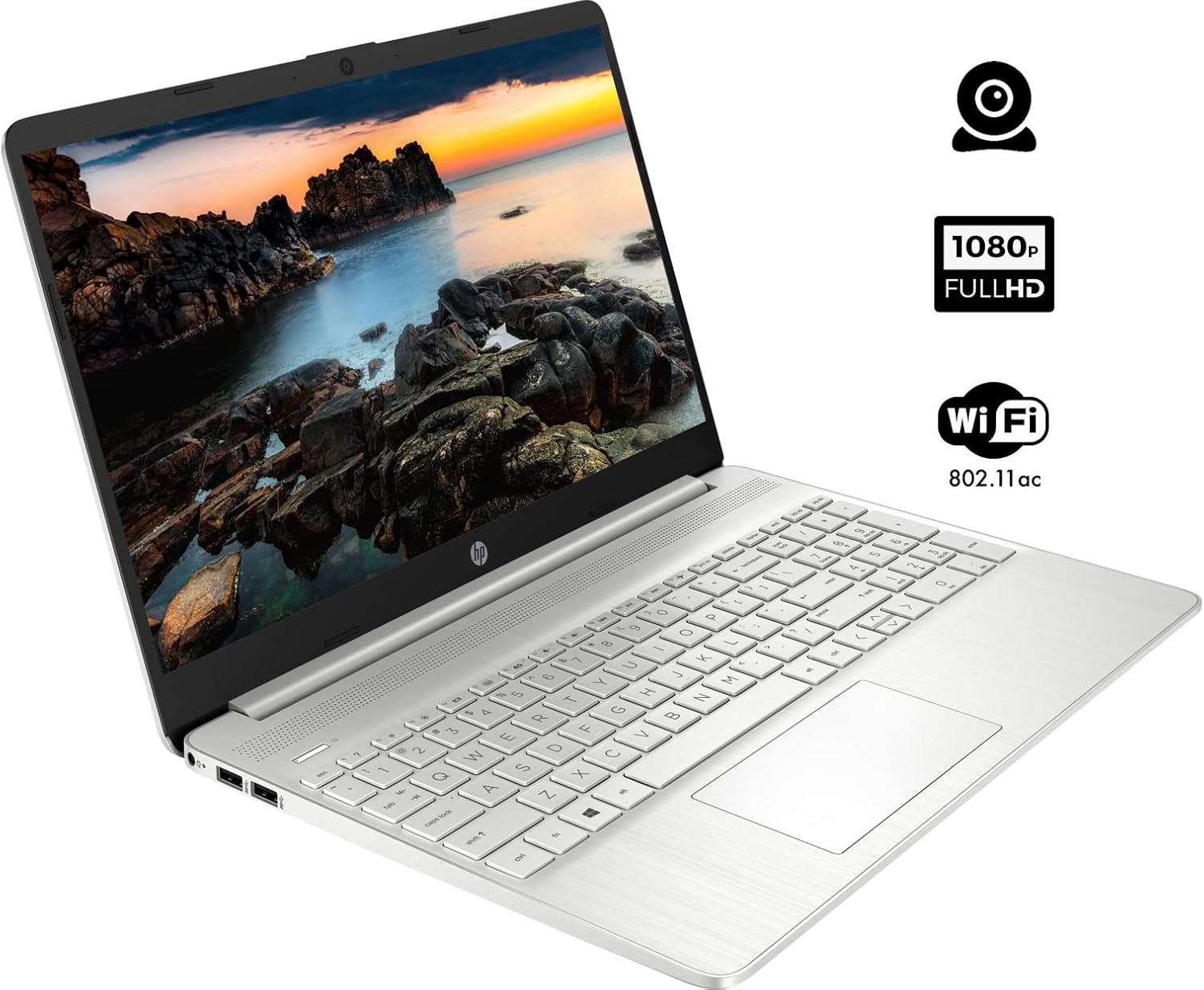
The HP 15 Laptop, ready for initial setup. Ensure the power adapter is connected before first use.
Ракување со вашиот лаптоп
1. Вклучување/исклучување
- Вклучување: Притиснете го копчето за вклучување.
- Исклучено: Click the Windows Start button, then select Напојување > Исклучување. Avoid forced shutdowns by holding the power button unless necessary.
2. Користење на тастатурата и тачпедот
- Тастатура: Use the integrated keyboard for typing. Function keys (F1-F12) often have secondary actions (e.g., volume, brightness) accessible by pressing the Fn клуч истовремено.
- Подлога за допир: The touchpad functions as a mouse. Tap to click, use two fingers to scroll, and pinch to zoom.
3. Поврзување периферни уреди
Your HP 15 Laptop features various ports for connecting external devices:
- USB порти од тип A: За поврзување на стандардни USB уреди како глувци, тастатури или надворешни дискови.
- Приклучок за USB Type-C: A versatile port for data transfer.
- HDMI порта: Поврзете се со надворешни дисплеи или проектори.
- Комбиниран приклучок за слушалки/микрофон: For audio output to headphones or input from a microphone.
- Читач на SD картички: Вметнете SD картичка за пренос на податоци.

This diagram illustrates the various ports available on your HP 15 Laptop, including USB-C, USB-A, HDMI, audio jack, SD card reader, and the power input.
4. Поврзување на Wi-Fi
За да се поврзете на безжична мрежа:
- Кликнете на иконата Wi-Fi во лентата со задачи.
- Изберете ја саканата мрежа од листата.
- Внесете ја мрежната лозинка доколку е побарано, а потоа кликнете на Поврзете се.
5. Поврзување на Bluetooth уреди
За да спарите уред со Bluetooth:
- Одете на Поставки > Bluetooth и уреди.
- Проверете дали Bluetooth е вклучен On.
- Изберете Додадете уред и следете ги упатствата на екранот за да го спарите вашиот уред.

The HP 15 Laptop features an integrated webcam for video calls and supports Wi-Fi 802.11ac for wireless internet connectivity.
Одржување
1. Чистење на вашиот лаптоп
- Екран: Лесно користете мека крпа без влакненца dampсо вода или средство за чистење екрани. Избегнувајте груби хемикалии.
- Тастатура и шасија: Користете мека крпа за бришење на површините. Компримираниот воздух може да ја отстрани прашината помеѓу копчињата.
2. Софтверски ажурирања
Regularly update your operating system and drivers to ensure optimal performance and security. Windows Update typically handles this automatically, but you can manually check via Поставки > Ажурирање на Windows.
3. Нега на батерии
- Избегнувајте често целосно празнење на батеријата.
- If storing the laptop for an extended period, charge the battery to about 50% and store it in a cool, dry place.
Решавање проблеми
Овој дел се однесува на вообичаени проблеми со кои може да се соочите.
Нема моќ
- Осигурајте се дека адаптерот за наизменична струја е безбедно поврзан и со лаптопот и со функционален штекер.
- Проверете дали штекерот е функционален со вклучување на друг уред.
- Ако батеријата е целосно испразнета, оставете ја да се полни неколку минути пред да се обидете да ја вклучите.
Прикажи прашања
- If the screen is blank, try adjusting the brightness using the function keys (e.g., F2/F3).
- Connect an external monitor via the HDMI port to check if the issue is with the laptop's display or graphics output.
- Осигурајте се дека драјверите за графика се ажурирани.
Проблеми со поврзување со Wi-Fi
- Проверете дали Wi-Fi е овозможен во поставките на Windows.
- Рестартирајте го вашиот рутер и модем.
- Ensure you are within range of the Wi-Fi network.
- Check for updated network drivers.
Бавни перформанси
- Затворете ги непотребните апликации што работат во позадина.
- Ensure your operating system and drivers are updated.
- Check for sufficient free space on your storage drive.
- Run a scan for malware or viruses.
Спецификации
Below are the technical specifications for the HP 15 Laptop (Model 15):
| Карактеристика | Детал |
|---|---|
| Големина на приказ на стоечки екран | 15.6 инчи |
| Резолуција на екранот | 1920 x 1080 пиксели (FHD) |
| Процесор | AMD Ryzen 5 5500U (6 јадра, 12 нишки, до 4.0 GHz) |
| RAM меморија | 12 GB DDR4 |
| Хард диск | 1 TB PCIe NVMe M.2 SSD |
| Графички копроцесор | AMD Radeon Integrated Graphics |
| Оперативен систем | Windows 11 Home |
| USB 3.0 порти | 3 (2x Type-A, 1x Type-C) |
| HDMI порта | 1 (HDMI 1.4b) |
| Поврзување | Wi-Fi 802.11ac, Bluetooth |
| Webкамера | Интегриран Webкамера со микрофон |
| Тежина на ставката | 3.74 фунти |
| Димензии на производот | 14.11 x 9.53 x 0.7 инчи |
| Боја | Сребрена |

The HP 15 Laptop in its closed state, highlighting its sleek silver design and the HP branding.
Информации за гаранцијата
Your HP 15 Laptop comes with a standard manufacturer's warranty. For detailed information regarding warranty terms, conditions, and duration, please refer to the warranty card included with your product or visit the official HP support webсајт.
Поддршка
For further assistance, technical support, or to download updated drivers and software, please visit the official HP support webстраница. Исто така, таму можете да најдете често поставувани прашања и форуми на заедницата за дополнителна помош.
Поддршка на HP Webсајт: support.hp.com