1. Вовед
The AeroCool Blade is an ATX semi-tower PC case designed for optimal airflow and aesthetic appeal. It features an RGB front panel with preset lighting modes, a full tempered glass side window, and ample space for component installation. This manual provides essential information for the proper setup, operation, and maintenance of your PC case.
Безбедносни информации: Always disconnect power from your system before performing any installation or maintenance. Handle components with care to avoid damage. Refer to individual component manuals for specific installation instructions.
2. Содржина на пакетот
- AeroCool Blade ATX Semi-Tower PC Case
- 1 x 120mm RGB Rear Fan (pre-installed)
- 3 x 120mm Front Fans (pre-installed)
- Комплет за додатоци (завртки, држачи, врвки за кабел)
3. Поставување и инсталација
3.1 Подготовка на случајот
Carefully remove the case from its packaging. Place it on a stable, flat surface. Remove the tempered glass side panel by unscrewing the thumb screws at the rear of the case and gently pulling the panel away.

Слика 3.1: Внатрешно view of the AeroCool Blade PC case, illustrating the layout for component installation.
3.2 Инсталација на матична плоча
- Install the necessary motherboard standoffs into the motherboard tray according to your motherboard's form factor (ATX, Micro-ATX, Mini-ITX).
- Инсталирајте го I/O штитот во задниот отвор на куќиштето.
- Внимателно поставете ја матичната плоча на држачите, порамнувајќи ги дупките за завртките.
- Прицврстете ја матичната плоча со приложените завртки.
3.3 Инсталација на единицата за напојување (PSU).
The AeroCool Blade supports bottom-mounted PSUs. Slide your PSU into the dedicated compartment at the bottom rear of the case. Secure it with screws from the rear of the case.
3.4 Инсталација на диск за складирање
- 3.5" хард дискови: Install 3.5" hard drives into the drive cage located beneath the PSU shroud.
- 2.5" SSD/HDD дискови: Install 2.5" drives onto the dedicated mounting points on the motherboard tray or behind it.

Слика 3.2: Задна внатрешна страна view, highlighting cable management routes and 2.5-inch drive mounting locations.
3.5 Инсталација на картичка за проширување (GPU)
Remove the necessary expansion slot covers from the rear of the case. Insert your graphics card or other expansion cards into the PCIe slots on your motherboard and secure them with screws.
3.6 Fan and Cooling Installation
The case comes with one 120mm RGB fan pre-installed at the rear and three 120mm fans pre-installed at the front. Ensure all fan cables are connected to appropriate headers on your motherboard or fan controller.

Figure 3.3: A 120mm RGB fan, similar to those pre-installed in the AeroCool Blade case.
3.7 Влезно/Излезни конекции на предниот панел
Connect the front panel cables (USB 3.0, USB 2.0, HD Audio, Power Switch, Reset Switch, LED Switch, Power LED, HDD LED) to the corresponding headers on your motherboard. Refer to your motherboard manual for exact pin configurations.
4. Упатства за работа
4.1 Вклучување
Once all components are installed and connected, replace the side panel. Connect your monitor, keyboard, mouse, and power cable to the PSU. Press the Power button located on the top panel of the case to turn on your system.

Слика 4.1: Горе-предна страна view of the case, indicating the location of the power button and front I/O ports.
4.2 RGB контрола на осветлувањето
The AeroCool Blade features an RGB front panel. Use the dedicated LED button on the top panel to cycle through various preset lighting modes and effects. Pressing the button will change the lighting pattern or color.

Слика 4.2: Предна страна view of the AeroCool Blade case with its distinctive RGB lighting.
4.3 Порти на предниот панел
Горниот панел овозможува лесен пристап до:
- 1 x USB 3.0 порта
- 2 x USB 2.0 порти
- HD Audio output
- Влез за микрофон
Connect your USB devices, headphones, and microphone to these ports as needed.
5. Одржување
5.1 Чистење на филтерот за прашина
Regularly check and clean the dust filters to maintain optimal airflow and prevent dust buildup inside the case. Dust filters are typically located at the top, front, and bottom (under the PSU). Gently remove them and clean with compressed air or rinse with water (ensure they are completely dry before re-installation).
5.2 Надворешно чистење
Избришете ги надворешните површини на куќиштето со мека, дamp крпа. Избегнувајте употреба на груби хемикалии или абразивни материјали што би можеле да ја оштетат завршната обработка или каленото стакло.
6 Смена на проблеми
- Системот не се вклучува:
Ensure the PSU is switched on and properly connected to the wall outlet. Verify all power cables from the PSU are correctly connected to the motherboard and components. Check the front panel power switch connection to the motherboard. - RGB осветлувањето не работи:
Ensure the RGB controller (if applicable) and fan RGB cables are securely connected. Press the LED button on the top panel to cycle through modes. If connected to a motherboard header, check motherboard software settings. - Вентилаторите не се вртат:
Verify that all fan power cables are securely connected to the motherboard fan headers or a fan controller. Check BIOS/UEFI settings for fan speed control. - USB/аудио на предниот панел не работи:
Ensure the USB and HD Audio cables from the front panel are correctly connected to the corresponding headers on your motherboard.
7. Спецификации
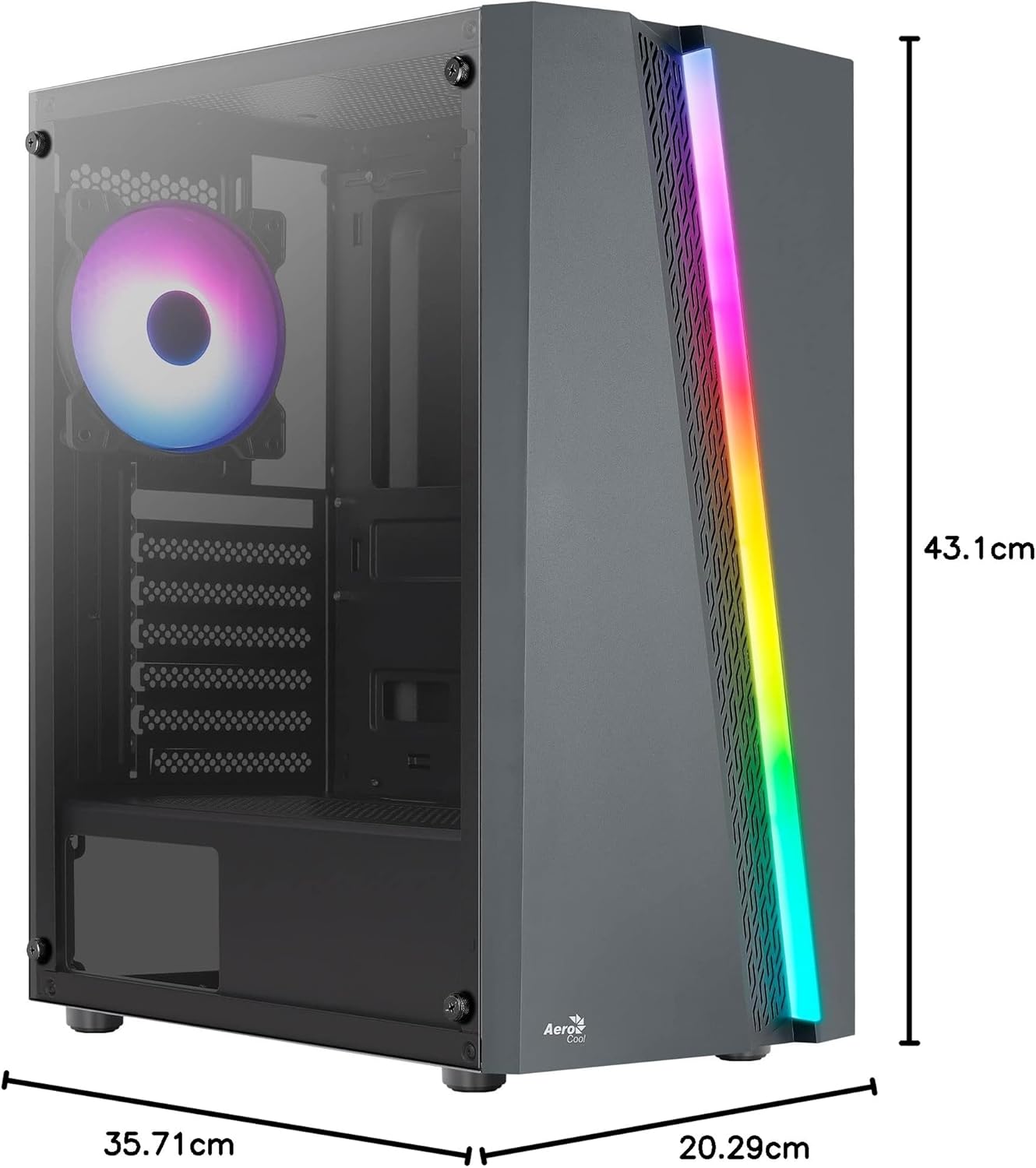
Figure 7.1: Dimensions of the AeroCool Blade PC Case.
| Карактеристика | Спецификација |
|---|---|
| Бренд | AeroCool |
| Име на моделот | BLADEBK |
| Тип на случај | Semi-Tower |
| Компатибилност со матична плоча | ATX, Micro ATX, Mini ITX |
| Материјал | Tempered Glass (Side Panel) |
| Димензии на производот (Д x Ш x В) | 43.1 x 20.3 x 35.7 cm |
| Тежина на ставката | 4 кг |
| Диск Бејс | 2 x 3.5", 2 x 2.5" |
| Чистење на графичкиот процесор | До 307 мм |
| Висина на ладилникот на процесорот | До 155 мм |
| Предни влезни порти | 1 x USB 3.0, 2 x USB 2.0, HD Audio, Mic, LED Control, Power |
| Претходно инсталирани вентилатори | 1 x 120mm RGB Rear, 3 x 120mm Front |
| Метод на ладење | Воздух |
8. Гаранција и поддршка
За информации за гаранцијата и техничка поддршка, ве молиме погледнете го официјалниот AeroCool webлокација или контактирајте го вашиот локален продавач. Зачувајте го доказот за купување за гаранциски барања.
Контакт информации: За понатамошна помош, ве молиме посетете www.aerocool.io.


