1. Вовед
This manual provides essential instructions for the setup, operation, and maintenance of your Mercusys TP-Link MW300RE Wireless Wifi Extender. This device is designed to expand your existing wireless network coverage, eliminating Wi-Fi dead zones and improving signal strength in areas previously difficult to reach.
The MW300RE features a compact design, three external antennas with MIMO technology for enhanced performance, and a smart signal indicator to assist with optimal placement. It supports a single band speed of 300 Mbps and can also function as a wireless adapter via its Ethernet port.
2. Производот завршиview
The Mercusys MW300RE is a wall-plug Wi-Fi range extender. Below are its key components and features:
- Надворешни антени: Three adjustable antennas for optimal signal reception and transmission.
- Приклучок за напојување: Integrated power plug for direct wall outlet connection.
- Копче за WPS/Ресетирање: Used for quick setup (WPS) and factory reset.
- LED сигнал: A multicolor LED indicator that helps determine the best location for the extender.
- Етернет пристаниште: Allows wired connection for devices or to function as a wireless adapter.
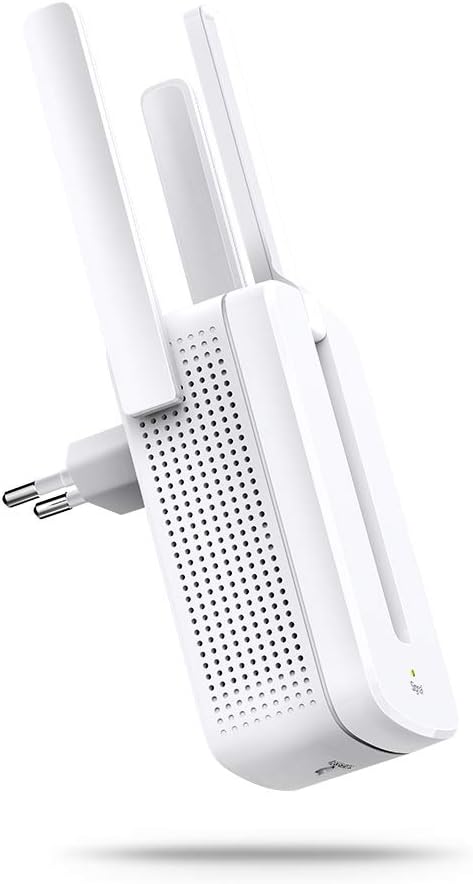
Слика 2.1: Предна страна view of the Mercusys MW300RE Wireless Wifi Extender, highlighting its three external antennas.

Слика 2.2: Назад view of the Mercusys MW300RE, showing the integrated power plug and product information label.

Слика 2.3: Предна страна view of the extender, showing the signal indicator light at the bottom.
3. Поставување
The Mercusys MW300RE can be set up quickly using the WPS (Wi-Fi Protected Setup) button or through a web прелистувач.
3.1. Брзо поставување со помош на копчето WPS
- Вклучување: Plug the MW300RE into an electrical outlet near your main router. Wait for the Power LED to turn solid.
- Притиснете WPS на рутерот: Притиснете го копчето WPS на вашиот главен Wi-Fi рутер.
- Притиснете WPS на екстендерот: Within two minutes, press the WPS button on your MW300RE extender.
- Потврда за поврзување: The Signal LED on the extender should change color (e.g., solid green or orange) to indicate a successful connection. If it does not, try repositioning the extender closer to the router and repeat the steps.

Слика 3.1: Visual guide for WPS button setup, illustrating the sequence of pressing WPS on both the router and the extender.
3.2. Setup via Web Browser (Alternative Method)
- Поврзете се со екстендер: Plug the MW300RE into an electrical outlet. Connect your computer or mobile device to the extender's default Wi-Fi network (e.g., "Mercusys_Extender").
- Пристап Web Интерфејс: Отвори a web browser and enter the default management address (usually
mwlogin.netor an IP address like192.168.1.254). - Најавете се: Креирајте лозинка за најавување кога ќе бидете прашани.
- Следете ги упатствата на екранот: The setup wizard will guide you through selecting your main Wi-Fi network and configuring the extender's settings.
- Премести го продолжувачот: Once configured, unplug the extender and move it to a location between your router and the Wi-Fi dead zone. Ensure the Signal LED indicates a good connection (e.g., solid green).
4. Ракување со продолжетокот
After successful setup, the MW300RE will extend your Wi-Fi coverage. Here's how to ensure optimal operation:
4.1. Оптимално поставување
The location of your extender is crucial for performance. Use the Smart Signal Indicator LED to find the best spot:
- Цврсто зелено: Good connection. The extender is in an ideal location.
- Еднобојна портокалова/црвена: Weak connection. Move the extender closer to your router.
- Исклучено: No connection. Move the extender closer to your router or check the power.
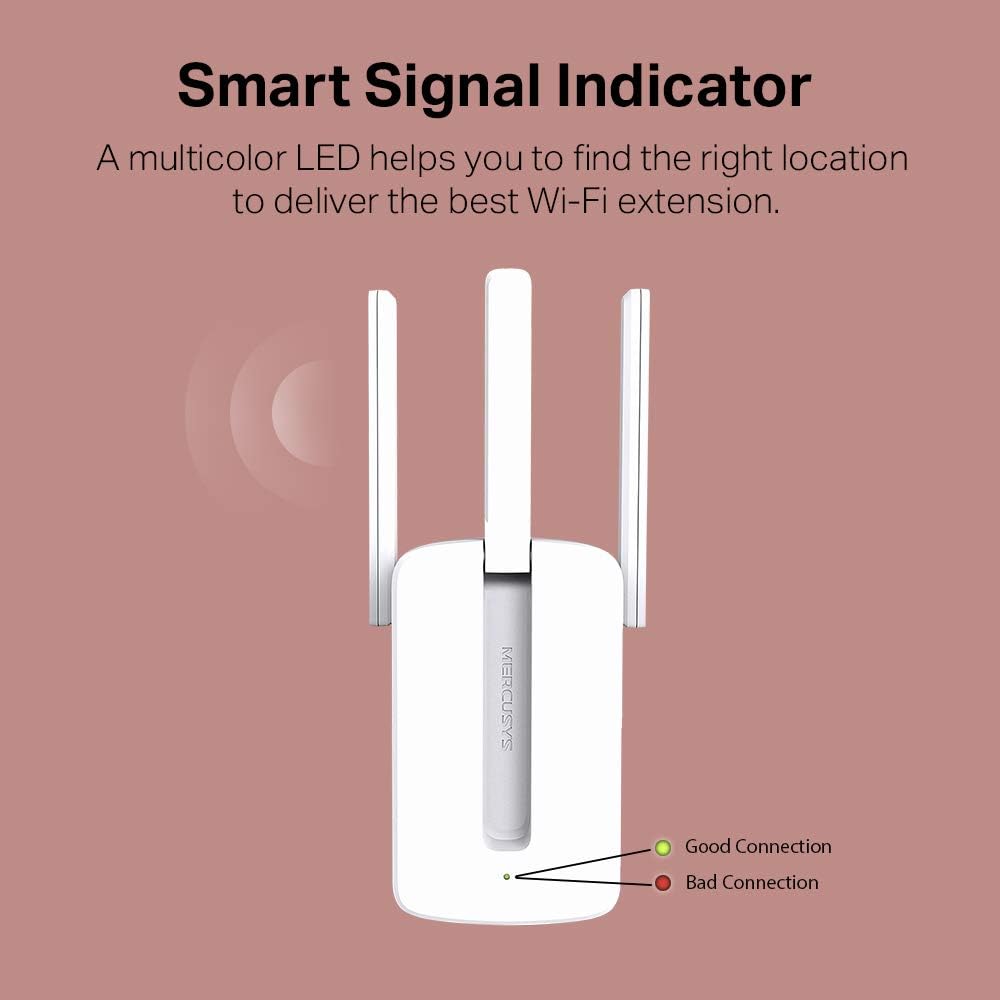
Слика 4.1: Explanation of the Smart Signal Indicator LED colors for optimal placement.

Слика 4.2: Illustration of the MW300RE extending Wi-Fi coverage to eliminate dead zones in a home environment.
4.2. Using the Ethernet Port
The Ethernet port on the MW300RE allows you to connect a wired device, such as a desktop computer, gaming console, or smart TV, to your Wi-Fi network. This functions as a wireless adapter for that device, providing a stable wired connection while still extending Wi-Fi wirelessly.
5. Одржување
To ensure the longevity and optimal performance of your Mercusys MW300RE, follow these maintenance guidelines:
- Одржувајте чисто: Редовно бришете го уредот со мека, сува крпа. Избегнувајте употреба на течни средства за чистење или аеросоли.
- Вентилација: Ensure the ventilation holes are not blocked. Do not place the device in enclosed spaces or cover it with cloth.
- Еколошки услови: Operate the device within its specified temperature and humidity ranges. Avoid direct sunlight, excessive heat, or moisture.
- Ажурирања на фирмверот: Check the official Mercusys website periodically for firmware updates. Updating firmware can improve performance, add features, and fix bugs.
- Циклус на напојување: If you experience persistent issues, try power cycling the device (unplug it, wait 10 seconds, then plug it back in).
6 Смена на проблеми
If you encounter problems with your MW300RE, refer to the following common issues and solutions:
- No Internet Access after Connecting to Extender:
- Проверете дали вашиот главен рутер има пристап до интернет.
- Check the Signal LED on the extender. If it's off or red, reposition the extender closer to the router.
- Обидете се да ги рестартирате и рутерот и проширувачот.
- Ensure the extender is configured correctly. If necessary, perform a factory reset and reconfigure.
- Слаб сигнал или мала брзина:
- Relocate the extender to an optimal position, using the Signal LED as a guide (solid green indicates a good connection).
- Ensure there are no major obstructions (thick walls, metal objects, large appliances) between the router, extender, and your devices.
- Minimize interference from other electronic devices operating on the 2.4 GHz band (e.g., microwaves, cordless phones).
- Поставувањето на WPS не успеа:
- Ensure your router supports WPS and that WPS is enabled.
- Press the WPS button on your router and then on the extender within two minutes.
- If WPS continues to fail, use the web browser setup method (Section 3.2).
- Forgot Management Password:
- Perform a factory reset on the extender. With the extender powered on, use a pin to press and hold the Reset button for about 5 seconds until the LEDs flash. The extender will revert to factory default settings, and you can set a new password during re-setup.
7. Спецификации
| Карактеристика | Детал |
|---|---|
| Бренд | ERУБОВСТВО |
| Модел | MW300RE V4.0 |
| Производител | TP-Link |
| Димензии на производот | 7.48 x 10.15 x 7.58 cm |
| Тежина | 110 гр |
| Безжичен стандард | 802.11n |
| Стапка на пренос на податоци | 300 Mbps |
| Класа на фреквентен опсег | Еднонасочна фреквенција (2.4 GHz) |
| Антени | 3 External Antennas with MIMO Technology |
| Посебни карактеристики | LED Indicator, Access Point Mode |
| Етернет порта | 1x 10/100 Mbps Ethernet Port |
| Компатибилни уреди | Рутер |
| Системски барања | Microsoft Windows 98SE, NT, 2000, XP, Vista or Windows 7, 8, 10, Mac OS, NetWare, UNIX or Linux |
| Вклучени компоненти | MW300RE 300 Mbps Wi-Fi Range Extender, Quick Installation Guide |
8. Гаранција и поддршка
For warranty information, technical support, and additional resources, please refer to the official Mercusys website or the documentation included with your product. You can typically find FAQs, troubleshooting guides, and contact information for customer service there.
The product is manufactured by TP-Link. For the most up-to-date support, visit the Mercusys support page.