1. Вовед
Thank you for choosing the Cherry KW 9100 Slim Wireless Keyboard. This manual provides essential information for setting up, operating, and maintaining your new keyboard. The KW 9100 Slim is designed for both work and home office environments, offering flexible connectivity options and a comfortable typing experience with its silent SX Scissor Mechanism.

Слика 1.1: Од горе надолу view of the Cherry KW 9100 Slim Wireless Keyboard, showcasing неговиот целосен распоред и елегантен дизајн.
2. Содржина на пакетот
Ве молиме проверете дали сите артикли се присутни во вашиот пакет:
- Cherry KW 9100 Slim Wireless Keyboard
- USB кабел (USB-A до USB-C)
- USB Receiver (2.4 GHz RF dongle)
- Упатство за употреба (овој документ)
- Magnetic Support Bar (pre-attached or separate)
3. Клучни карактеристики
- Двојно поврзување: Seamlessly switch between wireless RF (2.4 GHz) and Bluetooth transmission modes.
- Батерија на полнење: Built-in lithium rechargeable battery with USB-C connection for convenient charging.
- SX Scissor Mechanism: Cherry's proprietary low-profile scissor technology ensures a quiet and precise typing experience.
- Slim and Stable Design: Features a thin profile with a built-in metal plate for maximum stability and rigidity.
- Прилагодлив агол на пишување: Includes a removable magnetic support bar for a steeper typing angle preference.
- Статусни LED диоди: Integrated LEDs for CAPS LOCK, NUM, and SCROLL keys.
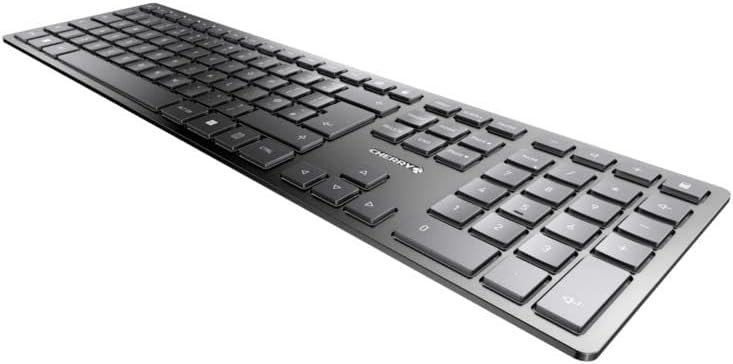
Слика 3.1: Аголна view highlighting the slim profile and key layout of the keyboard.

Слика 3.2: Одблиску view of the keys, illustrating the low-profile design and quiet SX Scissor Mechanism.
4. Поставување и поврзување
4.1 Полнење на тастатурата
Пред првата употреба, се препорачува целосно да ја наполните тастатурата.
- Connect the supplied USB-A to USB-C cable to the USB-C port on the keyboard.
- Connect the other end of the cable to a USB-A port on your computer or a compatible USB power adapter.
- The charging indicator LED will illuminate. The keyboard can be used while charging.

Figure 4.1: Location of the USB-C charging port on the Cherry KW 9100 Slim keyboard.
4.2 Connecting via 2.4 GHz RF Wireless
For a stable and fast wireless connection, use the included USB receiver.
- Locate the USB receiver (dongle) in the package.
- Приклучете го USB приемникот во слободен USB-A порт на вашиот компјутер.
- On the keyboard, locate the connectivity switch (usually on the back or side) and set it to the "RF" or 2.4 GHz icon position.
- Тастатурата треба автоматски да се поврзе со компјутерот.
4.3 Поврзување преку Bluetooth
The keyboard supports Bluetooth connectivity for devices with Bluetooth capabilities.
- On the keyboard, set the connectivity switch to the "Bluetooth" icon position.
- The Bluetooth indicator LED on the keyboard will start blinking, indicating it's in pairing mode.
- На вашиот компјутер или уред, отворете ги поставките за Bluetooth.
- Пребарај за new devices and select "Cherry KW 9100 Slim" from the list.
- Следете ги сите предупредувања на екранот за да го завршите процесот на спарување.
4.4 Attaching the Magnetic Support Bar
The keyboard comes with a magnetic support bar that can be attached to adjust the typing angle.
- Locate the magnetic support bar.
- Align the bar with the magnetic strip on the underside of the keyboard.
- The magnets will snap the bar into place, providing an elevated typing angle.
- To remove, simply pull the bar away from the keyboard.

Слика 4.2: Страна view of the keyboard demonstrating the elevated angle with the magnetic support bar attached.

Figure 4.3: Illustration of how the magnetic support bar attaches to the keyboard's underside.
5. Операција
5.1 Основна употреба
Once connected, the Cherry KW 9100 Slim functions as a standard keyboard. Type as you normally would.

Figure 5.1: A user demonstrating typing on the Cherry KW 9100 Slim keyboard in an office setting.
5.2 Function Keys (F-Keys)
The F-keys (F1-F12) on the top row may have secondary functions accessible by pressing the Fn key simultaneously. Refer to the keycap legends for specific functions such as media control, volume adjustment, or brightness control.
5.3 LED диоди за статус
The keyboard features indicator LEDs for:
- ГОЛЕМИ БУКВИ: Свети кога е активно Caps Lock.
- NUM: Illuminates when Num Lock is active.
- СКРОЛАЈ: Illuminates when Scroll Lock is active.
- Battery/Charging: Indicates charging status or low battery.
6. Одржување
6.1 Чистење на тастатурата
За да го одржите изгледот и функционалноста на тастатурата:
- Исклучете ја тастатурата од компјутерот пред чистење.
- Користете мека крпа без влакненца малку гampнаполнето со вода или благ раствор за чистење.
- Избегнувајте прекумерна влага и не прскајте средства за чистење директно врз тастатурата.
- За прашина и остатоци помеѓу копчињата, користете компримиран воздух.
6.2 Грижа за батерии
The built-in rechargeable battery is designed for long life.
- Recharge the keyboard when the battery indicator shows low power.
- Избегнувајте често целосно празнење на батеријата за да го продолжите нејзиниот век на траење.
- Чувајте ја тастатурата на ладно и суво место ако не ја користите подолг временски период.
7 Смена на проблеми
| Проблем | Можна причина | Решение |
|---|---|---|
| Keyboard not responding (RF) | USB receiver not plugged in; keyboard not in RF mode; low battery. | Ensure USB receiver is securely plugged in. Set keyboard switch to RF mode. Charge the keyboard. Try a different USB port. |
| Тастатурата не реагира (Bluetooth) | Keyboard not in Bluetooth mode; not paired; out of range; low battery. | Set keyboard switch to Bluetooth mode. Ensure keyboard is paired with the device. Move keyboard closer to the device. Charge the keyboard. |
| Копчињата се лепливи или не реагираат | Debris under keys; liquid spill. | Clean the keyboard using compressed air. If liquid spill, disconnect immediately and allow to dry completely before use. Do not attempt to disassemble. |
| Батеријата не се полни | Faulty USB cable or port; power source issue. | Try a different USB cable and/or USB port. Ensure the power source is active. |
8. Спецификации
| Карактеристика | Детал |
|---|---|
| Број на модел | JK-9100US-2 |
| Поврзување | Bluetooth, 2.4 GHz RF (with USB receiver), USB-C (for charging) |
| Опис на тастатурата | Wireless, Full-size |
| Клучен механизам | SX Scissor Mechanism |
| Број на клучеви | 108 |
| Боја | Црното |
| Материјал | Metal (built-in plate) |
| Тежина на ставката | 1.49 фунти (приближно 676 грама) |
| Димензии на пакетот | 18.19 x 6.69 x 1.26 инчи |
| Производител | ЦРЕША |
| Компатибилни уреди | PC |
| Препорачана употреба | Gaming, Office, Work |
9. Гаранција и поддршка
For warranty information and technical support, please refer to the official Cherry website or contact Cherry customer service. Keep your proof of purchase for warranty claims.
Official Cherry Webсајт: www.cherry.de/en/
Услуга за клиенти: Погледнете го делот за контакт на официјалната страница webстраница за детали за регионална поддршка.


