1. Вовед
Thank you for choosing the DELTACO Gaming PM80 Wireless Optical Gaming Mouse. This manual provides essential information for setting up, operating, and maintaining your new gaming mouse. Please read these instructions carefully before use to ensure optimal performance and longevity of your device.
2. Содржина на пакетот
- DELTACO Gaming PM80 Wireless Optical Gaming Mouse
- USB безжичен ресивер
- USB кабел за полнење
- Упатство за употреба
3. Производот завршиview
The DELTACO Gaming PM80 is a high-performance wireless optical gaming mouse designed for precision and comfort. It features 7 programmable buttons, adjustable DPI up to 4800, and customizable illumination. The mouse is rechargeable, ensuring uninterrupted gaming sessions.
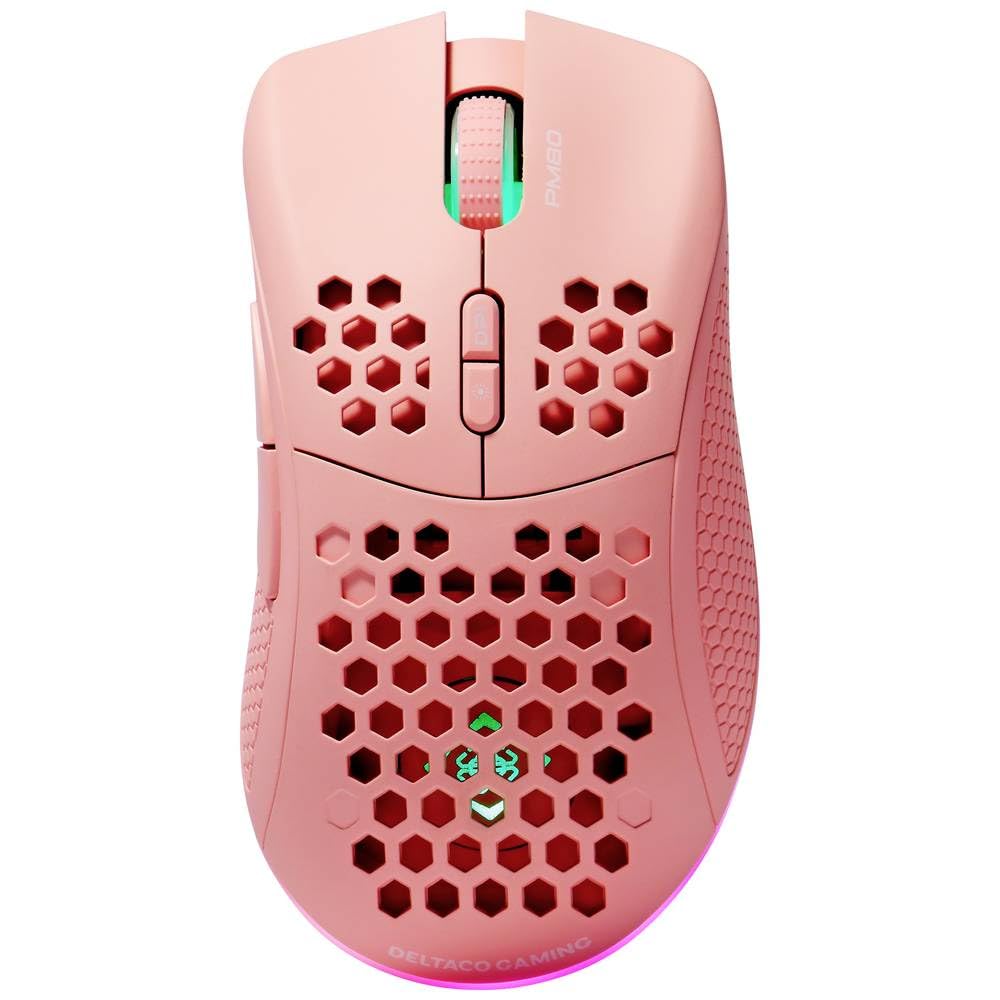
Image: DELTACO Gaming PM80 Wireless Optical Gaming Mouse. This image displays the mouse from a top-down perspective, highlighting its ergonomic design, the central scroll wheel, and the arrangement of its seven buttons.
Функции на копчињата:
- Лево копче за кликнување: Стандардна функција за примарен клик.
- Десен клик на копче: Стандардна функција за секундарен клик.
- Тркало за лизгање: Скролува нагоре/надолу и делува како средно копче за кликнување.
- Копче за циклус на DPI: Changes the mouse's sensitivity (DPI).
- Копче за напред: Навигира напред во web прелистувачи или file истражувачи.
- Копче за назад: Навигира назад во web прелистувачи или file истражувачи.
- Illumination Mode Button: Cycles through different lighting effects or turns illumination on/off.
4. Поставување
4.1. Полнење на глувчето
- Connect the small end of the USB charging cable to the charging port on the front of the mouse.
- Connect the larger end of the USB charging cable to an available USB port on your computer or a USB wall adapter.
- The mouse's illumination will indicate charging status (e.g., breathing effect, specific color). A full charge typically takes 2-3 hours.
- Once fully charged, the illumination may change or turn off. Disconnect the charging cable.
4.2. Connecting the USB Wireless Receiver
- Locate the USB wireless receiver, usually stored in a compartment on the underside of the mouse.
- Извадете го приемникот од неговиот слот за складирање.
- Вклучете го USB безжичниот приемник во слободен USB порт на вашиот компјутер.
- Вашиот компјутер треба автоматски да ги открие и инсталира потребните драјвери. Ова може да потрае неколку моменти.
4.3. Вклучување/исклучување
- Пронајдете го прекинувачот за напојување на долната страна на глувчето.
- Slide the switch to the 'ON' position to power on the mouse. The illumination will light up.
- To conserve battery life, slide the switch to the 'OFF' position when the mouse is not in use for extended periods.
5. Упатства за работа
5.1. Основна употреба
Once connected and powered on, the mouse is ready for use. Move the mouse on a flat surface to control the cursor on your screen. Use the left and right click buttons for primary and secondary actions, and the scroll wheel for navigation.
5.2. Прилагодување на DPI
The DPI (Dots Per Inch) setting determines the sensitivity of your mouse. The DELTACO Gaming PM80 offers multiple DPI levels up to 4800 DPI. To adjust the DPI:
- Притиснете го Копче за циклус DPI (typically located behind the scroll wheel).
- Each press will cycle through the available DPI settings. The mouse's illumination may change color or flash to indicate the current DPI level.
- Select the DPI setting that best suits your preference for gaming or general use.
5.3. Контрола на осветлување
The DELTACO Gaming PM80 features customizable illumination. To change the lighting effects:
- Притиснете го Illumination Mode Button (видете го делот за производот погоре)view за локација).
- Each press will cycle through different lighting modes, such as static colors, breathing effects, or off.
6. Одржување
6.1. Чистење
- Пред чистење, проверете дали глувчето е исклучено од струја.
- Користете мека, сува крпа без влакненца за да ја избришете површината на глувчето.
- За тврдокорна нечистотија, малку дampИзмијте ја крпата со вода или со благ, неабразивен чистач. Избегнувајте прекумерна влага.
- Не користете груби хемикалии, растворувачи или абразивни материјали, бидејќи тие можат да го оштетат финишот на глувчето.
- Користете памук или компримиран воздух за чистење околу тркалото за скролување и процепите на копчињата.
6.2. Складирање
When not in use for extended periods, store the mouse in a cool, dry place away from direct sunlight and extreme temperatures. Ensure the power switch is in the 'OFF' position to preserve battery life.
7 Смена на проблеми
- Глувчето не реагира:
- Проверете дали глувчето е вклучено.
- Проверете дали USB безжичниот приемник е безбедно приклучен во функционален USB порт.
- Verify the mouse battery is charged. Connect the charging cable and try again.
- Обидете се да го вклучите ресиверот во друг USB порт.
- Рестартирајте го компјутерот.
- Доцнење или повремена врска:
- Ensure the mouse is within close proximity to the USB receiver (ideally within 10 meters).
- Avoid placing the receiver near other wireless devices or sources of interference (e.g., Wi-Fi routers, cordless phones).
- Осигурајте се дека глувчето е целосно наполнето.
- Движењето на курсорот е неправилно или непрецизно:
- Исчистете го оптичкиот сензор на долната страна од глувчето со мека, сува крпа.
- Уверете се дека го користите глувчето на соодветна површина (на пр., подлога за глувче). Избегнувајте површини што рефлектираат многу или се проѕирни.
- Adjust the DPI setting to a lower sensitivity if the cursor is too fast.
- Осветлувањето не работи:
- Проверете дали глувчето е вклучено.
- Press the Illumination Mode Button to cycle through modes, ensuring it's not set to 'off'.
- Check battery level; low battery might disable illumination.
8. Спецификации
| Карактеристика | Детал |
|---|---|
| Бренд | DELTACO GAMING |
| Број на модел | ГАМ-120-П |
| Поврзување | Безжичен (USB ресивер) |
| Тип на сензор | Оптички |
| DPI | До 4800 DPI (прилагодливо) |
| Број на копчиња | 7 |
| Ориентација на рацете | Во право |
| Осветлување | Да |
| Може да се полни | Да |
| Потребни се батерии | No (Internal Rechargeable) |
9. Гаранција и поддршка
For warranty information and technical support, please refer to the warranty card included with your product or visit the official DELTACO Gaming webстраница. Зачувајте го доказот за купување за какви било гаранциски побарувања.