1. Вовед
Welcome to the instruction manual for your Zenwire USB-C Hub Adapter EB7. This guide provides essential information for setting up, operating, and maintaining your device to ensure optimal performance.
The Zenwire EB7 is a versatile 8-in-1 USB-C hub designed to expand the connectivity of your USB-C enabled devices. It offers a comprehensive range of ports for display output, high-speed data transfer, stable wired networking, and efficient power delivery.

Слика 1: The Zenwire USB-C Hub Adapter EB7, shown alongside its packaging, highlighting its compact design and multiple connectivity options.
2. Карактеристики на производот
The Zenwire EB7 USB-C Hub Adapter offers a robust set of features to enhance your device's connectivity:
- Advanced Display Output: Supports Display Port resolutions up to 8K at 60Hz, 4K at 144Hz, 2K WQHD at 144Hz, and Full HD at 240Hz.
- Брз етернет: Обезбедува стабилна жична мрежна врска.
- Испорака на енергија 3.0: Supports up to 100W for efficient charging of your host device.
- Повеќе USB порти: Includes 2x USB 3.0 and 1x USB 2.0 ports for various peripherals.
- Интегриран читач на картички: Features dedicated slots for SD and Micro SD memory cards.
- Компактен и пренослив: Lightweight design (approximately 61 grams) for easy transport.
- Издржлива конструкција: Сместен во робусна алуминиумска кутијаasing.
- Широка компатибилност: Works with Windows, macOS (including Macbook M1/M2), Linux, iOS, and Android devices.

Слика 2: Крупен кадар view of the Zenwire USB-C Hub Adapter EB7, demonstrating its various ports in use with connected USB drives and an HDMI adapter, along with SD and Micro SD cards.
3. Содржина на пакетот
Ве молиме осигурајте се дека сите артикли се присутни во вашиот пакет:
- Zenwire USB-C Hub Adapter EB7
- Упатство за употреба (овој документ)
4. Уредот завршиview и порти
The Zenwire EB7 hub integrates the following ports:
- 1x Display Port: Supports high-resolution video output up to 8K@60Hz, 5K@120Hz, 4K@144Hz, 2K WQHD@144Hz, and Full HD@240Hz.
- 2x USB 3.0 порти: For connecting high-speed USB peripherals and data transfer.
- 1x USB 2.0 порт: Ideal for connecting standard USB devices such as keyboards, mice, or webкамери.
- 1x USB-C Power Delivery (PD) Port: Allows charging of your host device with up to 100W power input.
- 1x слот за SD картичка: For standard Secure Digital memory cards.
- 1x Micro SD Card Slot: For smaller Micro Secure Digital memory cards.
- 1x Fast Ethernet (RJ45) Port: Provides a stable wired network connection at speeds up to 100 Mbps.

Слика 3: Zenwire USB-C Hub Adapter EB7 with all its ports clearly labeled for identification.
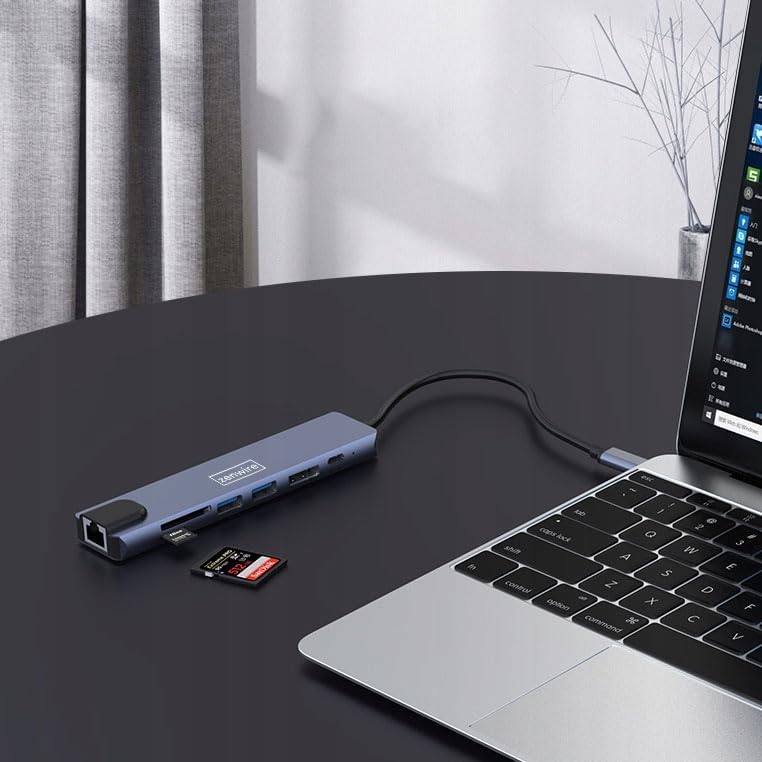
Слика 4: The Zenwire USB-C Hub Adapter EB7 connected to a laptop, with an SD card clearly inserted into its slot, demonstrating the card reader function.
5. Водич за поставување
Follow these steps to set up your Zenwire EB7 hub:
- Поврзете го Hub: Plug the USB-C connector of the Zenwire EB7 hub firmly into an available USB-C port on your laptop, tablet, or smartphone. Ensure the USB-C port on your host device supports DisplayPort Alternate Mode for video output.
- Поврзете периферни уреди:
- Прикажи: Connect a Display Port cable from the hub's Display Port to your external monitor or TV.
- USB-уреди: Plug your USB devices (e.g., mouse, keyboard, USB drive) into the USB 3.0 or USB 2.0 ports.
- Мемориски картички: Вметнете ја вашата SD или Micro SD картичка во соодветниот слот.
- Мрежа: Поврзете етернет кабел со RJ45 портата за стабилна жична интернет конекција.
- Испорака на енергија: If your host device requires charging, connect your USB-C power adapter to the hub's USB-C PD port. This allows your device to charge while using the hub.
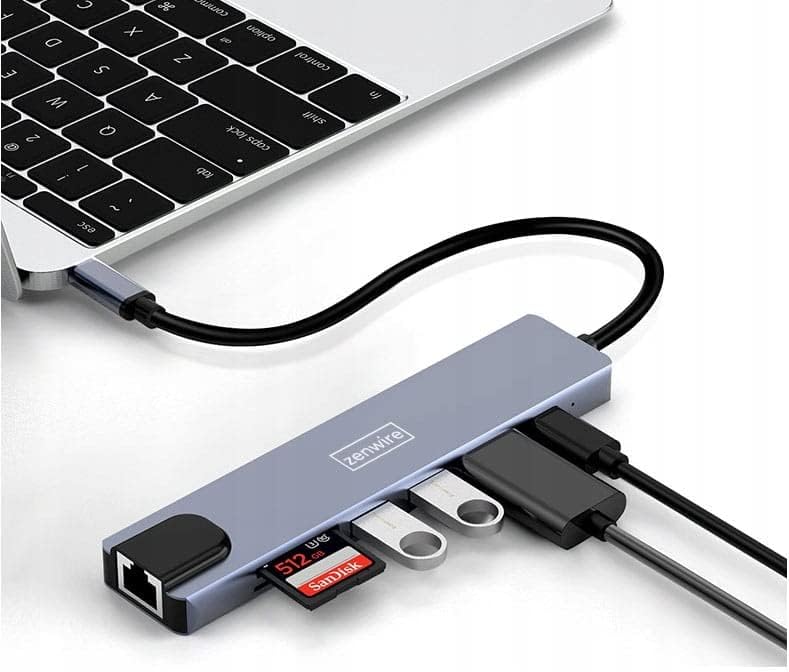
Слика 5: The Zenwire USB-C Hub Adapter EB7 connected to a laptop, showcasing its functionality with multiple USB flash drives and an SD card inserted into its respective slots.

Слика 6: The Zenwire USB-C Hub Adapter EB7 connected to a laptop, with a power adapter plugged into the hub's Power Delivery port and a power strip, illustrating its charging capability.
6. Упатства за работа
6.1 Излез на екранот
The Display Port allows you to connect an external monitor or projector. The hub supports various resolutions and refresh rates. Ensure your display and Display Port cable support the desired resolution and refresh rate for optimal performance.
- Режим на огледало: Duplicate your host device's screen onto the external display.
- Продолжен режим: Extend your desktop across multiple screens, allowing for more workspace.
To configure display settings (e.g., resolution, refresh rate, mirror/extend), refer to your operating system's display preferences (e.g., Windows Display Settings, macOS System Preferences).

Слика 7: A laptop connected to a large external monitor via the Zenwire USB-C Hub Adapter EB7, illustrating its display output capability for an extended or mirrored desktop.
6.2 Пренос на податоци
Utilize the USB 3.0 ports for high-speed data transfer with compatible devices such as external hard drives or high-speed flash drives. The USB 2.0 port is suitable for standard peripherals that do not require high bandwidth.
6.3 Функционалност на читачот на картички
Insert your SD or Micro SD cards into their respective slots. The cards will appear as removable drives on your host device, allowing you to access, transfer, and manage files.
6.4 мрежно поврзување
The Fast Ethernet port provides a stable wired network connection. Once an Ethernet cable is connected, your host device should automatically detect the network and establish an internet connection.
6.5 Испорака на енергија
The USB-C PD port allows you to charge your host device while simultaneously using the hub's other functions. Connect your original USB-C power adapter to this port. The hub supports up to 100W power delivery, ensuring efficient charging for most compatible devices.
7. Компатибилност
The Zenwire EB7 USB-C Hub Adapter is designed for broad compatibility with various devices and operating systems:
- Оперативни системи: Windows, macOS (including Macbook M1/M2), Linux, iOS (for compatible iPad models), Android (for compatible smartphones and tablets, including Samsung DEX).
- Уреди: Laptops, tablets, and smartphones equipped with a full-featured USB-C port that supports DisplayPort Alternate Mode and Power Delivery.

Слика 8: The Zenwire USB-C Hub Adapter EB7 connected to both a smartphone and a tablet, highlighting its compatibility with mobile devices for expanded connectivity.
8. Спецификации
| Карактеристика | Детал |
|---|---|
| Display Port Resolution | 8K@60Hz, 5K@120Hz, 4K@144Hz, 2K WQHD@144Hz, Full HD@240Hz |
| USB порти | 2x USB 3.0, 1x USB 2.0 |
| Читач на картички | SD Card Slot, Micro SD Card Slot |
| Етернет | Fast Ethernet (100 Mbps) |
| Испорака на енергија | USB-C PD 3.0, up to 100W |
| Димензии (Д x Ш x В) | Прибл. 142 mm x 32.4 mm x 11 mm |
| Должина на кабелот | Прибл. 150 мм |
| Тежина | Прибл. 61 грама |
| Материјал | Алуминиум |
| Боја | Space Grey |
| Поддржани оперативни системи | Windows, macOS, Linux, iOS, Android |

Слика 9: A technical diagram illustrating the precise dimensions of the Zenwire USB-C Hub Adapter EB7, including its length, width, height, and cable length.
9. Одржување
To ensure the longevity and optimal performance of your Zenwire EB7 hub, please follow these maintenance guidelines:
- Чистење: Keep the hub clean and free from dust. Use a soft, dry, lint-free cloth for cleaning. Avoid using liquid cleaners or abrasive materials.
- Еколошки услови: Избегнувајте изложување на уредот на екстремни температури, висока влажност или директна сончева светлина.
- Ракување: Handle the hub with care. Do not drop it or subject it to strong impacts.
- Расклопување: Do not attempt to disassemble or repair the hub yourself. This may void your warranty and could cause damage.
- Складирање: Disconnect the hub from your devices and store it in a cool, dry place when not in use for extended periods.
10 Смена на проблеми
If you encounter issues with your Zenwire EB7 hub, please refer to the following troubleshooting tips:
10.1 Нема излез на екранот
- Проверка на врската: Ensure the USB-C connection to your host device is secure and fully inserted.
- Проверка на кабел: Verify that the Display Port cable is correctly connected to both the hub and the external monitor. Try a different cable if available.
- Поддршка за хост уреди: Потврдете дека USB-C портот на вашиот домаќин уред поддржува видео излез (алтернативен режим на DisplayPort). Не сите USB-C порти ја имаат оваа можност.
- Влез за монитор: Ensure your monitor is set to the correct input source (e.g., Display Port).
- Ажурирање на возачот: Update your graphics drivers on your host device to the latest version.
10.2 USB уредите не се препознаваат
- Правилно вметнување: Ensure the USB devices are properly inserted into the hub's ports.
- Тест за директна врска: Обидете се да го поврзете USB-уредот директно со вашиот домаќин уред за да ја потврдите неговата функционалност.
- Потребни за напојување: Some high-power USB devices may require external power. Ensure the hub's Power Delivery port is connected to a power source if needed.
10.3 Бавна брзина на мрежата
- Ограничување на брзината: The Fast Ethernet port supports speeds up to 100 Mbps. If you require Gigabit Ethernet speeds, this hub may not meet that requirement.
- Кабел и поврзување: Check your Ethernet cable for damage and ensure a secure connection to both the hub and your router/modem.
- Ажурирање на возачот: Осигурајте се дека мрежните драјвери се ажурирани на вашиот домаќин уред.
10.4 Host Device Not Charging
- Поврзување со адаптер за напојување: Ensure your USB-C power adapter is connected to the hub's USB-C PD port.
- Функционалност на адаптерот за напојување: Verify that your power adapter is functional and provides sufficient wattage (до 100W поддржано од центарот).
- Поддршка за хост уреди: Проверете дали вашиот домаќин уред поддржува полнење преку неговиот USB-C порт.
11. Гаранција и поддршка
For detailed warranty information and technical support, please refer to the official Zenwire website or contact your retailer. It is recommended to retain your proof of purchase for any warranty claims.