1. Вовед
The PikDik Mini Portable Photo Printer PD-Q2 is a compact thermal printer designed for on-the-go printing. It connects via Bluetooth to compatible Android and iOS devices, allowing users to print photos, labels, lists, and more without the need for ink cartridges. This manual provides essential information for setting up, operating, maintaining, and troubleshooting your PD-Q2 printer.
2. Информации за безбедност
- Не го изложувајте печатачот на вода или прекумерна влага.
- Avoid extreme temperatures. Operate and store the printer within recommended environmental conditions.
- Користете го само испорачаниот кабел за полнење и препорачаните извори на енергија.
- Да се чува подалеку од дофат на деца.
- Не обидувајте се сами да го расклопите или поправите печатачот. Контактирајте ја службата за корисничка поддршка за помош.
3. Содржина на пакетот
Ве молиме проверете го пакувањето за следните ставки:
- PikDik Mini Portable Photo Printer PD-Q2
- Кабел за полнење USB Type-C
- Roll of Thermal Photo Paper
- Упатство за употреба
4. Производот завршиview
The PD-Q2 printer features a compact design with a single power/function button and a paper output slot. It utilizes thermal printing technology, eliminating the need for ink. The device is powered by a built-in rechargeable lithium battery.
5. Водич за поставување
5.1 Полнење на печатачот
Before first use, fully charge the printer. Connect the provided USB Type-C cable to the printer's charging port and a compatible USB power adapter. The LED indicator will show charging status.
5.2 Вчитување на термичка хартија
- Open the printer's paper compartment cover.
- Insert a new roll of thermal paper, ensuring the printing side faces the print head.
- Pull a small length of paper out of the slot and close the cover securely.
5.3 Инсталација на апликација и Bluetooth поврзување
The PikDik PD-Q2 printer requires the "Meta Print" application for operation. Follow these steps to connect your device:
- Вклучете го печатачот: Притиснете и задржете го копчето за вклучување додека не светне индикаторската ламбичка.
- Download and Install the "Meta Print" APP: Пребарај за "Meta Print" on your smartphone's app store (Google Play for Android or App Store for iOS) and install it.
- Овозможи Bluetooth: On your phone or tablet, go to your device's settings and ensure Bluetooth is turned on.
- Connect in the APP: Open the "Meta Print" app. The app will guide you to link the printer via Bluetooth. Select the PD-Q2 from the list of available devices.
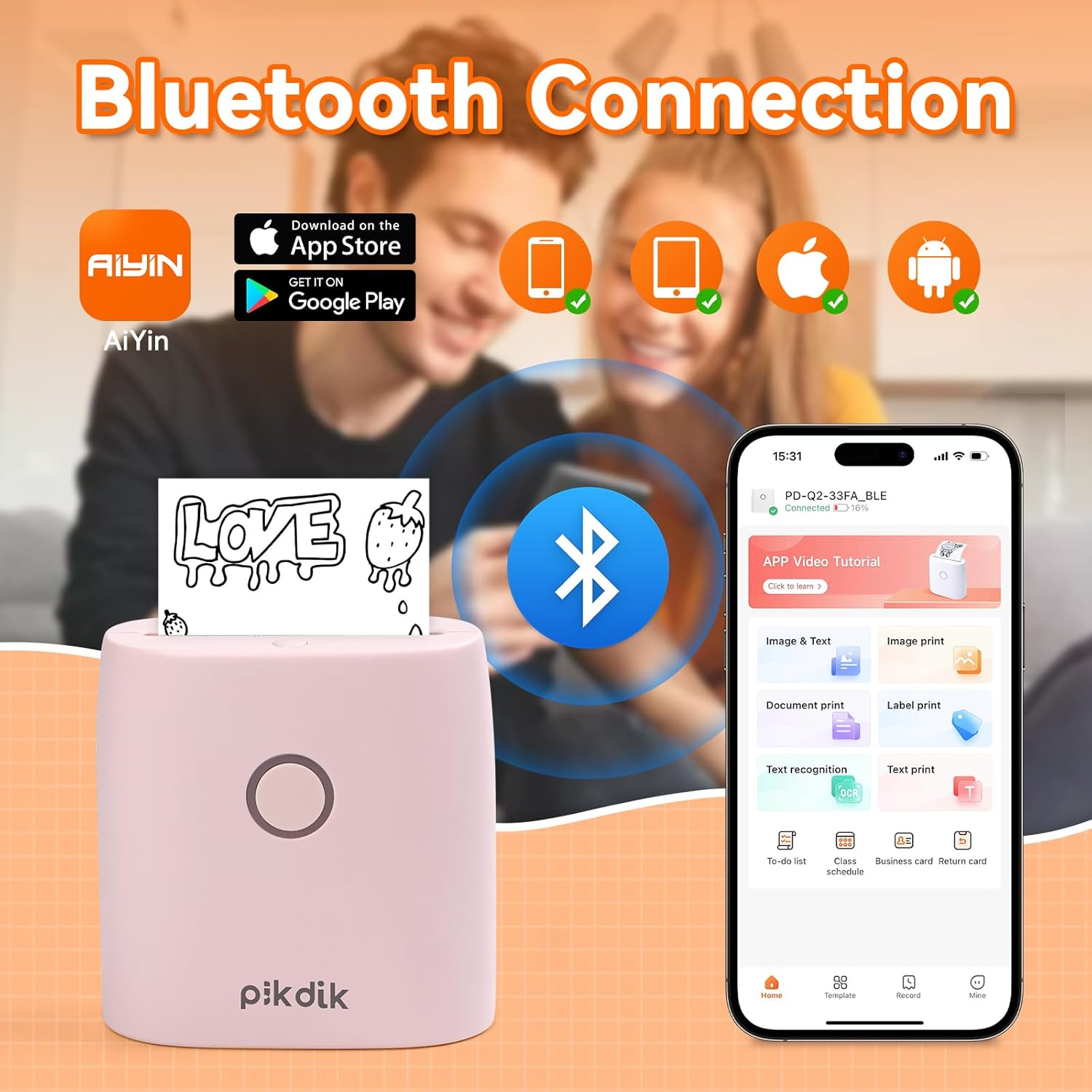
Image: The printer connects to your smartphone via Bluetooth using the Meta Print app, available on both Android and iOS.
6. Упатства за работа
6.1 Printing Content
Once connected to the "Meta Print" app, you can select various content types for printing:
- Image & Text: Print photos, graphics, or combine them with text.
- Печатење на документ: Print documents or notes.
- Label Print: Create and print custom labels.
- Препознавање текст: Конвертирајте слики од текст во текст што може да се уредува за печатење.
- Шаблони: Utilize pre-designed templates for to-do lists, business cards, emojis, and more.
After selecting and editing your content within the app, tap the print button to initiate printing. The printer will output the thermal paper with your printed content.

Image: The printer is suitable for various applications such as journaling, scrapbooking, printing shopping lists, and notes.
6.2 Print Quality and Limitations
The PD-Q2 printer offers a 300 DPI resolution for clear and detailed black and white prints. As a thermal printer, it does not support color printing.
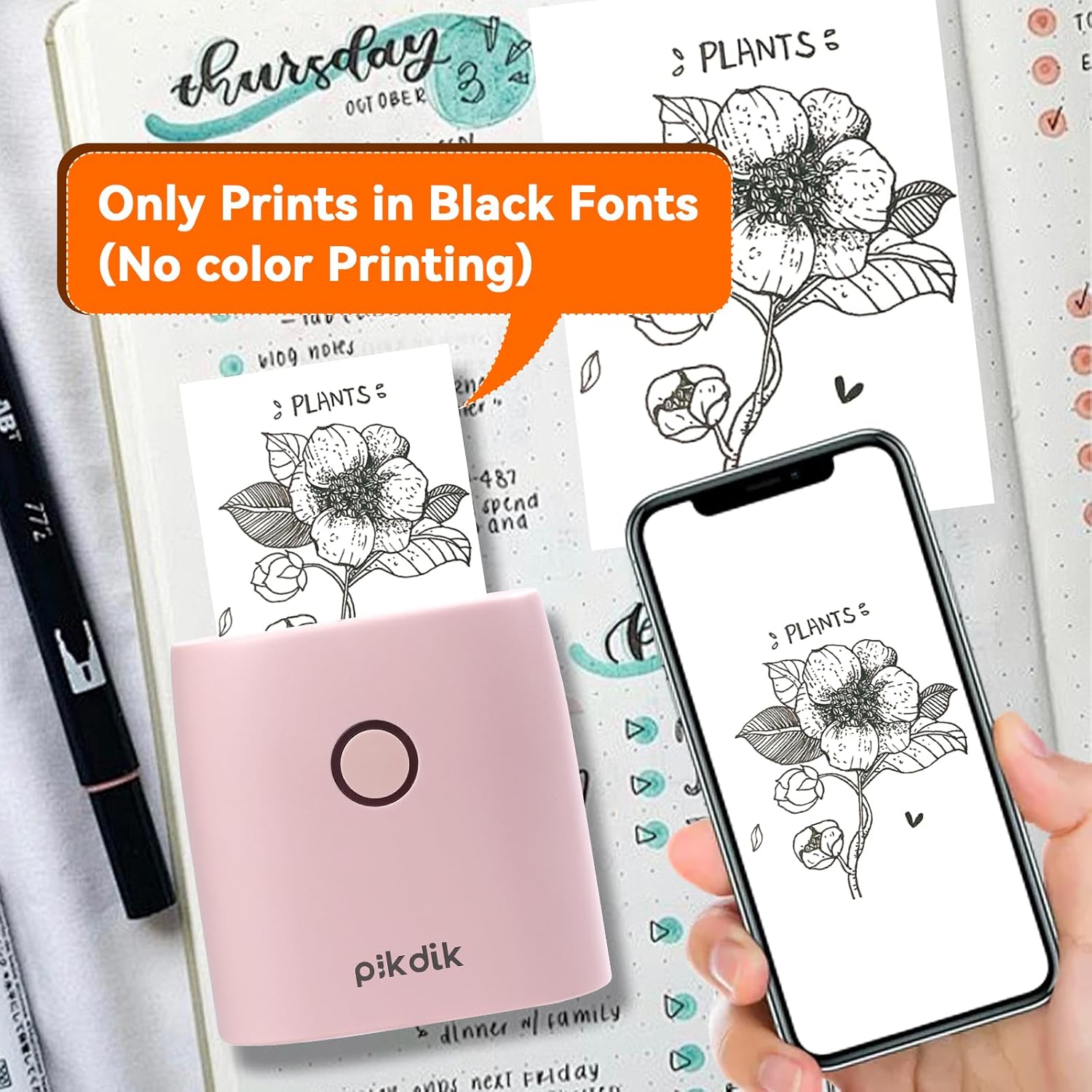
Image: The printer produces prints exclusively in black and white, as shown with a plant illustration.

Image: The 300 DPI resolution of the Q2 printer provides enhanced clarity and detail in prints compared to lower resolution alternatives.
7. Одржување
7.1 Чистење на печатачот
To maintain optimal print quality, periodically clean the print head. Use a soft, lint-free cloth lightly dampсо изопропил алкохол. Нежно избришете ја површината на главата за печатење. Пред употреба, проверете дали печатачот е исклучен и целосно сув.
7.2 Replacing Thermal Paper
When the paper roll is depleted, replace it by following the steps in Section 5.2. Use only thermal paper compatible with the PD-Q2 printer to ensure proper function and print quality.
8 Смена на проблеми
| Проблем | Можна причина | Решение |
|---|---|---|
| Печатачот не се вклучува | Слаба батерија; Копчето за вклучување не е правилно притиснато | Наполнете го печатачот; Притиснете го и држете го копчето за вклучување неколку секунди. |
| Не може да се поврзе преку Bluetooth | Bluetooth off on phone; Printer not in pairing mode; App issue | Ensure phone Bluetooth is on; Restart printer and app; Re-pair device in app. |
| Poor print quality (faint, pixelated) | Low battery; Print head dirty; Incorrect paper type; Image resolution too low | Charge printer; Clean print head (Section 7.1); Use correct thermal paper; Use higher resolution images. |
| Заглавување на хартија | Paper not loaded correctly; Foreign object in paper path | Open cover, remove jammed paper, reload correctly; Check for obstructions. |
| Печатачот не реагира | Системска грешка | Perform a soft reset by turning the printer off and on again. If issue persists, contact support. |
9. Спецификации
| Карактеристика | Детал |
|---|---|
| Модел | Q2 |
| Димензии (Д x Ш x В) | 4.1 x 8.4 x 8.4 cm (1.6 x 3.3 x 3.3 инчи) |
| Тежина | 0.57 фунти (приближно 258.55 г) |
| Технологија на печатење | Термички |
| Резолуција за печатење | 300 DPI (монохроматски) |
| Поврзување | Bluetooth |
| Компатибилни уреди | Smartphones, Tablets (Android, iOS) |
| Максимална големина на медиум | 2 инчи |
| Извор на енергија | Built-in Lithium Polymer Battery (Rechargeable via USB Type-C) |
| Име на апликацијата | Meta Print |
10. Гаранција и поддршка
For warranty information and technical support, please refer to the warranty card included with your product or contact PikDik customer service directly. Keep your purchase receipt as proof of purchase.


