1. Вовед
Thank you for choosing the OMOTON KB515 Bluetooth Keyboard. This full-size wireless keyboard is specifically designed for Mac OS devices, offering a comfortable typing experience with multi-device connectivity. Please read this manual carefully to ensure proper setup and operation.

The OMOTON KB515 Bluetooth Keyboard integrated into a multi-device Mac OS workspace.
2. Содржина на пакетот
- Bluetooth тастатура OMOTON KB515
- Привлечник за клучеви
- Упатство за употреба
Забелешка: За работа се потребни 2 AAA батерии кои не се вклучени во пакувањето.
3. Поставување и спарување
3.1 Инсталација на батерија
- Пронајдете го преградата за батерии на задната страна од тастатурата.
- Отворете го капакот на преградата за батерии.
- Вметнете две (2) AAA батерии, внимавајќи на правилниот поларитет (+/-).
- Затворете го капакот на преградата за батерии.
3.2 Вклучување/исклучување
Slide the power switch, located on the top edge of the keyboard, to the "ON" position to power on the keyboard. Slide it to "OFF" to power off.
3.3 Bluetooth Pairing Instructions
The OMOTON KB515 keyboard supports connection to up to three devices simultaneously via Bluetooth. Ensure Bluetooth is enabled on your Mac OS device before proceeding.
- Вклучете ја тастатурата користејќи го прекинувачот ON/OFF.
- Притиснете и задржете го Fn копче и едно од копчињата на Bluetooth каналот (БТ1, БТ2, или БТ3) for 3-5 seconds until the corresponding LED indicator (blue light) blinks. This activates pairing mode for the selected channel.
- On your Mac OS device, go to Системски поставки (или Системски параметри) > Bluetooth.
- In the list of available devices, select "Тастатура ОМОТОН".
- Follow any on-screen prompts to complete the pairing process. The blue indicator light will turn off once successfully connected.
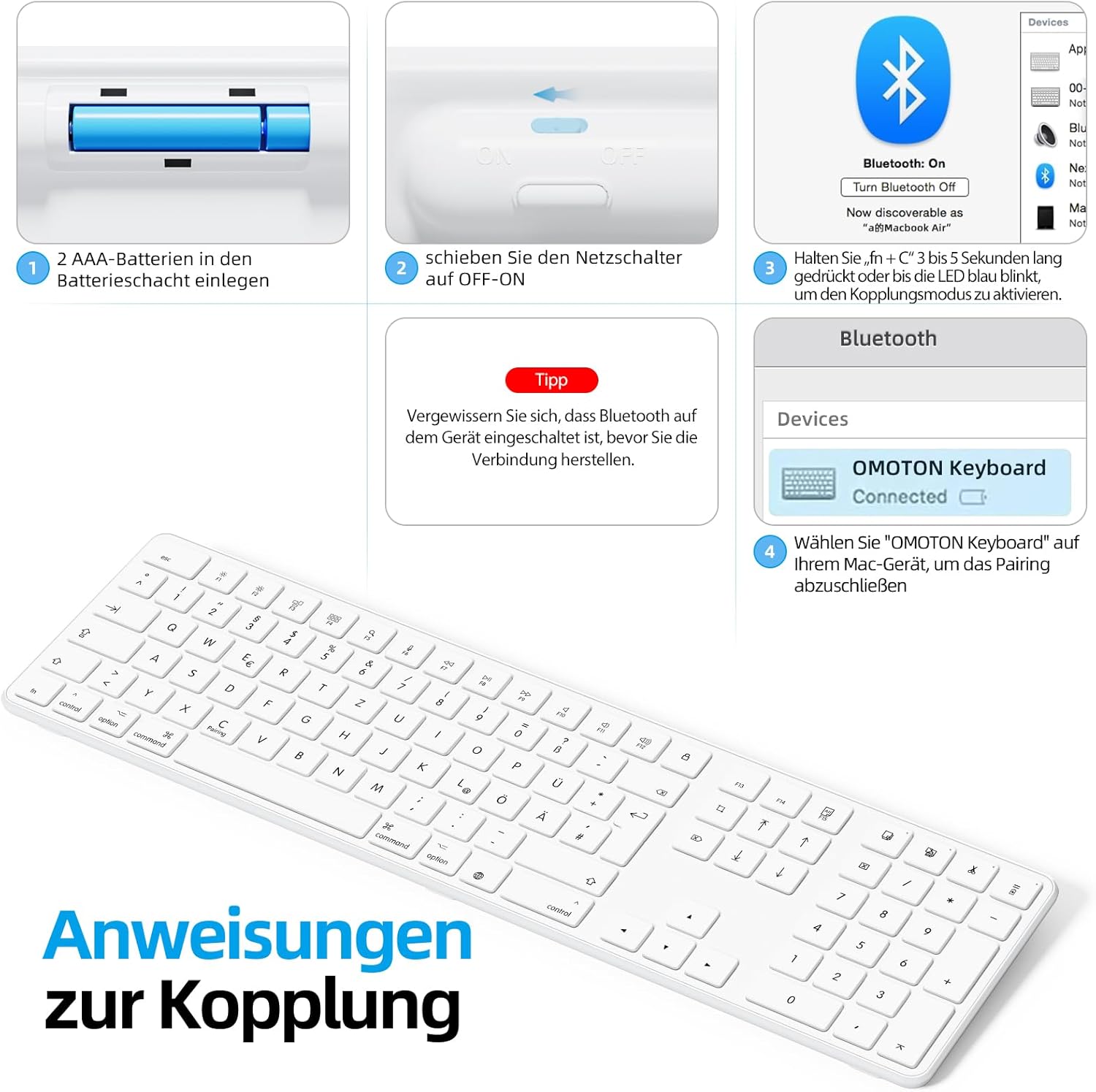
Visual guide for battery insertion and Bluetooth pairing steps.
Совет: To pair with additional devices, repeat step 2 using a different Bluetooth channel (BT2 or BT3).
4. Ракување со тастатурата
4.1 Префрлување помеѓу спарени уреди
За да се префрлате помеѓу вашите спарени уреди, едноставно притиснете го копчето Fn копче заедно со соодветното копче за Bluetooth канал (БТ1, БТ2, или БТ3) that your desired device is paired to. A short press is sufficient for switching.
4.2 Мултимедијални и функционални копчиња
The OMOTON KB515 keyboard features 12 dedicated multimedia shortcut keys optimized for Mac OS, providing quick access to various functions.

The keyboard layout highlighting the optimized multimedia keys for Mac OS.
- F1-F2: Прилагодување на осветленоста на екранот
- F3: Контрола на мисијата
- F4: Подлога за стартување
- F7-F9: Media Playback Controls (Previous, Play/Pause, Next)
- F10-F12: Контроли за јачина на звук (Исклучи звук, Намали јачина на звук, Зголеми јачина на звук)
4.3 Режим на заштеда на енергија
To conserve battery life, the keyboard will automatically enter sleep mode after 10 minutes of inactivity. To wake it up, simply press any key. The keyboard will reconnect to the last active device.
5. Одржување
- Чувајте ја тастатурата чиста така што ќе ја избришете со мека, сува крпа.
- Избегнувајте изложување на тастатурата на течности или прекумерна влага.
- Do not disassemble the keyboard, as this will void the warranty.
- When not in use for extended periods, turn off the keyboard to save battery life.
- Use the included keycap puller to carefully remove and clean individual keycaps if necessary.
6 Смена на проблеми
6.1 Тастатурата не се поврзува/спарува
- Проверете дали тастатурата е вклучена и дали има нови батерии.
- Make sure Bluetooth is enabled on your Mac OS device.
- Verify that the keyboard is in pairing mode (blue LED blinking) for the selected channel.
- Обидете се да ја распарите и повторно да ја спарите тастатурата од поставките за Bluetooth на вашиот уред.
- Restart your Mac OS device and try pairing again.
- Ensure the keyboard is within the effective Bluetooth range (typically up to 10 meters).
6.2 Копчињата не реагираат
- Проверете ги нивоата на батеријата и заменете ја доколку е потребно.
- Ensure the keyboard is properly connected to your device. Try switching Bluetooth channels.
- Clean any debris that might be under the keys.
6.3 Доцнење или прекини на поврзување
- Move the keyboard closer to your Mac OS device to reduce interference.
- Ensure there are no other strong wireless signals or devices interfering with the Bluetooth connection.
- Check for any available software updates for your Mac OS.
7. Спецификации
| Број на модел | KB515 |
| Бренд | ОМОТОН |
| Технологија за поврзување | Bluetooth |
| Извор на енергија | 2 x AAA батерии (не се вклучени) |
| Распоред на тастатура | QWERTZ (германски) |
| Компатибилност | Mac OS X 10.10 and above (MacBook Air, MacBook Pro, iMac, iPad, etc.) |
| Посебни карактеристики | Wireless Connection, Numeric Keypad, Multimedia Keys, Ergonomic Design |
| Материјал | Rubber (keypad cushioning) |
| Боја | Бело |

Keyboard dimensions and key features like ON/OFF switch and battery slot.
8. Гаранција и поддршка
For warranty information or technical support, please refer to the documentation provided with your purchase or contact OMOTON customer service directly through their official website or the retailer where you purchased the product. Please have your model number (KB515) and proof of purchase ready.


