1. Вовед
Ви благодарам за купувањетоasing the ELECOM EX-G M-XGM30UBSKWH Wired USB Ergonomic Mouse. This manual provides detailed instructions for setting up, operating, and maintaining your mouse to ensure optimal performance and comfort. This mouse is designed for right-hand use, featuring a silent click mechanism, 2000 DPI optical sensor, and five customizable buttons.

Image: The ELECOM EX-G M-XGM30UBSKWH wired ergonomic mouse in white, viewed from the top-right angle, showcasing its contoured shape and USB cable.
2. Карактеристики на производот
- Ергономски облик: Designed to fit the natural contours of the right hand, reducing wrist and arm strain.
- Silent Click Switch: Utilizes Panasonic silent switches for quiet operation, suitable for various environments.
- Жична USB конекција: Provides a stable, plug-and-play connection without the need for batteries.
- Оптички сензор од 2000 DPI: Offers precise tracking on various surfaces.
- 5 Customizable Buttons: Enhance productivity with programmable buttons using the ELECOM Mouse Assistant software.
3. Упатства за поставување
The ELECOM EX-G mouse features a simple plug-and-play wired connection, requiring no complex installation.
- Пронајдете достапен USB-A порт на вашиот компјутер (PC или Mac).
- Insert the USB connector of the mouse cable into the USB-A port.
- The operating system will automatically detect and install the necessary drivers. The mouse will be ready for use within a few moments.

Image: A white ELECOM EX-G mouse connected to a laptop via its 1.5m USB cable, illustrating the plug-and-play wired connection.
4. Ergonomic Design and Hand Fitment
The EX-G mouse is engineered for comfort, focusing on the natural hand position to minimize strain during extended use.
4.1 Ergonomic Shape
The mouse's design considers the skeletal structure and muscles of the hand and fingers. Its angled shape reduces stress on the wrist, and concave nests are provided for each finger, promoting a relaxed posture from the palm to the wrist and arm.

Image: A hand gripping the ergonomic mouse, highlighting how the angled shape reduces wrist stress and provides a concave nest for fingers.

Image: Diagram illustrating the skeletal structure of the hand and how the ergonomic mouse supports the natural alignment of bones and joints.
4.2 Hand Fitment Chart
To determine the ideal mouse size for your hand, measure your hand from the base of your palm to the tip of your middle finger. Compare your measurement to the chart below:

Image: A hand fitment chart showing how to measure hand length using credit cards for reference, categorizing sizes as Small, Medium, Large, and X-Large.
| Големина | Hand Length (cm) | Hand Length (inch) |
|---|---|---|
| Мали | <17 см | <6.7 инчи |
| Средно | 17-18.5 см | 6.7-7.3 инчи |
| Големи | 18.5-20 см | 7.3-7.9 инчи |
| X-Large | > 20 см | >7.9 inch |
5. Упатства за работа
5.1 Основно работење
Once connected, the mouse functions as a standard pointing device. Use the left button for primary clicks, the right button for secondary clicks, and the scroll wheel for vertical scrolling.
5.2 Функција за тивок клик
The mouse is equipped with Panasonic silent switches, ensuring that clicks are nearly inaudible. This feature is beneficial in quiet environments, such as offices, libraries, or during late-night work.

Слика: Внатрешен view of the mouse highlighting the Panasonic silent switches, alongside a user working quietly with the mouse.
5.3 Прилагодување на DPI
The mouse operates with a 2000 DPI optical sensor, providing comfortable and precise cursor movement. While the physical mouse does not have a dedicated DPI switch, sensitivity can be adjusted via your computer's operating system settings or through the ELECOM Mouse Assistant software for finer control.

Image: A hand using the mouse, with a graphic indicating the 2000 DPI setting for comfortable and precise operation.
6. Customizing Buttons with Mouse Assistant Software
The ELECOM Mouse Assistant software allows you to customize the functions of the mouse's five buttons and adjust other settings for enhanced productivity.
6.1 Downloading the Software
The software can be downloaded from the official ELECOM webсајт. Ве молиме посетете ELECOM's official download page and search for 'Mouse Assistant' compatible with your operating system (Windows or Mac).

Image: A laptop displaying the ELECOM Mouse Assistant software interface, with an ELECOM mouse positioned next to it.
6.2 Инсталација и конфигурација
- Download the appropriate version of the Mouse Assistant software for your operating system.
- Вклучете го инсталаторот и следете ги инструкциите на екранот за да ја завршите инсталацијата.
- Once installed, launch the Mouse Assistant application.
- Within the software, you can assign various functions to each of the five buttons, adjust cursor speed, and configure other mouse behaviors.
- Ensure to save your settings after making changes.
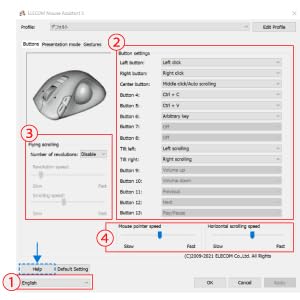
Image: A screenshot of the ELECOM Mouse Assistant software interface, showing options for button assignment, scrolling settings, and pointer speed adjustment.
7. Спецификации
| Карактеристика | Детал |
|---|---|
| Број на модел | M-XGM30UBSKWH |
| Димензии на производот | 4.72 x 3.11 x 0.04 инчи |
| Тежина на ставката | 4.1 унци |
| Технологија за поврзување | USB жичен |
| Технологија за откривање на движење | Optical (BlueLED) |
| DPI | 2000 DPI |
| Копчиња | 5 (Left, Right, Scroll Wheel Click, Forward, Back) |
| Специјална карактеристика | Soundless (Silent Click) |
| Боја | Бело |
| Должина на кабелот | 1.5м |
| Компатибилност | Компјутер, Мек, Лаптоп |
8. Одржување
To ensure the longevity and optimal performance of your ELECOM EX-G mouse, follow these simple maintenance guidelines:
- Чистење: Редовно бришете ја површината на глувчето со мека, сува крпа. За тврдокорна нечистотија, малку бришетеampИзмијте ја крпата со вода или со благ, неабразивен чистач. Избегнувајте употреба на јаки хемикалии или растворувачи.
- Нега на сензорот: Одржувајте го оптичкиот сензор на долната страна од глувчето чист и без прашина или остатоци. Користете памукче или компримиран воздух доколку е потребно.
- Управување со кабли: Избегнувајте остри свиткувања или прекумерно влечење на USB кабелот за да спречите оштетување.
- Складирање: Кога не го користите, чувајте го глувчето во чиста, сува средина, подалеку од екстремни температури.
9 Смена на проблеми
If you encounter issues with your ELECOM EX-G mouse, refer to the following common troubleshooting steps:
- Глувчето не реагира:
- Осигурајте се дека USB кабелот е безбедно приклучен во функционален USB порт на вашиот компјутер.
- Обидете се да го вклучите глувчето во друг USB порт.
- Рестартирајте го компјутерот.
- Неправилно движење на курсорот:
- Исчистете го оптичкиот сензор на долната страна од глувчето.
- Ensure you are using the mouse on a clean, non-reflective surface. Mouse pads are recommended.
- Check for any software conflicts or outdated drivers. Reinstalling the Mouse Assistant software might help.
- Копчињата не работат:
- Verify that the Mouse Assistant software is correctly configured and that button assignments are as expected.
- Тестирајте го глувчето на друг компјутер за да исклучите проблеми специфични за системот.
10. Гаранција и поддршка
This ELECOM product comes with a 2-year warranty. In the event of a product defect or quality issue, ELECOM offers a return or exchange within 2 years of purchase. For warranty claims or further support, please visit the official ELECOM USA webсајт (elecomusa.com) and use the provided return/exchange request form.
For additional assistance, you may also refer to the support section on the ELECOM webсајт.


