1. Вовед
This manual provides detailed instructions for the setup, operation, maintenance, and troubleshooting of your Xprinter XP-233B Thermal Barcode Printer. The XP-233B is designed for efficient thermal printing of barcodes and labels, utilizing heat-sensitive paper without the need for ink or ribbons.
2. Инструкции за безбедност
- Ensure the printer is connected to a power source with the correct voltage as specified on the power adapter.
- Не го изложувајте печатачот на вода или прекумерна влажност.
- Избегнувајте поставување на печатачот на директна сончева светлина или во близина на извори на топлина.
- Keep the printer away from dust and debris to prevent damage to internal components.
- Do not attempt to disassemble or repair the printer yourself. Contact qualified service personnel for assistance.
- Use only recommended thermal label rolls to ensure optimal print quality and printer longevity.
3. Содржина на пакетот
Проверете дали сите артикли се присутни во пакувањето:
- Xprinter XP-233B Thermal Barcode Printer
- Адаптер за напојување
- USB кабел
- Водич за брз почеток (доколку е вклучен)
- Driver CD (if included, drivers can also be downloaded online)
4. Производот завршиview
Familiarize yourself with the main components of the XP-233B printer.

Слика 4.1: Предната страна view of the Xprinter XP-233B, showing the power switch, control panel, and label output slot.

Слика 4.2: Заден дел view of the Xprinter XP-233B, highlighting the USB, Ethernet, and power input ports.
Функции на контролниот панел:
- Копче FEED: Press to feed a blank label. Hold to perform a self-test print.
- Копче ПАУЗА: Го паузира или продолжува печатењето.
- Копче ОТКАЖИ: Ја откажува тековната задача за печатење.
- LED индикатори: Display printer status (e.g., Power, Error, Paper Out). Refer to troubleshooting for specific light patterns.
5. Поставување
5.1 Поврзување на печатачот
- Connect the power adapter to the printer's power input port and then plug it into a wall outlet.
- Connect the USB cable from the printer to your computer. For Ethernet connectivity, connect an Ethernet cable from the printer to your network router or switch.
- Вклучете го печатачот користејќи го прекинувачот за вклучување што се наоѓа од страната.
5.2 Вчитување етикети
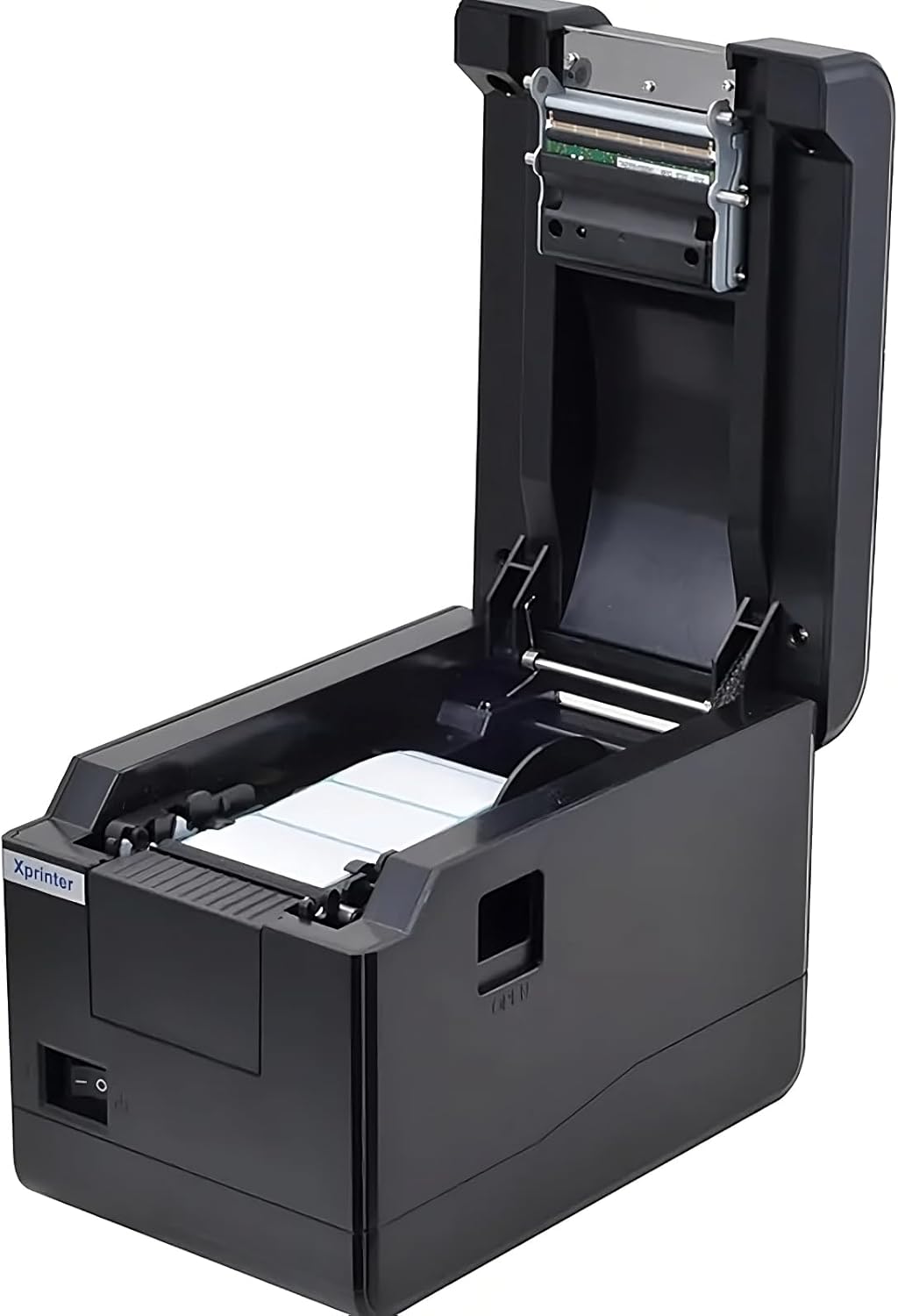
Слика 5.1: Горе-надолу view of the Xprinter XP-233B with the cover open, illustrating the label loading area.
- Press the 'OPEN' button on the side of the printer to open the top cover.
- Place the thermal label roll into the label compartment, ensuring the labels feed from the bottom of the roll and the printable side faces upwards.
- Adjust the movable label guides to fit the width of your label roll snugly, without pinching the labels.
- Pull a few labels past the print head and out through the front slot.
- Цврсто затворете го горниот капак додека не кликне на своето место.
- The printer will automatically calibrate and feed a few labels to detect the label gap.
5.3 Инсталација на драјвери
Install the printer drivers on your computer. Drivers can typically be found on the included CD or downloaded from the official Xprinter webстраница. Следете ги упатствата на екранот за инсталација.
6. Ракување со печатачот
6.1 Основно печатење
Once the printer is set up and drivers are installed, you can print labels from your application (e.g., label design software, shipping software). Ensure the correct printer model (Xprinter XP-233B) is selected in your application's print settings.
6.2 Self-Test Print
To perform a self-test print:
- Ensure the printer is powered on and labels are loaded.
- Притиснете и задржете го ХРАНА button for approximately 3-5 seconds until the printer starts printing.
- The self-test print will display printer information and a test pattern, confirming basic functionality.
7. Одржување
7.1 Чистење на главата за печатење
Regular cleaning of the print head ensures optimal print quality and extends the printer's lifespan. Clean the print head when print quality degrades or after every few rolls of labels.
- Исклучете го печатачот и исклучете го кабелот за напојување.
- Отворете го горниот капак.
- Нежно избришете ја површината на главата за печатење со памукче лесно dampened with isopropyl alcohol (70% or higher).
- Allow the print head to dry completely (approximately 2-3 minutes) before closing the cover and turning on the printer.
7.2 Чистење на надворешноста
Избришете ја надворешноста на печатачот со мека, дamp крпа. Не користете груби хемикалии или абразивни средства за чистење.
8 Смена на проблеми
| Проблем | Можна причина | Решение |
|---|---|---|
| Печатачот не се вклучува | Power cord loose; power outlet faulty; power adapter damaged. | Check power connections; try a different outlet; replace power adapter if necessary. |
| No labels feeding | Labels incorrectly loaded; paper out; label guides too tight. | Reload labels correctly; replace label roll; adjust label guides. |
| Лош квалитет на печатење (избледени, линии) | Print head dirty; low-quality labels; print head damaged. | Clean print head (refer to Section 7.1); use recommended thermal labels; contact support if print head is damaged. |
| Printer not responding to print commands | Incorrect driver installed; USB/Ethernet cable loose; printer paused. | Reinstall drivers; check cable connections; press ПАУЗА копче за продолжување. |
| Labels skipping or misaligning | Incorrect label sensor calibration; label guides not set correctly. | Perform a self-test print to recalibrate; adjust label guides. |
9. Спецификации
| Карактеристика | Спецификација |
|---|---|
| Име на моделот | Xprinter - Thermal barcode printer |
| Број на модел на ставка | XP-233B |
| Технологија на печатачи | Термички |
| Технологија за поврзување | Етернет, USB |
| Излез на печатач | Монохроматски |
| Печатени медиуми | Етикети |
| Максимален капацитет на листови | 100 (typical for roll capacity, actual sheet capacity depends on label size) |
| Димензии на производот (Д x Ш x В) | 26.8 x 18 x 17.2 cm |
| Тежина на ставката | 1.2 кг |
| Боја | Црното |
10. Информации за гаранцијата
Xprinter products typically come with a limited manufacturer's warranty. Please refer to the warranty card included with your product or visit the official Xprinter website for specific warranty terms and conditions, including coverage duration and service procedures. Keep your purchase receipt as proof of purchase for warranty claims.
11. Поддршка за корисници
For technical assistance, driver downloads, or further inquiries regarding your Xprinter XP-233B, please visit the official Xprinter support website or contact their customer service department. Contact information can usually be found on the Xprinter webстраницата или во документацијата што е испорачана со вашиот печатач.


