1. Вовед
Thank you for choosing the Imagebon 9-Inch Portable Car Display. This device integrates wireless Apple CarPlay and Android Auto, a 4K dash camera, and a 1080P backup camera, along with ADAS assistance and GPS navigation capabilities. This manual provides detailed instructions for setup, operation, maintenance, and troubleshooting to ensure optimal performance and a safe driving experience.
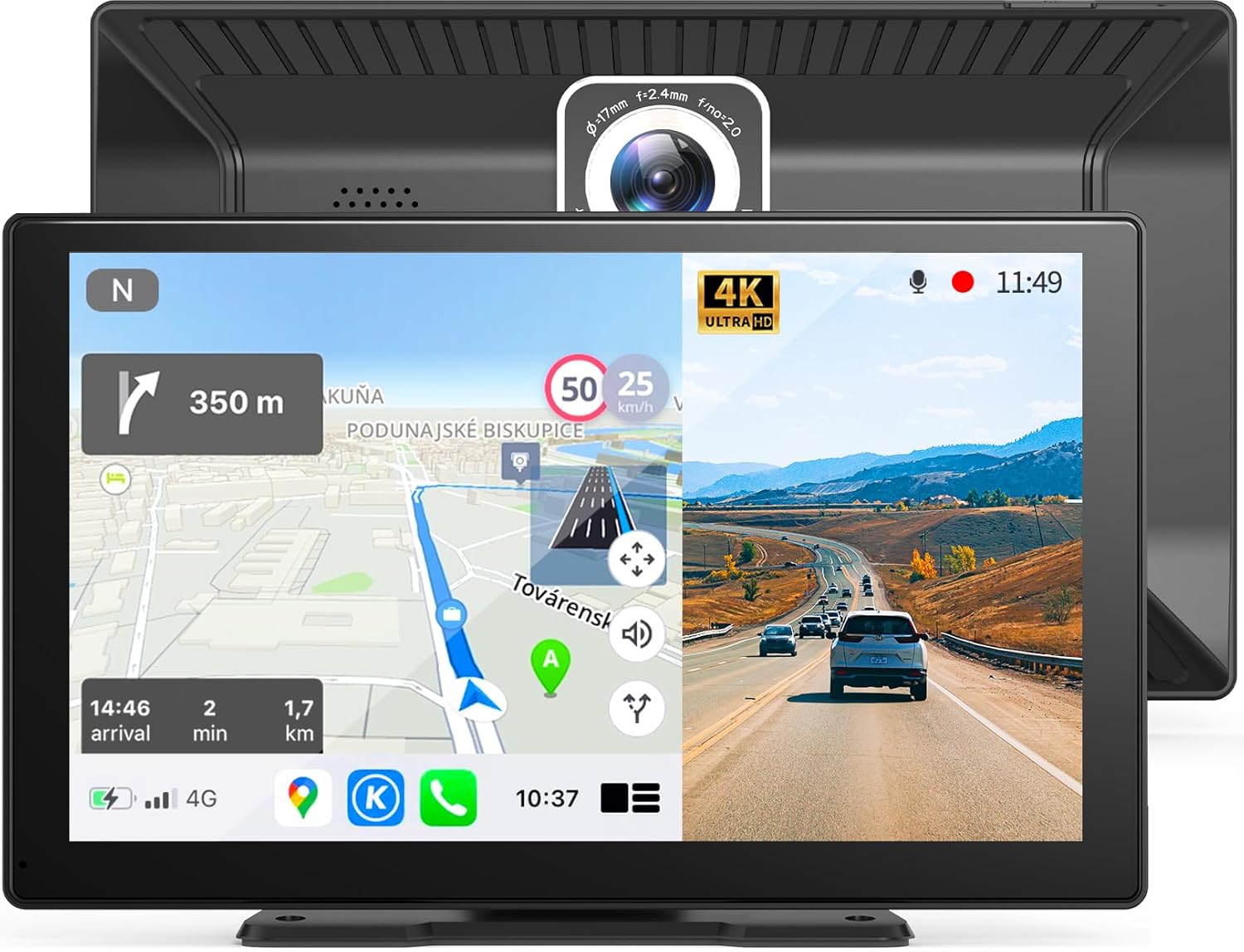
Figure 1.1: Imagebon 9-Inch Portable Car Display.
2. Што има во кутијата
По отварањето на пакувањето, проверете дали се вклучени сите следни компоненти:
- Imagebon 9-Inch Portable Car Display Unit
- 64 GB TF Card (MicroSD Card)
- AUX кабел
- Полнач за автомобил
- Резервна камера
- Упатство за употреба
- 3M Sticky Mount
- Long-armed Suction Cup Mount

Слика 2.1: Вклучени компоненти во пакувањето на производот.
3. Карактеристики на производот
- Wireless Apple CarPlay/Android Auto: Seamlessly connect your smartphone for navigation, calls, messages, and music via voice commands.
- 4K+1080P Dual Recording: Features an Ultra HD 4K (3840*2160P) front camera and a Full HD 1080P rear camera for comprehensive recording and backup assistance.
- Инсталација со Plug and Play: Simple setup by plugging into the cigarette lighter, allowing for quick integration into your vehicle.
- Phone Mirroring (AirPlay/Miracast): Project your mobile phone screen directly onto the car display.
- Подобрено аудио искуство: Offers four audio output modes: built-in speaker, CarPlay/Android Auto, FM transmission, and AUX connection for versatile sound options.
- Advanced Driver Assistance System (ADAS): Includes features like front vehicle starting reminder, forward collision warning, and lane departure warning for enhanced safety. (Note: An additional GPS antenna may be required for full ADAS functionality.)
4. Поставување и инсталација
The Imagebon Portable Car Display is designed for easy installation. Follow these steps to set up your device:
4.1 Монтирање на екранот
Choose between the 3M sticky mount for a permanent fixture or the long-armed suction cup for flexible placement.
- Изберете локација: Изберете соодветна локација на вашата контролна табла или на шофершајбната што нема да ви го попречува патот. view или да се мешаат во контролите на возењето.
- Прикачете ја монтажата: Secure the chosen mount to the selected surface. For the suction cup, ensure the surface is clean and press firmly to create a strong seal. For the 3M sticky mount, clean the surface thoroughly before applying.
- Attach Display: Slide the display unit onto the mount until it clicks securely into place. Adjust the angle for optimal viewинг.

Figure 4.1: Available mounting options for the display unit.
4.2 Поврзување за напојување
Connect the car charger to the display unit and plug the other end into your vehicle's cigarette lighter socket. The device will power on automatically.
4.3 Инсталација на задна камера
For the 1080P backup camera functionality, install the rear camera and connect it to the display unit. The red wire of the backup camera should be connected to your vehicle's reverse light for automatic activation when reversing.

Figure 4.2: Wiring diagram for the main unit and rear camera.
5. Упатства за работа
5.1 Безжичен Apple CarPlay / Android Auto
To connect your smartphone for wireless CarPlay or Android Auto:
- On the display unit, select the "CarPlay" or "Android Auto" icon.
- Turn on Wi-Fi and Bluetooth on your smartphone.
- Пребарај за the device's Bluetooth name (e.g., "XXXX_XXXX") and pair.
- Confirm the connection on your phone. CarPlay or Android Auto will launch automatically.

Figure 5.1: Wireless CarPlay and Android Auto connection steps.
Once connected, you can control navigation, make calls, send messages, and play music using voice commands or the touchscreen.
5.2 Phone Mirroring (AirPlay / Miracast)
To mirror your phone's screen to the display:
- On the display unit, select "AirPlay" or "Miracast".
- Turn on Wi-Fi on your smartphone and search for the device's Wi-Fi name (e.g., "XXXX_XXXX").
- Поврзете се на мрежата Wi-Fi.
- On your phone, activate screen mirroring (e.g., "SmartScreen" or similar).

Figure 5.2: Phone mirroring via AirPlay or Miracast.
5.3 Dual Dash Cam Recording (4K Front + 1080P Rear)
The device continuously records footage from both front and rear cameras. The included 64GB MicroSD card provides ample storage. Footage is recorded in a seamless loop, overwriting the oldest fileкога картичката е полна.
Видео 5.1: Официјално завршувањеview of the Imagebon 9-inch Portable Carplay Screen with 4K Dash Cam, demonstrating key features and functionality.

Figure 5.3: Seamless loop recording for continuous coverage.

Figure 5.4: Dual camera recording views (Front + Rear, Front, Rear).
На view recorded videos or access settings, use the dedicated "Dash Cam" or "Files" application on the display. You can also connect to the device's Wi-Fi and use the RoadCam app on your smartphone for remote access and GPS tracking.
5.4 Real-Time Reverse View
When the rear camera is properly connected to your vehicle's reverse light, the display will automatically switch to the real-time reverse view when you engage reverse gear. You can slide the screen to switch between front and rear camera views. Backup guide lines will automatically appear.

Figure 5.5: Real-time reverse view со линии за помош при паркирање.
5.5 Режими на аудио излез
The display offers multiple ways to output audio to your car's sound system:
- Мајчин аудио: Audio plays directly from the display's built-in speaker.
- AUX аудио: Connect the provided AUX cable from the display to your car's AUX input for high-quality audio.
- FM аудио: Пренесувајте аудио на FM радиото на вашиот автомобил со подесување на одредена фреквенција.
- Bluetooth аудио: For CarPlay/Android Auto, ensure your phone is directly connected to your original car's Bluetooth for audio output.

Figure 5.6: Available audio output options.
5.6 GPS навигација
Simply connect the display to Wi-Fi or your phone's hotspot to access real-time navigation apps such as Google Maps and Waze through CarPlay or Android Auto.

Figure 5.7: GPS navigation with popular map applications.
5.7 Напреден систем за помош на возачот (ADAS)
The integrated ADAS enhances driving safety with features like:
- Front Vehicle Starting Reminder: Alerts you when the vehicle in front starts moving.
- Предупредување за преден судир: Provides alerts to help prevent front-end collisions.
- Предупредување за заминување од лента: Notifies you if you drift out of your lane without signaling.
Note: An additional GPS antenna is required to activate some ADAS features.

Figure 5.8: ADAS features for enhanced driving safety.
6. Одржување
To ensure the longevity and optimal performance of your Imagebon Portable Car Display, follow these maintenance guidelines:
- Чистење: Користете мека, сува крпа за чистење на екранот и надворешноста. Избегнувајте абразивни средства за чистење или растворувачи.
- Температура: Avoid exposing the device to extreme temperatures (very hot or very cold) for extended periods.
- Складирање: Доколку го складирате уредот подолго време, исклучете го од струја и чувајте го на ладно и суво место.
- Ажурирања на фирмверот: Проверете го производителот webпериодично проверувајте ја страницата за достапни ажурирања на фирмверот за да ги подобрите перформансите и да додадете нови функции.
7 Смена на проблеми
| Проблем | Можна причина | Решение |
|---|---|---|
| Device keeps shutting down/turning off sporadically. | Insufficient power supply or shared power outlet. | Ensure the device is connected to a dedicated power source in your car. Avoid sharing the cigarette lighter port with other high-power devices. Unplug and replug the device to reset. |
| CarPlay/Android Auto does not connect or lags. | Bluetooth/Wi-Fi interference, incorrect pairing, or phone not connected to device's Wi-Fi. | Ensure your phone's Wi-Fi and Bluetooth are on. Verify the device's Bluetooth name and connect. If issues persist, try forgetting the device on your phone and re-pairing. Ensure your phone is connected to the device's Wi-Fi for CarPlay/Android Auto. |
| Audio quality is poor or has static (FM mode). | FM фреквенциски пречки. | Try a different FM frequency on the display and your car radio. Consider using the AUX cable for a more stable audio connection. |
| Call audio is low or unclear for the other party. | Microphone sensitivity or environmental noise. | Adjust microphone settings if available. Ensure windows are closed to minimize external noise. Check for firmware updates that might address audio issues. |
| Задната камера не се прикажува. | Incorrect wiring or camera malfunction. | Verify the red wire of the backup camera is correctly connected to the reverse light. Check all cable connections. |
8. Спецификации
| Бренд | Imagebon |
| Број на модел | XN-LOAD-002 |
| Големина на екранот | 9 инчи (23 см) |
| Резолуција | 1024 x 600 |
| Резолуција на предната камера | 4K (3840*2160P) |
| Резолуција на задната камера | 1080P (Full HD) |
| Технологија за поврзување | Bluetooth, WiFi |
| Тип на монтирање | Монтирање на контролна табла, Монтирање на панел |
| Димензии на производот | 1 x 3.94 x 9.45 инчи |
| Тежина на ставката | 2 фунти |
| Земја на потекло | Кина |
9. Гаранција и поддршка
Imagebon is committed to providing high-quality products and excellent customer service. For any questions, concerns, or technical support, please contact us via email:
Е-пошта: Imagebons@outlook.com
Our support team is available 24/7 to assist you and resolve any arising issues.


