1. Вовед
Thank you for choosing the YUNZII AL66 Wireless Mechanical Keyboard. This manual provides essential information for setting up, operating, and maintaining your new keyboard. Please read it thoroughly to ensure optimal performance and longevity of your device.
Клучни карактеристики:
- Full Aluminum CNC Machined Body
- Gasket Mounted Structure for enhanced typing comfort
- 65% Layout with 66 keys and a multi-function knob
- Tri-Mode Connectivity: Bluetooth, 2.4G Wireless, and Wired (USB-C)
- Hot-Swappable Switches (3-pin or 5-pin compatible)
- Pre-lubed Milk Switches and Stabilizers
- RGB Backlighting with 14 default effects and 8 backlight colors
- 4600 mAh Large Battery Capacity
Што има во кутијата:
- YUNZII AL66 Keyboard
- Покривка за прав
- Extra keycaps and switches
- Привлечник за клучеви
- USB-кабел (тип-C)
- 2.4G безжичен ресивер
- Упатство за употреба
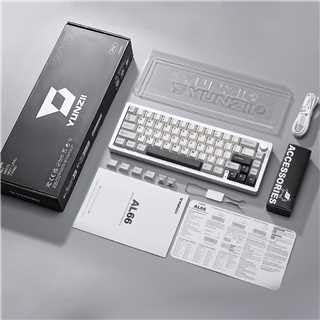
Image: Contents of the YUNZII AL66 keyboard box, showing the keyboard, USB cable, keycap puller, extra keycaps and switches, and user manual.
Производот завршиview:

Image: A detailed overview of the YUNZII AL66 keyboard highlighting its premium features like the aluminum case, gasket mount, hot-swappable switches, and RGB lighting.
2. Поставување
2.1 Wired (USB-C) Connection
- Лоцирајте го USB-C портот на тастатурата.
- Поврзете го испорачаниот USB-C кабел со тастатурата и USB-портата на вашиот компјутер.
- Ensure the mode switch on the top edge of the keyboard is set to 'Line' (wired mode).
- The keyboard will be automatically recognized by your computer.
Video: This video demonstrates how to connect the YUNZII AL66 keyboard to a MacBook using a wired USB-C connection. It shows plugging the USB hub into the MacBook, then connecting the keyboard's USB-C cable to the hub, and finally switching the keyboard to Mac mode.
2.2 2.4G безжична конекција
- Locate the 2.4G wireless receiver (dongle) stored in the slot on the top edge of the keyboard.
- Приклучете го 2.4G приемникот во слободен USB порт на вашиот компјутер.
- Toggle the mode switch on the top edge of the keyboard to the '2.4G' position. The indicator light will flash deep blue slowly.
- Долго притиснете Fn+R to enter 2.4G Wireless pairing mode. The indicator will flash deep blue fast.
- Once successfully paired, the indicator light will stay on.
2.3 Bluetooth конекција
- Toggle the mode switch on the top edge of the keyboard to the 'BT' (Bluetooth) position. The indicator light will flash blue/pink/yellow slowly.
- Долго притиснете Fn+Q, Fn+W, или Fn+E to select a Bluetooth channel (up to 3 devices can be paired). The indicator will flash blue/pink/yellow fast, indicating pairing mode.
- On your device (computer, tablet, smartphone), go to Bluetooth settings and search for 'AL66 3.0' or 'AL66 5.0'.
- Select the keyboard to pair. Once successfully paired, the indicator light will stay on.
Video: This video demonstrates how to connect the YUNZII AL66 keyboard to an iPhone via Bluetooth. It shows switching the keyboard to Bluetooth mode, initiating pairing, and selecting the keyboard from the iPhone's Bluetooth settings.
2.4 Префрлувач на режими за Mac/Windows
The keyboard features a dedicated switch on its top edge to toggle between Mac and Windows operating system compatibility. Ensure this switch is set to the correct position for your device to ensure proper key mapping and functionality.

Image: Close-up of the YUNZII AL66 keyboard's top edge, showing the mode switches for Bluetooth, 2.4G, Line, and the Mac/Win system switch.
3. Упатства за работа
3.1 Key Layout and Multi-function Knob
The YUNZII AL66 features a compact 65% layout with 66 keys and a metal multi-function knob. The knob can be used to adjust RGB modes, brightness, and volume. Long press the knob for approximately 5 seconds to cycle through its control modes.

Image: The YUNZII AL66 keyboard with an illustration demonstrating the functionality of the multi-function knob for RGB modes, brightness, and volume control.
3.2 RGB контрола на осветлувањето
The keyboard supports 14 default RGB effects and 8 backlight colors. The south-facing LEDs enhance illumination. Use the multi-function knob to cycle through RGB modes and adjust brightness. Additional customization options are available via compatible software for Windows systems only.

Image: The YUNZII AL66 keyboard displaying its adjustable RGB backlighting, emphasizing the wide range of colors available.
3.3 Прекинувачи што може да се заменат со топла струја
The YUNZII AL66 is designed with hot-swappable sockets, allowing you to easily change switches without soldering. It supports both 3-pin and 5-pin mechanical switches. Use the provided keycap and switch puller for safe removal and installation.

Image: The YUNZII AL66 keyboard with keycaps and switches removed, illustrating the hot-swappable design.
3.4 Информации за батеријата
The keyboard is equipped with a 4600 mAh battery, providing up to 90 hours of typing without RGB lighting, or approximately 15 hours with RGB enabled. Charging takes 8-10 hours via the USB-C cable.

Image: Visual representation of the YUNZII AL66's large battery capacity and its endurance with and without RGB lighting.
4. Одржување
4.1 Чистење
- To clean the keyboard, first disconnect it from your device.
- Користете го испорачаниот капак за прашина кога тастатурата не е во употреба за да спречите насобирање прашина.
- For general cleaning, use a soft, lint-free cloth.
- For deeper cleaning, carefully remove keycaps using the keycap puller and use compressed air to clear debris from beneath the switches.
- Avoid using harsh chemicals or abrasive materials that could damage the keyboard's finish or keycaps.
5 Смена на проблеми
5.1 Копчињата не реагираат
- Проверете ја поврзаноста: Ensure the keyboard is properly connected via wired, 2.4G, or Bluetooth mode, and the mode switch is in the correct position.
- Ниво на батерија: If using wireless modes, check if the battery is charged. Connect the USB-C cable to charge.
- Системски прекинувач: Verify the Mac/Win switch is set to your operating system.
- Number Keys Issue: If number keys are not working, double-tap the Fn key to unlock them. This toggles the ESC, 1-0, -, = keys to F1-F12.
- Прекинувачи што може да се заменуваат со топла вода: If a specific key is not responding, the switch might be loose or faulty. Carefully remove the keycap and switch, then reinsert or replace the switch.

Image: A visual guide on how to resolve the issue of non-responsive number keys by double-tapping the Fn key.
5.2 Проблеми со поврзувањето
- Bluetooth: Ensure your device's Bluetooth is on and the keyboard is in pairing mode (Fn+Q/W/E long press). Try forgetting the device on your computer and re-pairing.
- 2.4G безжична мрежа: Ensure the dongle is securely plugged in and the keyboard is in 2.4G mode (Fn+R long press for pairing). Try a different USB port.
- Пречки: Поместете ја тастатурата поблиску до вашиот уред, а подалеку од други безжични уреди што би можеле да предизвикаат пречки.
6. Спецификации
| Карактеристика | Детал |
|---|---|
| Димензии на производот | 12.68 x 4.45 x 1.65 инчи |
| Тежина на ставката | 3.21 фунти |
| Производител | ЈУНЗИИ |
| Број на модел на ставка | AL66 |
| Батерии | Потребна е 1 литиум метална батерија (вклучена) |
| Технологија за поврзување | Wireless/Bluetooth/Wired |
| Опис на тастатурата | Топла механичка тастатура што може да се замени |
| Препорачана употреба | Business, Education, Everyday Use, Gaming, Multimedia, Personal, Video Editing |
| Специјална карактеристика | Задно осветлување (RGB) |
| Боја | Silver (Milk Switch) |
| Стил | Играње |
7. Гаранција и поддршка
7.1 Информации за гаранцијата
Please refer to the warranty card included in your product packaging for detailed warranty terms and conditions. YUNZII provides support for manufacturing defects and product malfunctions within the specified warranty period.
7.2 Поддршка за корисници
For any questions, technical assistance, or support needs, please contact YUNZII customer service through the platform where you purchased the product. You can typically find a 'Contact Seller' or 'Ask a question' option on the product page or within your order history.

Image: A step-by-step guide on how to reach YUNZII customer support through the Amazon platform.


