Вовед
This manual provides comprehensive instructions for the setup, operation, maintenance, and troubleshooting of your A4TECH FG20 2.4G Wireless Mouse. Please read this manual carefully before using the product to ensure optimal performance and longevity.
Содржина на пакетот
- A4TECH FG20 2.4G Wireless Mouse
- USB Нано приемник
- AA батерија (може да биде претходно инсталирана или вклучена одделно)
- Упатство за употреба (овој документ)
Водич за поставување
Follow these steps to set up your A4TECH FG20 Wireless Mouse:
- Инсталирајте ја батеријата: Locate the battery compartment on the underside of the mouse. Open the cover and insert the AA battery, ensuring the polarity (+/-) matches the diagram inside the compartment. Close the battery cover securely.
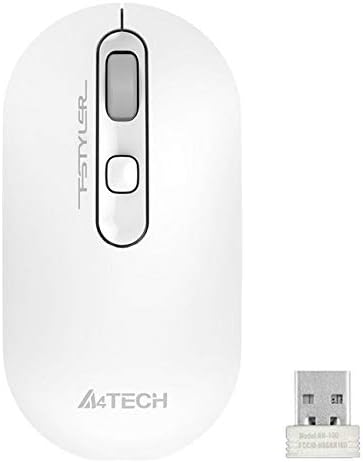
Image: A4TECH FG20 Wireless Mouse shown alongside its USB Nano Receiver. This illustrates the two main components required for operation.
- Поврзете го USB нано ресиверот: Remove the USB Nano Receiver from its storage slot, usually located within the battery compartment or near it. Plug the receiver into an available USB port on your computer.

Image: A schematic diagram depicting the wireless connection between the mouse and a computer via the USB receiver. This visual aid helps understand the connection process.
- Вклучете го глувчето: If your mouse has an On/Off switch, slide it to the "On" position. The mouse should automatically connect to the receiver.
- Инсталација на драјвери: Your computer's operating system (Windows, Linux) should automatically detect and install the necessary drivers. No manual driver installation is typically required.
Упатства за работа
The A4TECH FG20 Wireless Mouse is designed for intuitive use. Here are its primary functions:
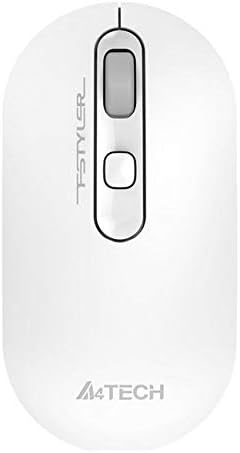
Слика: Од горе надолу view of the A4TECH FG20 Wireless Mouse, highlighting its ergonomic shape and button layout.
- Лев клик: Се користи за избирање предмети, отворање files и активирање на функциите.
- Десен клик: Отвора контекстуални менија, обезбедувајќи дополнителни опции за избраните ставки.
- Тркало за лизгање: Скролувајте нагоре или надолу низ документите и web pages. The scroll wheel can also function as a middle click button.
- Копче за прилагодување на DPI: (If applicable, typically located near the scroll wheel) This button allows you to cycle through different cursor speeds (DPI settings) to suit your preference and task.
- Ергономски дизајн: The mouse features an ergonomic design for comfortable use during extended periods.
Одржување
Правилното одржување гарантира долготрајност и перформанси на вашиот глушец:
- Чистење: Use a soft, dry cloth to clean the surface of the mouse. For stubborn dirt, slightly dampИзбришете ја крпата со вода или благ раствор за чистење. Избегнувајте груби хемикалии или абразивни материјали.
- Чистење на сензорот: Occasionally, clean the optical sensor on the underside of the mouse with a cotton swab to ensure accurate tracking.
- Замена на батерија: When the mouse performance degrades or it stops responding, replace the AA battery with a fresh one.
- Складирање: When not in use for extended periods, turn off the mouse to conserve battery life. Store the USB Nano Receiver in its designated slot to prevent loss.
Решавање проблеми
If you encounter issues with your A4TECH FG20 Wireless Mouse, refer to the following common solutions:
- Глувчето не реагира:
- Проверете дали глувчето е вклучено.
- Проверете дали батеријата е правилно инсталирана и дали е доволно наполнета. Заменете ја доколку е потребно.
- Проверете дали USB нано приемникот е безбедно приклучен во функционален USB порт на вашиот компјутер. Обидете се со друг USB порт.
- Рестартирајте го компјутерот.
- Lagging or Erratic Cursor Movement:
- Исчистете го оптичкиот сензор на долната страна од глувчето.
- Уверете се дека го користите глувчето на соодветна површина (нерефлектирачка, непроѕирна).
- Move the mouse closer to the USB Nano Receiver to reduce interference.
- Проверете за други безжични уреди што може да предизвикуваат пречки.
- Проблеми со поврзувањето:
- If the mouse loses connection frequently, try re-pairing it (if a pairing button is available, otherwise, simply unplug and replug the receiver).
- Ensure no large metal objects are between the mouse and the receiver.
Спецификации

Слика: Страничен професионалецfile view of the A4TECH FG20 Wireless Mouse, illustrating its slim and ergonomic contour.
| Карактеристика | Детал |
|---|---|
| Модел | FG20 |
| Технологија за поврзување | 2.4G Wireless (Infrared) |
| Детекција на движење | Ласерски |
| Број на копчиња | 3 |
| Ориентација на рацете | Амбидекстно |
| Посебни карактеристики | Ергономски дизајн |
| Боја | Бело |
| Компатибилни уреди | Личен компјутер |
| Компатибилност на оперативниот систем | Линукс, Виндоус 7, Виндоус XP |
| Производител | A4TECH |
| Земја на потекло | Кина |
Гаранција и поддршка
The A4TECH FG20 Wireless Mouse is manufactured to high-quality standards. For information regarding the manufacturer's warranty, please refer to the documentation provided with your purchase or visit the official A4TECH webсајт.
Опции за продолжена гаранција може да бидат достапни од добавувачи од трети страни, како што е продолжената гаранција од 1 година или 2 години од Salama Care. Овие се одвоени од гаранцијата на производителот.
For technical support or further assistance, please contact the retailer where you purchased the product or visit the official A4TECH support channels.


