1. Вовед
This manual provides comprehensive instructions for the Hyperkin Pixel Art Bluetooth Controller, Tetris™ Edition (Model M01328-TETS). This limited-edition wireless controller is designed for use with various gaming platforms, offering a blend of retro aesthetics and modern functionality. Please read this manual thoroughly before use to ensure proper setup and operation.

Image 1.1: The Hyperkin Pixel Art Bluetooth Controller, Tetris™ Edition, showcasing its unique Tetris-themed design.
2. Содржина на пакетот
Проверете дали сите артикли се присутни во вашиот пакет:
- Hyperkin Pixel Art Bluetooth Controller (Tetris™ Edition)
- USB-C кабел за полнење
- Упатство за употреба (овој документ)
3. Распоред на контролерот
Familiarize yourself with the buttons and features of your controller:

Слика 3.1: напред view of the controller, displaying the D-pad, analog sticks, action buttons (A, B, X, Y), SELECT, START, and Tetris™ logo.
- D-Pad: Насочен влез.
- Леви/десни аналогни стапчиња: Precise 360-degree movement.
- Копчиња за акција (A, B, X, Y): Primary interaction buttons.
- Избери копче: Function varies by platform/game.
- Копче СТАРТ: Function varies by platform/game.
- Копчиња за рамената (L1, R1): Копчиња монтирани на врвот.
- Копчиња за активирање (L2, R2): Bottom-mounted analog triggers.
- Копче за почеток: Returns to system menu (functionality varies by platform).
- Турбо копче: Activates/deactivates turbo function for selected buttons.
- USB-C порта: За полнење и жично поврзување.

Слика 3.2: Назад view of the controller, showing the ergonomic grip and product label.
4. Поставување
4.1. Полнење на контролерот
Before initial use, fully charge the controller. Connect the included USB-C charging cable to the controller's USB-C port and the other end to a USB power source (e.g., computer, USB wall adapter). The charging indicator light will show charging status and turn off when fully charged.
4.2. Bluetooth спарување
The controller supports wireless connection via Bluetooth up to 30 feet. Follow these general steps for pairing:
- Осигурајте се дека контролерот е наполнет.
- Turn on the controller (specific method may vary, typically holding the Home button).
- Activate pairing mode on the controller (refer to specific platform instructions below, usually a combination of buttons or a dedicated pairing button). The indicator lights will flash rapidly.
- On your device (Nintendo Switch, PC, Mac, Android, iOS), navigate to the Bluetooth settings.
- Пребарај за available devices and select "Hyperkin Pixel Art Controller" or similar.
- Once paired, the indicator lights on the controller will become solid.
4.2.1. Pairing with Nintendo Switch/OLED Model
- From the HOME Menu, select "Controllers" > "Change Grip/Order."
- While on this screen, press and hold the pairing button on the Hyperkin controller until the indicator lights flash.
- Once paired, the controller will appear on the screen, and the player indicator will light up.
4.2.2. Pairing with PC (Windows 10/11)
- Go to "Settings" > "Devices" > "Bluetooth & other devices."
- Turn on Bluetooth and click "Add Bluetooth or other device."
- Select "Bluetooth" and then choose "Hyperkin Pixel Art Controller" from the list.
4.2.3. Pairing with Mac
- Open "System Settings" (or "System Preferences") > "Bluetooth."
- Ensure Bluetooth is on. The controller should appear in the list of devices.
- Click "Connect" or "Pair" next to "Hyperkin Pixel Art Controller."
4.2.4. Pairing with Android/iOS Devices
- Go to your device's "Settings" > "Bluetooth."
- Turn on Bluetooth. The controller should appear in the list of available devices.
- Tap on "Hyperkin Pixel Art Controller" to pair.

Image 4.1: The controller demonstrating wireless connectivity with a Nintendo Switch console, highlighting its Bluetooth capability.
5. Упатства за работа
5.1. Основни контроли
The controller functions as a standard gamepad. Button mapping may vary depending on the game and platform. Refer to your game's instructions for specific control schemes.
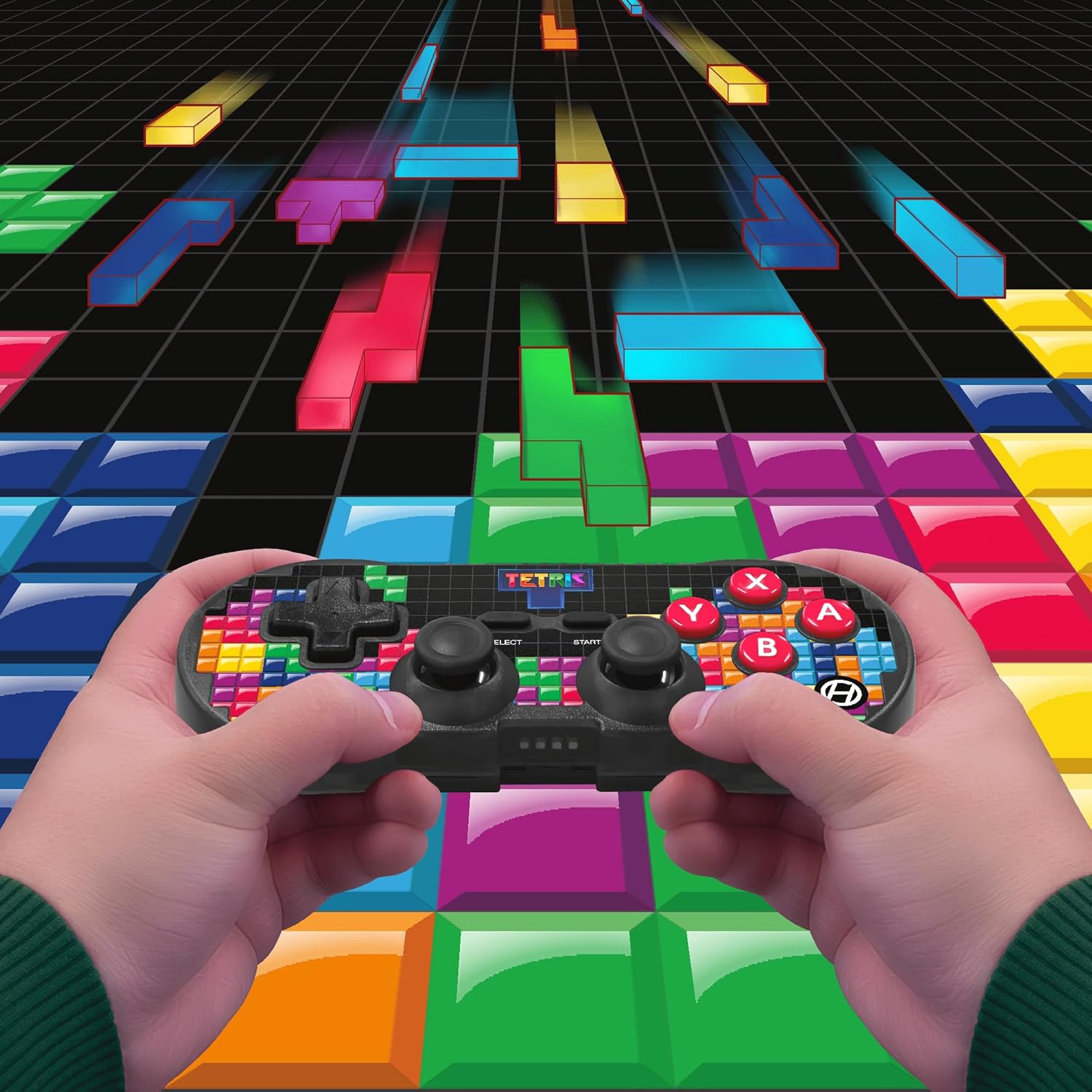
Image 5.1: A user holding the controller, illustrating its use during gameplay.
5.2. Турбо функција
The controller features a turbo function for rapid button presses. To activate or deactivate turbo for a specific button:
- Притиснете и задржете го Турбо копче.
- While holding the Turbo button, press the desired копче за акција (A, B, X, Y, L1, R1, L2, R2) you wish to apply turbo to.
- Release both buttons. The selected action button will now have turbo enabled.
- To disable turbo for that button, repeat the process.
6. Компатибилност
The Hyperkin Pixel Art Bluetooth Controller is compatible with a wide range of platforms:
- Nintendo Switch
- Nintendo Switch OLED Model
- Компјутер со Windows 10/11
- Mac
- Андроид уреди
- iOS уреди
- Пареа
- Raspberry Pi
- Amazon Games
- Amazon Luna
- Тесла

Image 6.1: Visual representation of the controller's broad compatibility across multiple gaming and computing platforms.
7. Одржување
За да се обезбеди долготрајност и оптимални перформанси на вашиот контролер:
- Чистење: Користете мека, сува крпа за чистење на контролерот. Избегнувајте абразивни средства за чистење или растворувачи.
- Складирање: Чувајте го контролерот на ладно и суво место, подалеку од директна сончева светлина и екстремни температури.
- Нега на батеријата: Do not attempt to replace the internal Lithium Polymer battery. Avoid fully discharging the battery for extended periods.
- Избегнувајте капки: Заштитете го контролерот од падови и удари, што може да ги оштети внатрешните компоненти.
8 Смена на проблеми
If you encounter issues with your Hyperkin Pixel Art Bluetooth Controller, refer to the following common problems and solutions:
| Проблем | Можно решение |
|---|---|
| Контролерот не се вклучува. | Ensure the controller is fully charged. Connect it to a power source using the USB-C cable. |
| Controller does not pair via Bluetooth. |
|
| Доцнење на влезот или прекината врска. |
|
| Копчињата не реагираат или се заглавени. | Clean around the buttons with a soft, dry cloth. Avoid liquid cleaners. If the issue persists, contact support. |
9. Спецификации
| Карактеристика | Детал |
|---|---|
| Број на модел | M01328-TETS |
| Поврзување | Bluetooth (Wireless up to 30 ft.), USB-C (Wired) |
| Компатибилност | Nintendo Switch/OLED, Windows 10/11 PC, Mac, Android, iOS, Steam, Raspberry Pi, Amazon Games, Amazon Luna, Tesla |
| Посебни карактеристики | Turbo function, Retro design with modern ergonomics, High-quality symmetrical sticks, Responsive action buttons, Reliable triggers |
| Тип на батерија | 1 литиум-полимерна батерија (внатрешна) |
| Димензии на пакетот | 7.24 x 5 x 2.48 инчи |
| Тежина на ставката | 9.9 унци |
| Производител | Хиперкин |
10. Гаранција и поддршка
За информации за гаранцијата и техничка поддршка, посетете ја официјалната страница на Hyperkin webлокација или контактирајте го нивниот оддел за корисничка поддршка. Зачувајте го доказот за купување за гаранциски барања.
Hyperkin Official Webсајт: www.hyperkin.com


