1. Вовед
This manual provides detailed instructions for the installation, operation, and maintenance of your Jennov JS7015 5MP Dual-Band Wi-Fi Outdoor Security Camera. Please read this manual thoroughly before using the product to ensure correct usage and optimal performance.

Figure 1: Jennov JS7015 Outdoor Security Camera
The Jennov JS7015 is a 5-megapixel outdoor security camera featuring dual-band Wi-Fi connectivity (2.4GHz and 5GHz). It offers 360-degree viewing capabilities, PIR human detection, auto-tracking, 24/7 recording, and two-way audio for comprehensive outdoor surveillance.
2. Содржина на пакетот
Ве молиме проверете ја содржината на пакетот по приемот. Доколку недостасуваат или се оштетени некои артикли, контактирајте ја службата за корисници.
- Jennov JS7015 5MP Dual-Band Wi-Fi Outdoor Security Camera
- Адаптер за напојување
- Монтажни завртки и сидра
- Упатство за употреба (овој документ)
3. Производот завршиview
Запознајте се со компонентите на фотоапаратот.

Figure 2: Camera Pan and Tilt Mechanism
The camera features a motorized pan and tilt mechanism, allowing for a 355° horizontal rotation (pan) and a 60° vertical rotation (tilt). This enables comprehensive coverage of the surveillance area. The camera body houses the lens, infrared LEDs, white light LEDs, microphone, and speaker. Two external antennas provide enhanced Wi-Fi signal reception.
- Објектив на камерата: Снима видео фудtage.
- Инфрацрвени LED диоди: Provide illumination for black and white night vision.
- LED диоди со бела светлина: Provide illumination for color night vision and act as a spotlight.
- Микрофон: Снима аудио за двонасочна комуникација и снимање.
- Говорник: Емитува аудио за двонасочна комуникација и аларми.
- Антени: За Wi-Fi поврзување.
- Приклучок за напојување: Се поврзува со адаптерот за напојување.
- Копче за ресетирање: Used to reset the camera to factory settings (usually located near the SD card slot or under a cover).
- Слот за SD-картичка: For local video storage (supports up to 128GB, not included).
4. Водич за поставување
4.1 Физичка инсталација
The camera is designed for outdoor use and is IP66 waterproof. Choose a suitable location for mounting, ensuring a clear view of the area you wish to monitor and proximity to a power source.
- Позиции за дупчење на ознака: Use the mounting template (if provided) or the camera base to mark the screw holes on the wall.
- Дупчете дупки: Drill holes at the marked positions. Insert wall anchors if mounting on masonry.
- Безбедна камера: Attach the camera base to the wall using the provided screws.
- Прилагодете го аголот: Loosen the adjustment screws (if any) to position the camera for optimal coverage before tightening.

Слика 3: Водоотпорен дизајн IP66
The camera is built with waterproof materials and has an IP66 rating, making it suitable for outdoor installation and resistant to dust and water jets.
4.2 Поврзување за напојување
Поврзете го испорачаниот адаптер за напојување со приклучокот за напојување на камерата, а потоа вклучете го во штекер. Камерата ќе се вклучи и ќе ја започне својата секвенца на стартување.
4.3 Преземање на апликација и регистрација на сметка
The Jennov JS7015 camera uses the EseeCloud application for remote access and control.
- Преземи апликација: Пребарај за "EseeCloud" in your smartphone's app store (Google Play Store for Android or Apple App Store for iOS) and download the application.
- Регистрирајте сметка: Open the EseeCloud app and follow the on-screen instructions to register a new account using your email address or phone number.
4.4 Додавање на камерата во апликацијата
Ensure your smartphone is connected to the same Wi-Fi network (2.4GHz or 5GHz) that you intend to connect the camera to.
- Отворете ја апликацијата: Launch the EseeCloud app and log in.
- Додај уред: Tap the "+" icon or "Add Device" option.
- Изберете тип на уред: Choose "Wi-Fi Camera" or similar option.
- Скенирајте QR -код: The app may prompt you to scan a QR code located on the camera or its packaging.
- Wi-Fi конфигурација: Follow the app's instructions to enter your Wi-Fi network name (SSID) and password. The camera supports both 2.4GHz and 5GHz Wi-Fi bands.
- Поврзете се: The camera will attempt to connect to your Wi-Fi network. Once connected, it will appear in your device list within the app.
- Ставете лозинка: Create a strong password for your camera for security purposes.
5. Упатства за работа
5.1 Во живо View и контрола на панорамирање/навалување
From the EseeCloud app, select your camera to access the live view.
- Навестување во живо: View real-time video from your camera.
- Пан/навалување: Use the directional controls within the app to remotely adjust the camera's horizontal (pan) and vertical (tilt) angles.
5.2 Автоматско следење
Камерата може автоматски да следи подвижни објекти во рамките на нејзиното поле view.

Figure 4: Auto Tracking in Action
Enable the auto-tracking feature in the app settings. The camera will then detect and follow moving targets until they leave the camera's view.
5.3 Детекција на движење и аларми
The camera features advanced PIR (Passive Infrared) human detection to minimize false alarms.

Figure 5: PIR Human Detection and Alarm Options
When a human thermal profile is detected, the camera can trigger various alarms.
- PIR откривање: Activates recording and sends notifications when a human is detected.
- Звучен аларм: Configure the camera to emit a siren sound upon detection.
- Spotlight Alarm: The integrated spotlight can be activated to deter intruders.
- Известувања: Receive instant alerts on your smartphone via the EseeCloud app.
5.4 Двонасочно аудио
Комуницирајте директно со лица во близина на камерата користејќи го вградениот микрофон и звучник.

Слика 6: Двонасочна аудио комуникација
Tap the microphone icon in the app to speak, and listen through the camera's speaker. This feature is useful for interacting with visitors or deterring unwanted guests.
5.5 Снимање и складирање
The camera supports continuous 24/7 recording and offers flexible storage options.
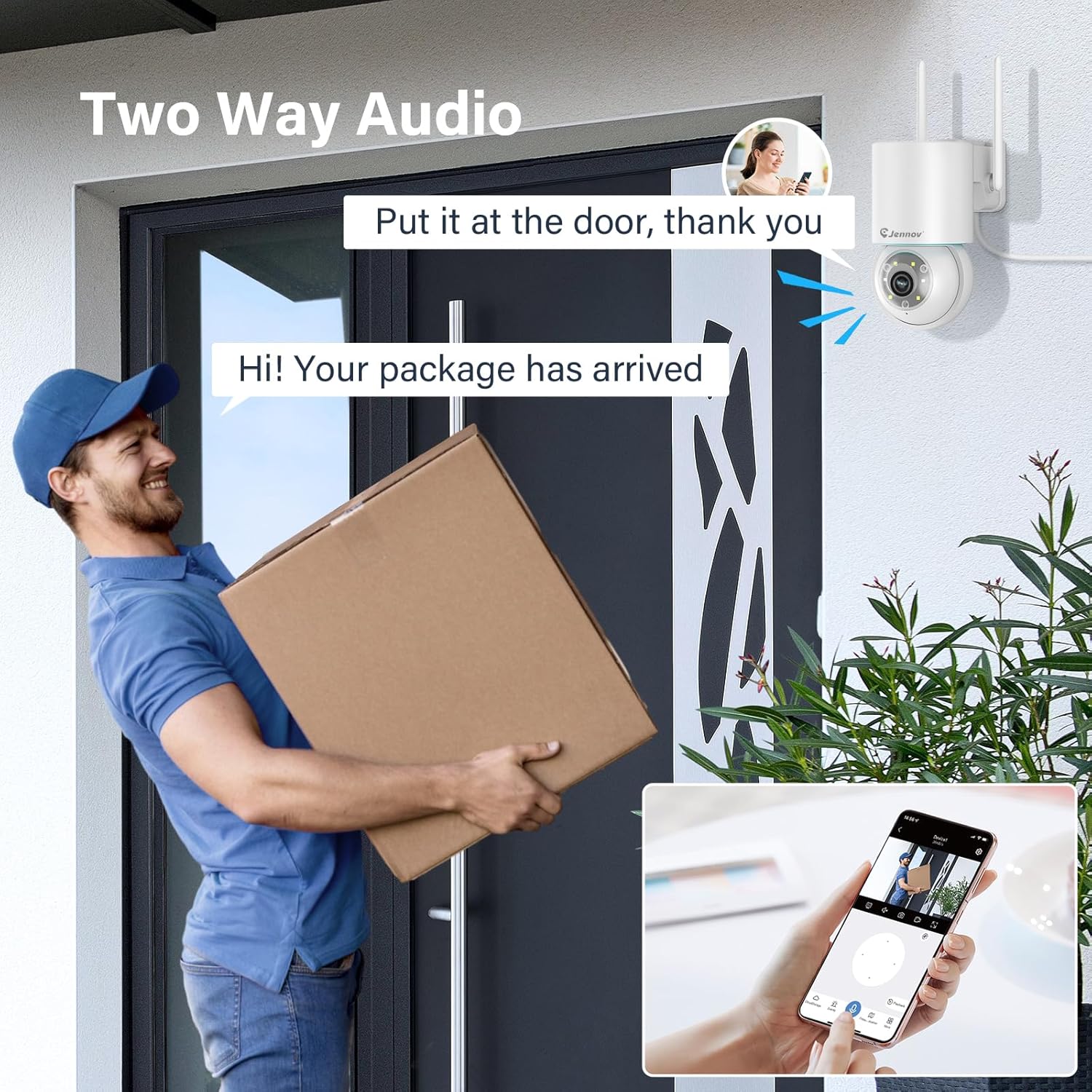
Figure 7: 24/7 Recording and Storage Options
Пристап до снимената хранаtagпреку функцијата за репродукција на апликацијата.
- Снимање 24/7: The camera can continuously record footage, ensuring no vital moments are missed.
- Локално складирање: Insert a microSD card (up to 128GB, not included) into the camera's SD card slot for local storage.
- Складирање во облак: Optional cloud storage service is available, often with a free trial period (e.g., 7 days). This provides off-site backup of your recordings.
5.6 Режими на ноќно гледање
The camera offers three night vision modes for clear visibility in low-light conditions.

Figure 8: 5MP Color Night Vision
The camera provides clear night vision up to 65 feet (20 meters) with 5MP resolution.
- Режим на целосна боја: Utilizes white LEDs to provide full-color video at night.
- Црно-бел режим: Uses infrared LEDs for traditional black and white night vision.
- Паметен режим: Automatically switches between black and white and full color based on detected motion or light conditions.
You can switch between these modes within the EseeCloud mobile application.
5.7 Customized Detection Area
Дефинирајте специфични области во рамките на камерата view каде што детекцијата на движење треба да биде активна.

Figure 9: Customized Detection Area Settings
This feature helps reduce unwanted alerts by focusing detection on critical zones. The app typically offers "Area mode" and "Cordon mode" for defining these zones.
6. Одржување
- Чистење: Редовно чистете го објективот на камерата со мека, сува крпа за да обезбедите јасен квалитет на сликата. Не користете груби хемикалии.
- Ажурирања на фирмверот: Check the EseeCloud app periodically for available firmware updates. Keeping your camera's firmware updated ensures optimal performance and security.
- Управување со SD картички: If using local storage, periodically check the SD card's status in the app. Format the card as needed to maintain recording efficiency.
- Напојување: Ensure the power adapter and cable are free from damage and properly connected.
7 Смена на проблеми
- Камера офлајн:
- Проверете ја јачината на сигналот на Wi-Fi.
- Проверете дали камерата е вклучена.
- Рестартирајте ја камерата и вашиот Wi-Fi рутер.
- If using 5GHz Wi-Fi, ensure your router supports it and the camera is connected to the correct band.
- Try re-adding the camera to the EseeCloud app.
- Лош квалитет на сликата:
- Исчистете ја леќата на камерата.
- Ensure sufficient lighting, especially at night.
- Проверете ја брзината на вашата интернет конекција.
- Откривањето движење не работи:
- Verify motion detection settings in the app are enabled.
- Прилагодете ја чувствителноста на откривање.
- Осигурајте се дека нема пречки што го блокираат фотоапаратот view.
- Check if detection areas are correctly configured.
- Двонасочни аудио проблеми:
- Ensure microphone and speaker permissions are granted to the EseeCloud app on your smartphone.
- Check volume settings on both the app and your phone.
- Уверете се дека нема физички пречки што го блокираат микрофонот или звучникот на камерата.
- Cannot Access SD Card Recordings:
- Проверете дали SD-картичката е правилно вметната.
- Check if the SD card is formatted correctly (usually FAT32).
- Verify that continuous recording or event recording to SD card is enabled in the app.
- The SD card might be full; consider formatting it or replacing it.
8. Спецификации
| Карактеристика | Спецификација |
|---|---|
| Број на модел | JS7015 |
| Бренд | Џенов |
| Резолуција | 5 Megapixel (1920p video recording) |
| Агол на движење/навалување | Пан 355 °, Навалување 60 ° |
| Ноќна визија | Color Night Vision, Black & White Night Vision, Smart Mode (up to 65ft/20m) |
| Wi-Fi поврзување | Dual-Band (2.4GHz / 5GHz) |
| Аудио | Двонасочно аудио (вграден микрофон и звучник) |
| Детекција на движење | PIR Human Detection, Auto Tracking |
| Опции за складирање | MicroSD картичка (до 128GB), складирање во облак |
| Водоотпорен рејтинг | IP66 |
| Влез на енергија | 5 волти |
| Потрошувачка на енергија | 24 вати |
| Димензии (Д x Ш x В) | 12 x 8 x 16 cm |
| Материјал | Пластика |
| Тип на монтирање | Монтирање на ѕид |
| Компатибилни уреди | Паметен телефон, таблет, компјутер |
| Контролна апликација | EseeCloud |
9. Гаранција и поддршка
For warranty information and technical support, please refer to the warranty card included with your product or visit the official Jennov webсајт.
- Услуга за клиенти: Contact Jennov customer support for assistance with product issues, technical questions, or warranty claims.
- Онлајн ресурси: Проверете го Џенов webстраница за најчесто поставувани прашања, ажурирани упатства и преземања на софтвер.


