1. Вовед
This user manual provides comprehensive instructions for the setup, operation, and maintenance of your IPEVO VC-Z4K UHD 4K PTZ Camera. The VC-Z4K is designed to enhance educational and worship spaces with its 4K UHD resolution and 8.29-MP Sony CMOS sensor. It features advanced pan-tilt-zoom capabilities, AI auto-tracking, and a powerful 12X Optical + 15X Digital Zoom, making it ideal for capturing detailed and engaging remote sessions. Its AI functionality helps minimize the need for additional personnel, and its easy setup allows seamless integration with popular platforms like YouTube, OBS, and Zoom.
2. Информации за безбедност
Please read and understand all safety instructions before using the IPEVO VC-Z4K camera to prevent injury or damage to the device. Keep this manual for future reference.
- Извор на енергија: Use only the provided power adapter. Ensure the power outlet meets the camera's voltagбарања.
- Вентилација: Do not block ventilation openings. Ensure adequate airflow around the camera to prevent overheating.
- Животна средина: Avoid exposing the camera to water, moisture, extreme temperatures, or direct sunlight. Operate in a clean, dry environment.
- Ракување: Ракувајте со камерата внимателно. Не ја испуштајте и не ја подложувајте на силни вибрации.
- Чистење: Исклучете го напојувањето пред чистење. Користете мека, сува крпа. Не користете течни или аеросолни средства за чистење.
- Сервисирање: Не обидувајте се сами да ја расклопите или поправите камерата. За сите сервиси обратете се на квалификуван персонал.
3. Содржина на пакетот
Проверете дали сите артикли наведени подолу се вклучени во вашиот пакет:
- IPEVO VC-Z4K Camera
- Power adapter (8.2 ft / 2.5 m)
- USB 3.0 cable (4.9 ft / 1.5 m)
- RS232 cable (6.5 ft / 2 m)
- Далечински управувач (батеријата не е вклучена)
- Упатство за употреба (овој документ)
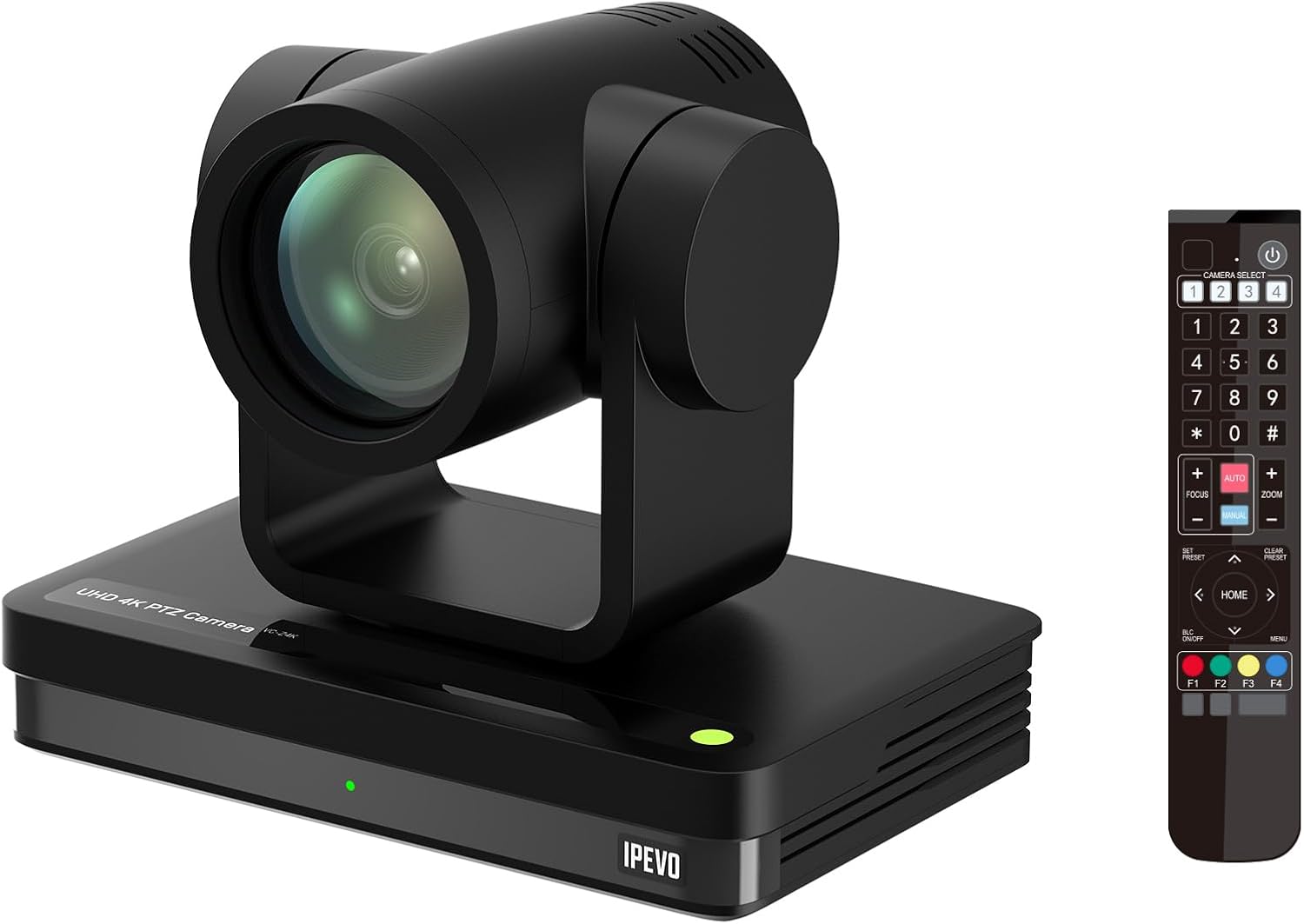
Image: The IPEVO VC-Z4K camera unit shown alongside its remote control, illustrating the main components included in the package.
4. Производот завршиview
4.1 Клучни карактеристики
- 4K Ultra HD резолуција: Equipped with a 1/2.8" HD CMOS sensor for stunning 4K video output.
- 12X оптички зум: Provides clear, detailed close-ups without loss of quality.
- AI Auto Tracking: Automatically follows speakers or presenters, ensuring they remain in frame.
- Флексибилно поврзување: Features HDMI, USB-C, LAN (PoE), and SDI outputs for versatile integration.
- Wide Pan and Tilt Range: Offers 340° pan and 120° tilt for comprehensive room coverage.
- Напредно намалување на шумот: 2D/3D noise reduction ensures clear video in various lighting conditions.
4.2 Camera Components and Ports

Слика: Заден дел view of the IPEVO VC-Z4K camera showing its various connectivity ports including USB 3.0, HDMI, SDI, LAN (PoE), and power input.
The VC-Z4K camera features a range of ports for diverse connectivity options:
- HDMI излез: For high-definition video output to displays or capture devices.
- USB-C порта: For direct connection to computers for video and control.
- LAN (PoE) порт: For network connectivity and Power over Ethernet, simplifying installation.
- Излез на SDI: For professional video workflows requiring longer cable runs.
- Порта RS232: For serial control via external control systems.
- Влез на енергија: За поврзување на вклучениот адаптер за напојување.
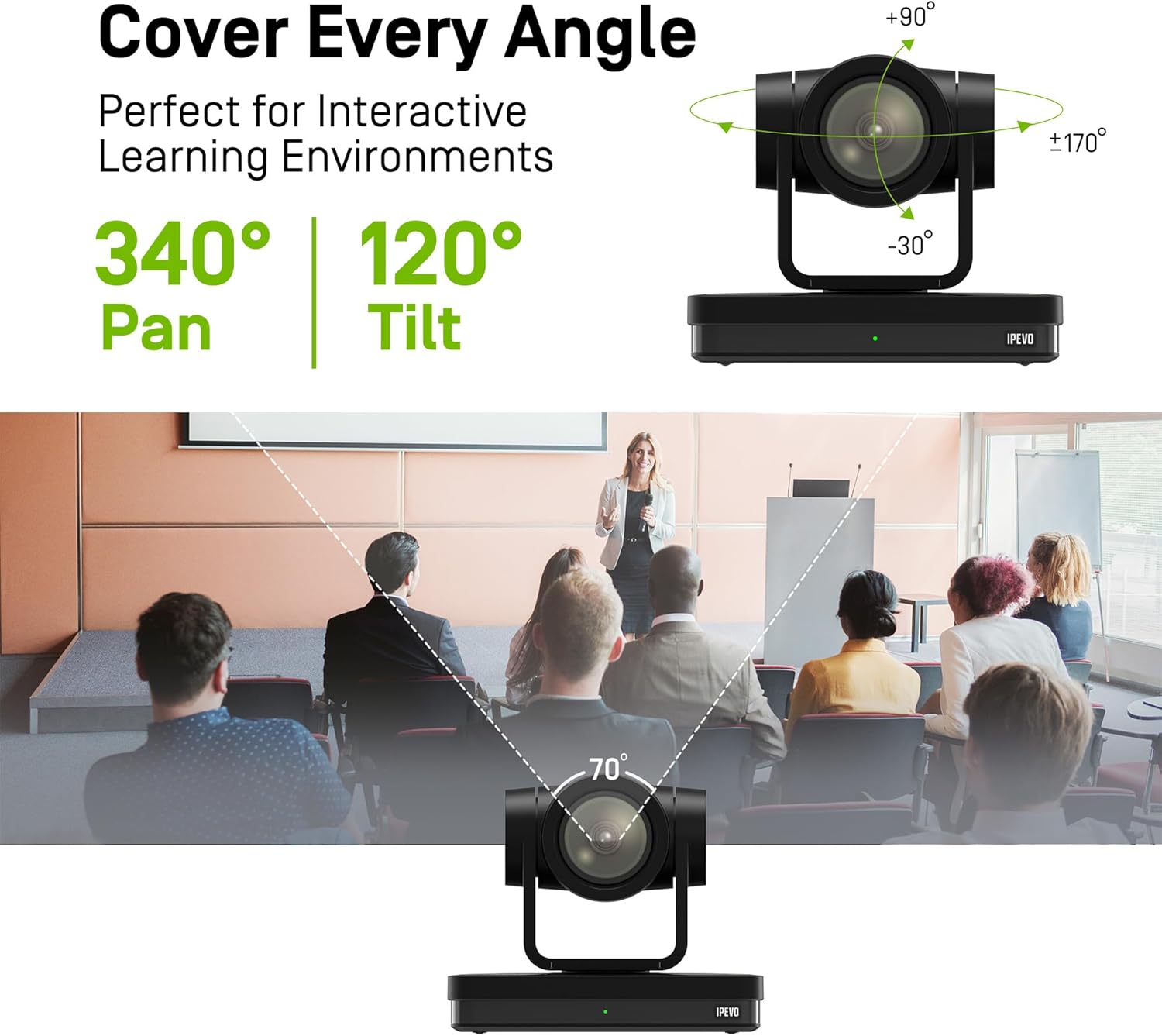
Image: Diagram illustrating the IPEVO VC-Z4K camera's pan (340°) and tilt (120°) ranges, highlighting its ability to cover a wide area.
The camera's motorized head allows for precise pan and tilt movements, enabling comprehensive coverage of your space. The pan range is 340 degrees, and the tilt range is 120 degrees (-30° to +90°).
5. Поставување
Follow these steps for the initial setup of your IPEVO VC-Z4K camera:
- Поставување: Choose a stable surface or mount the camera securely in your desired location. Ensure it has a clear line of sight to the area you wish to capture.
- Поврзување за напојување:
- Користење на адаптер за напојување: Connect the provided power adapter to the camera's power input port and then plug it into a wall outlet.
- Користење на PoE (Напојување преку Ethernet): If your network switch supports PoE, connect an Ethernet cable from the PoE-enabled switch to the camera's LAN (PoE) port. This will provide both power and network connectivity.
- Video Output Connection (Choose one or more):
- HDMI: Connect an HDMI cable from the camera's HDMI output to a display, projector, or video capture card.
- USB-C: Connect the USB 3.0 cable from the camera's USB-C port to a USB 3.0 port on your computer. This enables the camera as a webкамера за апликации за видео конференции.
- LAN: Connect an Ethernet cable from the camera's LAN port to your network router or switch for IP streaming and control.
- ИПП: Connect an SDI cable from the camera's SDI output to a professional video switcher or recorder.
- Поставување далечински управувач: Insert two AAA batteries (not included) into the remote control. The remote control is essential for initial configuration and operation.
- Вклучување: Once all connections are secure, power on the camera. The indicator light will illuminate.
6. Упатства за работа
6.1 Basic Camera Control (via Remote Control)
- Пан/навалување: Use the directional arrows on the remote control to move the camera horizontally (pan) and vertically (tilt).
- Зумирајте: Use the 'ZOOM +' and 'ZOOM -' buttons to adjust the optical zoom.
- Фокус: Press 'AUTO FOCUS' for automatic focus. Use 'FOCUS +' and 'FOCUS -' for manual adjustment if needed.
- Претходно поставени мемории: The camera supports up to 255 presets. You can save and recall up to 10 presets directly from the remote control using the number buttons (0-9). To save a preset, position the camera, then press 'PRESET' followed by a number (e.g., '1'). To recall, press the number button.

Image: The IPEVO VC-Z4K camera demonstrating its 12X optical zoom capability, highlighting its 8.29-MP Sony CMOS sensor for high-quality video.
6.2 Автоматско следење со вештачка интелигенција
The VC-Z4K features advanced AI auto-tracking to keep a presenter or subject automatically in frame.
- Enabling Tracking: Refer to the remote control or camera's web interface for specific buttons or settings to activate AI tracking.
- Следење на зоната: Configure specific zones within the camera's view where tracking should occur.
- Следење на презентер: The camera can identify and follow a designated presenter as they move within the defined area.

Image: A visual representation of the IPEVO VC-Z4K's AI auto-tracking and auto-focus features, showing how it maintains focus on a moving subject in a classroom setting.
6.3 Integration with Platforms
The VC-Z4K seamlessly integrates with various video conferencing and streaming platforms:
- USB конекција: When connected via USB-C, the camera will be recognized as a standard webcam by applications like Zoom, OBS Studio, Microsoft Teams, Google Meet, GoTo Meeting, and Skype. Select "IPEVO VC-Z4K" as your video input device within the application settings.
- LAN/IP Streaming: For advanced streaming setups, use the LAN connection to stream video via RTSP/RTMP protocols to platforms like YouTube Live or OBS Studio. Refer to the camera's web interface for IP configuration and streaming settings.
7. Одржување
Proper maintenance ensures the longevity and optimal performance of your IPEVO VC-Z4K camera.
- Чистење на објективот: Use a soft, lint-free cloth specifically designed for optical lenses. Gently wipe the lens to remove dust or smudges. Avoid using abrasive materials or harsh chemicals.
- Чистење на телото: Избришете го телото на фотоапаратот со мека, сува крпа. За тврдокорна нечистотија, малкуampen the cloth with water, then wipe dry immediately. Do not allow liquids to enter the camera.
- Складирање: Кога не го користите фотоапаратот подолг период, чувајте го на ладно и суво место, подалеку од директна сончева светлина и екстремни температури.
- Ажурирања на фирмверот: Periodically check the IPEVO official website for firmware updates. Keeping your camera's firmware up-to-date can improve performance and add new features.
8 Смена на проблеми
If you encounter issues with your IPEVO VC-Z4K camera, refer to the following common problems and solutions:
| Проблем | Можна причина | Решение |
|---|---|---|
| No power/Camera not turning on | Power adapter not connected or faulty; no PoE connection. | Ensure power adapter is securely connected and plugged into a working outlet. If using PoE, verify the network switch is PoE-enabled and the Ethernet cable is functional. |
| Нема видео излез | Incorrect cable connection; wrong input selected on display; software issue. | Check HDMI, USB-C, LAN, or SDI cable connections. Ensure the display is set to the correct input source. Restart the computer/application if connected via USB. |
| Далечинскиот управувач не работи | Батериите се празни или се неправилно вметнати; IR сензорот е блокиран. | Replace batteries (AAA). Ensure batteries are inserted with correct polarity. Point the remote directly at the camera's IR receiver. |
| AI tracking not functioning | Tracking feature not enabled; subject out of tracking range; poor lighting. | Activate AI tracking via remote or web interface. Ensure the subject is within the optimal tracking area. Improve lighting conditions if too dark. |
| Poor video quality (blurry, noisy) | Lens is dirty; focus issue; low light conditions; network bandwidth. | Clean the lens. Adjust focus manually or use auto-focus. Ensure adequate lighting. For IP streaming, check network bandwidth and camera's streaming settings. |
9. Спецификации
Detailed technical specifications for the IPEVO VC-Z4K UHD 4K PTZ Camera:
| Димензии на производот | 7.1 x 5.9 x 4.5 инчи |
| Тежина на ставката | 2.64 фунти |
| Број на модел на ставка | CDCU-06IP |
| Технологија на фотосензор | CMOS (1/2.8" HD CMOS Sensor) |
| Резолуција за снимање видео | 4K UHD |
| Оптички зум | 12X |
| Дигитален зум | 15X |
| Максимална решетка | 2.8 милиметри |
| Технологија за поврзување | USB, HDMI, LAN (PoE), SDI, RS232 |
| Посебни карактеристики | AI Tracking and Auto Focus, Low Noise and High SNR, Multiple Presets (up to 255) |
| Боја | Црното |
| Производител | ИПЕВО |
10. Гаранција и поддршка
IPEVO products are designed for reliability and performance. For warranty information, technical support, or service inquiries, please visit the official IPEVO webстраницата или директно контактирајте ја нивната корисничка поддршка. Зачувајте ја сметката за купување како доказ за купување за гаранциски побарувања.
За понатамошна помош, посетете: www.ipevo.com


