1. Производот завршиview
The POLONO P31S is a compact and portable thermal label printer designed for various labeling needs in home, office, and school environments. It connects wirelessly via Bluetooth to your smartphone or tablet, allowing you to design and print labels using the dedicated mobile application. This device features a built-in cutter and operates without ink, utilizing thermal printing technology for clear, durable labels.
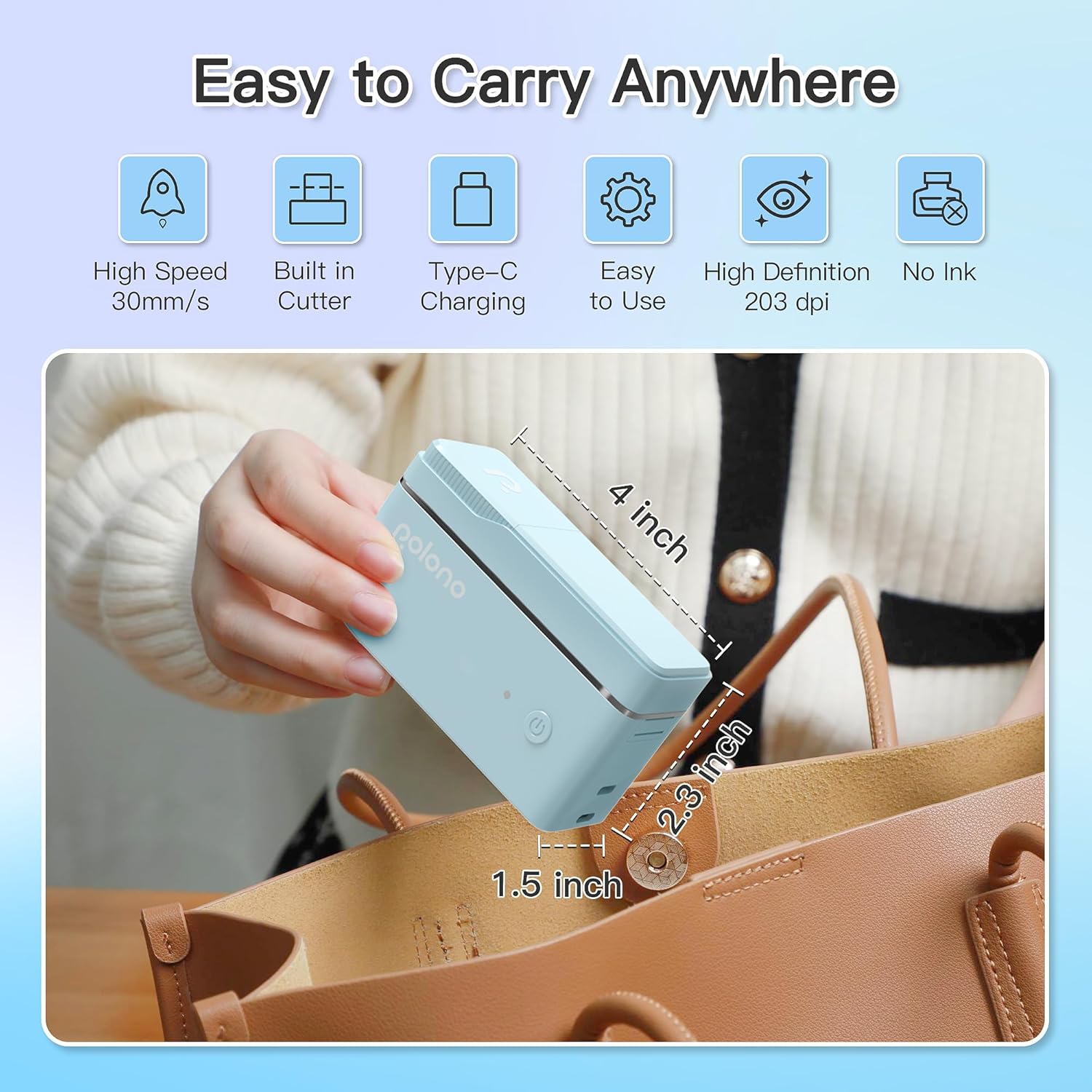
Слика 1: POLONO P31S Label Printer highlighting its compact design and dimensions (approximately 4 inches long, 2.3 inches high, 1.5 inches wide).
Клучни карактеристики:
- Пренослив и лесен дизајн.
- Bluetooth connectivity for wireless printing.
- Thermal printing technology (no ink required).
- Built-in label cutter.
- Supports various label types including text, QR codes, barcodes, and images.
- Батерија за полнење.
2. Информации за безбедност
Please read and understand all safety instructions before using the POLONO P31S label printer to prevent injury or damage to the device.
- Не расклопувајте, поправајте или менувајте го уредот.
- Чувајте го уредот подалеку од вода, влага и екстремни температури.
- Use only POLONO-approved label tapes to ensure optimal performance and prevent damage.
- Избегнувајте допирање на главата за печатење веднаш по печатењето, бидејќи може да биде жешка.
- Да се чува подалеку од дофат на деца.
- Use the provided charging cable or a certified equivalent.
3. Содржина на пакетот
Проверете дали сите артикли се присутни во пакувањето:
- POLONO P31S Label Printer
- Label Tape Roll (starter roll)
- USB кабел за полнење
- Упатство за употреба (овој документ)
4. Поставување
4.1 Полнење на уредот
Before first use, fully charge the label printer. Connect the provided USB charging cable to the printer's charging port and to a USB power adapter (not included) or a computer's USB port. The indicator light will show charging status.
4.2 Поставување на лента за етикети
- Open the label compartment cover.
- Insert the label tape roll with the printing surface facing up, ensuring it is properly seated.
- Pull a small portion of the label tape out, extending it past the cutter blade.
- Цврсто затворете го капакот на преградата за етикети.

Слика 2: Proper installation of POLONO P31S label tape. Ensure the green sticker on the tape is not removed or damaged, as it contains chip technology for optimal performance. Do not pull the label out directly; use the cutting blade.
4.3 Преземање на апликација и Bluetooth поврзување
- Download the "Labelnize" app from the Apple App Store or Google Play Store.
- Turn on the POLONO P31S label printer by pressing and holding the power button.
- Овозможете Bluetooth на вашиот паметен телефон или таблет.
- Open the "Labelnize" app. The app will prompt you to allow Bluetooth access. Grant permission.
- Within the app, search for available devices and select "P31S" to connect.
- Once connected, the app will indicate a successful connection, and you are ready to create labels.
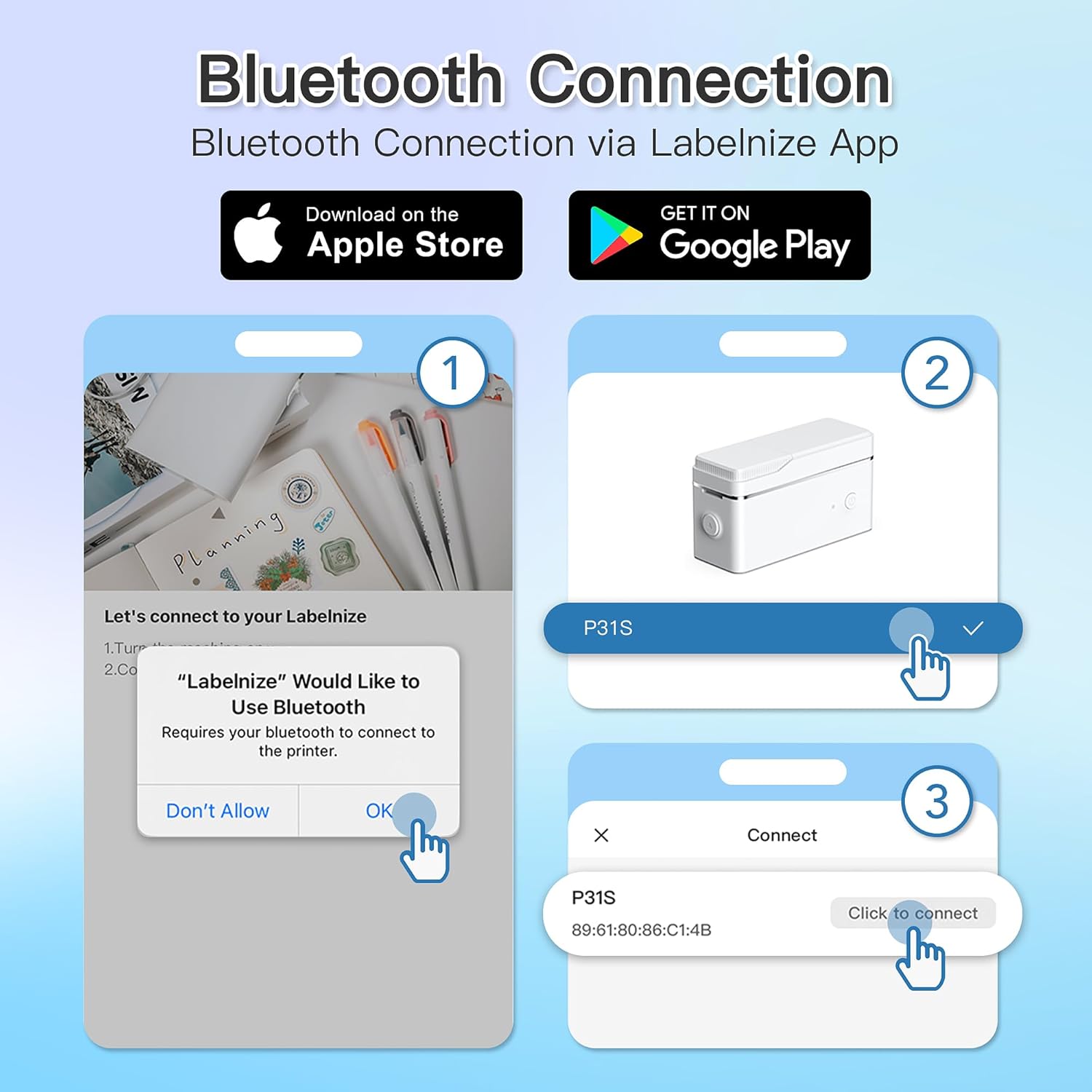
Слика 3: Steps for Bluetooth connection via the Labelnize App. Download the app, allow Bluetooth access, select "P31S" from the device list, and click "Connect".
5. Упатства за работа
5.1 Creating Labels with the Labelnize App
The Labelnize app offers a variety of tools to design your labels:
- Текст: Enter custom text, choose from over 90 fonts, adjust size, style (bold, italic), and alignment.
- Граници: Select from over 95 border designs to frame your labels.
- Icons/Graphics: Access a library of over 670 tab icons and other graphics to enhance your labels.
- QR Code/Barcode: Generate QR codes or barcodes for various applications.
- Слики: Insert images from your device's gallery.
- Шаблони: Utilize pre-designed templates for common labeling tasks.

Слика 4: The Labelnize app interface for creating labels, offering extensive customization options including borders, fonts, and icons. The app supports multiple languages.
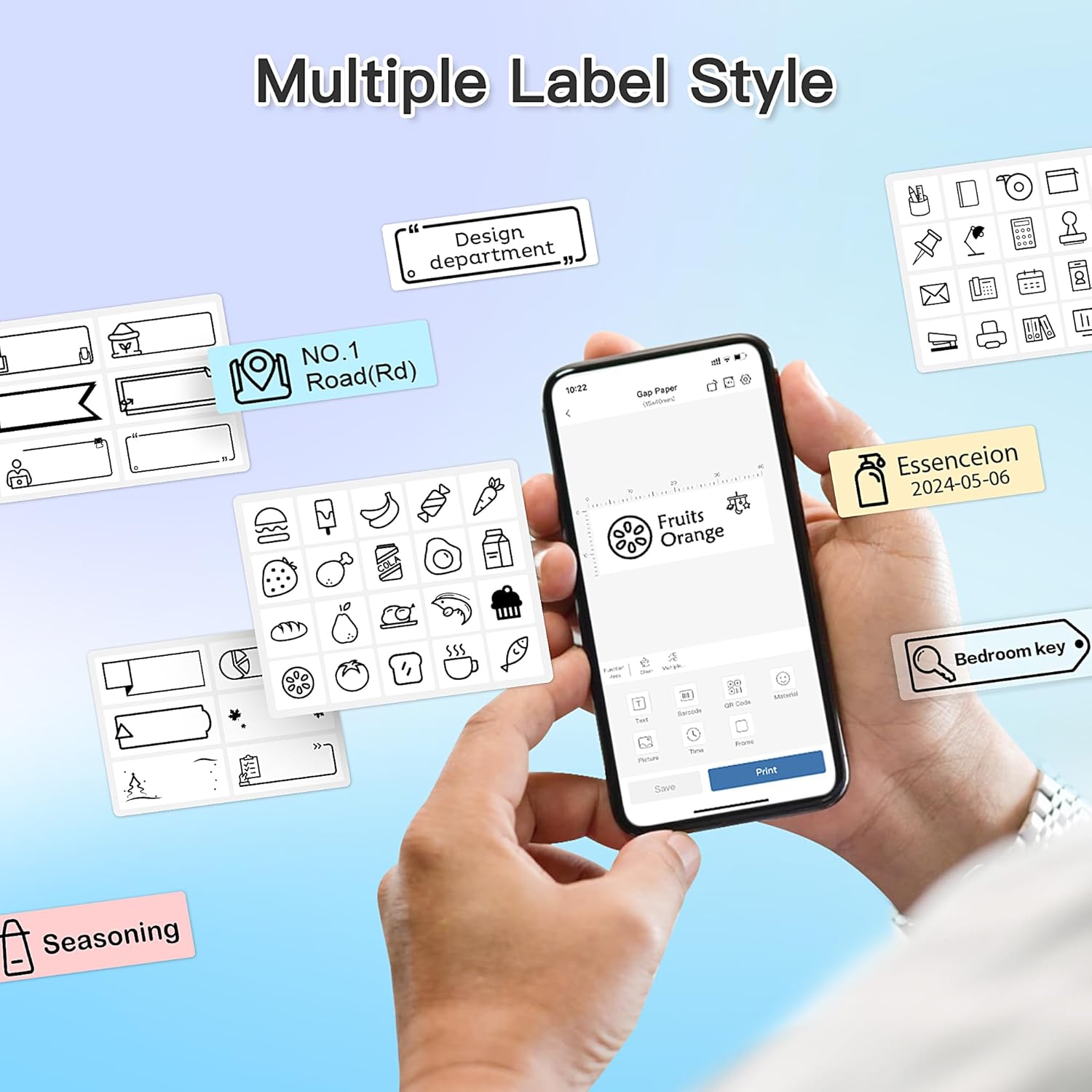
Слика 5: Examples of diverse label styles achievable with the POLONO P31S, demonstrating the flexibility in design for different organizational needs.
5.2 Печатење етикети
After designing your label in the Labelnize app:
- Review your label design on the app screen.
- Tap the "Print" button within the app.
- Confirm print settings (e.g., number of copies) if prompted.
- Печатачот автоматски ќе ја внесе и испечати етикетата.
5.3 Користење на вградениот секач
The POLONO P31S features a built-in cutter for clean and precise label separation. After printing, gently press the cutter button or lever (depending on model variation) to cut the label. Do not pull the label manually to tear it, as this may damage the printer or result in uneven cuts.
6. Одржување
6.1 Чистење на главата за печатење
To maintain print quality, clean the print head periodically:
- Исклучете го печатачот и исклучете го кабелот за напојување.
- Open the label compartment cover.
- Нежно избришете ја главата за печатење со памукче лесно dampобложена со изопропил алкохол.
- Оставете главата за печатење целосно да се исуши пред да го затворите капакот и да го вклучите печатачот.
6.2 Грижа за батерии
- Charge the battery regularly, even if the printer is not used frequently, to prolong its lifespan.
- Избегнувајте целосно празнење на батеријата подолг временски период.
- Чувајте го печатачот на ладно и суво место кога не го користите.
7 Смена на проблеми
| Проблем | Можна причина | Решение |
|---|---|---|
| Печатачот не се вклучува. | Слаба батерија или без струја. | Наполнете го печатачот користејќи го дадениот USB-кабел. |
| Не може да се поврзе преку Bluetooth. | Bluetooth is off, printer is off, or app issue. | Ensure printer is on, Bluetooth is enabled on your device, and restart the Labelnize app. Try re-pairing. |
| Лош квалитет на печатење. | Dirty print head, incorrect label tape, or low battery. | Clean the print head (Section 6.1). Ensure you are using POLONO P31S compatible label tape. Charge the printer. |
| Label jam. | Improper tape installation or foreign object. | Turn off the printer, open the cover, carefully remove any jammed tape. Reinstall tape correctly. |
| Печатачот не реагира. | Привремен софтверски дефект. | Restart the printer and the Labelnize app. |
8. Спецификации
| Карактеристика | Детал |
|---|---|
| Модел | P31S |
| Технологија на печатење | Термички |
| Поврзување | Bluetooth |
| Резолуција за печатење | 203 x 203 DPI |
| Максимална брзина на печатење (монохроматски) | 15 ppm |
| Максимална големина на медиум | Label rolls (2 inches / 24 millimeters) |
| Боја на мастило | Black (thermal print) |
| Извор на енергија | 1 литиум полимерна батерија (вклучена) |
| Димензии на производот | 7.2 x 7.4 x 12.7 см; 260 гр |
| Вклучени компоненти | Етикети |
9. Гаранција и поддршка
For warranty information and technical support, please refer to the official POLONO webлокација или контактирајте ја нивната служба за корисници. Чувајте ја сметката за купување како доказ за купување за гаранциски побарувања.
Службен Webсајт: www.polono.com (Забелешка: Ова е резервирано место URL, ве молиме потврдете го вистинскиот официјален website for POLONO products.)


