1. Вовед
This manual provides detailed instructions for the setup, operation, and maintenance of your KTC 32-Inch 2K QHD IPS Monitor, model H32T13. Please read this manual thoroughly before using the monitor to ensure proper functionality and to prevent damage.
The KTC H32T13 monitor features a 32-inch IPS panel with 2K QHD (2560x1440) resolution, a 100Hz refresh rate, and support for FreeSync/G-Sync technologies. It is designed for both office productivity and gaming, offering vibrant colors, wide viewing angles, and eye-care features.
2. Што има во кутијата
Проверете дали сите компоненти се присутни во пакувањето:
- KTC 32-Inch 2K QHD IPS Monitor (H32T13)
- Поставка за монитор (основа и врат)
- HDMI кабел
- Кабел за напојување
- Адаптер за напојување
- Шрафцигер
- Упатство за употреба (овој документ)

Image: Contents of the KTC H32T13 monitor package.
3. Производот завршиview
The KTC H32T13 monitor is designed for a superior visual experience. Key features include:
- 32-inch QHD (2560x1440) IPS Panel: Delivers crisp, detailed images with accurate colors and wide viewинг агли.
- Стапка на освежување 100Hz: Provides smoother motion for gaming and fast-paced content.
- Компатибилност со FreeSync/G-Sync: Reduces screen tearing and stuttering for a fluid gaming experience.
- Поддршка за HDR: Enhances contrast and color for more realistic visuals.
- Технологија за нега на очите: Features Flicker-Free and Low Blue Light modes to reduce eye strain during prolonged use.
- Разновидно поврзување: Equipped with multiple HDMI 2.0 and DisplayPort 1.4 inputs.
- Ергономски дизајн: Offers tilt adjustment and VESA mount compatibility for flexible positioning.
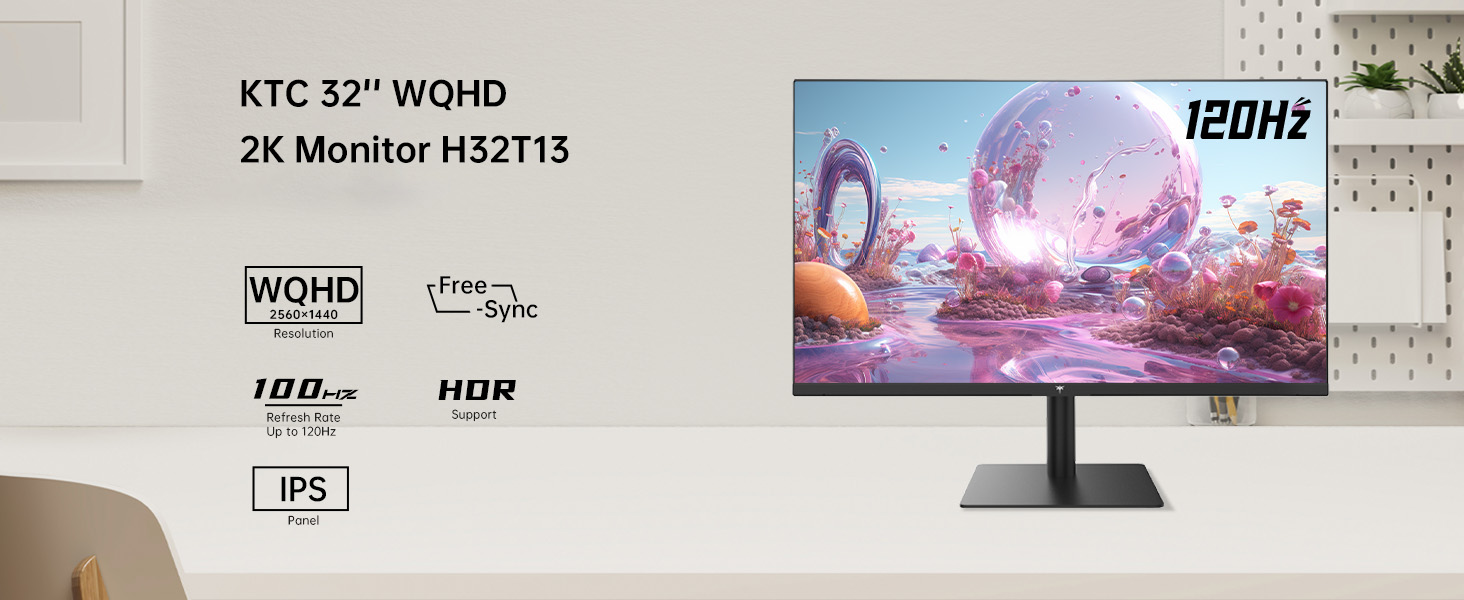
Image: KTC H32T13 monitor showcasing its key display technologies.

Image: The 32-inch screen size of the KTC H32T13 monitor.
4. Поставување
4.1 Склопување на штандот
- Внимателно извадете ги компонентите на мониторот и држачот од пакувањето.
- Attach the stand neck to the monitor panel using the provided screws and screwdriver.
- Прицврстете ја основата на држачот на вратот на држачот.
- Поставете го склопениот монитор на стабилна, рамна површина.
4.2 VESA Монтирање (опционално)
The monitor supports VESA 100mm x 100mm mounting. If you wish to use a VESA-compatible arm or wall mount (not included), remove the stand and attach the VESA mount according to its instructions.

Слика: Заден дел view of the monitor with VESA 100x100mm mounting points.
4.3 Поврзување со компјутер
- Осигурајте се дека и мониторот и компјутерот се исклучени.
- Поврзете го едниот крај од испорачаниот HDMI кабел со HDMI порт на графичката картичка на вашиот компјутер.
- Connect the other end of the HDMI cable to one of the HDMI 2.0 ports on the monitor. Alternatively, use a DisplayPort cable to connect to a DP 1.4 port for higher refresh rates and FreeSync/G-Sync functionality.
- Connect the power adapter to the monitor's DC input and then plug the power cord into a power outlet.
- Вклучете го компјутерот, а потоа вклучете го мониторот.

Image: Monitor connectivity ports (DC, HDMI 1, HDMI 2, DP 1).
5. Упатства за работа
5.1 Вклучување/исклучување
Притиснете го копчето за вклучување што се наоѓа на мониторот за да го вклучите или исклучите. Индикаторското светло за напојување ќе светне кога мониторот е вклучен.
5.2 Избор на влезен извор
Use the OSD (On-Screen Display) menu buttons to navigate and select your desired input source (HDMI 1, HDMI 2, or DisplayPort).
5.3 Adjusting Display Settings (OSD Menu)
The OSD menu allows you to customize various display settings. Typically, buttons are located on the back or bottom of the monitor. Refer to the quick start guide for specific button functions.
- Осветленост/Контраст: Прилагодете ја вкупната осветленост и соодносот на контрастот.
- Поставки за боја: Modify color temperature, gamma, and individual RGB levels. The monitor supports 1.07 billion colors and 103% sRGB.
- Режим на слика: Select from preset modes optimized for different content (e.g., Standard, Game, Movie, Text).
- Стапка на освежување: The monitor supports up to 100Hz. Ensure your graphics card settings are configured to match.
- Слободна синхронизација/G-синхронизација: Enable this feature in the OSD menu and your graphics card control panel for adaptive synchronization.
- Eye Care Modes: Activate Flicker-Free and Low Blue Light modes to reduce eye strain.
- HDR: Enable HDR for compatible content and devices.

Image: Monitor displaying enhanced colors and brightness with HDR enabled.

Image: Visual comparison of FreeSync/G-Sync enabled and disabled, demonstrating smoother gameplay.

Image: IPS panel advantages in brightness and color over VA panels.
5.4 Физички прилагодувања
The monitor stand allows for tilt adjustment from -5° to 15° to optimize your viewинголен агол.

Image: Monitor tilt adjustment range and eye care features.
Видео: Надview of the KTC 2K IPS Office Monitor, highlighting its features and suitability for office use. This video demonstrates the monitor's visual quality and design.
6. Одржување
6.1 Чистење на мониторот
- Секогаш исклучувајте го мониторот и извадете го кабелот за напојување пред чистење.
- Лесно користете мека крпа без влакненца dampизмијте со вода или со благ, неабразивен чистач на екрани.
- Нежно избришете го екранот за да отстраните прашина и дамки. Избегнувајте директен притисок врз екранот.
- Не користете алкохол, средства за чистење на база на амонијак или абразивни материјали, бидејќи тие можат да ја оштетат површината на екранот.
- Исчистете го мониторот casing со мека, сува крпа.
6.2 Складирање
Доколку го складирате мониторот подолг период, осигурајте се дека е исклучен од струја, исклучен од струја и складиран на ладно и суво место, подалеку од директна сончева светлина и екстремни температури. Користете го оригиналното пакување, доколку е достапно, за најдобра заштита.
7 Смена на проблеми
| Проблем | Можна причина | Решение |
|---|---|---|
| Нема слика на екранот | Monitor not powered on; Incorrect input source; Loose video cable; Computer in sleep mode. | Ensure power is connected and monitor is on. Select correct input source. Check video cable connections. Wake up computer. |
| Сликата е заматена или искривена | Incorrect resolution; Faulty video cable; Graphics driver issues. | Set display resolution to 2560x1440. Try a different video cable. Update graphics drivers. |
| Треперење или кинење на екранот | Refresh rate mismatch; FreeSync/G-Sync not enabled or incompatible. | Ensure refresh rate is set to 100Hz. Enable FreeSync/G-Sync in monitor OSD and graphics card settings. Use DisplayPort for FreeSync/G-Sync. |
| Нема звук од слушалки | Headphones not connected properly; Audio output not set to monitor. | Check headphone connection. Set monitor as default audio output in your computer's sound settings. |
| Копчињата не реагираат | OSD lock enabled; Temporary software glitch. | Check if OSD lock is active (refer to quick start guide). Power cycle the monitor. |
8. Спецификации
| Карактеристика | Детал |
|---|---|
| Број на модел | H32T13 |
| Големина на екранот | 32 инчи |
| Тип на панел | IPS |
| Резолуција | 2560 x 1440 (QHD широко 1440p) |
| Сооднос на аспект | 16:9 |
| Стапка на освежување | 100 Hz |
| Осветленост | 350 Candela (typ.) |
| Гама на бои | 103% sRGB |
| Длабочина на боја | 1.07 милијарди бои |
| Поддршка за HDR | Да |
| Адаптивна синхронизација | Компатибилен со FreeSync/G-Sync |
| Поврзување | 2x HDMI 2.0, 1x DisplayPort 1.4 |
| Прилагодување на навалување | -5° до 15° |
| Планината ВЕСА | 100мм x 100мм |
| Карактеристики за нега на очите | Flicker-Free, Eye Protection Mode (Low Blue Light) |
| Димензии на производот | 5.31 x 32.48 x 21.2 инчи |
| Тежина на ставката | 18.81 фунти |
9. Гаранција и поддршка
9.1 Информации за гаранцијата
KTC products are covered by a limited warranty. Please refer to the warranty card included in your product packaging or visit the official KTC webстраница за детални услови за гаранција. Зачувајте го доказот за купување за рекламации за гаранција.
9.2 Поддршка за корисници
For technical assistance, troubleshooting not covered in this manual, or warranty inquiries, please contact KTC customer support through the following channels:
- Поддршка преку Интернет: Visit the KTC official website for FAQs, driver downloads, and support contact forms.
- Поддршка за е-пошта: Refer to your warranty card or the KTC webстраница за соодветната е-адреса за поддршка.
- Поддршка на Амазон: If purchased via Amazon, you can contact the seller directly through your Amazon order history for assistance.
Image: Steps to contact KTC customer support via Amazon.


