Вовед
This manual provides comprehensive instructions for the setup, operation, maintenance, and troubleshooting of your MageGee Moon104 Wireless Mechanical Keyboard. Please read this manual thoroughly to ensure optimal performance and longevity of your device.

Image: The MageGee Moon104 Wireless Mechanical Keyboard, showcasing its full layout and the included USB receiver.
Содржина на пакетот
Откако ќе го отворите пакувањето, проверете дали се присутни сите елементи:
- MageGee Moon104 Wireless Mechanical Keyboard
- USB-C на USB-A кабел
- USB приемник од 2.4 GHz
- Упатство за употреба (овој документ)
Спецификации
| Карактеристика | Детал |
|---|---|
| Модел | Moon104 |
| Димензии (Д x Ш x В) | 16.73" x 16.73" x 0.98" (42.49 см x 42.49 см x 2.49 см) |
| Тежина на ставката | 2.33 фунти (1.06 кг) |
| Поврзување | USB-C Wired, 2.4GHz Wireless, Bluetooth 3.0/5.0 |
| Тип на тастатура | Механички, Low Profile |
| Прекинувачи | Кафеави механички прекинувачи |
| Задно осветлување | RGB Backlit (Seven-color breathing system) |
| Компатибилност | Windows, macOS |
| Препорачана употреба | Канцеларија |

Слика: Надview of the MageGee Moon104 keyboard's key features, including its tri-mode connectivity, low-profile switches, RGB backlighting, and ergonomic design.
Поставување
1. Полнење на тастатурата
Before first use, it is recommended to fully charge the keyboard using the provided USB-C cable. Connect the USB-C end to the keyboard and the USB-A end to a powered USB port on your computer or a wall adapter.

Слика: Крупен план view of the MageGee Moon104 keyboard showing the detachable USB-C cable connected to its port.
2. Поврзување на тастатурата
The MageGee Moon104 supports three connection modes: USB-C Wired, 2.4GHz Wireless, and Bluetooth.

Image: The MageGee Moon104 keyboard demonstrating its tri-mode connection capabilities, showing both wired USB-C and the 2.4GHz receiver in use.
2.1. USB-C жична врска
- Поврзете го USB-C крајот од кабелот со портата на тастатурата.
- Поврзете го USB-A крајот со слободен USB порт на вашиот компјутер.
- Тастатурата ќе биде автоматски препознаена и подготвена за употреба.
2.2. Безжична конекција од 2.4 GHz
- Locate the 2.4GHz USB receiver (usually stored in a compartment on the keyboard or included separately).
- Приклучете го USB-приемникот во достапна USB порта на вашиот компјутер.
- На тастатурата, притиснете Fn + Q to switch to 2.4GHz wireless mode. The indicator light will confirm the connection.
2.3. Поврзување со Bluetooth
- На тастатурата, притиснете Fn + W or Fn + E to select a Bluetooth channel (BT1 or BT2). The indicator light will flash, indicating pairing mode.
- On your device (computer, laptop, smart TV), enable Bluetooth and search for new devices.
- Select "MageGee Moon104" from the list of available devices to pair.
- Once paired, the indicator light on the keyboard will become solid.
Упатства за работа
1. Префрлување помеѓу режимите на поврзување
To switch between the three connection modes, use the following key combinations:
- Fn + TAB: Switch to USB-C Wired Mode
- Fn + Q: Префрли на безжичен режим од 2.4 GHz
- Fn + W: Switch to Bluetooth Channel 1 (BT1)
- Fn + E: Switch to Bluetooth Channel 2 (BT2)
2. Контрола на RGB позадинско осветлување
The keyboard features an RGB backlight system with multiple effects and brightness levels.

Image: The MageGee Moon104 keyboard displaying its vibrant RGB backlighting across the keys.
- Прилагодување на осветленоста: Користете Fn + ↑ (increase brightness) and Fn + ↓ (decrease brightness).
- Промена на режимите на осветлување: Користете Fn + → or Fn + ← to cycle through different RGB effects.
- Прилагодување на брзината: Користете Fn + - (decrease speed) and Fn + = (increase speed) for dynamic lighting effects.
3. Windows/macOS Compatibility Switch
The keyboard includes a physical switch to toggle between Windows and macOS layouts for optimal key mapping.

Image: A close-up of the MageGee Moon104 keyboard highlighting the physical switch to select between Windows and Mac operating system compatibility.
- Лоцирајте го WIN/MAC switch on the side or back of the keyboard.
- Slide the switch to the appropriate operating system setting.
4. Функциски копчиња (F1-F12)
The F-keys often have secondary functions accessible by pressing them in combination with the Fn key. Refer to the keycaps for specific icons indicating these functions (e.g., media control, volume, brightness).
Ергономски дизајн
The MageGee Moon104 is designed with ergonomics in mind to reduce wrist strain during extended use. It features low-profile mechanical switches and adjustable tilt feet.

Image: The MageGee Moon104 keyboard positioned on a desk, showcasing its ergonomic profile and comfortable typing angle.
- Adjustable Tilt Feet: Extend the feet on the underside of the keyboard to adjust the typing angle to your preference.
- Ниско Проfile Прекинувачи: Ниско-проfile design of the mechanical switches contributes to a flatter keyboard, reducing the need for excessive wrist extension.
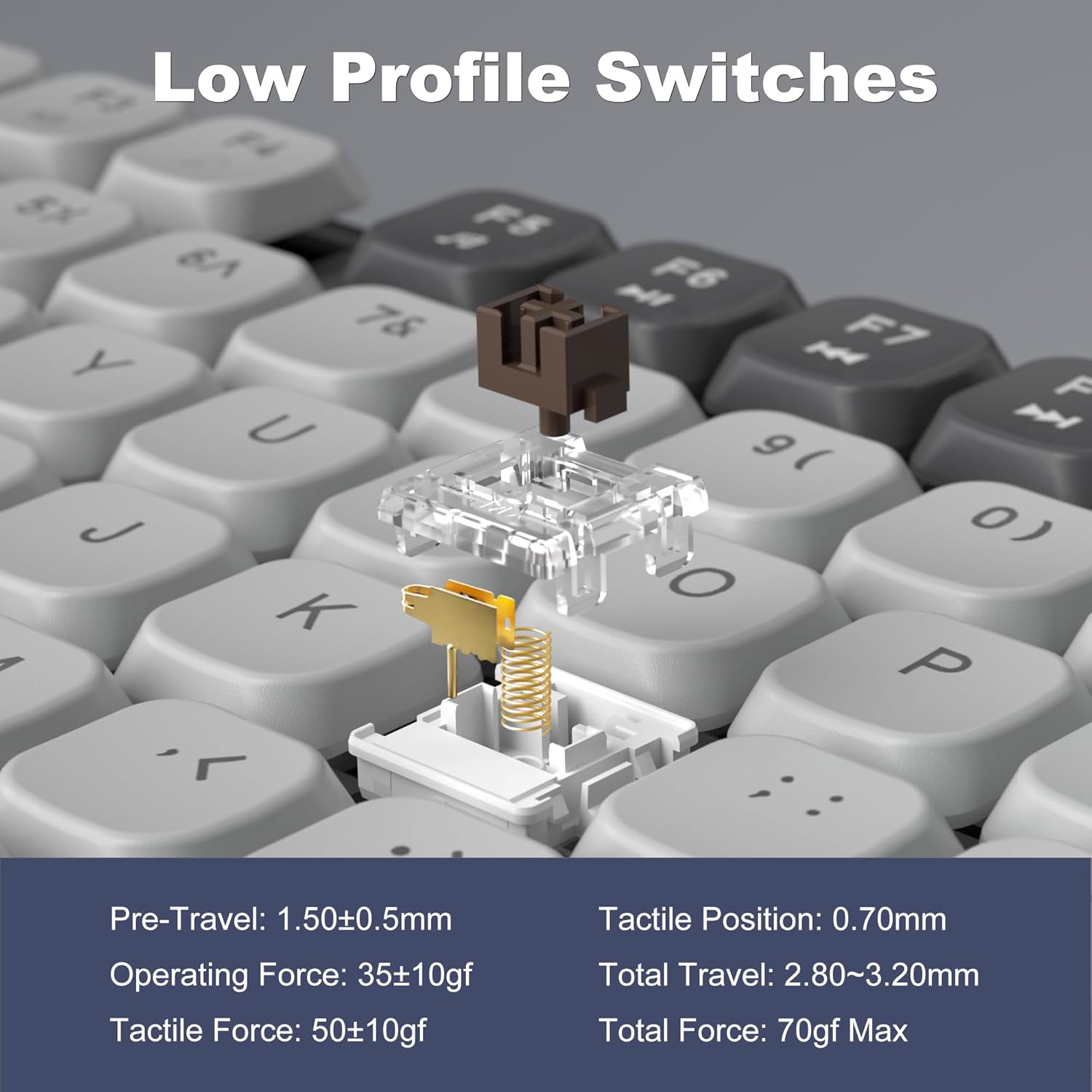
Image: A detailed diagram illustrating the internal structure and operational specifications of the low-profile mechanical switches used in the MageGee Moon104 keyboard.
Одржување
За да обезбедите долготрајност и оптимални перформанси на вашата тастатура, следете ги овие упатства за одржување:
- Чистење: Use a soft, dry cloth to wipe the surface of the keyboard. For deeper cleaning, use compressed air to remove dust and debris from between the keycaps. Avoid using harsh chemicals or abrasive materials.
- Складирање: Кога не ја користите подолго време, чувајте ја тастатурата на ладно и суво место, подалеку од директна сончева светлина и екстремни температури.
- Нега на батеријата: Избегнувајте често целосно празнење на батеријата. Редовно полнете ја тастатурата за да ја одржите состојбата на батеријата.
Решавање проблеми
If you encounter issues with your MageGee Moon104 keyboard, refer to the following common solutions:
- Тастатурата не реагира:
- Осигурајте се дека тастатурата е наполнета.
- Verify the correct connection mode is selected (Wired, 2.4GHz, or Bluetooth).
- За 2.4 GHz, проверете дали USB приемникот е безбедно вклучен.
- For Bluetooth, ensure the keyboard is paired and within range of your device. Try re-pairing if necessary.
- If using wired mode, try a different USB port or cable.
- Задното осветлување не работи или е неправилно:
- Check backlight brightness settings using Fn + ↑.
- Кружење низ режимите на осветлување користејќи Fn + → or Fn + ←.
- Осигурајте се дека батеријата на тастатурата е доволно наполнета.
- Клучевите не се регистрираат или пишуваат двојно:
- Исчистете го засегнатиот клуч со компримиран воздух за да ги отстраните сите остатоци.
- Осигурајте се дека тастатурата е целосно наполнета.
- If the issue persists, try connecting the keyboard to a different device to rule out software or driver issues on your primary computer.
- Function Keys (F1-F12) Not Working:
- Осигурајте се дека го притискате Fn key in combination with the desired F-key for secondary functions.
- Verify the keyboard is set to the correct operating system (Windows/Mac) using the physical switch.
Гаранција и поддршка
MageGee provides a 1-year warranty for the Moon104 Wireless Mechanical Keyboard. If you encounter any product issues or have questions, please contact MageGee customer support via Amazon email. They aim to reply within 24 hours and provide a satisfactory solution.
За поддршка, посетете ја страницата MageGee Store on Amazon or contact their customer service directly through your Amazon order details.


