1. Вовед
The Microsoft Surface Pro 10 is a versatile 2-in-1 device designed to adapt to various work styles, offering the functionality of both a tablet and a laptop. It features an Intel Core Ultra 5 processor, providing robust performance for daily tasks and advanced applications. This manual provides essential information to help you set up, operate, and maintain your device, ensuring optimal performance and longevity.
2. Што има во кутијата
Carefully unpack your Surface Pro 10 and ensure all items are present. The standard package includes:
- Уред Microsoft Surface Pro 10
- Единица за напојување
- Microsoft Surface Pro Keyboard
- Microsoft Surface Pro Slim Pen
- Водич за брз почеток
- Безбедносни и гарантни документи
3. Уредот завршиview
Familiarize yourself with the physical components of your Surface Pro 10.

Слика 3.1: Предна страна view of the Surface Pro 10 with the keyboard attached, showcasing распоредот на екранот и тастатурата.

Слика 3.2: Страна view of the Surface Pro 10 in laptop configuration, highlighting the adjustable kickstand and connected keyboard.
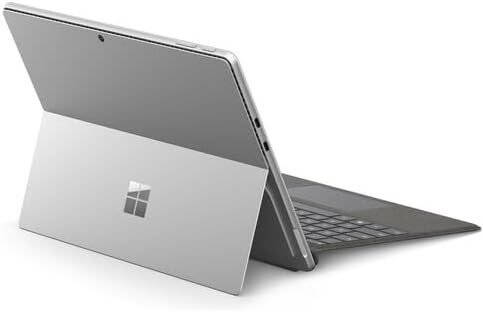
Слика 3.3: Заден дел view of the Surface Pro 10 with the kickstand deployed, revealing the device's sleek design and the iconic Microsoft logo.
Клучни компоненти:
- 13-inch PixelSense Flow Display: High-resolution touchscreen for vibrant visuals and touch interaction.
- Предна камера: For video calls and facial recognition (Windows Hello).
- Задна камера: За снимање фотографии и видеа.
- Копче за вклучување: Се наоѓа на страна, се користи за вклучување/исклучување на уредот или за ставање во режим на спиење.
- Копчиња за јачина на звук: Located on the side, for adjusting audio levels.
- USB-C порти: For charging, data transfer, and connecting external displays or accessories.
- Површинска врска пристаниште: For charging and connecting to Surface Dock accessories.
- Удар за удар: Integrated into the back, allows for multiple viewинг агли.
- Микрофони: For voice commands and audio recording.
4. Поставување
4.1 Почетно полнење
- Connect the power supply to the Surface Connect port or one of the USB-C ports on your Surface Pro 10.
- Приклучете го напојувањето во aиден штекер.
- Allow the device to charge for at least 30 minutes before first use, or until the battery indicator shows sufficient charge.
4.2 Вклучување/исклучување
- За вклучување: Press and hold the Power button until the Microsoft logo appears on the screen.
- За исклучување: From the Windows desktop, select Започнете > Моќ > Исклучи. Alternatively, press and hold the Power button for a few seconds, then slide down to shut down.
- За спиење: Briefly press the Power button. Press it again to wake the device.
4.3 Почетно поставување на Windows
Upon first power-on, you will be guided through the Windows 11 setup process. Follow the on-screen prompts to:
- Изберете го вашиот јазик и регион.
- Поврзете се на Wi-Fi мрежа.
- Прифатете ги условите на лиценцата.
- Најавете се со вашата сметка на Microsoft или креирајте нова.
- Set up Windows Hello (facial recognition or fingerprint, if available).
- Конфигурирајте ги поставките за приватност.
4.4 Attaching the Surface Pro Keyboard
Align the magnetic connector on the keyboard with the corresponding port at the bottom edge of your Surface Pro 10. The keyboard will snap into place magnetically. You can adjust the keyboard to lie flat or tilt it slightly for a more ergonomic typing experience.
4.5 Pairing the Surface Pro Slim Pen
The Surface Pro Slim Pen typically pairs automatically when first used with your Surface Pro 10. If not, follow these steps:
- Одете на Започнете > Поставки > Bluetooth и уреди > Додадете уред > Bluetooth.
- Press and hold the top button on your Slim Pen for 5-7 seconds until the LED light flashes white.
- Select your Surface Slim Pen from the list of available devices and follow any on-screen prompts.
5. Ракување со вашиот Surface Pro 10
5.1 Switching Between Tablet and Laptop Modes
- Режим на лаптоп: Attach the Surface Pro Keyboard and adjust the kickstand for a traditional laptop experience.
- Режим на таблет: Detach the keyboard or fold it back completely. Windows will automatically switch to Tablet Mode, optimizing the interface for touch input.
5.2 Користење на екранот на допир
The PixelSense Flow Display supports multi-touch gestures:
- Допрете: Изберете ставка или отворете апликација.
- Допрете и задржете: Access context menus (right-click equivalent).
- Штипнете за зумирање: Зголемување или намалување на сликите и web страници.
- Swipe from Edges: Access quick settings, notifications, or switch between apps.
5.3 Using the Surface Pro Slim Pen
The Slim Pen allows for precise input and creative tasks:
- Пишување/цртање: Use the pen directly on the screen in compatible apps like Microsoft Whiteboard or OneNote.
- Избирање: Tap with the pen to select items.
- Бришач: Use the eraser button on the pen to erase digital ink.
- Горно копче: Customizable for quick access to apps like OneNote or screenshots.
5.4 Основна навигација во Windows 11
- Мени за почеток: Access apps, settings, and power options.
- Лента со задачи: Pin frequently used apps and view отворени апликации.
- Акционен центар: Swipe in from the right edge (or click the icon) for quick settings and notifications.
- Додатоци: Swipe in from the left edge (or click the icon) for personalized information.
6. Одржување
6.1 Чистење на вашиот уред
- Користете мека крпа без влакненца малку гampизмијте го со вода или со одобрено средство за чистење екран за да го избришете екранот.
- For the body of the device and keyboard, use a soft, dry cloth.
- Avoid harsh chemicals, abrasive cleaners, or excessive moisture.
6.2 Грижа за батерии
- Избегнувајте често целосно празнење на батеријата.
- Чувајте го уредот на ладно и суво место кога не го користите подолг временски период.
- Use only the official Microsoft power supply or certified compatible chargers.
6.3 Ажурирања на софтверот
Редовно проверувајте и инсталирајте ажурирања на Windows за да се осигурате дека вашиот уред ги има најновите безбедносни закрпи, функции и подобрувања на перформансите. Одете на Започнете > Поставки > Windows Update.
7 Смена на проблеми
7.1 Уредот не се вклучува
- Ensure the device is charged. Connect the power supply and wait a few minutes before attempting to power on.
- Perform a force restart: Press and hold the Power button for 15-20 seconds, then release and press it again briefly to turn on.
7.2 Проблеми со екранот (нема екран, трепка)
- Рестартирајте го уредот.
- Ensure display drivers are up to date via Windows Update.
- If connected to an external display, try disconnecting it.
7.3 Wi-Fi or Bluetooth Connectivity Problems
- Check if Wi-Fi or Bluetooth is enabled in Quick Settings or Windows Settings.
- Restart your Surface Pro 10 and your router/modem.
- Forget the network/device and try reconnecting.
- Update network drivers via Windows Update.
7.4 Performance Issues (Slowdowns, Freezes)
- Затворете ги непотребните апликации што работат во позадина.
- Check for and install all available Windows updates.
- Run a disk cleanup and optimize drives.
- Обезбедете доволно слободен простор за складирање.
8. Спецификации
The following table outlines the key technical specifications for the Microsoft Surface Pro 10 (Intel Core Ultra 5, 16GB RAM, 256GB SSD) model:
| Карактеристика | Спецификација |
|---|---|
| Име на моделот | Surface Pro 10 (ZEA-00001) |
| Големина на приказ на стоечки екран | 13 инчи |
| Резолуција на екранот | 2880 x 1920 пиксели |
| Максимална резолуција на екранот | 2880x1920 |
| Процесор | 1.4 GHz Intel Core Ultra 5 |
| Хард диск | 256 GB SSD |
| Големина на инсталирана RAM меморија | 16 GB DDR5 RAM меморија |
| Оперативен систем | Windows 11 Pro |
| Бренд за чипсет | Интел |
| Опис на графичка картичка | Интегриран |
| Безжичен тип | 802.11ax |
| Боја | Платина |
| Димензии на производот | 11.3 x 8.2 x 0.4 инчи |
| Батерии | 1 литиум-јонска батерија (вклучена) |
9. Гаранција и поддршка
Your Microsoft Surface Pro 10 comes with a limited hardware warranty. For detailed warranty information, please refer to the documentation included with your device or visit the official Microsoft Support website. For technical assistance, troubleshooting guides, and driver downloads, please visit support.microsoft.com/surface.


