1. Вовед
This manual provides detailed instructions for the ABLEWE USB to HDMI Adapter. This device is designed to connect a computer with a USB interface to an HDMI-equipped display, such as an HDTV, monitor, or projector. It supports video resolutions up to 1080P and facilitates both mirror and extend display modes.
2. Производот завршиview
The ABLEWE USB to HDMI Adapter is a compact device that converts a USB signal to an HDMI output. It features a USB 3.0 port for connection to your computer and an HDMI output port for your display. The adapter is built with an aluminum exterior for durability.
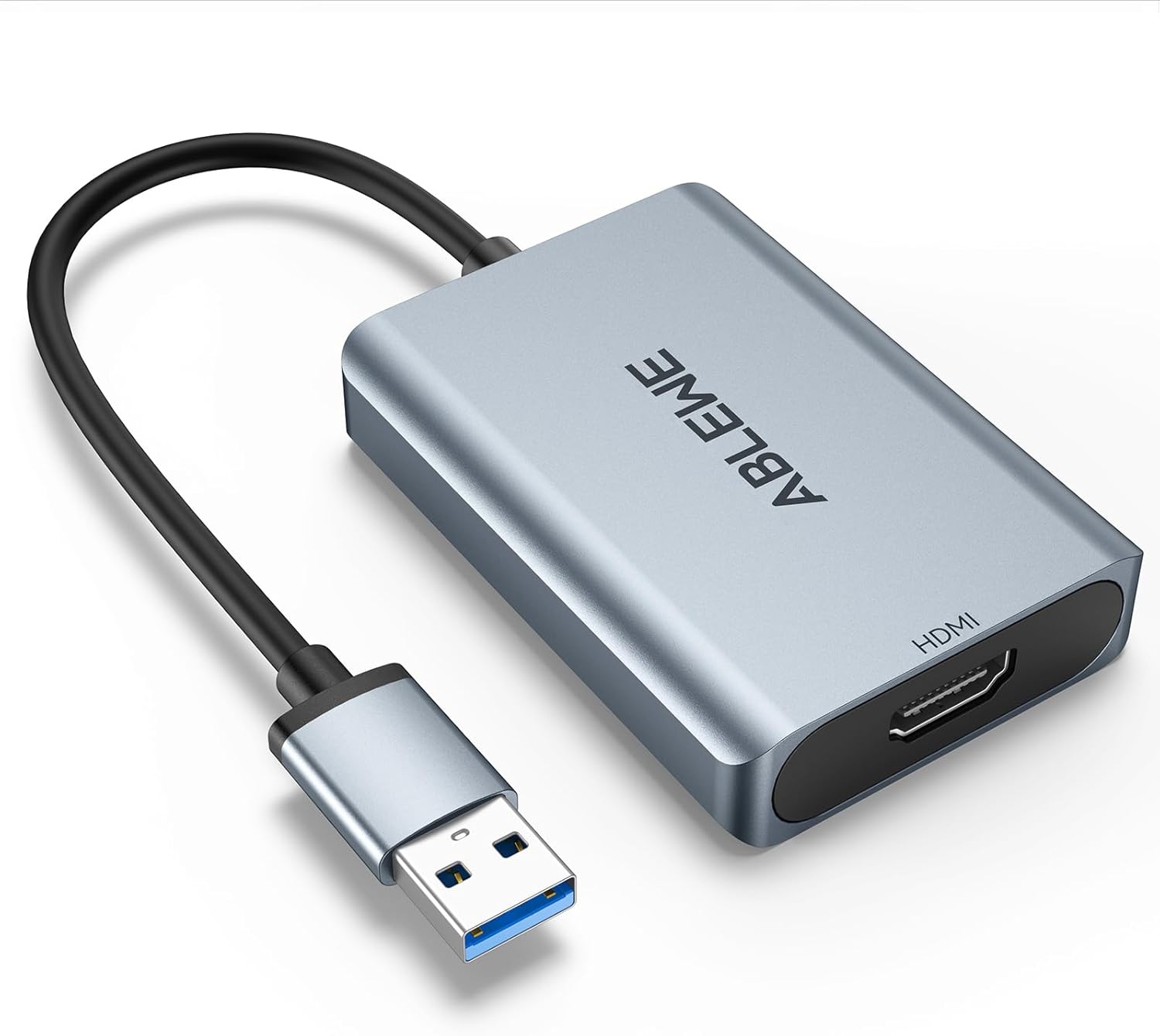
Слика 2.1: The ABLEWE USB to HDMI Adapter. This image shows the adapter with its USB-A connector and HDMI output port, featuring a silver aluminum casing.
3. Компатибилност
The adapter offers broad compatibility with various operating systems and devices.
3.1 Supported Operating Systems:
- Windows 10
- Windows 8.1
- Windows 8
- Windows 7
- Windows XP (32-bit)
- Mac OS
3.2 Unsupported Operating Systems:
- Windows XP (64-bit)
- Linux оперативен систем
- Хром ОС

Слика 3.1: Universal Compatibility. This image illustrates the operating system compatibility of the ABLEWE USB to HDMI Adapter, showing support for various Windows versions and Mac OS, while noting that Linux, 64-bit XP, and Chrome OS are not supported.
4. Поставување и инсталација
Follow these steps to set up and install your ABLEWE USB to HDMI Adapter:
- Поврзете го адаптерот: Plug the USB-A connector of the adapter into an available USB 3.0 or USB 2.0 port on your computer.
- Инсталација на драјвери: The adapter includes built-in drivers. Upon plugging it into your computer, the driver installation process should initiate automatically. Follow any on-screen prompts to complete the installation.
- Alternative Driver Sources:
- If automatic installation does not occur, a driver backup may be available on a provided CD (if included).
- Alternatively, you can download the necessary drivers from the official "DisplayLink" webсајт.
- Поврзете се со екранот: Connect one end of an HDMI cable (not included) to the HDMI output port on the adapter and the other end to the HDMI input port on your HDTV, monitor, or projector.
- Екран при вклучување: Ensure your display device is powered on and set to the correct HDMI input source.
- Конфигурирајте ги поставките за екранот: Once connected, your computer should detect the new display. You may need to adjust display settings (e.g., resolution, display mode) within your operating system's display preferences.

Слика 4.1: Internal Performance Chip. This image provides a view of the internal components of the adapter, highlighting the performance chip responsible for stable and high-resolution video output.
5. Работни режими
The ABLEWE USB to HDMI Adapter supports two primary display modes:
5.1 Extend Mode:
In Extend Mode, your computer's desktop is expanded across multiple screens. This allows you to view different content on each display, enhancing multitasking capabilities. For example, you can have a document open on your laptop screen and a web browser on the connected monitor.
5.2 Mirror Mode:
Mirror Mode duplicates your computer's primary display onto the connected external monitor. This is useful for presentations, sharing content with an audience, or enjoying media on a larger screen.

Слика 5.1: Different Display Modes. This image demonstrates the two primary operating modes: Extend Mode, which allows for separate content on multiple screens, and Mirror Mode, which duplicates the primary display onto a larger screen.
6. Аудио излез
The ABLEWE USB to HDMI Adapter supports simultaneous digital audio and video transmission. This means that audio from your computer can be routed through the HDMI connection to your connected display or audio system, provided the display supports audio input via HDMI.

Слика 6.1: Audio Output Capability. This image highlights the adapter's capability to transmit both digital audio and video simultaneously, ensuring a complete multimedia experience.
7. Сценарија за честа употреба
The adapter is suitable for various applications:
- Домашно кино: Enjoy movies and videos on a larger screen.
- Conferences: Facilitate presentations and screen sharing in meetings.
- Играње: Experience games on an external monitor or TV.
- Corporate Training: Display training materials to a group.
- Мултитаскинг: Extend your desktop for increased productivity.
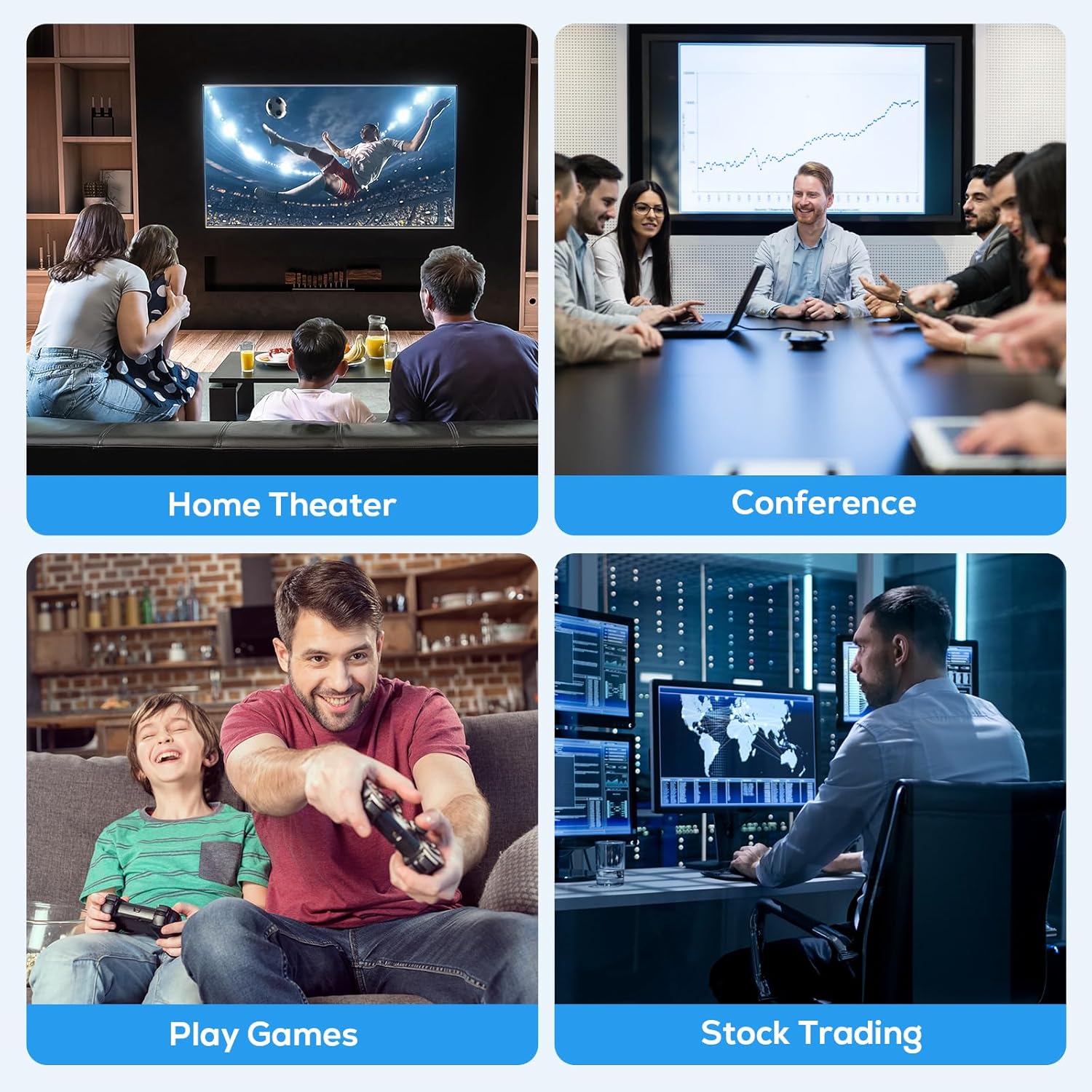
Слика 7.1: Versatile Applications. This image displays various applications for the adapter, including home theater, conference presentations, gaming, and stock trading, illustrating its versatility.
8 Смена на проблеми
If you encounter issues with your ABLEWE USB to HDMI Adapter, refer to the following troubleshooting steps:
- Нема екран/црн екран:
- Проверете дали сите кабли се безбедно поврзани.
- Verify the display is powered on and set to the correct HDMI input source.
- Проверете ги поставките за приказ на вашиот компјутер за да се осигурате дека надворешниот монитор е откриен и овозможен.
- Try a different HDMI cable or USB port on your computer.
- Проблеми со возачот:
- If the driver did not install automatically, manually install it from the provided CD (if applicable) or download the latest version from the official DisplayLink webсајт.
- For Windows users, check Device Manager for any unrecognized devices or driver errors. Reinstall the driver if necessary.
- Нема аудио:
- Ensure your display device supports audio input via HDMI.
- Check your computer's sound settings and select the HDMI output as the default playback device.
- Adjust the volume on both your computer and the display device.
- Low Resolution or Lagging Video:
- Ensure the adapter is connected to a USB 3.0 port for optimal performance. While compatible with USB 2.0, performance may be limited.
- Verify your computer's graphics drivers are up to date.
- Adjust the display resolution in your computer's settings to a supported resolution (e.g., 1920x1080P@60HZ).
- Проблеми специфични за Mac OS:
- Ensure you have installed the correct DisplayLink drivers for Mac OS.
- Check System Preferences > Displays to configure the external monitor.
9. Спецификации
| Карактеристика | Детал |
|---|---|
| Број на модел | ABLEWE-USBHDMIAdapter |
| Тип на конектор | USB-A (Input), HDMI (Output) |
| USB компатибилност | USB 3.0, USB 2.0 |
| Макс резолуција | 1920x1080P@60HZ (1080P) |
| Режими на прикажување | Mirror, Extend |
| Аудио поддршка | Yes, simultaneous audio and video |
| Компатибилни уреди | Laptop, Desktop, HDTV, Monitor, Projector |
| Поддржан ОС | Windows 10/8.1/8/7/XP (32-bit), Mac OS |
| Димензии | 5.59 x 3.43 x 0.94 инчи |
| Тежина на ставката | 3.52 унци |
| Производител | ABLEWE |
10. Одржување
To ensure the longevity and optimal performance of your ABLEWE USB to HDMI Adapter, follow these maintenance guidelines:
- Чистење: Use a soft, dry cloth to clean the adapter. Avoid liquid cleaners or abrasive materials.
- Складирање: Чувајте го адаптерот на ладно и суво место кога не е во употреба. Избегнувајте екстремни температури.
- Ракување: Do not bend or twist the cable excessively. Avoid dropping the adapter.
- Ажурирања: Периодично проверувајте го DisplayLink webстраница за ажурирани драјвери за да се обезбеди компатибилност и подобрувања на перформансите.
11. Гаранција и поддршка
For information regarding product warranty, please refer to the documentation provided with your purchase or contact the seller directly. For technical support, please visit the official ABLEWE webсајт или контактирајте со нивниот оддел за услуги на клиентите.
