1. Вовед
This manual provides detailed instructions for the setup, operation, maintenance, and troubleshooting of your NIIMBOT B1 Portable Thermal Label Printer. Please read this manual thoroughly before using the device to ensure proper function and longevity.

Image 1.1: The NIIMBOT B1 Label Maker shown with examples of printed labels for various applications.
2. Производот завршиview
2.1 Содржина на пакетот
Проверете дали сите артикли се присутни во вашиот пакет:
- NIIMBOT B1 Label Maker x1
- Кабел од тип C x1
- Упатство за употреба x1
- Roll label tape (50x30mm) x1 (pre-installed in some models)

Image 2.1: The NIIMBOT B1 Label Maker and its included accessories.
2.2 Клучни карактеристики
- 2-Inch Label Printing: Supports label widths from 20mm to 50mm (1-2 inches).
- Термичко печатење: Не е потребно мастило или тонер, со што се намалуваат оперативните трошоци.
- Автоматска идентификација на етикетата: For faster and easier printing.
- Поврзување: Compatible with iOS & Android smartphones via Bluetooth, and PC via USB.
- NIIMBOT App: Offers 10+ fonts/languages, 100+ borders, 1500+ symbols, barcodes, QR codes, icons, time stamps, pictures, photos, and OCR print functions.
- Преносен дизајн: Компактен и лесен за лесен транспорт и употреба.
- Автоматско исклучување: Customizable auto-off settings (15min, 30min, 60min, never) to conserve battery.
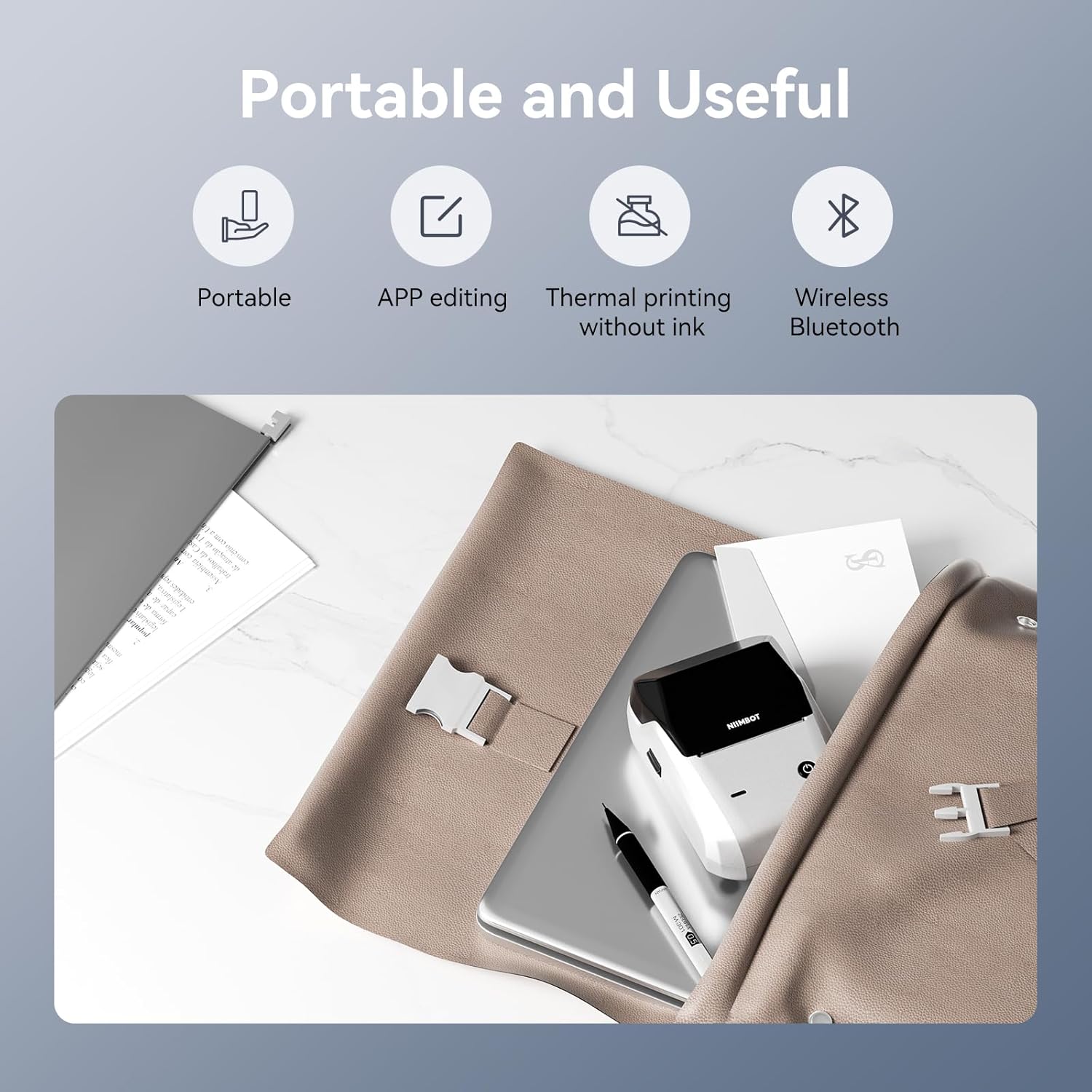
Слика 2.2: Готовоview of the NIIMBOT B1's portable and useful features.
3. Поставување
3.1 Loading Label Tape
- Rotate the side latch to open the tape slot.
- Load the label tape into the slot, ensuring the label side faces upwards.
- Adjust the guide plate to fit the label roll snugly.
- Close the tape slot, leaving a small portion of the label tape extending for smooth feeding.

Image 3.1: Proper installation of label tape in the NIIMBOT B1.
3.2 Инсталација и поврзување на апликацијата
The NIIMBOT B1 requires the NIIMBOT app for smartphone operation.
- Download the NIIMBOT app from the App Store (iOS) or Google Play Store (Android). Пребарај за "NIIMBOT".
- Проверете дали Bluetooth-от на вашиот телефон е овозможен.
- Open the NIIMBOT app and click "Connect" to search for nearby devices.
- Select your B1 printer from the list (e.g., B1-XXXXXX) to pair. If prompted for a pairing code, enter 0000 or 1234.
- Once connected, the app will automatically identify the label tape in the printer.

Image 3.2: NIIMBOT App download and connection process.
3.3 PC Connection (Windows)
For PC connectivity, you will need to download the driver from the official NIIMBOT webсајт.
- Посетете го официјалниот NIIMBOT website and download the B1 printer driver for Windows 7/10.
- Install the driver on your PC.
- Connect the NIIMBOT B1 printer to your PC using the provided USB Type-C cable.
- Open the NIIMBOT desktop software to begin printing.

Image 3.3: Connecting the NIIMBOT B1 to a PC via USB.
3.4 Quick Start Video Guide
Watch this video for a quick visual guide on setting up and using your B1 Label Maker.
Video 3.4: A quick start guide demonstrating the initial setup and basic operation of the NIIMBOT B1 Label Maker.
4. Упатства за работа
4.1 Creating and Editing Labels
- In the NIIMBOT app, select a template or create a new label.
- Use the various editing tools to add text, images, icons, barcodes, QR codes, and other elements.
- Customize font styles, sizes, alignment, and other layout options.
- The app supports features like OCR (Optical Character Recognition) for converting images to text.

Image 4.1: The NIIMBOT App interface for creating and editing labels.
4.2 Печатење етикети
- After designing your label, click the "Print" button in the app.
- Adjust the number of copies and print density as needed.
- Confirm the print settings and initiate printing.
- The printer will automatically feed and print the labels. Gently tear off the printed labels.

Image 4.2: Smartphone printing process with the NIIMBOT B1.
4.3 Значења на индикаторското светло
Understand the status of your printer through its indicator light:
- Светло сино: Во тек е надградба на фирмверот.
- Постојано сино: Printer is in standby mode.
- Трепка зелено: Printer is actively printing.
- Постојано зелено: Bluetooth is successfully connected.
- Светлечки црвено: Printer is charging.
- Постојано црвено: Cover is open, out of paper, or low battery.

Image 4.3: Guide to the NIIMBOT B1 indicator light statuses.
4.4 Употреба Прampлес
The NIIMBOT B1 is versatile for various labeling needs:
- Домашна употреба: Kitchen labels, gift labels, kids' item labels, trip item labels.
- Деловна употреба: Beauty & personal care, DIY item labels, mail labels, perfume labels, bakery food labels.

Слика 4.4: На пр.amples of NIIMBOT B1 usage for home organization.

Слика 4.5: На пр.amples of NIIMBOT B1 usage for small businesses.

Слика 4.6: На пр.amples of labels for bakery and food products.
Video 4.7: Demonstration of the NIIMBOT B1 Label Maker's ease of use for various labeling tasks.
Видео 4.8: Прикажиasing the multipurpose capabilities of the NIIMBOT B1 Label Maker for different applications.
5. Одржување
5.1 Чистење на главата за печатење
Редовното чистење на главата за печатење обезбедува оптимален квалитет на печатење.
- Исклучете го печатачот и исклучете го кабелот за напојување.
- Отворете ја преградата за етикети.
- Нежно избришете ја главата за печатење со памукче лесно dampобложена со изопропил алкохол.
- Allow the print head to dry completely before closing the compartment and turning on the printer.
5.2 Грижа за батерии
- Полнете го печатачот редовно, дури и ако не е во честа употреба, за да ја одржите состојбата на батеријата.
- Avoid exposing the printer to extreme temperatures.
- Користете го само испорачаниот кабел Type-C за полнење.
6 Смена на проблеми
6.1 Заеднички прашања и решенија
| Прашање | Можна причина | Решение |
|---|---|---|
| Печатачот не се вклучува | Слаба батерија; Копчето за вклучување не е притиснато доволно долго | Charge the printer; Press and hold the power button for 3 seconds. |
| Не може да се поврзе преку Bluetooth | Bluetooth off on phone; Printer not in pairing mode; App permissions | Ensure Bluetooth is on; Restart printer; Check app permissions for nearby devices. |
| Лош квалитет на печатење | Dirty print head; Incorrect print density; Low battery | Clean the print head (see 5.1); Adjust print density in the app; Charge the printer. |
| Етикетите не се внесуваат правилно | Incorrect label installation; Guide plate not adjusted | Reinstall label tape correctly (see 3.1); Adjust the guide plate to fit the label roll. |
| Печатачот не е препознаен од компјутерот | Driver not installed; Faulty USB cable | Install the correct PC driver (see 3.3); Try a different USB cable. |
7. Спецификации
| Карактеристика | Детал |
|---|---|
| Име на моделот | B1 |
| Технологија на печатење | Термички |
| Поврзување | Bluetooth, USB |
| Максимална резолуција за печатење | 203 dpi |
| Максимална брзина на печатење (монохроматски) | 15 mm/s |
| Максимална големина на медиум | 2 инчи (50 мм) |
| Компатибилни уреди | Smartphone (Android & iOS), PC (Windows 7/10) |
| Тежина на ставката | 1.1 фунти (499 грама) |
| Димензии на производот | 5.5" Д x 3.5" Ш x 2.5" В |
| Батерија | 1 Потребна е батерија (вклучена) |
| Специфична употреба | Labeling for Small Business Product Price/Address, School and Office Files Classification, Home Supplies Organization, Personal Item Identification, Name Tags and Warehouse |
8. Гаранција и поддршка
8.1 Информации за гаранцијата
The NIIMBOT B1 Label Printer comes with a 1-year warranty coverage. Please retain your proof of purchase for warranty claims.
8.2 Поддршка за корисници
For further assistance, technical support, or warranty inquiries, please contact NIIMBOT customer service through their official webстраницата или информациите за контакт дадени со пакувањето на вашиот производ.


