1. Вовед
The PeriPage PB40 Bluetooth Thermal Shipping Label Printer is designed for efficient and convenient label printing for various platforms. Utilizing thermal printing technology, it eliminates the need for ink, offering fast and clear output. This manual provides detailed instructions to help you maximize the functionality of your printer.

Image 1.1: The PeriPage PB40 Bluetooth Thermal Shipping Label Printer, shown with a smartphone connected via Bluetooth, printing a shipping label.
Клучни карактеристики:
- Печатење со Bluetooth: Seamlessly connect and print from your phone or tablet using the 'PeriPage' app (available on Google Play and Apple Store).
- USB Printing: Connect to Windows and Mac computers via USB for batch and complex printing operations, with drivers provided on a USB stick.
- Multi-Size Compatibility: Supports label widths from 1.41 inches to 4.13 inches (36-105mm), including customized sizes.
- Компатибилност со широка платформа: Compatible with major shipping platforms such as Amazon, Etsy, Temu, eBay, USPS, Shopify, UPS, PayPal, Poshmark, and Walmart.
- Ефикасно термичко печатење: High-speed printing up to 150 mm/sec, capable of printing 72 4x6 labels per minute, without the need for ink.
2. Водич за поставување
2.1. Содржина на пакетот
Пред да започнете, проверете дали сите елементи се присутни во пакетот:
- PeriPage PB40 Label Printer
- USB Stick (containing Windows and Mac drivers, and installation instructions)
- Адаптер за напојување
- USB кабел
- Водич за брз почеток (или слична документација)
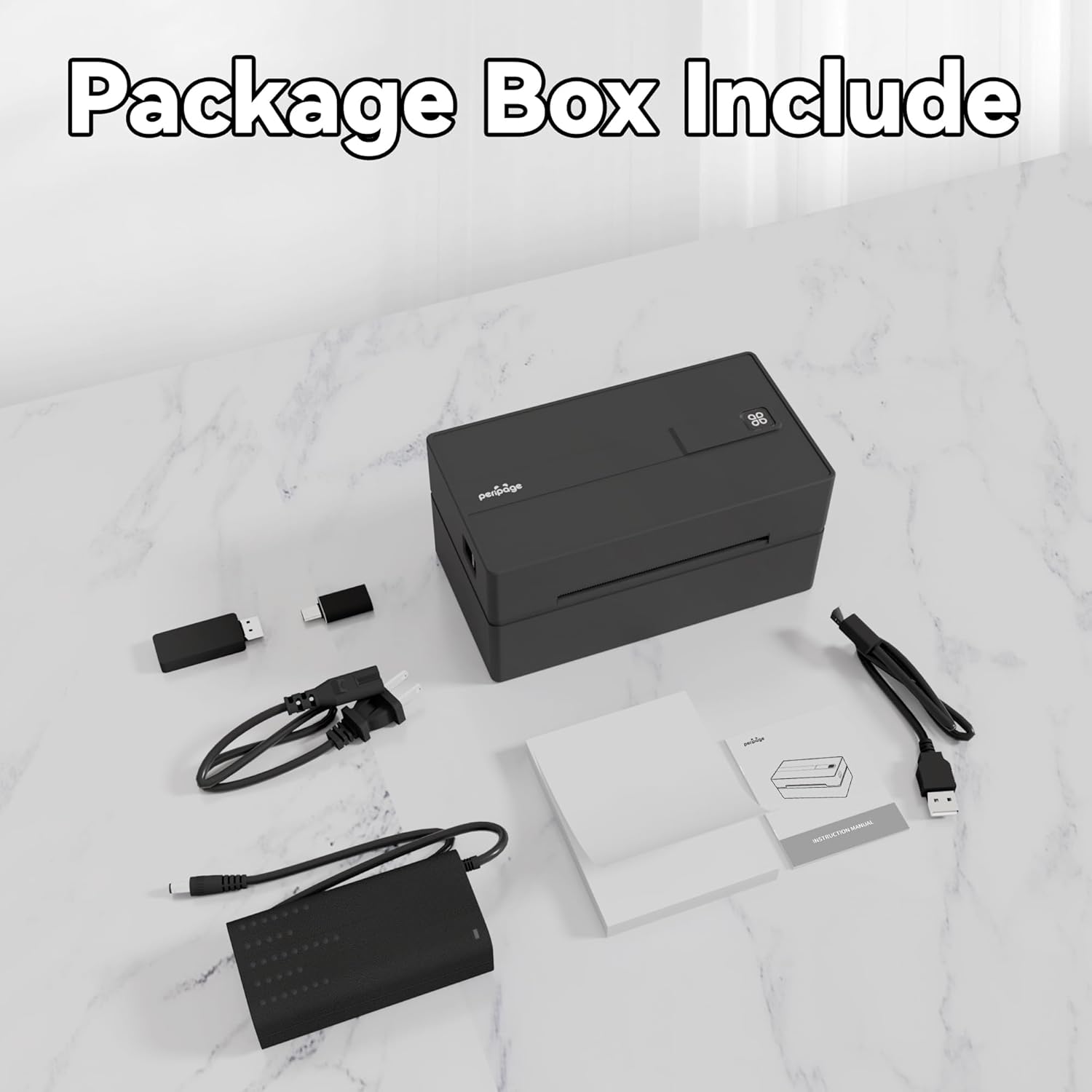
Image 2.1: Contents of the PeriPage PB40 printer package, including the printer, USB stick, and cables.
2.2. Вчитување етикети
- Отворете го горниот капак на печатачот.
- Insert the thermal labels into the paper slot, ensuring the printable side is facing up.
- Adjust the paper guides to fit the label width snugly, without creasing the labels.
- Close the top cover. The printer will automatically calibrate and feed a small portion of the label.

Image 2.2: Illustration of supported label sizes (4"x6", 2"x3", 2.25"x1.25") and the printer's label loading mechanism, emphasizing no waste of paper or jams.
2.3. Поврзување за напојување
Connect the power adapter to the printer's power port and then plug it into a wall outlet. Turn on the printer using the power button.
2.4. Поврзување со уреди
The PeriPage PB40 offers both Bluetooth and USB connectivity.
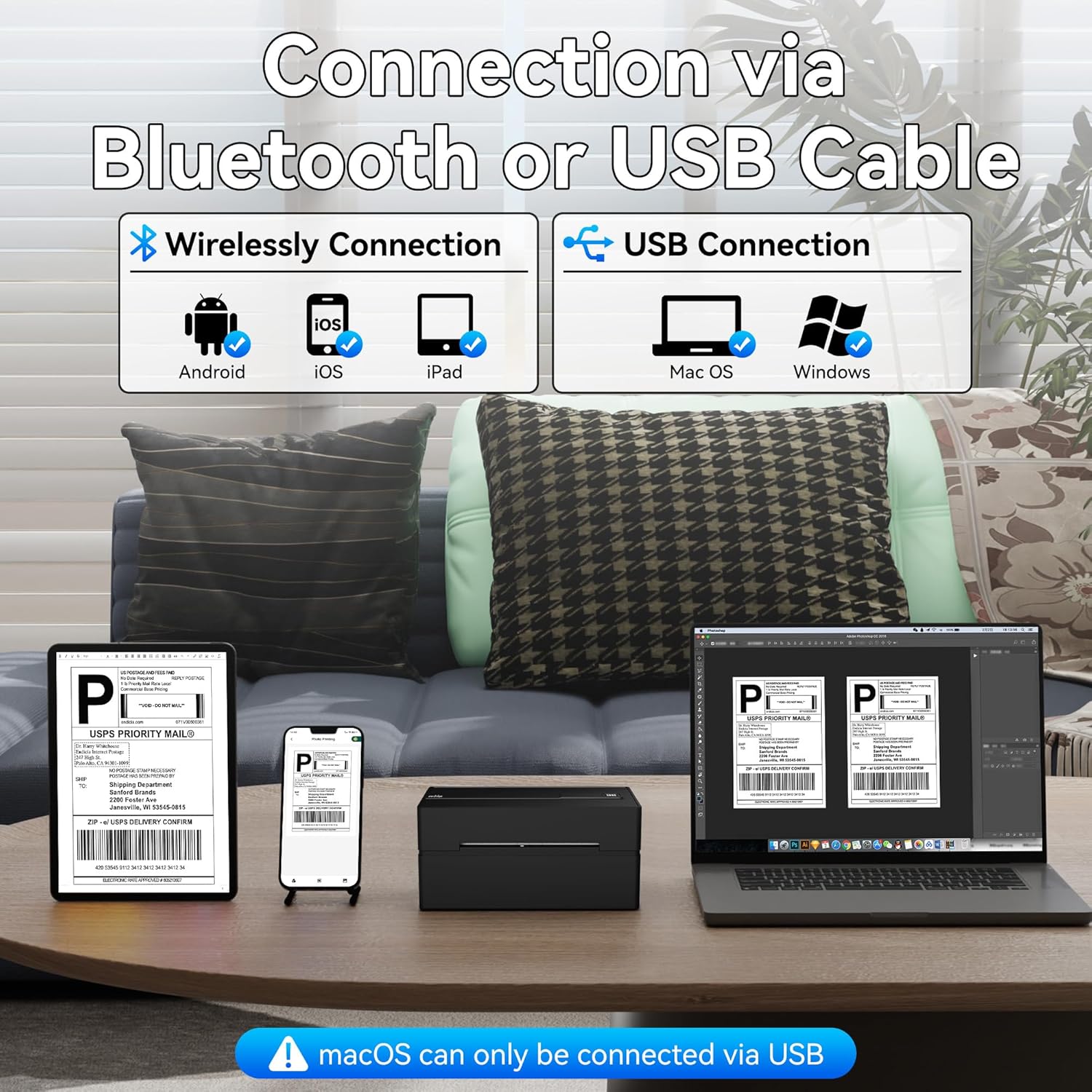
Image 2.3: Visual representation of connecting the printer via Bluetooth to Android/iOS/iPad devices and via USB to Mac OS/Windows computers. Note: macOS can only be connected via USB.
2.4.1. Bluetooth Connection (for Phones/Tablets)
- Download the 'PeriPage' app from Google Play Store (for Android) or Apple App Store (for iOS/iPad).
- Ensure Bluetooth is enabled on your phone or tablet.
- Open the PeriPage app and follow the in-app instructions to search for and connect to your printer. The printer's Bluetooth name typically includes "PeriPage" or "PB40".
- Once connected, the Bluetooth indicator on the printer will illuminate or change status.
2.4.2. USB Connection (for Windows/Mac Computers)
- Insert the provided USB stick into your computer.
- Пронајдете и стартувајте ја инсталацијата на драјверот file for your operating system (Windows or Mac).
- Следете ги упатствата на екранот за да ја завршите инсталацијата на драјверот.
- Поврзете го печатачот со вашиот компјутер користејќи го дадениот USB-кабел.
- Your computer should recognize the printer. You may need to select it as the default printer for label printing.
Note: For macOS, USB connection is the primary method for computer printing.
3. Упатства за работа
3.1. Printing from Mobile Devices (Bluetooth)
- Ensure your printer is powered on and connected via Bluetooth to your mobile device through the PeriPage app.
- Within the PeriPage app, navigate to the document or image you wish to print. This could be a shipping label PDF, barcode, or other printable content.
- Select the print option within the app. You may be able to adjust print settings such as label size or density.
- Confirm the print job. The printer will begin printing the label.

Image 3.1: Comparison of printing methods: via Bluetooth for Android, iOS, and iPad devices, and via USB cable for Mac and Windows computers.
3.2. Printing from Computers (USB)
- Ensure your printer is powered on and connected via USB to your Windows or Mac computer, and drivers are installed.
- Open the document (e.g., PDF shipping label) you wish to print using your preferred application.
- Оди на „File" > "Print" (or press Ctrl+P/Cmd+P).
- Select the PeriPage PB40 printer from the list of available printers.
- Adjust print settings as needed, such as paper size (e.g., 4x6 inches for shipping labels) and orientation.
- Кликнете на „Печати“.

Image 3.2: Depiction of the printer's fast printing speed (150 mm/s) and clear output quality (203 DPI), with labels being printed rapidly.
3.3. Label Compatibility and Supported Platforms
The printer supports a wide range of label sizes and is compatible with numerous e-commerce and shipping platforms.
- Ширина на етикетата: From 1.41 inches to 4.13 inches (36-105mm). This includes standard 4x6 inch shipping labels.
- Поддржани платформи: Amazon, Etsy, Temu, eBay, USPS, Shopify, UPS, PayPal, Poshmark, Walmart, Stamps.com, ShipWire, Flash Express, ShipWorks, Shippo, XPS Ship, Descartes, DHL, FedEx, J&T Express, Endicia, Kerry Logistics, EasyPost, Ninjavan, Ordoro, ShipStation, Shipwire, Easyship, Shipping Easy.

Image 3.3: A visual display of various e-commerce and shipping platform logos, indicating the printer's broad compatibility.
4. Одржување
4.1. Чистење на главата за печатење
Regular cleaning of the print head ensures optimal print quality and extends the printer's lifespan. Use a lint-free cloth lightly dampобложена со изопропил алкохол.
- Исклучете го печатачот и исклучете го од изворот на енергија.
- Open the top cover to access the print head.
- Gently wipe the print head surface with the dampened cloth. Avoid touching the print head with bare hands.
- Оставете главата за печатење целосно да се исуши пред да го затворите капакот и да го вклучите печатачот.
4.2. Replacing Labels
When the printer runs out of labels, simply follow the "Loading Labels" instructions in Section 2.2 to replace the roll.
4.3. Општа нега
- Чувајте го печатачот во чиста средина без прашина.
- Avoid exposing the printer to direct sunlight, high temperatures, or excessive humidity.
- Не користете абразивни средства за чистење или растворувачи на надворешноста на печатачот.
- Обезбедете соодветна вентилација околу печатачот за време на работата.
5 Смена на проблеми
This section addresses common issues you might encounter with your PeriPage PB40 printer.
5.1. Printer Not Responding / No Power
- Check if the power adapter is securely connected to both the printer and the wall outlet.
- Ensure the power button is pressed and the power indicator light is on.
- Try plugging the printer into a different power outlet.
5.2. Bluetooth Disconnection / Cannot Connect
- Ensure Bluetooth is enabled on your mobile device and the printer is within range.
- Рестартирајте го и печатачот и мобилниот уред.
- Forget the printer from your device's Bluetooth settings and try pairing again through the PeriPage app.
- Ensure the PeriPage app is updated to the latest version.
5.3. Print Quality Issues (Faint, Streaky, or Blank Prints)
- Check if you are using thermal labels. This printer requires thermal labels and does not use ink.
- Ensure the labels are loaded correctly with the printable side facing up.
- Исчистете ја главата за печатење како што е опишано во Дел 4.1.
- Adjust print density settings within the PeriPage app or printer driver settings on your computer.
5.4. Заглавување на хартија
- Turn off the printer and carefully open the top cover.
- Gently pull out any jammed labels. Avoid tearing them inside the printer.
- Ensure the label roll is properly seated and the paper guides are adjusted correctly to the label width.
- Затворете го капакот и рестартирајте го печатачот.
5.5. Driver Installation Issues (Windows/Mac)
- Ensure you are running the correct driver for your operating system (Windows or Mac).
- Привремено оневозможете го антивирусниот софтвер за време на инсталацијата ако тој пречи.
- Try installing the driver in compatibility mode (Windows) or check security settings (Mac) if the installation is blocked.
- Refer to the installation instructions on the provided USB stick for detailed steps.
6. Спецификации на производот
| Карактеристика | Спецификација |
|---|---|
| Бренд | PeriPage |
| Име на моделот | Испечатен етикета за печатење |
| Број на модел на ставка | Shipping Label Printer-PB40 |
| Технологија за поврзување | Bluetooth, USB |
| Технологија на печатење | Термички |
| Излез на печатач | Монохроматски |
| Максимална брзина на печатење (монохроматски) | 60 ppm (72 4x6 labels/min) |
| Максимална црно-бела резолуција за печатење | 300 dpi |
| Максимална големина на медиум | 4.13 инчи |
| Компатибилност со големина на лист | 1.41 to 4.13 inches (36-105mm) |
| Максимален капацитет на влезен лист | 50 |
| Тежина на ставката | 3.14 фунти |
| Димензии на производот | 8 x 7 x 4.7 инчи |
| Вклучени компоненти | Printer, USB Stick |
| Специјална карактеристика | Пренослив |
| Боја | Црното |
| Вид на гаранција | Ограничена гаранција |
7. Гаранција и поддршка
7.1. Гаранција на производот
The PeriPage PB40 Bluetooth Thermal Shipping Label Printer comes with a limited warranty. Please refer to the warranty information provided in your product packaging or contact PeriPage customer service for details regarding warranty terms and conditions.
7.2. Поддршка за корисници
For technical assistance, troubleshooting beyond this manual, or warranty claims, please contact PeriPage customer support. Contact information can typically be found on the manufacturer's official webна локацијата или на пакувањето на производот.
You may also visit the official PeriPage store on Amazon for additional resources and product information: PeriPage Amazon Store


