1. Вовед
Thank you for choosing the TECPHILE K936 Wireless Keyboard and Mouse Combo. This product is designed to provide versatile and efficient input for multiple devices, featuring both Bluetooth 5.0 and 2.4GHz USB connectivity. This manual will guide you through the setup, operation, and maintenance of your new keyboard and mouse.
2. Содржина на пакетот
- TECPHILE K936 Wireless Keyboard
- TECPHILE Wireless Mouse
- USB Receiver (stored in the mouse battery compartment)
- USB-C кабел за полнење
- Keyboard Protective Cover
- Упатство за употреба
3. Производот завршиview
Familiarize yourself with the components of your TECPHILE K936 Wireless Keyboard and Mouse Combo.

Слика 3.1: The TECPHILE K936 Wireless Keyboard and Mouse Combo in Grey. The keyboard features a full layout with a numeric keypad, and the mouse is a compact, ergonomic design.

Слика 3.2: Diagram showing the dimensions of the keyboard (368mm x 121mm) and mouse (110mm x 63mm x 30mm).
Карактеристики на тастатурата:
- Multi-device connectivity: 3 x Bluetooth 5.0, 1 x 2.4GHz USB
- Dedicated function keys (F1-F12) with multimedia controls
- Литиумска батерија со полнење од 300mAh
- Приклучок за полнење од тип C
- Automatic sleep mode for power saving
- Scissor-leg key structure for comfortable typing
- Transparent protective cover included
Карактеристики на глувчето:
- Dual-mode connectivity: 1 x Bluetooth, 1 x 2.4GHz USB
- Optical movement detection technology
- Амбидекстрен дизајн
- Quiet click buttons
4. Поставување
4.1 Почетно полнење
Before first use, fully charge both the keyboard and mouse. Connect the provided USB-C charging cable to the charging port on the keyboard and mouse, and the other end to a 5V/1A power adapter (not included) or a computer USB port. The charging indicator light will show charging status and turn off when fully charged.
Note: Only use a 5V/1 Amp power adapter for charging to ensure optimal battery life.

Слика 4.1: Illustration of the keyboard's battery specifications: 2-4 hours charging time, 300mAh battery capacity, and up to 180 days standby time.
4.2 Поврзување на тастатурата
The keyboard supports up to three Bluetooth connections and one 2.4GHz USB connection.

Слика 4.2: Diagram illustrating the keyboard's ability to connect to multiple devices via Bluetooth (3 channels) and 2.4GHz USB.
2.4GHz USB Connection:
- Locate the USB receiver inside the mouse's battery compartment.
- Вклучете го USB приемникот во слободен USB порт на вашиот компјутер или уред.
- Turn on the keyboard. The keyboard should automatically connect.
Bluetooth конекција (BT1, BT2, BT3):
- Вклучете ја тастатурата.
- Притиснете и задржете го Fn копче и едно од Bluetooth копчињата (БТ1, БТ2, или БТ3) for 3-5 seconds until the corresponding indicator light flashes rapidly. This indicates pairing mode.
- На вашиот уред (компјутер, таблет, паметен телефон), одете во поставките за Bluetooth и пребарајте нови уреди.
- Select "TECPHILE Keyboard" from the list of available devices to pair.
- Once paired, the indicator light will stop flashing and remain solid for a few seconds before turning off.
- Repeat for other Bluetooth channels to connect to additional devices.
4.3 Поврзување на глувчето
The mouse supports one Bluetooth connection and one 2.4GHz USB connection.
2.4GHz USB Connection:
- Ensure the USB receiver is plugged into your device.
- Switch the mouse to 2.4GHz mode using the switch on the bottom of the mouse.
- Глувчето треба автоматски да се поврзе.
Bluetooth конекција:
- Switch the mouse to Bluetooth mode using the switch on the bottom of the mouse.
- Press and hold the Bluetooth pairing button on the bottom of the mouse for 3-5 seconds until the indicator light flashes.
- На вашиот уред, одете во поставките за Bluetooth и пребарајте нови уреди.
- Select "TECPHILE Mouse" from the list to pair.
5. Упатства за работа
5.1 Switching Between Devices (Keyboard)
To switch between connected devices on the keyboard, simply press the Fn key along with the corresponding connection key (БТ1, БТ2, БТ3, или 2.4G for USB). The keyboard will switch to the selected device instantly.
5.2 Switching Between Devices (Mouse)
To switch between 2.4GHz USB and Bluetooth modes on the mouse, use the toggle switch located on the bottom of the mouse.
5.3 Function Keys (Keyboard)
The keyboard features dedicated function keys (F1-F12) that can be used in conjunction with the Fn key for various multimedia and system controls.
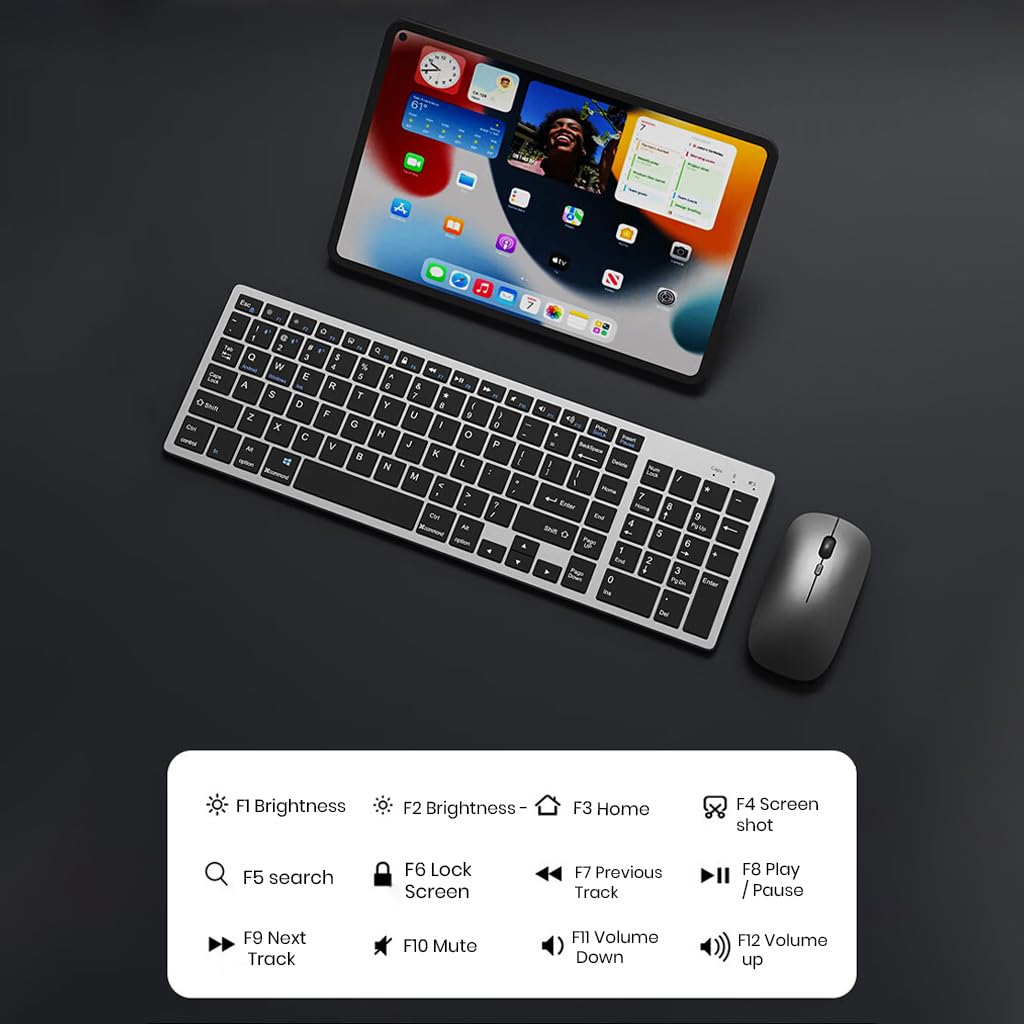
Слика 5.1: The keyboard displaying its function keys and their associated actions, such as brightness control, home, screen shot, search, lock screen, media playback, and volume control.
- Fn+F1: Осветленост надолу
- Fn+F2: Осветленост горе
- Fn+F3: Дома
- Fn+F4: Слика од екранот
- Fn+F5: Барај
- Fn+F6: Заклучување на екранот
- Fn+F7: Претходна песна
- Fn+F8: Пушти/Пауза
- Fn+F9: Следна песна
- Fn+F10: Исклучи звук
- Fn+F11: Намалување на јачината на звукот
- Fn+F12: Јачина на звук нагоре
5.4 Режим на заштеда на енергија
The keyboard and mouse are equipped with an automatic sleep mode to conserve battery life. If inactive for 10 minutes, the devices will enter sleep mode. To wake them up, simply press any key on the keyboard or move/click the mouse.

Слика 5.2: Diagram illustrating the auto-sleep mode and how to reactivate the keyboard and mouse by pressing any key.
6. Одржување
- Чистење: Use a soft, dry cloth to clean the keyboard and mouse. For stubborn dirt, a slightly damp може да се користи крпа, осигурувајќи се дека течноста нема да влезе во уредот.
- Заштитна обвивка: Utilize the included transparent protective cover for the keyboard to guard against dust and accidental spills.
- Складирање: Чувајте ги уредите на ладно и суво место, подалеку од директна сончева светлина и екстремни температури.
- Полнење: Always use a 5V/1A power adapter for charging to prevent damage and ensure battery longevity.

Слика 6.1: The keyboard shown with its transparent protective keyskin, designed to prevent dust and spills.
7 Смена на проблеми
| Проблем | Можна причина | Решение |
|---|---|---|
| Keyboard/Mouse not connecting via 2.4GHz USB. | USB receiver not properly inserted, low battery, incorrect mode selected. |
|
| Keyboard/Mouse not connecting via Bluetooth. | Not in pairing mode, device's Bluetooth is off, already connected to max devices, low battery. |
|
| Доцнење или повремена врска. | Пречки, растојание од приемникот/уредот, слаба батерија. |
|
| Keyboard keys not responding. | Low battery, device in sleep mode, connection issue. |
|
8. Спецификации
| Карактеристика | Детал |
|---|---|
| Бренд | ТЕКФИЛ |
| Модел | K936 |
| Технологија за поврзување | Keyboard: 3 x Bluetooth 5.0, 1 x 2.4GHz USB; Mouse: 1 x Bluetooth, 1 x 2.4GHz USB |
| Компатибилни уреди | Лаптоп, персонален компјутер, паметен телефон, таблет |
| Оперативен систем | Android, iOS, Windows, macOS |
| Батерија за тастатура | 300mAh литиум-јонска батерија (може да се полни) |
| Порта за полнење | USB тип-C |
| Време на полнење | 2-4 часа (приближно) |
| Време на мирување | До 180 дена |
| Димензии на тастатурата (ДxШxВ) | 36 x 13 x 1.5 cm |
| Димензии на глувчето (ДxШxВ) | 11 x 6.3 x 3 см (приближно) |
| Тежина на ставката | 661 g (combo) |
| Технологија за откривање на движење | Оптички |
| Ориентација на рацете | Амбидекстно |
9. Гаранција и поддршка
TECPHILE products come with a standard warranty. For warranty claims, technical support, or any product-related inquiries, please contact TECPHILE customer service through the retailer where the product was purchased or visit the official TECPHILE webсајт за информации за контакт.
Ве молиме зачувајте го доказот за купување за целите на гаранцијата.
Manufacturer/Importer: TECPHILE, 2nd Floor, A36, Block B, Naraina Industrial Area Phase 2, Naraina, New Delhi, Delhi, 110028


