1. Вовед
This manual provides essential information for the proper setup, operation, and maintenance of your Tera P150 Android 12 Barcode Scanner PDA. Please read this manual thoroughly before using the device to ensure optimal performance and longevity.

Image 1.1: The Tera P150 Android Barcode Scanner PDA, showcasing its sleek design and user interface.
2. Поставување
2.1 Содржина на пакетот
Проверете дали сите артикли се присутни во пакувањето:
- Tera P150 Android Barcode Scanner PDA
- Заштитна футрола
- Заштитник на екранот
- Рачна лента
- USB кабел
- Адаптер за полнач
- Упатство за употреба (Водич за брз почеток)

Image 2.1: All components included in the Tera P150 product package.
2.2 Инсталација и полнење на батеријата
- Пронајдете го преградата за батерии на задниот дел од уредот.
- Insert the 5000 mAh removable battery, ensuring proper alignment of the contacts.
- Обезбедете го капакот на батеријата.
- Connect the USB cable to the device and the charger adapter, then plug into a power outlet.
- Дозволете приближно 3 часа за целосно полнење.

Image 2.2: The removable 5000 mAh battery, designed for extended use.
2.3 Вклучување/исклучување
Press and hold the power button located on the side of the device until the screen illuminates (for power on) or a power-off menu appears (for power off).
3. Упатства за работа
3.1 Оперативен систем Android 12
The Tera P150 operates on Android 12, offering an intuitive user interface, enhanced performance, and improved privacy controls. Navigate using touch gestures similar to other Android devices.

Image 3.1: The Tera P150 displaying multiple applications, demonstrating seamless multitasking capabilities with Android 12.
3.2 Barcode Scanning with Zebra SE4710
The device integrates a Zebra SE4710 scanner engine for efficient barcode reading. To scan:
- Open the scanning application on the device.
- Насочете го прозорецот на скенерот кон баркодот.
- Press the dedicated scan button (if available) or trigger the scan via the on-screen interface.
- Ensure the red laser or illumination covers the entire barcode for accurate capture.

Image 3.2: A user operating the Tera P150 to scan barcodes in a warehouse environment, highlighting the integrated Zebra SE4710 scanner.
3.3 Работа со екран на допир
The 5.5-inch full touch screen supports operation with gloves and wet hands, enhancing usability in various work conditions. The display offers a resolution of 1440 x 720 pixels.
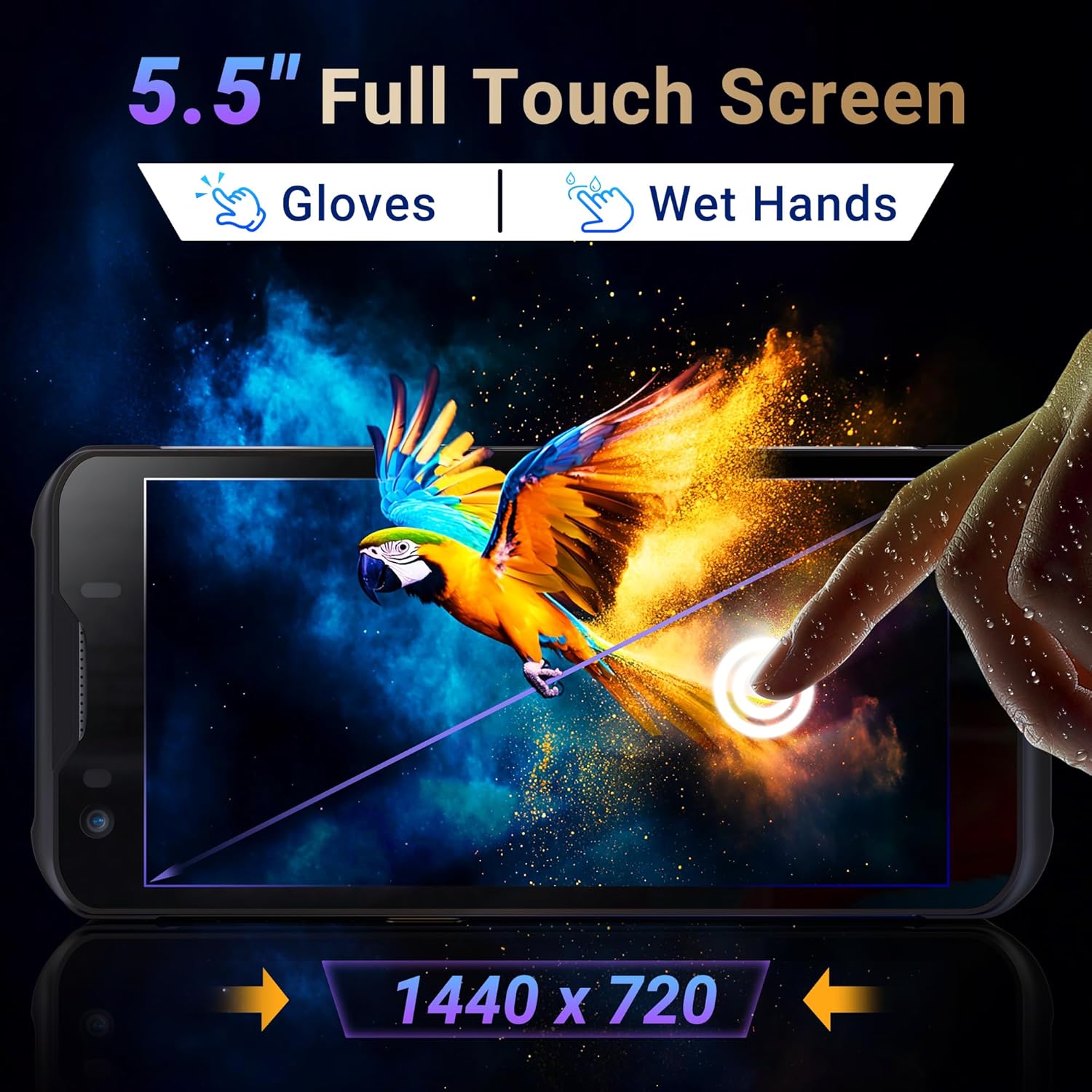
Image 3.3: The Tera P150's 5.5-inch full touch screen, illustrating its responsiveness and clarity.
Функционалност на камерата 3.4
The device is equipped with a 13.0 MP rear camera and a 5.0 MP front camera for documentation and communication purposes.

Слика 3.4: Крупен план view of the Tera P150, highlighting the 13.0 MP rear camera and 5.0 MP front camera.
4. Одржување
4.1 Rugged Design and IP67 Rating
The Tera P150 features an IP67 rating, indicating resistance to dust and water ingress. It is also designed to withstand drops from up to 4.9 feet (1.5 meters), making it suitable for demanding environments.
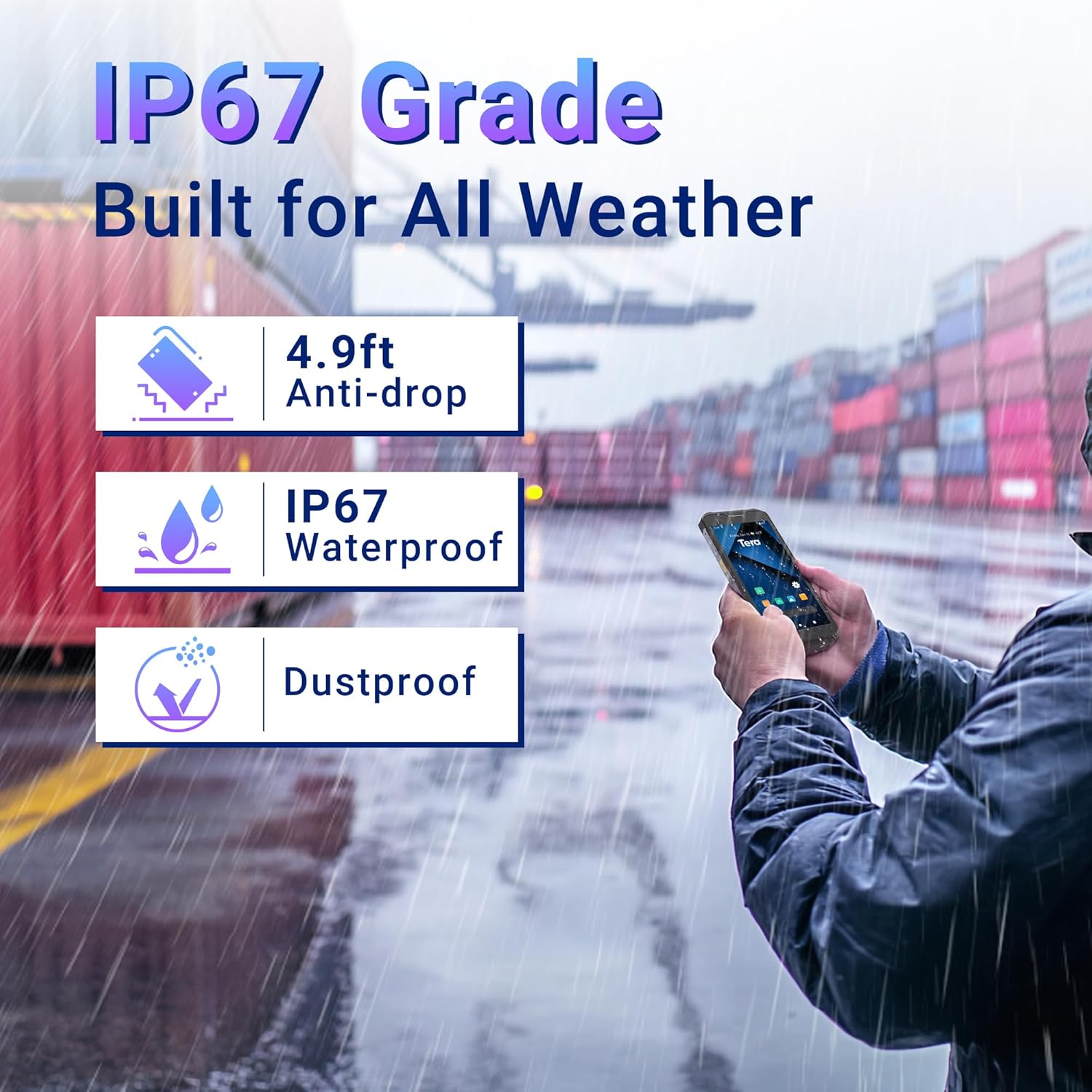
Image 4.1: Visual representation of the Tera P150's IP67 water and dust resistance, and its 4.9ft drop resistance.
Video 4.1: Demonstration of the Tera P150's IP67-rated protection, showcasing its durability against water and drops.
4.2 Чистење
Користете мека, гamp крпа за чистење на уредот. Избегнувајте груби хемикалии или абразивни материјали што би можеле да го оштетат екранот илиasing.
5 Смена на проблеми
5.1 Уредот не се вклучува
- Проверете дали батеријата е правилно инсталирана и целосно наполнета.
- Connect the device to the charger and attempt to power on.
5.2 Проблеми со скенирање
- Verify the barcode is clean and undamaged.
- Обезбедете соодветни услови за осветлување.
- Check the scanning application settings.
5.3 Performance Lag
- Затворете ги непотребните апликации во заднина.
- Исчистете го кешот и привремено files.
- Рестартирајте го уредот.
6. Спецификации
| Карактеристика | Детал |
|---|---|
| Број на модел | P150 |
| Оперативен систем | Андроид 12 |
| Процесор | MTK CPU |
| RAM меморија | 4 GB |
| ROM (складирање) | 64 GB |
| Баркод скенер | Зебра SE4710 |
| Приказ | 5.5-inch Full Touch Screen |
| Оценка на издржливост | IP67, 4.9 ft Drop Resistant |
| Батерија | 5000 mAh Removable |
| Задна камера | 13.0 MP |
| Предна камера | 5.0 MP |
| Поврзување | 4G, GPS, USB |
| Тежина на ставката | 1.3 фунти |
| Димензии на пакетот | 7.6 x 4.2 x 2.9 инчи |
Видео 6.1: Оверview of the Tera P150's key features, including its IP67 rating, 4GB RAM, 64GB storage, Android 12 OS, and 5.5-inch touch screen.
7. Информации за гаранцијата
Ве молиме погледнете ја гарантната картичка вклучена во вашиот производ за детални услови за гаранција. Зачувајте го доказот за купување за какви било рекламации по гаранција.
8. Поддршка
For technical assistance, troubleshooting, or further inquiries, please contact Tera customer support. Contact information can be found on the official Tera webстраницата или во упатството за брз почеток.


