1. Вовед
The DETONGER DP26 is a portable thermal label printer designed for various labeling needs in home, office, kitchen, school, and small business environments. It utilizes direct thermal technology, eliminating the need for ink or toner, and connects via Bluetooth to Android, iOS, and PC devices for convenient label creation and printing.
2. Информации за безбедност
- Не расклопувајте го или не модифицирајте го печатачот.
- Keep the printer away from water and high temperatures.
- Use only recommended label paper to ensure optimal performance and prevent damage.
- Избегнувајте допирање на главата за печатење веднаш по печатењето, бидејќи може да биде жешка.
- Store the printer and labels in a cool, dry place.
3. Содржина на пакетот
Откако ќе го отворите пакувањето, проверете дали се присутни сите елементи:
- DETONGER DP26 Label Printer
- Label Roll (included)
- USB кабел за полнење
- Упатство за употреба
4. Производот завршиview
Familiarize yourself with the components of your DP26 label printer.
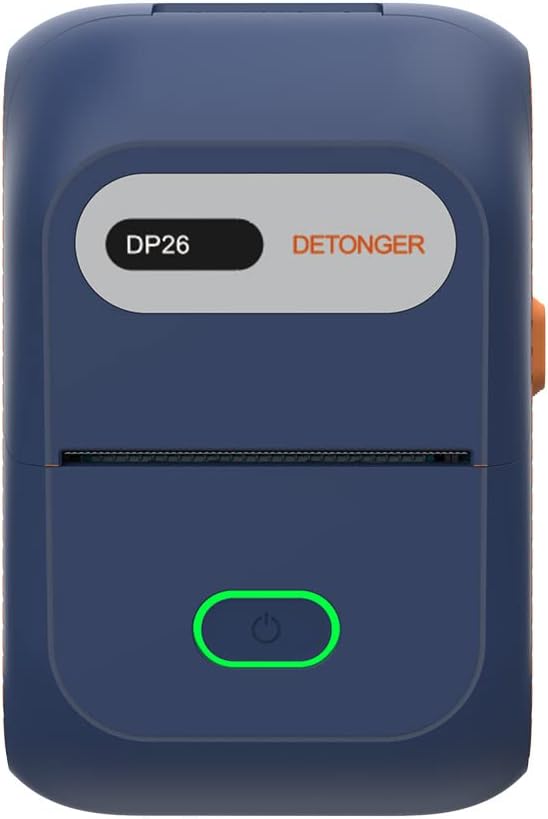
Слика 4.1: Предна страна view of the DP26 printer.

Слика 4.2: Аголна view highlighting the USB-C port and lid release button.
- Копче за вклучување: Press and hold to turn on/off. Short press to feed labels.
- Слот за излез на етикета: Where printed labels exit.
- USB-C порта: За полнење на уредот.
- Копче за ослободување на капакот: Press to open the printer cover for label installation.
5. Поставување
5.1 Полнење на печатачот
Before initial use, fully charge the printer using the provided USB-C cable. Connect the cable to the printer's USB-C port and a compatible power adapter (not included). The indicator light will show charging status.
5.2 Вчитување хартија за етикети
Proper label loading is crucial for clear printing.
Video 5.1: Demonstrates how to open the printer, install the label roll, and close the lid. It also shows the power and feed button functions.
- Press the lid release button to open the printer cover.
- Insert the label roll into the compartment, ensuring the labels face upwards and the leading edge extends slightly out of the print head area.
- Adjust the sliding baffles to secure the label roll in place.
- Close the printer cover firmly until it clicks.
- Press the power button briefly to feed a label and ensure it is correctly positioned.
5.3 Инсталација на апликација
The DETONGER DP26 printer operates with the "WePrint" application, available for Android and iOS devices.

Figure 5.3: Visual guide for app download and initial setup steps.
- Scan the QR code in the printer's packaging or search for "WePrint" in your device's app store (Google Play Store for Android, Apple App Store for iOS).
- Download and install the "WePrint" application.
- No login, registration, or subscription is required to use the app's features.
5.4 Bluetooth конекција
Connect your printer to the "WePrint" app via Bluetooth.
- Ensure the DP26 printer is powered on.
- Овозможете Bluetooth на вашиот мобилен уред.
- Open the "WePrint" app. The app will automatically search for nearby DETONGER printers.
- Select your printer from the list within the app to establish a connection. Забелешка: Do not connect via your phone's general Bluetooth settings; connect directly through the "WePrint" app.
6. Упатства за работа
6.1 Креирање етикети
The "WePrint" app offers extensive customization options for your labels.

Слика 6.1: Готовоview of the "WePrint" app's features for label design.
- Шаблони: Access a vast array of built-in templates for various scenarios (industrial, home, retail, jewelry, etc.).
- Текст: Add text with support for multiple fonts (e.g., Arial, Verdana, Tahoma), sizes, and styles.
- Баркодови/QR кодови: Generate and print barcodes (e.g., UPC 6901234567892) and QR codes for product information or inventory management.
- Symbols & Icons: Incorporate various symbols and icons to enhance your labels.
- Слики: Add simple images or logos to your labels.
6.2 Печатење етикети
Once your label design is complete, you can print it directly from the app.
Video 6.2: Demonstrates the unboxing, paper loading, Bluetooth connection, and printing process for the DP26 printer.
- Review your label design in the "WePrint" app.
- Tap the "Print" button.
- Adjust print settings such as number of copies, print darkness, and print speed if necessary.
- Confirm printing. The printer will rapidly produce your labels.
6.3 Label Quality
The DP26 printer uses direct thermal technology to produce durable labels.
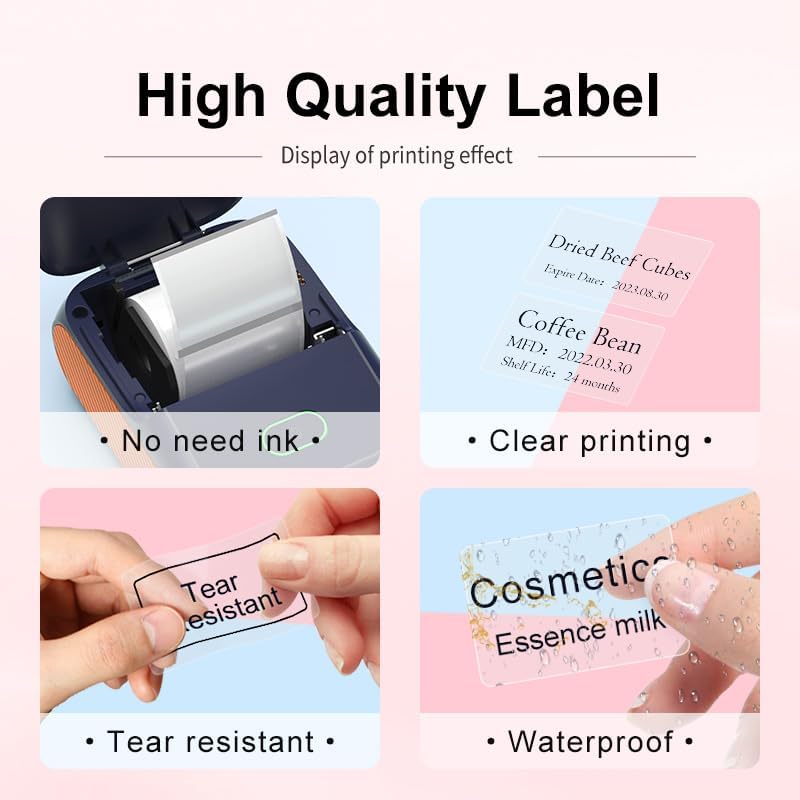
Figure 6.3: Features of the thermal labels, including inkless printing, clarity, tear resistance, and waterproofing.
- Печатење без мастило: No ink or toner cartridges are required, reducing operational costs.
- Проѕирно печатење: Provides 203 DPI print quality for sharp text and graphics.
- Издржлив: Labels are designed to be scratch-resistant, tear-resistant, and waterproof, suitable for various applications.
7. Одржување
7.1 Чистење на главата за печатење
To maintain print quality, clean the print head regularly.
- Исклучете го печатачот и исклучете го кабелот за напојување.
- Отворете го капакот на печатачот.
- Нежно избришете ја главата за печатење со памукче лесно dampобложена со изопропил алкохол.
- Оставете главата за печатење целосно да се исуши пред да го затворите капакот и да го вклучите печатачот.
7.2 Складирање
Store the printer in a clean, dry environment away from direct sunlight and extreme temperatures. Remove the label roll if the printer will not be used for an extended period.
8 Смена на проблеми
- Печатачот не се поврзува преку Bluetooth: Ensure the printer is powered on and fully charged. Connect through the "WePrint" app, not your device's general Bluetooth settings. Restart both the printer and your device.
- Лош квалитет на печатење: Check if the label roll is loaded correctly and the labels are facing the right direction. Clean the print head as described in the maintenance section. Ensure the label paper is compatible.
- Етикетите не се напојуваат: Open the cover and re-seat the label roll. Ensure no obstructions are in the label path. Press the feed button to advance a label.
- Печатачот не се вклучува: Ensure the printer is fully charged. If the issue persists, contact customer support.
9. Спецификации
| Карактеристика | Спецификација |
|---|---|
| Име на моделот | DP26 |
| Бренд | ДЕТОНГЕР |
| Технологија на печатење | Термички |
| Технологија за поврзување | Bluetooth, USB |
| Максимална големина на медиум | 1.97 x 3.94 inch (50mm x 100mm) |
| Label Width Support | 20-50 мм (0.78-1.97 инчи) |
| Излез на печатач | Монохроматски |
| Тежина на ставката | 10.6 унци (0.3 килограми) |
| Димензии на производот | 5.12" Д x 3.23" Ш x 2.36" В |
| Батерија | 1500 mAh*7.4V rechargeable battery (1 AA battery included for internal component, not user replaceable) |
| Ватtage | 11.1 ват-часови |
10. Информации за гаранцијата
The DETONGER DP26 Portable Thermal Label Printer comes with a standard manufacturer's warranty. Please refer to the warranty card included in your package or contact DETONGER customer support for specific details regarding warranty coverage and duration.
11. Поддршка
For further assistance, technical support, or inquiries regarding your DETONGER DP26 printer, please visit the official DETONGER website or contact their customer service department. Contact information can typically be found on the product packaging or the brand's Amazon store page.
Можете да ја посетите DETONGER Store on Amazon за повеќе информации и ресурси за поддршка.


