1. Во текотview
The TECKNET Ergonomic Mouse TK-MS042 is a versatile, rechargeable wireless mouse designed for comfort and multi-device productivity. It features dual Bluetooth 5.0 and 2.4G connectivity, a unique volume control knob, quiet clicks, and adjustable DPI settings to enhance your computing experience.
1.1 Содржина на пакетот
- TECKNET Ergonomic Mouse (TK-MS042)
- USB-A ресивер
- USB-C кабел за полнење
- Упатство за употреба
1.2 Дијаграм на производот
Familiarize yourself with the mouse's components:
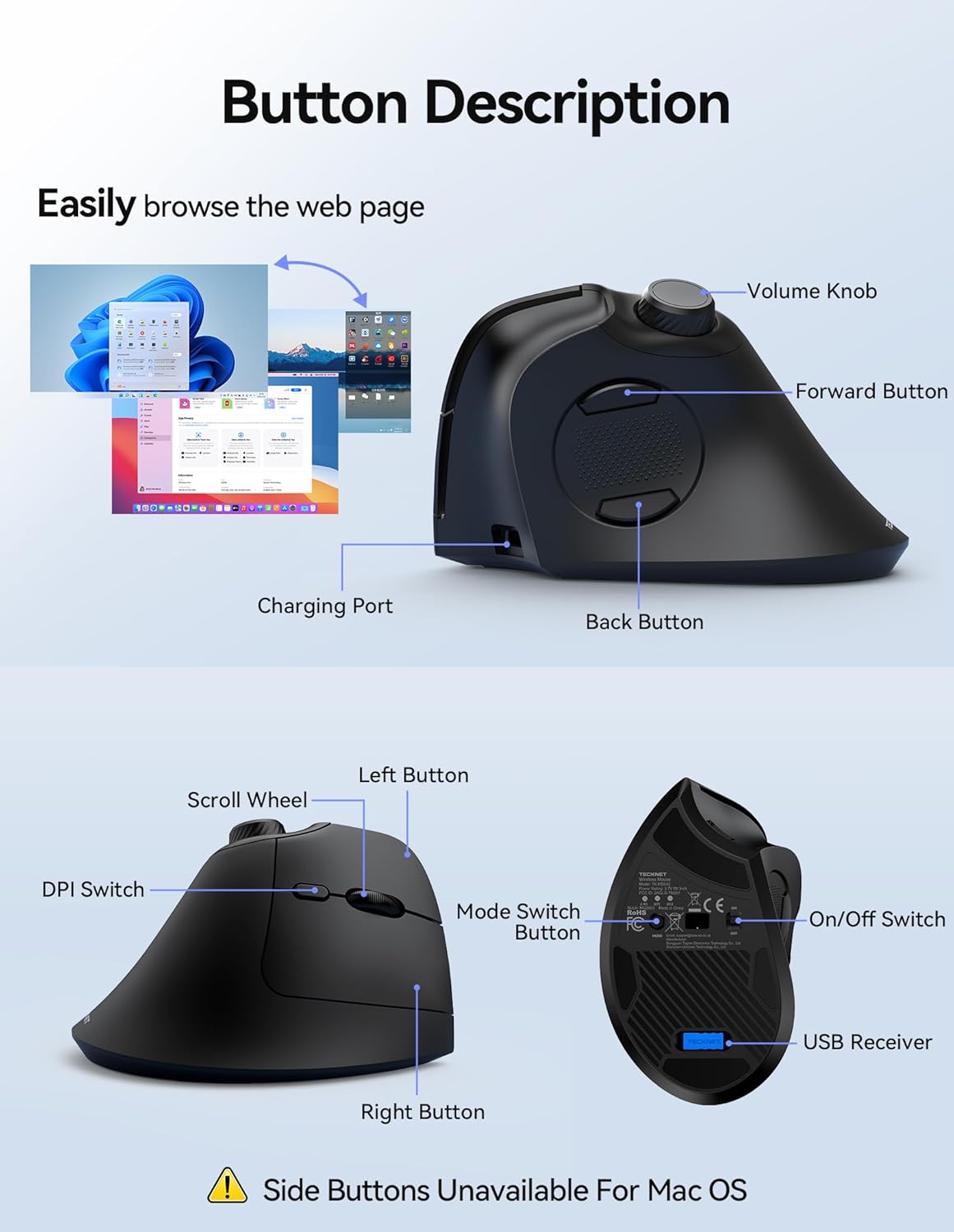
- Копче за јачина на звук: Adjusts media volume and controls playback (press for play/pause).
- Копче за напред: Навигира напред во web прелистувачи или апликации.
- Копче за назад: Навигира назад во web прелистувачи или апликации.
- Порта за полнење: USB-C port for recharging the mouse.
- Лево копче: Standard left-click function (quiet click).
- Тркало за лизгање: За вертикално скролување.
- Прекинувач DPI: Cycles through adjustable DPI settings.
- Десно копче: Standard right-click function (quiet click).
- Копче за префрлување режим: Toggles between 2.4G and Bluetooth channels (BT1, BT2).
- Прекинувач за вклучување/исклучување: Го вклучува или исклучува глувчето.
- Преграда за USB приемник: Stores the 2.4G USB-A receiver.
2. Поставување
2.1 Полнење на глувчето
The mouse is equipped with a 500mAh rechargeable battery and a USB-C charging port. A full charge takes approximately 2.5 hours and provides up to 60 days of use.
- Connect the included USB-C charging cable to the charging port on the front of the mouse.
- Поврзете го другиот крај од кабелот со USB извор на напојување (на пр., USB порт на компјутер, USB адаптер за ѕид).
- During charging, the scroll wheel area will display a red light. It will turn green once fully charged.

2.2 Поврзување преку 2.4G USB приемник
For a stable and low-latency connection, use the 2.4G USB-A receiver.
- Locate the USB-A receiver in the compartment beneath the bottom cover of the mouse.
- Turn on the mouse using the On/Off switch on the bottom. The first indicator light (2.4G) will briefly flash red.
- Вметнете го USB-A-приемникот во достапна USB-порта на вашиот компјутер.
- The computer should automatically detect and install the necessary drivers. The mouse is ready for use when the cursor responds to movement.
2.3 Connecting via Bluetooth (BT1 / BT2)
The mouse supports two Bluetooth channels (BT1 and BT2) for seamless switching between devices.
- Turn on the mouse using the On/Off switch on the bottom.
- Press the Mode Switch Button on the bottom of the mouse to select either BT1 or BT2. The corresponding indicator light (BT1 or BT2) will flash slowly.
- Press and hold the Mode Switch Button for 3 seconds until the selected Bluetooth indicator light begins to flash rapidly. This indicates the mouse is in pairing mode.
- On your device (computer, smartphone, tablet), open Bluetooth settings and search for new devices.
- Select "TK-MS042 BT5.0" from the list of available devices to connect.
- Once connected, the Bluetooth indicator light on the mouse will stop flashing.
- Repeat these steps to connect to a second Bluetooth device using the other Bluetooth channel (BT1 or BT2).

3. Упатства за работа
3.1 Adjusting DPI
The mouse supports 6 adjustable DPI levels (800/1200/1600/2400/3200/4800) for precise cursor control.
- Press the DPI Switch button located behind the scroll wheel to cycle through the DPI settings.
- The first indicator light on the bottom of the mouse will flash a corresponding number of times to indicate the current DPI level (e.g., 1 flash = 800 DPI, 2 flashes = 1200 DPI, etc.).
- Higher DPI levels result in faster cursor movement, while lower levels provide slower, more precise control.

3.2 Using the Volume Knob
The integrated volume knob provides convenient media control.
- Ротирај во насока на стрелките на часовникот: Increase media volume.
- Ротирајте спротивно од стрелките на часовникот: Decrease media volume.
- Притиснете надолу: Play/Pause media playback.

3.3 Префрлување на повеќе уреди
Easily switch between up to three connected devices (one 2.4G and two Bluetooth) using the Mode Switch Button on the bottom of the mouse.
- Press the Mode Switch Button to cycle through the connected channels: 2.4G, BT1, BT2.
- The corresponding indicator light on the bottom of the mouse will illuminate to show the active connection.
3.4 Функција за тивок клик
The mouse is engineered with ultra-quiet button mechanisms, providing soft, tactile clicks without distracting noise. This feature is ideal for quiet environments such as libraries, offices, or late-night work sessions.

3.5 Ергономски дизајн
The mouse features a 57° tilt design and integrated palm support, promoting a natural and relaxed hand position to help prevent wrist fatigue and carpal tunnel syndrome during extended use.

4. Одржување
4.1 Чистење на глувчето
To maintain optimal performance and hygiene, regularly clean your mouse.
- Користете мека крпа без влакненца малку гampизмијте со вода или благ раствор за чистење за да ја избришете површината на глувчето.
- Avoid using harsh chemicals or abrasive materials that could damage the mouse's finish.
- Ensure the optical sensor on the bottom of the mouse is clean and free of dust or debris for accurate tracking.
4.2 Грижа за батерии
За да го продолжите животниот век на батеријата:
- Charge the mouse fully before first use.
- Избегнувајте често целосно празнење на батеријата.
- If not using the mouse for an extended period, turn it off to conserve battery.
5 Смена на проблеми
5.1 Cursor Lag or Unresponsive Movement
If you experience cursor lag or the mouse is unresponsive, try the following:
- Проверете го нивото на батеријата: Ensure the mouse is sufficiently charged. Recharge if the battery is low.
- Чист оптички сензор: Inspect the bottom lens for any dirt or debris and clean it gently.
- Проверка на површината: Ensure the mouse is used on a non-glass, non-reflective, and non-smooth surface. A mouse pad is recommended.
- Пречки: Поместете го глувчето поблиску до приемникот/уредот или подалеку од други безжични уреди што би можеле да предизвикаат пречки.
5.2 Connection Loss (2.4G Mode)
If the 2.4G connection is lost:
- Simultaneously press and hold the Left Mouse Button, Scroll Wheel, and Right Mouse Button for approximately 3 seconds. The first indicator light on the bottom of the mouse will rapidly flash red.
- Within 20 seconds, insert the USB-A receiver into your computer's USB port.
- The first indicator light will turn off, indicating successful re-pairing.
5.3 Connection Loss (Bluetooth Mode)
If the Bluetooth connection is lost:
- On your computer/device, remove or uninstall the mouse from the Bluetooth settings/device manager.
- Simultaneously press and hold the Bluetooth pairing button (Mode Switch Button) on the bottom of the mouse for 3 to 5 seconds to clear the pairing history.
- Then, follow the Bluetooth pairing steps (Section 2.3) to reconnect the mouse.
6. Спецификации
| Карактеристика | Детал |
|---|---|
| Број на модел | TK-MS042 |
| Технологија за поврзување | 2.4GHz Wireless, Bluetooth 5.0 (BT1, BT2) |
| Детекција на движење | Оптички |
| Прилагодлив ДПИ | 800/1200/1600/2400/3200/4800 |
| Тип на батерија | Може да се полни (500mAh) |
| Време на полнење | Прибл. 2.5 часа |
| Време на мирување | До 60 дена |
| Посебни карактеристики | Ergonomic Design, Vertical Orientation, Volume Control Knob, Quiet Clicks |
| Димензии на производот | 4.74 x 2.49 x 0.1 инчи |
| Тежина на ставката | 4.3 унци |
7. Гаранција и поддршка
TECKNET provides a 36-Month Warranty for registered customers. If you encounter any issues while using the product, please contact our dedicated customer service team for prompt and professional assistance. Your satisfaction is our priority.
8. Официјални видеа за производи
8.1 TECKNET Ergonomic Bluetooth Mouse with Volume Knob
Ова видео нуди детален прегледview of the TECKNET Ergonomic Bluetooth Mouse, highlighting its key features including the volume knob and ergonomic design.
8.2 TECKNET Ergonomic Mouse Unboxing Video
Watch this video for an unboxing experience of the TECKNET Ergonomic Mouse, showcasinнеговата содржина и првичните впечатоци.


