1. Вовед
This manual provides detailed instructions for the installation, operation, and maintenance of your CAMECHO 4+64GB Car Stereo. This unit is designed for specific Honda Acura MDX models from 2007-2013 (Low-End Version, without Canbus). Please read this manual thoroughly before installation and use to ensure proper functionality and safety.

Image: CAMECHO Car Stereo main interface in a vehicle dashboard.
2. Компатибилност со возила
This CAMECHO car stereo is compatible with Honda Acura MDX models manufactured between 2007 and 2013. It is specifically designed for the Low-End Version without Canbus. Please verify your vehicle's console type before installation.

Image: Visual guide for compatible Honda Acura MDX console types (A and B with AUX) and incompatible types (C, D with HDD, E).
Компатибилни модели: 2007-2013 Honda Acura MDX (Low-End Version, Without Canbus).
Важно: Consoles with HDD (Hard Disk Drive) are not supported. Ensure your vehicle's console matches types A or B shown in the image for proper installation.
3. Што има во кутијата
Ве молиме проверете ја содржината на вашиот пакет според листата подолу:
- 1 x Андроид главна единица
- 1 x AHD камера за бекап
- 1 x надворешен микрофон
- 1 x Мал микрофон
- 1 x GPS антена
- 1 x кабел за напојување
- 1 x Voice-frequency Adapter
- 1 x RCA кабел
- 1 x USB кабел
- 1 x Кабел за влез на задна камера
- 1 x Додатоци
- 1 x алатка за инсталација
- 1 x Упатство за употреба
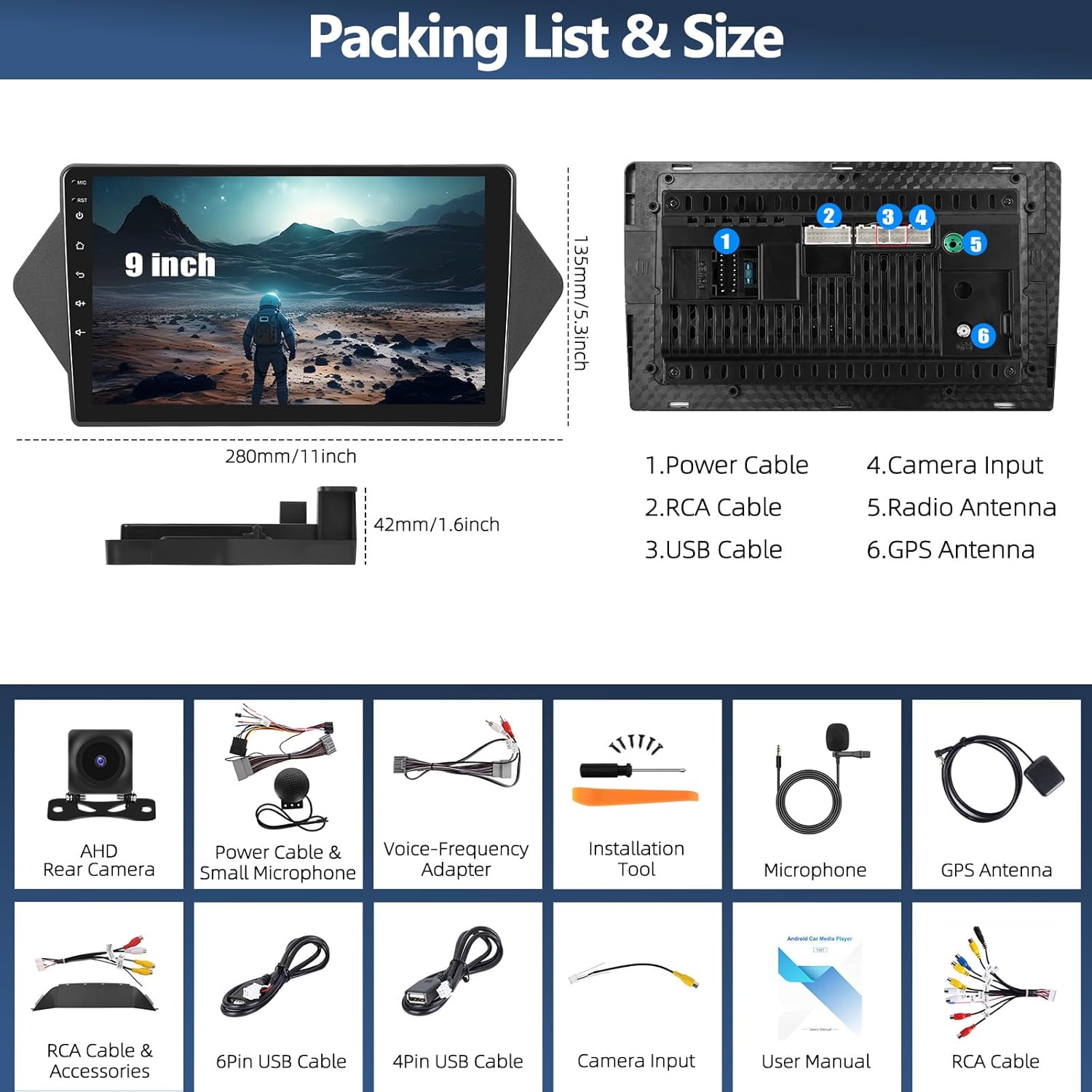
Image: Packing list and size diagram, illustrating the head unit dimensions and all included components.
4. Поставување и инсталација
4.1 Општа инсталација
Professional installation is recommended. Ensure the vehicle's power is disconnected before beginning installation. Refer to your vehicle's service manual for specific dashboard removal procedures.
4.2 Инсталација на камера за движење наназад
The reversing input must be connected even if the reversing camera is not used, to ensure proper functionality of the head unit.
- Connect the red wire (positive) of the camera to the positive pole of the car's reversing light.
- Connect the black wire (negative) of the camera to the negative pole of the car's reversing light.
- The reversing trigger is controlled by the stereo; therefore, the third wire (trigger wire) does not require a separate connection.
Забелешка: The white plug from the camera input cable must be connected to the main device for Bluetooth and Wi-Fi signals to function correctly.

Image: Reversing Camera Installation wiring diagram.
4.3 Поставување на контролата на воланот
After connecting the power cable, you need to configure the steering wheel controls. Navigate to the "SWC" application on the head unit. Follow the on-screen instructions to learn and assign the steering wheel buttons. If the learning process fails, repeat the steps.

Image: Steering Wheel Control (SWC) application interface.
5. Упатства за работа
5.1 Безжичен Apple CarPlay и Android Auto
The head unit supports both wireless Apple CarPlay and Android Auto, allowing seamless integration with your smartphone for navigation, calls, messages, and music.

Image: Wireless Apple CarPlay and Android Auto interfaces.
5.1.1 Безжична Apple CarPlay конекција
- Овозможете Bluetooth на вашиот iPhone и спарете го со радиото во автомобилот.
- Отворете ја апликацијата „Zlink“ на стерео уредот во автомобилот.
- Ако поврзувањето не успее, поврзете го вашиот iPhone со точката за пристап на радиото во автомобилот, а потоа повторно кликнете на апликацијата „Zlink“.
Maintain both Bluetooth and hotspot connections for stable CarPlay operation.

Image: Wireless Apple CarPlay in use.
5.1.2 Безжично поврзување со Android Auto
- Проверете дали имате инсталирано апликацијата „Android Auto“ на вашиот мобилен телефон.
- Овозможете Bluetooth на вашиот Android телефон и спарете го со радиото во автомобилот.
- Отворете ја апликацијата „Zlink“ на стерео уредот во автомобилот.

Image: Wireless Android Auto in use.
5.2 GPS навигација и WiFi конекција
The unit features a built-in GPS module for both online and offline navigation. Connect to a Wi-Fi hotspot to access online maps, download third-party apps, and browse the internet.
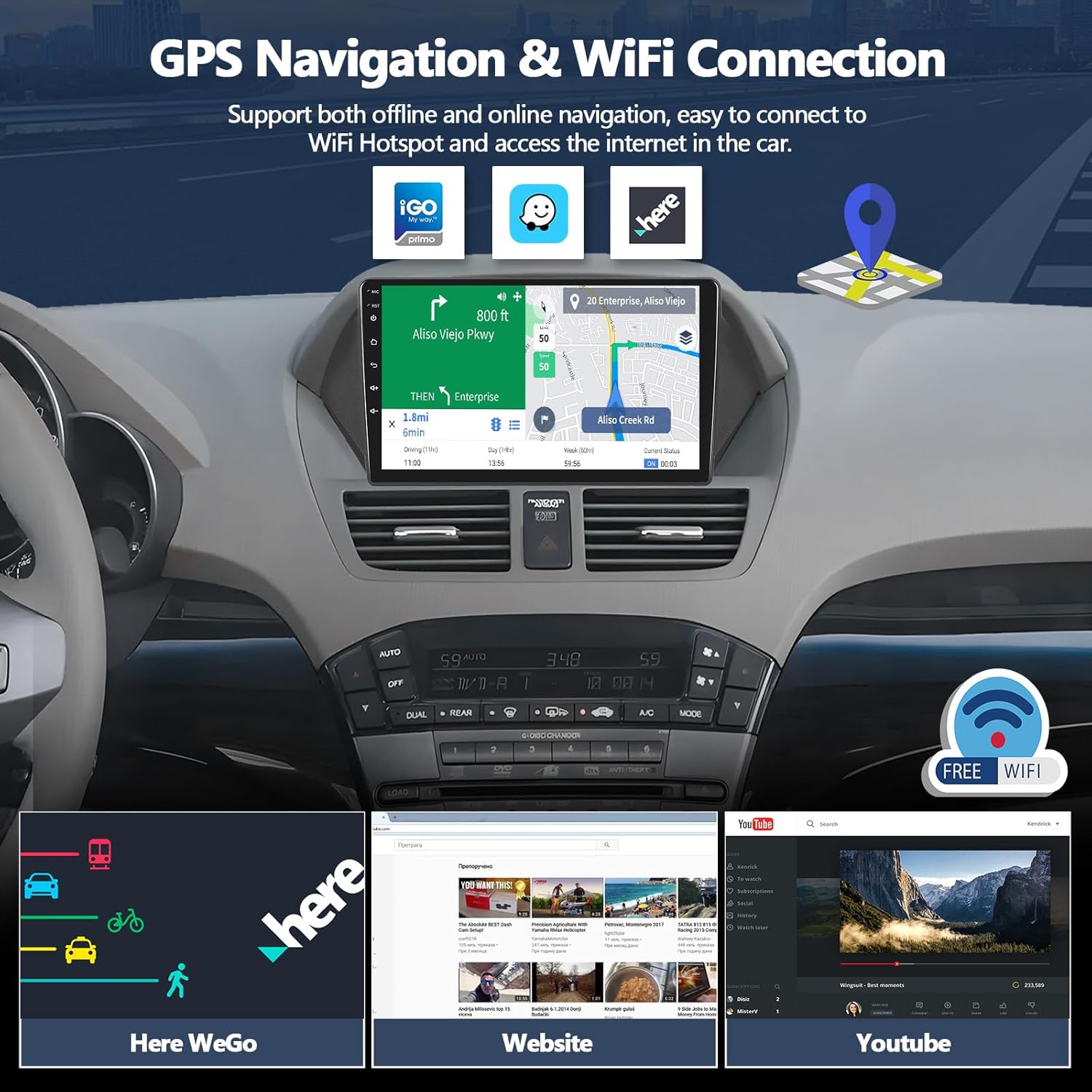
Слика: GPS навигација и функции за поврзување преку WiFi.
5.2.1 GPS навигација
Run real-time navigation or offline map navigation on the head unit at any time. Various navigation applications are available for download from the Google Play Store.

Слика: Интерфејс за GPS навигација.
5.2.2 WiFi конекција
Connect to Wi-Fi or a mobile hotspot to download applications, stream videos, access offline maps, and more.

Image: WiFi Connection capabilities and app exampлес.
5.3 Bluetooth 5.0 & FM RDS Radio
Enjoy hands-free calls and wireless audio streaming via Bluetooth 5.0. The built-in FM/RDS radio offers 18-station presets for live broadcasting.

Image: Bluetooth and FM RDS Radio interfaces.
5.3.1 Bluetooth 5.0
Connect your phone for hands-free calls and wireless audio streaming from services like Spotify or Pandora.

Image: Bluetooth 5.0 features.
5.3.2 FM RDS радио
Listen to real-time radio broadcasts with RDS information.

Image: FM RDS Radio features.
5.4 16-Band Equalizer (EQ)
Customize your audio experience with the built-in 16-band equalizer. Adjust sound fields for strong bass, soft midrange, and bright treble to achieve your preferred audio quality.

Image: 16-Band Equalizer interface.
5.4.1 32-опсежен еквилајзер
The system also features a 32-band equalizer for more precise audio tuning, ideal for various musical styles.

Image: 32-Band Equalizer interface.
5.5 Optional Home Page APP Display
Customize your home page by selecting and rearranging the application icons you want to display. This allows for a personalized and efficient user experience.

Image: Optional Home Page APP customization.
5.6 Функционалност на поделен екран
Функцијата за поделен екран ви овозможува да извршувате две апликации истовремено, како што се навигација и репродукција на музика, подобрувајќи ги можностите за повеќезадачност.

Image: Split Screen functionality.
5.7 Функција за поврзување со огледала
Synchronize your iOS or Android phone screen to the head unit. Android supports two-way operation, while iOS supports one-way operation (display only).

Image: iOS/Android Mirror Link feature.
6. Одржување
За да обезбедите долготрајност и оптимални перформанси на вашиот автомобилски стерео уред, следете ги овие упатства за одржување:
- Чистење на екранот: Користете мека крпа без влакненца за нежно да го избришете екранот на допир. За тврдокорни дамки, малку избришете гоampИзбришете ја крпата со вода или средство за чистење безбедно за екрани. Избегнувајте груби хемикалии или абразивни материјали.
- Општо чистење: Држете го уредот чист од прашина и остатоци. Користете мека четка или компримиран воздух за чистење на отворите за вентилација и местата со копчиња.
- Ажурирања на софтверот: Periodically check for available software updates to ensure you have the latest features and bug fixes. Refer to the manufacturer's website or the unit's settings for update procedures.
- Избегнувајте екстремни температури: Не го изложувајте уредот на екстремна топлина или студ подолг период, бидејќи тоа може да влијае на неговите електронски компоненти.
7 Смена на проблеми
7.1 Нема аудио излез
If you experience no audio from the car stereo, check the following connections:
- Ensure the AUX IN R/L on the Voice-Frequency Adapter is correctly connected to the Audio Out R/L on the RCA cable (red to red, white to white).
- Verify that the small speaker (included in the package) is connected to the power cable.

Image: Solutions for no audio output.
7.2 Steering Wheel Controls Not Responding
If your steering wheel controls are not functioning, ensure they have been properly configured. Refer to section 4.3 "Steering Wheel Control Setup" for detailed instructions. Re-learn the buttons if necessary.
7.3 Проблеми со GPS сигналот
Ensure the GPS antenna is properly installed and has a clear line of sight to the sky. Obstructions or poor placement can affect signal reception.
7.4 Wi-Fi/Bluetooth Connectivity Problems
Check that the white plug from the camera input cable is securely connected to the main device, as this connection is crucial for Wi-Fi and Bluetooth signals.
8. Спецификации
| Карактеристика | Детал |
|---|---|
| Број на модел | A8039A3662H1MI2 |
| Оперативен систем | Андроид 15 |
| RAM меморија | 4 GB |
| ROM | 64 GB |
| Големина на екранот | 9 инчи |
| Технологија за поврзување | Bluetooth 5.0, Wi-Fi, GPS |
| Посебни карактеристики | Wireless Apple CarPlay, Android Auto, 16-Band EQ, FM RDS Radio, HD Backup Camera Support, Split Screen, Mirror Link |
| Компатибилни уреди | Honda Acura MDX 2007-2013 (Low-End Version, Without Canbus) |
| Димензии на производот | 1.6 x 11 x 5.3 инчи |
| Тежина на ставката | 2.86 фунти |
| Режим за излез на звук | Стерео |
| Конфигурација на каналот за опкружувачки звук | 5.1 |
| Видео кодирање | H.264, H.265/HEVC |
9. Информации за гаранцијата
For specific warranty details regarding your CAMECHO car stereo, please refer to the warranty card included in your product packaging or contact the seller directly. Protection plans may be available for purchase separately to extend coverage.
10. Поддршка за корисници
If you require further assistance, have questions about installation, or encounter any issues not covered in this manual, please contact CAMECHO customer support.
Е-пошта: CAMECHOVIP@126.com

Image: CAMECHO Customer Support contact information.