Вовед
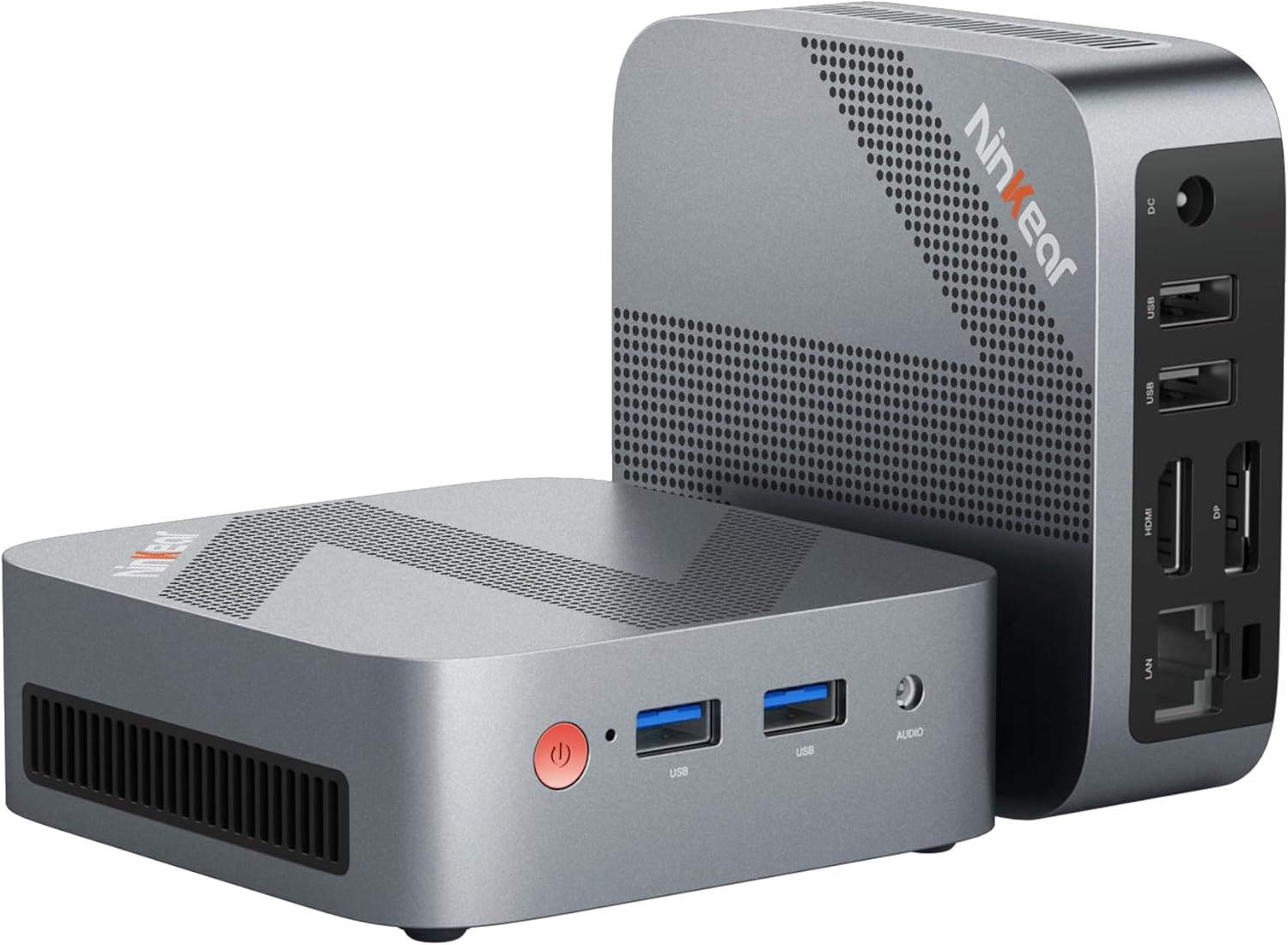
Figure 0.1: Ninkear Mini PC W-11. This compact and powerful mini PC is designed for various computing needs, from office work to multimedia entertainment.
This comprehensive user manual provides detailed instructions for the Ninkear Mini PC W-11 (MBOX 11 Mini PC). It covers initial setup, daily operation, maintenance, troubleshooting common issues, and full technical specifications. Please read this manual carefully to ensure proper use and to maximize the performance and longevity of your Ninkear Mini PC for office, home, and multimedia applications.
1. Поставување
1.1 Распакување и содржина на пакувањето
Carefully unpack all components from the box. Ensure all items listed below are present. If any item is missing or damaged, please contact customer support.

Figure 1.1: Package Contents. The box includes the Ninkear Mini PC, a user manual, a charging cable, an HDMI cable, and a fixed bracket for mounting.
- Ninkear Mini PC (MBOX 11)
- Упатство за употреба
- Адаптер за напојување/кабел за полнење
- HDMI кабел
- Fixed Bracket (for VESA mounting)
1.2 Физички врски
Before powering on, connect all necessary peripherals to the Mini PC. Refer to the diagrams below for port identification.

Figure 1.2: Front and Rear Ports of the Ninkear Mini PC. The front features USB 3.0 ports and an audio jack, while the rear includes LAN, HDMI, DisplayPort, USB 2.0, and DC power input.

Figure 1.3: Multi-purpose Port Diagram. This diagram illustrates the layout and function of each port on the Ninkear Mini PC, including power, USB 3.0, headphone/MIC jack on the front, and RJ45, DP, HDMI, USB 2.0, and DC on the back.
- Поврзете се со екранот: Use the provided HDMI cable to connect the Mini PC's HDMI port to your monitor or TV. The device also supports DisplayPort (DP) for alternative display connections.
- Поврзете периферни уреди:
- Тастатура и глушец: Connect your USB keyboard and mouse to the available USB 3.0 ports on the front or USB 2.0 ports on the rear.
- Аудио: Поврзете слушалки или звучници во 3.5 мм аудио приклучокот на предната страна.
- Мрежа: For a wired connection, connect an Ethernet cable to the RJ45 LAN port on the rear.
- Поврзување за напојување: Поврзете го адаптерот за напојување со влезниот порт за еднонасочна струја на задната страна од мини компјутерот, а потоа вклучете го адаптерот во штекер.
1.3 Прво стартување и почетна конфигурација
Once all connections are secure, press the power button on the front of the Mini PC. The device comes with Windows 11 pre-installed and ready for immediate use. Follow the on-screen prompts to complete the initial Windows setup, including language, region, network connection, and user account creation.
2. Работење
2.1 Основно работење
- Вклучување: Притиснете го копчето за вклучување на предната страна на уредот.
- Исклучено: From the Windows operating system, click the Start button, then select Power > Shut down. Alternatively, you can press and hold the power button for a few seconds to force a shutdown (not recommended for regular use).
- Рестартирајте: From the Windows operating system, click the Start button, then select Power > Restart.
2.2 Dual Display Setup
The Ninkear Mini PC supports dual 4K@60Hz display output via its HDMI 2.0 and DisplayPort (DP) interfaces, allowing for enhanced multitasking and productivity.

Figure 2.1: 4K Dual Display Setup. The Mini PC can connect to two monitors simultaneously via HDMI and DisplayPort, supporting 4K resolution at 60Hz for an extended desktop experience.
- Connect your primary monitor to the HDMI port.
- Connect your secondary monitor to the DisplayPort (DP).
- Откако двата монитори ќе бидат поврзани и вклучени, Windows треба автоматски да ги детектира.
- To configure display settings (extend, duplicate, or show only on one screen), right-click on the desktop, select "Display settings," and adjust as needed.
2.3 Connectivity (Wi-Fi, Bluetooth, Ethernet)
The Mini PC offers versatile connectivity options for your network and wireless devices.

Figure 2.2: Multiple Connection Options. The Mini PC supports high-speed Ethernet (RJ45-1000M), WiFi 2.4/5.0 GHz, and Bluetooth 5.0 for comprehensive connectivity.
- Wi-Fi: The Mini PC supports Wi-Fi 5 (802.11ac) for fast wireless internet access. To connect, click the Wi-Fi icon in the system tray, select your network, enter the password, and click Connect.
- Bluetooth: With Bluetooth 5.0, you can connect wireless peripherals suchs as keyboards, mice, headphones, and speakers. Go to Windows Settings > Bluetooth & devices to pair new devices.
- Етернет: For a stable and high-speed wired network connection, plug an Ethernet cable into the RJ45 port. The Mini PC supports Gigabit Ethernet (1000M).
2.4 Проширување на просторот за складирање
The Ninkear Mini PC comes with a 512 GB M.2 SSD. For additional storage, you can upgrade the M.2 NVMe PCIe3.0 SSD or M.2 SATA SSD up to 2 TB.

Figure 2.3: Efficient and High-Capacity Storage. The Mini PC features 16GB DDR4 RAM and a 512GB M.2 SSD, with the SSD being upgradeable up to 2TB.
Consult a qualified technician or refer to detailed upgrade guides if you plan to expand the internal storage to avoid damaging the device.
3. Одржување
3.1 Чистење
To maintain optimal performance and extend the lifespan of your Mini PC, regular cleaning is recommended.
- Надворешност: Use a soft, dry, lint-free cloth to wipe the exterior surfaces. For stubborn smudges, slightly dampmk крпата со вода или благо, неабразивно средство за чистење.
- Пристаништа: Use compressed air to gently clear dust from the USB, HDMI, DP, and other ports. Avoid inserting any objects into the ports.
- Вентилација: Ensure the ventilation holes are clear of dust and obstructions to allow for proper airflow and cooling.
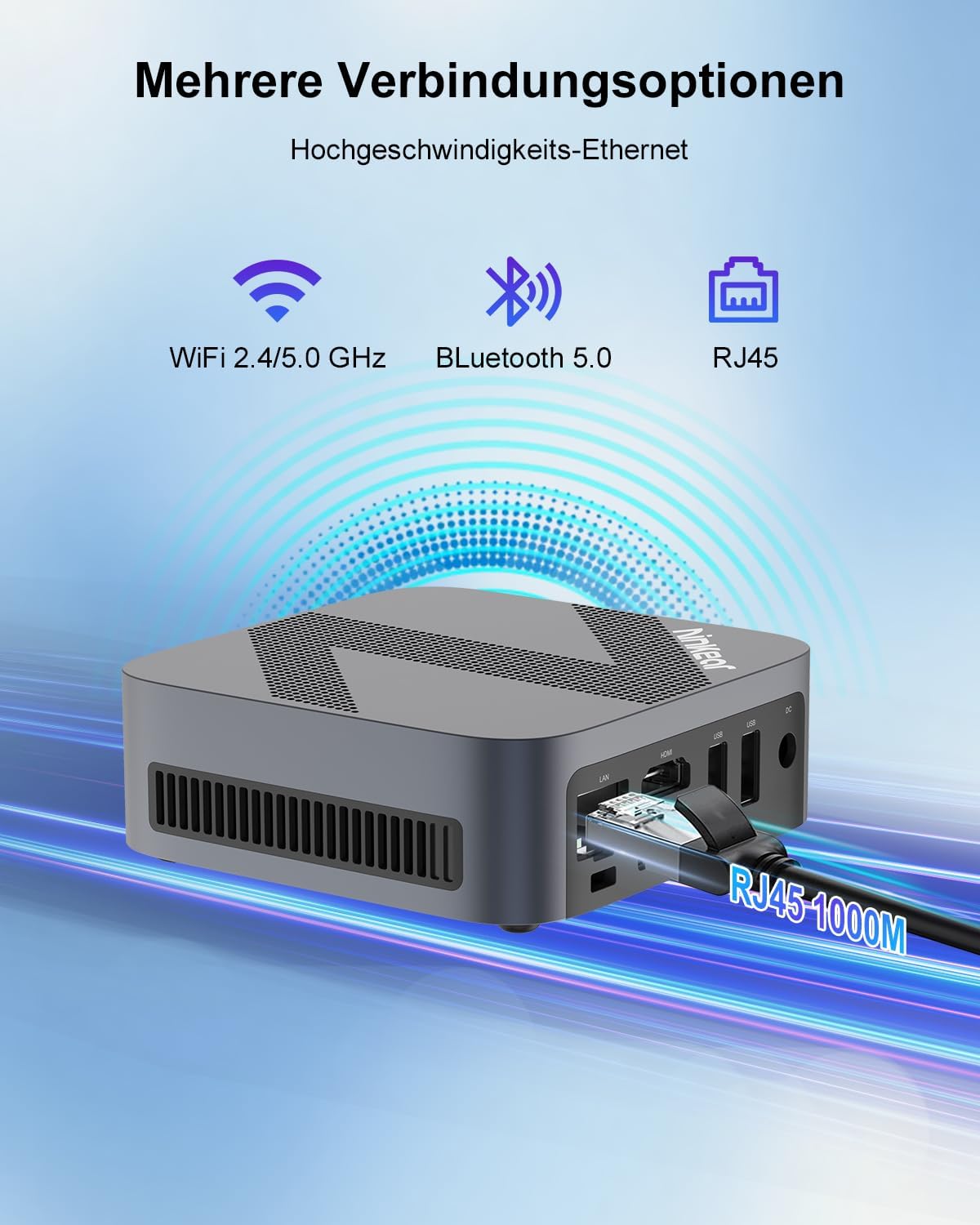
Figure 3.1: Powerful Cooling System. The Mini PC utilizes a copper pipe and aluminum heatsink design for efficient heat dissipation, ensuring quiet operation and low power consumption.
3.2 Ажурирања на софтверот
Редовно ажурирајте го вашиот оперативен систем и драјверите за да обезбедите стабилност, безбедност и оптимални перформанси на системот.
- Ажурирања на Windows: Go to Windows Settings > Windows Update and check for available updates.
- Ажурирања на возачот: While Windows Update often handles driver updates, you may occasionally need to check the Ninkear official website for the latest drivers for specific components if you encounter issues.
3.3 Управување со складирање
To maintain the health and performance of your SSD, avoid filling it to full capacity. Periodically clean up unnecessary fileи апликации.
- Чистење на дискот: Use the built-in Windows Disk Cleanup tool to remove temporary files and other non-essential data.
- Uninstall Programs: Remove programs you no longer use from Windows Settings > Apps > Installed apps.
4 Смена на проблеми
This section addresses common issues you might encounter with your Ninkear Mini PC. If the problem persists, please refer to the Warranty and Support section.
4.1 Нема струја
- Проверете ја врската за напојување: Осигурајте се дека адаптерот за напојување е безбедно поврзан и со мини компјутерот и со функционален штекер.
- Тест штекер: Try plugging another device into the same power outlet to confirm it is functional.
- Копче за вклучување: Ensure you are pressing the power button firmly.
4.2 Нема излез на екранот
- Кабелско поврзување: Verify that the HDMI or DisplayPort cable is securely connected to both the Mini PC and the monitor.
- Влез за монитор: Ensure your monitor is set to the correct input source (e.g., HDMI 1, DP).
- Тест со друг екран/кабел: If possible, try connecting the Mini PC to a different monitor or using a different HDMI/DP cable to rule out display or cable issues.
- Рестартирајте: Power cycle the Mini PC and the monitor.
4.3 Проблеми со Wi-Fi или Bluetooth конективност
- Enable Wi-Fi/Bluetooth: Проверете дали Wi-Fi и Bluetooth се овозможени во поставките на Windows.
- Проверка на возачот: Verify that the Wi-Fi and Bluetooth drivers are installed and up to date in Device Manager.
- Router/Device Proximity: Move closer to your Wi-Fi router or Bluetooth device.
- Restart Router/Mini PC: Restart your Wi-Fi router and the Mini PC.
4.4 System Performance Issues (Slowdown, Lag)
- Затвори ги неискористените апликации: Затворете ги сите апликации што работат во позадина, а не се користат.
- Проверете го менаџерот на задачи: Open Task Manager (Ctrl+Shift+Esc) to identify processes consuming high CPU, RAM, or disk resources.
- Простор на дискот: Ensure there is sufficient free space on the SSD.
- Скенирање за малициозен софтвер: Извршете целосно скенирање на системот со антивирусен софтвер.
- Ладење: Осигурајте се дека мини компјутерот има соодветна вентилација и не се прегрева.
5. Спецификации
Below are the detailed technical specifications for the Ninkear Mini PC W-11 (MBOX 11 Mini PC).
| Карактеристика | Спецификација |
|---|---|
| Бренд | Нинкеар |
| Модел/серија | MBOX 11 |
| Број на модел | MBOX 11 Mini PC |
| Боја | Греј |
| Димензии на производот | 9.9 x 9.9 x 3.3 cm |
| Тежина на ставката | 240 гр |
| Бренд на процесор | Интел |
| Тип на процесор | Celeron N150 (4 Cores, 4 Threads) |
| Брзина на процесорот | До 3.6 GHz |
| Големина на RAM меморија | 16 GB |
| Мемориска технологија | DDR4, SO-DIMM |
| Max Supported Storage | 2 TB (M.2 NVMe PCIe3.0 SSD or M.2 SATA SSD) |
| Hard Drive Size (Included) | 512 GB |
| Hard Drive Technology | SSD |
| Графички копроцесор | Интел UHD графика |
| Графички интерфејс | Интегриран |
| Тип на поврзување | Bluetooth 5.0, Wi-Fi 5 (WLAN) |
| HDMI интерфејси | 1 (HDMI 2.0) |
| DisplayPort Interfaces | 1 |
| USB порти | 2x USB 3.0 (напред), 2x USB 2.0 (заден) |
| Етернет | RJ45 (Gigabit) |
| Аудио Џек | 1x 3.5mm Headphone/MIC Jack |
| Оперативен систем | Windows 11 (W11 OS) |
| Batteries (Internal) | 1 C Battery required (included) |
| Капацитет на литиумска батерија | 6 ват-часови |
| Тежина на литиумска батерија | 10 грама |
| Number of Lithium-Ion Cells | 1 |
Забелешка: Спецификациите се предмет на промена без претходна најава.
6. Гаранција и поддршка
Ninkear is committed to providing high-quality products and excellent customer service.
6.1 Информации за гаранцијата
If you purchase the product and experience a failure due to product defects within 1 year, please contact Ninkear customer support. You will need to provide your order number, a video or photo of the defect, and a detailed description of the issue.
6.2 Поддршка за корисници
For any questions, technical assistance, or warranty claims, please contact the Ninkear Official Store or the designated customer service center. They will guide you through the repair process or provide further assistance.
За повеќе информации, посетете ја Ninkear Store on Amazon.


