1. Производот завршиview
The CITLLA PRO MAX E510 is an ergonomic wireless mouse designed for comfort and efficiency across multiple devices. It features dual Bluetooth and 2.4G wireless connectivity, adjustable DPI settings, and a unique smart flying scroll wheel with a side thumb wheel for enhanced navigation.

Image: The CITLLA PRO MAX E510 Wireless Bluetooth Mouse in white, showcasinнеговиот ергономски дизајн и повеќекратните копчиња.
2. Упатства за поставување
2.1 Почетно полнење
Before first use, fully charge the mouse using the provided USB-C cable. The charging port is located at the front of the mouse. A full charge can last up to 60 days. The mouse features an auto-sleep mode after 15 minutes of inactivity to conserve battery life.
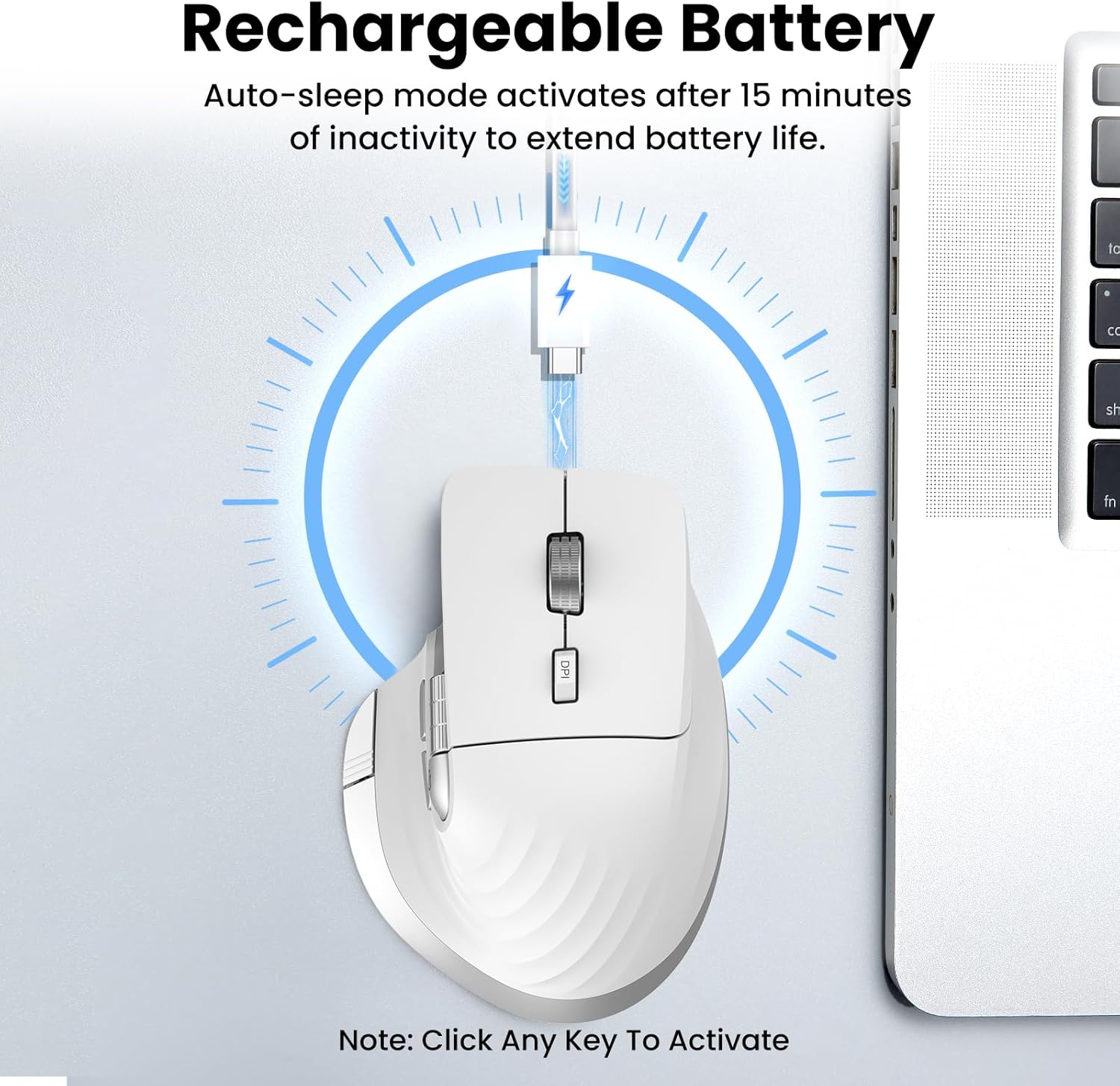
Image: The mouse connected to a USB-C charging cable, illustrating the rechargeable battery feature.
2.2 Поврзување со уреди
The mouse supports connection to up to three devices via 2.4G wireless (USB receiver) and two Bluetooth channels (Bluetooth 1, Bluetooth 2).
- 2.4G безжична врска:
- Пронајдете го USB-приемникот складиран во преградата на долната страна од глувчето.
- Приклучете го USB-приемникот во достапна USB порта на вашиот компјутер.
- Вклучете го глувчето со помош на прекинувачот за вклучување/исклучување што се наоѓа на дното.
- Press the 'Devices Switch Button' (labeled 6 in the button diagram) until the white indicator light for 2.4G (labeled 7) illuminates. The mouse should now be connected.
- Bluetooth Connection (Bluetooth 1 / Bluetooth 2):
- Вклучете го глувчето користејќи го прекинувачот за вклучување/исклучување.
- Press the 'Devices Switch Button' (6) to select either Bluetooth 1 (blue indicator) or Bluetooth 2 (green indicator).
- Press and hold the 'Devices Switch Button' for 3-5 seconds until the selected Bluetooth indicator light starts flashing rapidly. This indicates pairing mode.
- На вашиот уред (лаптоп, таблет, паметен телефон), одете во поставките за Bluetooth и пребарајте нови уреди.
- Select "CITLLA E510" (or similar name) from the list of available devices to pair.
- Откако ќе се спари, индикаторското светло ќе престане да трепка и ќе остане цврсто.

Image: Diagram showing the mouse wirelessly connected to a laptop, desktop monitor, and tablet, illustrating its multi-device capability.
3. Упатства за работа
3.1 Функции на копчињата

Image: Detailed diagram of the mouse buttons and their corresponding functions.
- 1. Left Button: Стандардна функција за кликнување со левото копче.
- 2. Right Button: Стандардна функција за кликнување со десното копче.
- 3. Smart Flying Scroll Wheel: For ultra-fast, nearly silent vertical scrolling.
- 4. DPI Button: Press to cycle through 4 adjustable DPI levels (1000/1600/2400/3200).
- 5. Side Wheel: For fast horizontal scrolling.
- 6. Devices Switch Button: Press to switch between connected devices (2.4G, Bluetooth 1, Bluetooth 2). Press and hold to enter Bluetooth pairing mode.
- 7. Devices Indicators: White for 2.4G, Blue for Bluetooth 1, Green for Bluetooth 2. Also includes a low power indicator.
- 8. Forward/Back Buttons: Navigate forward/back in web browsers or switch applications (macOS).
- 9. Return to Desktop Button: Instantly minimizes all windows to show the desktop (Windows only). For macOS, this button can be used for Full Screen (Control+Command+F).
3.2 Scrolling Functions
The mouse features two distinct scrolling mechanisms:
- На Паметно летечко тркало за лизгање (3) on top provides smooth and rapid vertical scrolling, ideal for long documents or web страници.
- На Странично тркало (5) allows for horizontal scrolling, which is particularly useful for navigating wide spreadsheets or timelines.
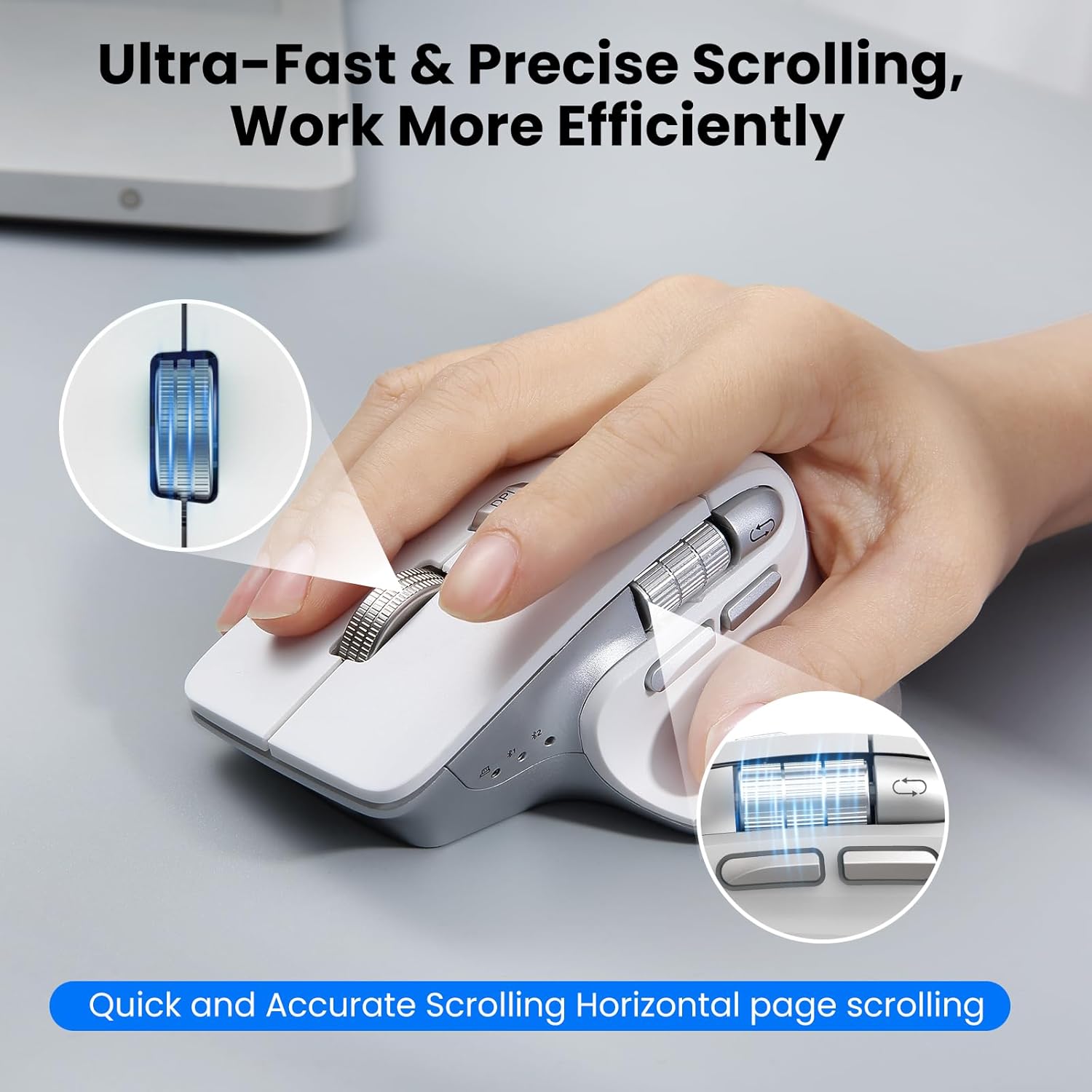
Image: A hand operating the mouse, highlighting the smart flying scroll wheel and the side thumb wheel for efficient navigation.
3.3 Прилагодување на DPI
The DPI (Dots Per Inch) button (4) allows you to adjust the cursor sensitivity. Press the DPI button to cycle through the four available settings: 1000, 1600, 2400, and 3200 DPI. Choose a setting that best suits your task, whether it's precise graphic design or fast-paced gaming.

Image: A visual representation of the 4-level adjustable DPI settings (1000, 1600, 2400, 3200 DPI).
3.4 Посебни карактеристики
- Дизајн со тивок клик: The mouse is engineered for quiet operation, making it suitable for shared workspaces and quiet environments.
- Return to Desktop (Windows Only): The dedicated button (9) provides a quick way to minimize all open windows and display your desktop. This feature is specific to Windows operating systems.

Image: A laptop screen showing multiple open windows, with an arrow indicating the 'Return to Desktop' button on the mouse minimizing them.
3.5 Product Feature Video
Video: An official product video from CITLLA showcasing the key features and functionality of the PRO MAX E510 Wireless Bluetooth Mouse, including its ergonomic design, multi-device connectivity, and smart scrolling.
4. Одржување
4.1 Чистење
To maintain optimal performance, regularly clean your mouse. Use a soft, dry cloth to wipe the exterior. For stubborn dirt, a slightly damp може да се користи крпа, осигурувајќи се дека влагата нема да влезе во внатрешните компоненти. Избегнувајте груби хемикалии или абразивни материјали.
4.2 Грижа за батерии
The mouse is equipped with a rechargeable battery. Charge it using a standard USB-C cable. The low power indicator will alert you when charging is needed. To prolong battery life, the mouse enters an auto-sleep mode after 15 minutes of inactivity. Click any button to reactivate it.
5 Смена на проблеми
- Глувчето не реагира:
- Проверете дали глувчето е вклучено.
- Проверете го нивото на батеријата и наполнете ја доколку е потребно.
- Verify the correct connection mode (2.4G, BT1, BT2) is selected using the Devices Switch Button.
- За 2.4G, проверете дали USB приемникот е безбедно вклучен.
- За Bluetooth, повторно спарете го глувчето со вашиот уред.
- Движењето на курсорот е неправилно или бавно:
- Adjust the DPI setting using the DPI button (4) to a higher sensitivity.
- Осигурајте се дека сензорот на глувчето е чист и без пречки.
- Use the mouse on a suitable surface (e.g., a mouse pad).
- Не може да се префрла помеѓу уреди:
- Осигурајте се дека сите уреди се правилно спарени/поврзани со нивните соодветни канали (2.4G, BT1, BT2).
- Press the Devices Switch Button (6) firmly to cycle through the connections.
- Return to Desktop button not working:
- This feature is only supported on Windows systems.
- Проверете дали вашиот оперативен систем Виндоус е ажуриран.
6. Спецификации
| Димензии на производот | 4.6 x 2.6 x 0.04 инчи |
| Тежина на ставката | 6.7 унци |
| Батерии | 1 нестандардна батерија (вклучена) |
| Технологија за поврзување | Bluetooth, 2.4G USB безжичен |
| Посебни карактеристики | 4 Way Scrolling, Ergonomic Design, Rechargeable, Silent Click, Wireless |
| Технологија за откривање на движење | Оптички |
7. Компатибилност
The CITLLA PRO MAX E510 Wireless Bluetooth Mouse is compatible with a wide range of operating systems:
- Windows
- Mac OS
- Хром ОС
- Linux
- iOS
- Андроид

Image: Icons for Android, Linux, Windows, Chrome OS, and Mac OS, indicating wide compatibility.
8. Што има во кутијата
- CITLLA PRO MAX E510 Wireless Bluetooth Mouse
- USB-C кабел за полнење
- 2.4G USB Receiver (stored in mouse)
- Упатство за употреба
9. Гаранција и поддршка
For warranty information, technical support, or any inquiries regarding your CITLLA PRO MAX E510 Wireless Bluetooth Mouse, please refer to the contact information provided in the packaging or visit the official CITLLA website. Our customer service team is available to assist you with any product-related concerns.


