1. Вовед
Ви благодарам за купувањетоasing the Matbip Switch2 Controller. This advanced model is designed to enhance your gaming experience across multiple platforms, including Nintendo Switch (1st and 2nd generations), Android, iOS (16.0 and above), and Windows PC. Featuring cutting-edge technology such as Hall Sensor sticks, a 6-axis gyro sensor, and customizable functions, this controller offers precise control and immersive feedback.
Please read this manual carefully before use to ensure proper operation and to fully utilize all features.
2. Содржина на пакетот
- Matbip Switch2 Pro Controller x 1
- Кабел за полнење од тип C x 1
- Упатство за употреба x 1
3. Производот завршиview

Слика 1: Предна страна view of the Matbip Switch2 Controller.
Клучни карактеристики:
- Компатибилност со повеќе платформи: Supports Switch (1st & 2nd Gen), Android, iOS (16.0+), and Windows PC.
- Стабилна безжична конекција: Utilizes Bluetooth 5.0 for zero-latency communication up to 10 meters.
- Drift-Zero Hall Sensor Sticks: Non-contact Hall sensors for both joysticks and triggers eliminate drift, offering over 5 million operations durability and ±0.5% high precision.
- Програмабилни копчиња за назад (M1, M2): Customize complex actions with macro programming for enhanced gameplay.
- 6-осен жироскопски сензор: High-sensitivity gyro sensor detects subtle movements for precise motion control and aiming.
- Adjustable TURBO Function: Three-speed continuous fire (5/12/20 shots/sec) for rapid actions in games.
- 4-Level HD Vibration: Adjustable vibration intensity (0%/30%/70%/100%) provides immersive tactile feedback.
- Долготрајна батерија: Built-in 1000mAh battery provides up to 20 hours of continuous play on a 4-hour charge, with low battery alerts.
- Ергономски дизајн: Streamlined shape with premium faux leather material and anti-slip coating ensures comfortable grip and reduces fatigue during long gaming sessions.
4. Поставување и поврзување
4.1 Полнење на контролорот
Before first use, fully charge the controller. Connect the included Type-C cable to the controller's charging port and the other end to a USB power source (e.g., Switch dock, PC, USB wall adapter). The indicator lights will show charging status. A full charge takes approximately 4 hours.

Figure 2: Battery capacity and charging details.
4.2 Поврзување со уреди
The controller supports wireless Bluetooth 5.0 connection across various platforms.
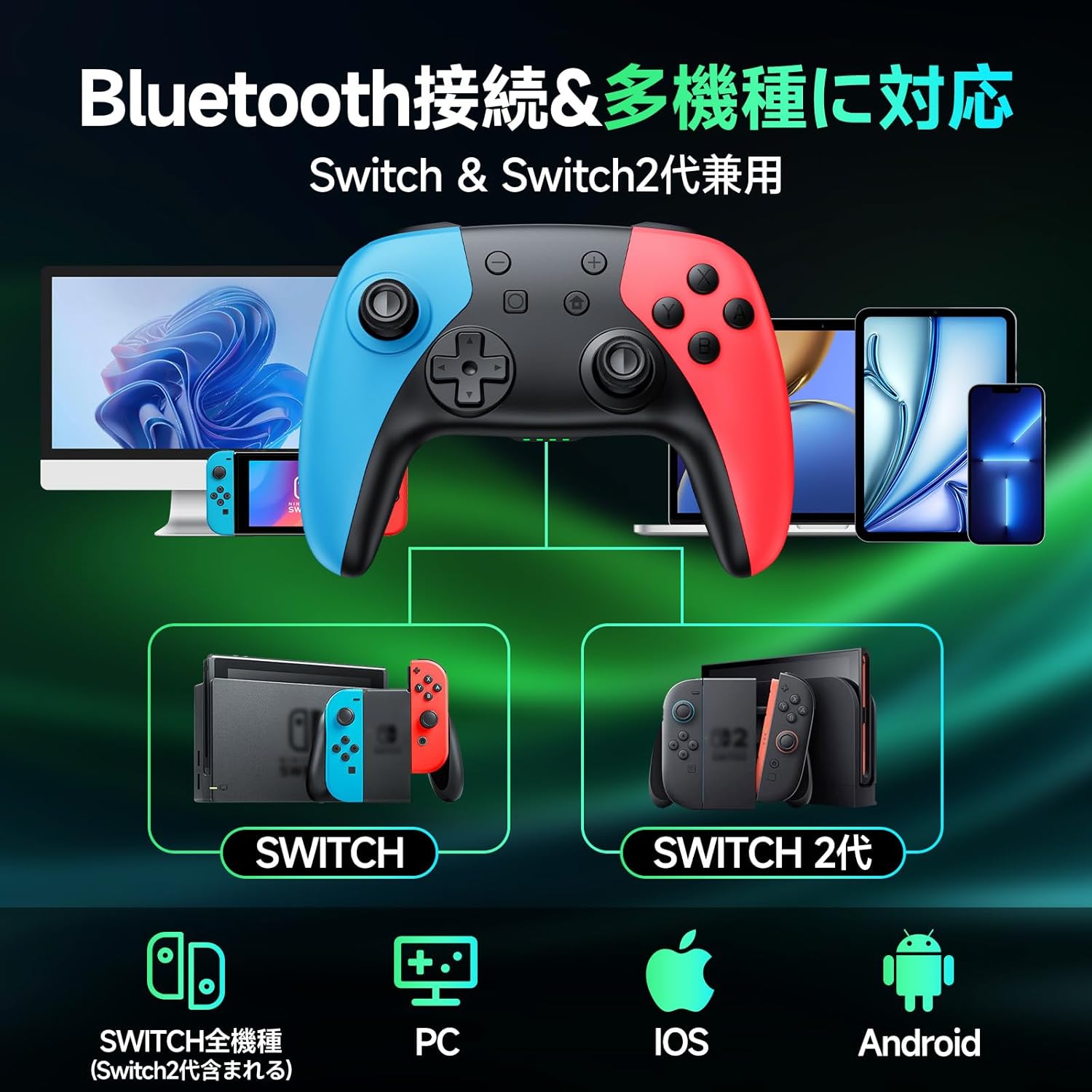
Figure 3: Multi-platform compatibility via Bluetooth.
4.2.1 Nintendo Switch / Switch 2 Connection:
- On your Switch console, go to the HOME Menu.
- Select "Controllers" > "Change Grip/Order".
- Press and hold the HOME button on the Matbip controller for 3 seconds until the indicator lights flash rapidly.
- The controller will automatically pair with the Switch. Once connected, the corresponding player indicator light(s) will remain solid.
4.2.2 Android / iOS / PC Connection:
- Ensure Bluetooth is enabled on your Android/iOS device or PC.
- Press and hold the HOME button on the Matbip controller for 3 seconds to enter pairing mode.
- On your device, search for Bluetooth devices and select "Matbip Controller" (or similar name) from the list.
- Откако ќе се поврзе, индикаторските светла на контролерот ќе светат постојано.
5. Упатства за работа
5.1 Hall Sensor Sticks and Triggers
The controller features advanced Hall Sensor technology for both joysticks and triggers, providing superior precision and durability compared to traditional analog sticks. This design prevents stick drift and ensures accurate input with a response speed of just 5ms.

Figure 4: Hall Sensor technology for precise, drift-free control.
5.2 Macro Function (M1/M2 Buttons)
The M1 and M2 buttons on the back of the controller can be programmed to execute a sequence of button presses (macro). This is useful for repetitive actions or complex combos.

Figure 5: Location of programmable M1 and M2 buttons.
Програмски чекори:
- Press and hold the M button (located between M1 and M2) and the M1 or M2 button you wish to program simultaneously. The indicator lights will flash slowly.
- Press the sequence of buttons you want to record (e.g., A, B, X, Y, L, R, D-pad directions, etc.).
- Press the M button again to save the macro. The indicator lights will stop flashing.
- Now, pressing the programmed M1 or M2 button will execute the recorded sequence.
Бришење на макро:
To clear a macro, press and hold the M button and the M1 or M2 button simultaneously, then press the M button again without recording any sequence.
5.3 TURBO Функција
The TURBO function allows for continuous rapid firing of a button. There are three adjustable speeds: 5, 12, and 20 shots per second.

Figure 6: TURBO function for automatic rapid fire.
Activating TURBO:
- Press and hold the TURBO button (T button).
- While holding TURBO, press the button you want to set for continuous fire (e.g., A, B, X, Y, L, R, ZL, ZR). The button will now continuously fire when held down.
Adjusting TURBO Speed:
- While holding the TURBO button, move the Right Analog Stick Up or Down to cycle through the three speeds (5/12/20 shots/sec).
Deactivating TURBO:
To deactivate TURBO for a specific button, repeat the activation steps. To deactivate TURBO for all buttons, press and hold the TURBO button for 5 seconds.
5.4 Прилагодување на вибрации
The controller features 4 levels of HD vibration intensity: 0% (None), 30% (Weak), 70% (Normal), and 100% (Strong).

Figure 7: Four-stage vibration adjustment.
Прилагодување на интензитетот на вибрациите:
- While holding the TURBO button, move the Left Analog Stick Up or Down to cycle through the vibration levels.
5.5 Gyro Sensor Calibration
If you experience issues with motion control or aiming, you may need to calibrate the 6-axis gyro sensor.

Figure 8: 6-axis gyro sensor for directional, viewpoint, and target recognition.
Чекори за калибрација:
- Place the controller on a flat, level surface.
- Simultaneously press and hold the X button, Square button, and HOME button until the indicator lights flash, then release.
- The controller will calibrate itself. Once calibration is complete, the indicator lights will stop flashing and return to their normal state.
6. Одржување
- Одржувајте го контролерот чист со бришење со мека, сува крпа. Избегнувајте употреба на груби хемикалии или абразивни материјали.
- Не го изложувајте контролерот на екстремни температури, влажност или директна сончева светлина.
- Избегнувајте испуштање на контролерот или негово изложување на силни удари.
- Press buttons gently. Excessive force is not required and may cause damage over time.
- Чувајте го контролорот на ладно и суво место кога не го користите.
7 Смена на проблеми
| Проблем | Можна причина | Решение |
|---|---|---|
| Контролерот не се вклучува. | Слаба батерија. | Наполнете го контролерот целосно. |
| Не може да се поврзе преку Bluetooth. | Controller not in pairing mode; Bluetooth interference; device Bluetooth off. | Ensure controller is in pairing mode (hold HOME button); restart controller and device; check device Bluetooth settings. |
| Stick drift or inaccurate motion control. | Gyro sensor needs calibration. | Perform gyro calibration as described in Section 5.5. |
| TURBO/Vibration not working. | Function not activated or incorrectly set. | Refer to Sections 5.3 and 5.4 for proper activation and adjustment. |
| Копчињата не реагираат. | Слаба батерија; софтверски проблем. | Charge controller; try resetting the controller (if applicable, usually by holding a small reset button or specific button combo). |
Доколку проблемот продолжи откако ќе ги испробате горенаведените решенија, контактирајте ја службата за корисници.
8. Спецификации
- Бренд: Матбип
- Број на модел: AB1
- Боја: Мулти-боја
- Поврзување: Безжичен Bluetooth 5.0
- Капацитет на батеријата: 1000 mAh
- Време на полнење: Прибл. 4 часа
- Continuous Playtime: До 20 часа
- Димензии: 17.2 x 11.7 x 7.3 cm
- Тежина: 310 гр
- Број на копчиња: 16
- Посебни карактеристики: 6-axis Gyro Sensor, Macro Function, TURBO Continuous Fire, 4-stage HD Vibration, Hall Sensor Sticks
- Поддржани платформи: Nintendo Switch (all generations), Android, iOS, PC
9. Гаранција и поддршка
This product comes with a 1-year quality warranty from the date of purchase. All products undergo strict quality inspection before shipment and have obtained international certifications including TELEC, CE, FCC, and RoHS.
For any questions, concerns, or technical support, please do not hesitate to contact our customer service. We are committed to providing you with the best possible gaming experience.
When operating buttons, please press gently to ensure longevity of the product.


