1. Вовед
Welcome to the user manual for your new FASTWD Android 15 Tablet 11-inch. This guide provides essential information for setting up, operating, and maintaining your device. Please read this manual thoroughly to ensure optimal performance and longevity of your tablet.
The FASTWD Android 15 Tablet features an 11-inch 2K QHD display, an Octa-Core T615 processor, 36GB RAM, 256GB ROM, and an 8000mAh battery. It supports 5G WiFi, 4G LTE, and includes AI-enhanced cameras, Gemini AI, and Widevine L1 for high-quality streaming.
2. Содржина на пакетот
Upon unboxing, please verify that all items listed below are present in your package:
- FASTWD Android 15 Tablet (11-inch)
- Глувче
- Тастатура
- Кликнете на Пенкало
- Кожна футрола
- Полнач
- Кабел за податоци (USB тип-C)
- Упатство за употреба на таблет

Слика 2.1: Included accessories with the FASTWD Android 15 Tablet.
3. Уредот завршиview
The FASTWD Android 15 Tablet features a sleek, lightweight metal body with a slim profile and straight edges. The display bezel measures 7.8mm, contributing to an immersive viewискуство.
Физички карактеристики
- Прикажи: 11-inch 2K QHD (2560x1440) In-cell Display with 90Hz refresh rate and Wide ViewИНГ Агол.
- Тело: Metal construction, weighing approximately 568g.
- Пристаништа: USB Type-C for charging and data transfer, SIM/MicroSD card slot.
- Камери: Rear 13MP + 3MP with autofocus and Low Light LED Flash; Front 8MP with autofocus.
- Аудио: Четири Amplitude Speakers with Artificial Intelligence Noise Cancellation technology.

Слика 3.1: Во текот наview за дизајнот и клучните карактеристики на таблетот.

Слика 3.2: Detail of the tablet's connectivity ports and speaker placement.
4. Поставување
4.1 Почетно полнење
Before first use, fully charge your tablet using the provided USB Type-C cable and charger. Connect the cable to the tablet's USB-C port and the charger to a power outlet. The battery indicator on the screen will show charging progress.
4.2 Вклучување/исклучување
- За вклучување: Press and hold the Power button until the FASTWD logo appears on the screen.
- За исклучување: Притиснете и задржете го копчето за вклучување, а потоа изберете „Исклучи“ од опциите што се појавуваат на екранот.
- За рестартирање: Притиснете и задржете го копчето за вклучување, а потоа изберете „Рестартирај“ од опциите.
4.3 Волшебник за почетно поставување
При првото вклучување, таблетот ќе ве води низ процесот на почетно поставување. Ова вклучува избор на јазик, поврзување со Wi-Fi мрежа, поставување на вашата Google сметка и конфигурирање на основните безбедносни поставки.
4.4 Инсталација на SIM и MicroSD картичка
Locate the SIM/MicroSD card tray on the side of the tablet. Use the provided SIM ejector tool to open the tray. Insert your Nano-SIM card (for 4G LTE connectivity) and/or a MicroSD card (for expanded storage) into the designated slots, ensuring correct orientation. Gently push the tray back into the tablet.
4.5 Спарување на Bluetooth уред
To connect Bluetooth accessories like the included keyboard or mouse:
- Одете на Поставки > Поврзани уреди > Bluetooth.
- Вклучете Bluetooth On.
- Проверете дали вашиот Bluetooth уред е во режим на спарување.
- Select 'Pair new device' and choose your device from the list.
- Следете ги сите предупредувања на екранот за да го завршите спарувањето.

Слика 4.1: Bluetooth device connection interface.
4.6 Отклучување со препознавање на лице
For convenient and secure unlocking, you can set up Face Recognition:
- Одете на Поставки > Безбедност и приватност > Отклучување на уредот > Отклучување со лик.
- Follow the on-screen instructions to register your face. Ensure you are in a well-lit environment.
Слика 4.2: Face Recognition Unlock setup.
5. Упатства за работа
5.1 Основна навигација
The tablet uses standard Android touch gestures:
- Допрете: Изберете ставка или отворете апликација.
- Повлечете: Скролувајте низ страници или листи.
- Штипнете за зумирање: Зголемување или намалување на сликите и web страници.
- Долго притискање: Пристапете до контекстуални менија или преместете икони на апликации.
5.2 Wi-Fi and 4G LTE Connectivity
- Wi-Fi: Одете на Поставки > Мрежа и интернет > Интернет. Select your desired Wi-Fi network and enter the password if required. The tablet supports 2.4G/5G dual-band Wi-Fi.
- 4G LTE: If a SIM card is installed, go to Поставки > Мрежа и интернет > SIM-картички to manage mobile data settings. The tablet supports 4G LTE TDD+FDD and VoLTE.

Слика 5.1: Connectivity features of the tablet.
5.3 Управување со апликации
To manage your applications:
- Инсталирајте апликации: Користете ја продавницата на Google Play за преземање и инсталирање нови апликации.
- Деинсталирајте апликации: Long-press an app icon on the home screen or app drawer, then drag it to 'Uninstall' or select 'App info' and choose 'Uninstall'.
- Free Up Storage Space: Одете на Поставки > Апликации > Видете ги сите апликации. Select an app, then choose 'Storage & cache' to clear cache or data, or 'Force stop' to temporarily halt its operation.
Слика 5.2: App management options.
5.4 Контроли на родители
Manage and monitor tablet usage for children using parental controls:
- Одете на Поставки > Дигитална благосостојба и родителски контроли.
- Set up screen time limits, app restrictions, and content filters.
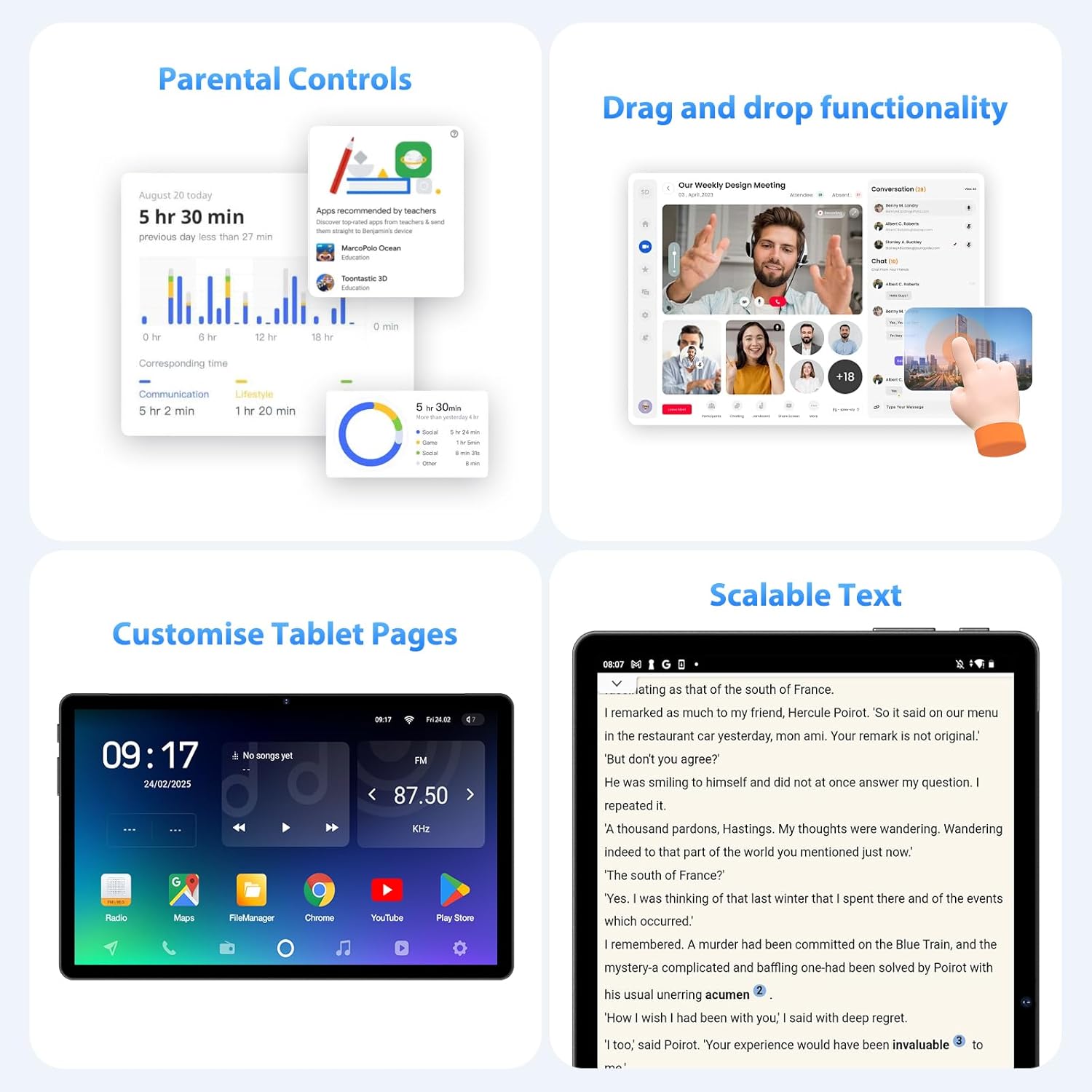
Слика 5.3: Parental control settings.
5.5 Double-tap to Wake
To quickly wake the screen without pressing the power button, simply double-tap the display. This feature can usually be enabled or disabled in Поставки > Приказ > Lock screen display.
Слика 5.4: Double-tap to wake functionality.
5.6 Customizing Tablet Pages
Personalize your tablet's home screens by long-pressing on an empty area to access wallpaper, widgets, and home screen settings. You can also rearrange app icons and create folders.
Слика 5.5: Example of a customized tablet page.
6. Напредни карактеристики
6.1 Приказ и мултимедија
- 2K QHD 90Hz Display: Enjoy smooth visuals and vibrant colors on the 11-inch 2560x1440 resolution display. The 90Hz refresh rate enhances scrolling and gaming experiences.
- Widevine L1 DRM: Supports Widevine L1 Digital Rights Management, enabling high-definition (1080P) streaming from services like Netflix.
- DP HD Screen Throwing: Allows for high-definition screen mirroring or extension to compatible external displays.
- Scalable Text: Adjust text size for improved readability via display settings.
Слика 6.1: Scalable text feature for enhanced readability.
6.2 Performance and AI
- Octa-Core T615 Processor: Equipped with a powerful 12nm Octa-Core T615 processor (4x A73 + 4x A53) and Mali-G72 GPU for efficient multitasking and smooth application performance.
- Интеграција со вештачка интелигенција на Gemini: Leverages Gemini AI for enhanced smart features and optimized user experience.
- Паметно откривање со вештачка интелигенција: The tablet incorporates AI for various smart detection functionalities, improving user interaction and device efficiency.
Слика 6.2: Octa-core processor specifications.
6.3 Карактеристики на камерата
The tablet is equipped with AI-enhanced cameras:
- Задни камери: 13MP + 3MP with HD Video Call support, autofocus, and Low Light LED Flash.
- Предна камера: 8MP with autofocus.
- Capture Unlock Face: Utilize the front camera for face recognition to unlock the device.
6.4 Аудио систем
Experience clear audio with the tablet's advanced sound system:
- Четири Amplitude Speakers: Овозможува богат и импресивен звук.
- Поништување на бучава со вештачка интелигенција: Artificial Intelligence Noise Cancellation technology automatically filters out ambient noise for clearer audio output.
7. Одржување и грижа
7.1 Чистење на таблетот
Use a soft, lint-free cloth to gently wipe the screen and body of the tablet. For stubborn smudges, slightly dampИзмијте ја крпата со вода или раствор за чистење екрани. Избегнувајте употреба на груби хемикалии или абразивни материјали.
7.2 Грижа за батерии
The tablet is equipped with an 8000mAh battery, providing approximately 8 hours of usage. To prolong battery life:
- Избегнувајте екстремни температури.
- Не дозволувајте батеријата често целосно да се празни.
- Користете го испорачаниот полнач за оптимално полнење.
- Намалете ја осветленоста на екранот и оневозможете ги непотребните функции (Wi-Fi, Bluetooth, GPS) кога не се во употреба.
7.3 Ажурирања на софтверот
Редовно проверувајте и инсталирајте ажурирања на софтверот за да се осигурате дека вашиот таблет ги има најновите функции, безбедносни закрпи и подобрувања на перформансите. Одете на Поставки > Систем > Системско ажурирање за да проверите за достапни ажурирања.
7.4 Управување со складирање
The tablet comes with 256GB of internal storage, expandable up to 1TB via MicroSD card. To manage storage:
- Редовно бришете ги непотребните fileи апликации.
- Премести на големо files (photos, videos) to the MicroSD card or cloud storage.
- Clear app cache periodically via Поставки > Складирање.
8 Смена на проблеми
Овој дел се однесува на вообичаени проблеми со кои може да се соочите со вашиот таблет.
8.1 Таблетот не се вклучува
- Проверете дали батеријата е наполнета. Поврзете го таблетот со полначот најмалку 30 минути.
- Притиснете го и држете го копчето за вклучување 10-15 секунди за да извршите присилно рестартирање.
8.2 Проблеми со Wi-Fi поврзување
- Рестартирајте го вашиот Wi-Fi рутер и таблетот.
- Проверете дали сте во опсегот на Wi-Fi сигналот.
- Проверете дали лозинката за Wi-Fi е точна.
- Заборавете ја мрежата во поставките за Wi-Fi и повторно поврзете се.
8.3 Бавни перформанси
- Затворете ги неискористените апликации што работат во позадина.
- Исчисти го кешот на апликациите и ослободи простор за складирање.
- Рестартирајте го таблетот периодично.
- Consider performing a factory reset if performance issues persist (Забелешка: This will erase all data on the tablet. Back up important data first).
8.4 Екранот не реагира
- Perform a forced restart by holding the Power button.
- Осигурајте се дека екранот е чист и без влага или остатоци.
9. Спецификации
| Карактеристика | Спецификација |
|---|---|
| Бренд | FASTWD |
| Име на моделот | FASTWD Android 15 Tablet 11-inch |
| Оперативен систем | Андроид 15 |
| Процесор | Octa-Core T615 (4x A73, 4x A53, 12nm) |
| GPU | Мали-Г72 |
| RAM меморија | 36GB (12GB + 24GB виртуелна) |
| Внатрешно складирање | 256 GB |
| Складирање што може да се прошири | До 1TB MicroSD |
| Големина на приказ | 11 инчи |
| Резолуција на екранот | 2560x1440 (2K QHD) |
| Стапка на освежување | 90 Hz |
| Капацитет на батеријата | 8000 mAh |
| Траење на батеријата | Приближно 8 часа |
| Задна камера | 13MP + 3MP with Autofocus and LED Flash |
| Предна камера | 8MP with Autofocus |
| Wi-Fi | 802.11ac (2.4G/5G Dual-band) |
| Мобилно поврзување | 4G LTE (TDD+FDD), VoLTE |
| Bluetooth | Да |
| Пристаништа | USB тип-C |
| Димензии (производ) | 26L x 16W x 0.8H cm |
| Тежина | Приближно 568 гр |
| Поддршка за DRM | Видевајн L1 |
| Други карактеристики | Gemini AI, GPS, TÜV Certified (implied from product title) |
10. Гаранција и поддршка
For detailed warranty information, please refer to the warranty card included in your product packaging or contact your point of purchase. Warranty terms and conditions may vary by region and retailer.
If you encounter issues not covered in this manual or require further assistance, please contact FASTWD customer support through the contact information provided with your product or on the official FASTWD webсајт.


