1. Вовед
This manual provides detailed instructions for the setup, operation, maintenance, and troubleshooting of your Tabwee T90 Android 16 Tablet. Please read this manual thoroughly before using your device to ensure proper functionality and to maximize your user experience.

Image: The Tabwee T90 tablet shown with its full suite of accessories, including a detachable keyboard, wireless mouse, stylus, protective case, charging adapter, and USB cable. This illustrates the complete package contents.
2. Содржина на пакетот
Проверете дали сите артикли се присутни во пакувањето:
- Tabwee T90 Tablet
- Bluetooth тастатура
- Безжичен глушец
- Пенкало со игла
- Заштитна футрола
- Филм за заштита на екранот
- Power Adapter (Type-C)
- USB Data Cable (Type-C)
- Упатство за употреба

Image: A visual representation of the Tabwee T90 tablet's dimensions and all components included in the retail package, such as the tablet, keyboard, mouse, stylus, and various cables and covers.
3. Почетно поставување
3.1 Полнење на таблетот
Before first use, fully charge the tablet using the provided Type-C power adapter and USB cable. The charging port is located on the side of the tablet.

Image: The Tabwee T90 tablet being charged via its Type-C port, highlighting its 8000mAh battery and estimated usage times for various activities like web browsing, video playback, gaming, and music.
3.2 Вклучување/исклучување
- За вклучување: Притиснете и држете го копчето за вклучување додека не се осветли екранот.
- За исклучување: Притиснете и задржете го копчето за вклучување, а потоа изберете „Исклучи“ од опциите.
3.3 Почетна конфигурација
Следете ги упатствата на екранот за да го завршите почетното поставување, вклучувајќи:
- Избор на јазик
- Wi-Fi мрежна врска
- Најавување на сметка на Google
- Поставки за датум и време
- Security settings (PIN, pattern, password, or face recognition)

Image: A collage of screenshots demonstrating key Android 16 features such as real-time notifications, robust security measures, access to the Google Play Store for app downloads, and options for regional language optimization.
3.4 Поврзување на додатоци
The Tabwee T90 comes with a Bluetooth keyboard and mouse. To connect them:
- Enable Bluetooth on your tablet via Settings > Connected devices > Bluetooth.
- Put the keyboard/mouse into pairing mode (refer to their individual manuals if needed).
- Изберете го додатокот од листата на достапни уреди на вашиот таблет за да го спарите.
The stylus pen does not require pairing.
4. Ракување со вашиот таблет
4.1 Андроид 16 интерфејс
The Tabwee T90 runs on Android 16, offering an intuitive and enhanced user experience with improved security and performance. Features include real-time notifications, efficient multitasking, and smart operational capabilities.
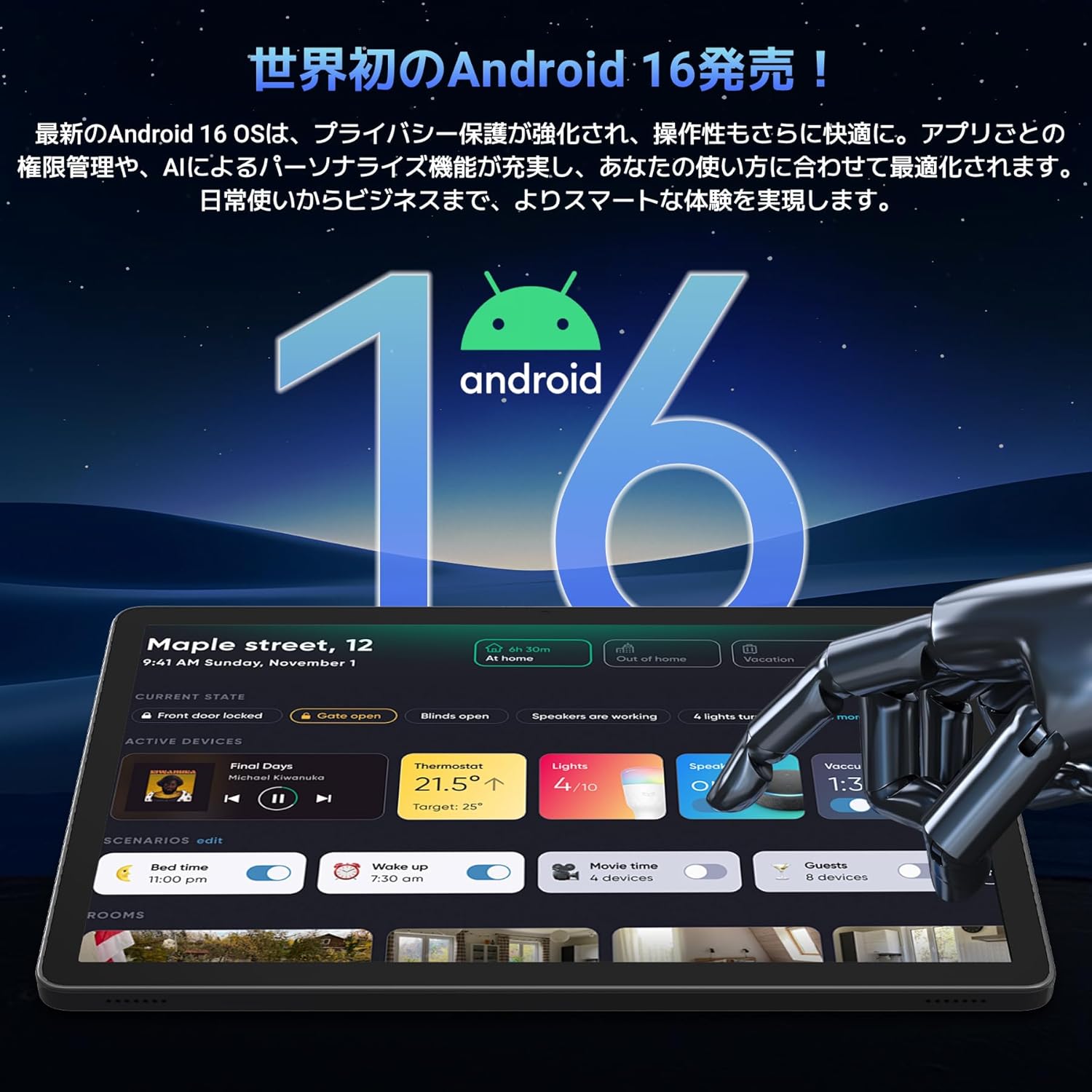
Image: A visual representation of the Android 16 operating system logo and its modern interface displayed on the Tabwee T90 tablet, emphasizing its new features and design.
4.2 Display and Media Playback
The 11-inch FHD IPS display (1920x1200 resolution) provides clear and vibrant visuals. With Widevine L1 support, you can stream high-definition content (1080p and above) from services like Netflix and Amazon Prime Video.

Image: The Tabwee T90 tablet showcasing a high-definition video of a baseball game, demonstrating its 11-inch FHD display and compatibility with streaming platforms like Netflix, YouTube, HBO, and Prime Video via Widevine L1.
4.3 Camera and Imaging
The tablet features a 5MP front camera for video calls and selfies, and a 13MP rear camera for capturing photos. Android 16's AI image processing enhances photo quality, and HEVC video encoding ensures stable editing and improved video quality. Google Lens integration allows for smart recognition, scanning, translation, and search functions.
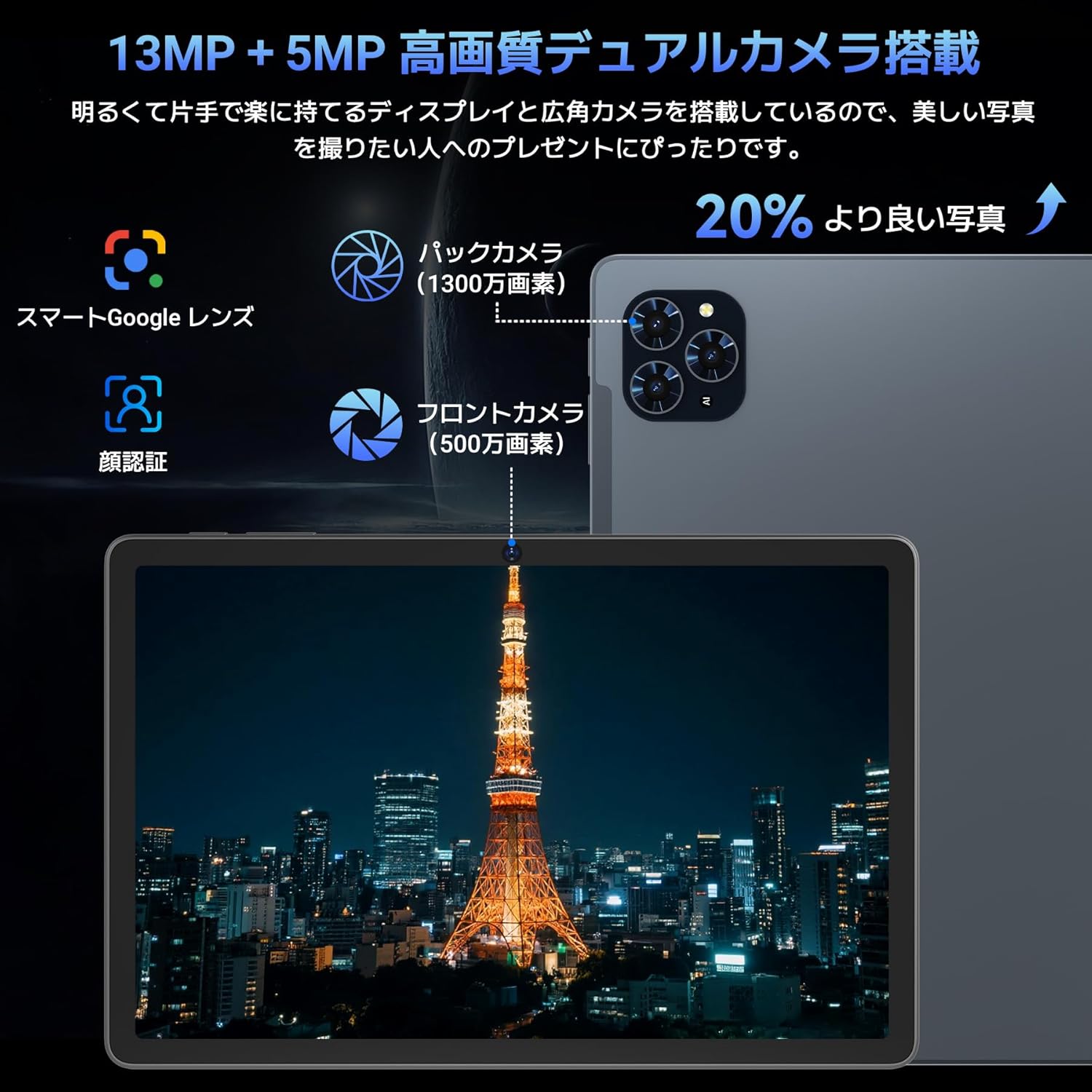
Слика: Детална view of the Tabwee T90 tablet's camera system, indicating a 13MP rear camera and a 5MP front camera. An example photo of Tokyo Tower is displayed on the screen, illustrating image capture capabilities.
4.4 Препознавање лице
Utilize the face recognition feature for quick and secure unlocking of your tablet. Set it up in Settings > Security & privacy > Face unlock.
4.5 Интеграција со вештачка интелигенција на Gemini
The tablet integrates with Gemini AI, optimizing performance across various scenarios. This AI assists with content recommendations, image processing, and semantic understanding, enhancing daily operations.

Image: A conceptual image depicting Gemini AI as a robotic figure interacting with multiple tablet screens, symbolizing its ability to support various tasks like email composition, schedule management, and information retrieval, enhancing user productivity.
4.6 Custom Keyboard Shortcuts
After connecting a Bluetooth keyboard, you can set custom shortcut keys to launch frequently used applications with a single press. Navigate to Settings > System > Keyboard > Keyboard shortcuts to configure.
5. Одржување
5.1 Чистење
- Користете мека крпа што не остава влакненца за чистење на екранот и телото на таблетот.
- Избегнувајте употреба на груби хемикалии или абразивни материјали.
- За тврдокорни дамки, малку дampИстријте ја крпата со вода или со средство за чистење екрани наменето за електроника.
5.2 Грижа за батерии
- Избегнувајте изложување на таблетата на екстремни температури.
- Не дозволувајте батеријата целосно да се празни често.
- Користете го само испорачаниот полнач или сертифициран компатибилен полнач.
5.3 Ажурирања на софтверот
Редовно проверувајте и инсталирајте системски ажурирања за да обезбедите оптимални перформанси и безбедност. Одете во Поставки > Систем > Ажурирање на системот.
6 Смена на проблеми
6.1 Таблетот не се вклучува
- Проверете дали таблетот е доволно наполнет. Приклучете го на полначот најмалку 30 минути.
- Притиснете го и држете го копчето за вклучување 10-15 секунди за да извршите присилно рестартирање.
6.2 Проблеми со Wi-Fi поврзување
- Рестартирајте го вашиот Wi-Fi рутер и таблетот.
- Заборавете ја мрежата во поставките на таблетот и повторно поврзете се.
- Проверете дали сте во опсегот на Wi-Fi сигналот.
6.3 Додатоците не се поврзуваат
- Ensure Bluetooth is enabled on the tablet.
- Check that the accessory is in pairing mode and has sufficient battery.
- Try restarting both the tablet and the accessory.
6.4 Бавни перформанси
- Затворете ги непотребните апликации во заднина.
- Исчисти го кешот за често користените апликации (Поставки > Апликации > [Име на апликација] > Складирање и кеш > Исчисти го кешот).
- Обезбедете доволно простор за складирање.
- Рестартирајте го таблетот периодично.
7. Спецификации
| Карактеристика | Детал |
|---|---|
| Бренд | TABWEE |
| Име на моделот | Т90 |
| Оперативен систем | Андроид 16 |
| Процесорот | Unisoc T615 Octa-core (2x Cortex-A75 @ 2.0GHz, 6x Cortex-A55 @ 1.8GHz) |
| GPU | Мали-Г57 |
| RAM меморија | 8GB (може да се прошири до 24GB со виртуелна RAM меморија) |
| Внатрешно складирање | 128 GB |
| Складирање што може да се прошири | Up to 2TB via microSD card (not included) |
| Големина на екранот | 11 инчи |
| Тип на дисплеј | IPS FHD |
| Резолуција | 1920 x 1200 пиксели |
| Предна камера | 5 MP |
| Задна камера | 13 MP |
| Капацитет на батеријата | 8000 mAh |
| Порта за полнење | Тип-C |
| Поврзување | Wi-Fi (2.4G/5G, 802.11ac), Bluetooth 5.0 |
| Тежина | 1.37 кг (приближно 3.02 фунти) |
| Димензии | 29.1 x 20 x 5.7 см (пакување) |
| Сертификати | PSE, GITEKI, GMS |

Image: A detailed diagram illustrating the Unisoc T615 Octa-core CPU, highlighting its architecture with Cortex-A75 and Cortex-A55 cores, Mali-G52 MP1 GPU, and 12nm low power consumption, indicating its high performance.

Image: The Tabwee T90 tablet's screen showing multiple applications, emphasizing its 128GB internal storage and support for up to 2TB external storage, with examples of how many photos, songs, and videos can be stored.
8. Гаранција и поддршка
The Tabwee T90 Tablet comes with a 2 година гаранција. This warranty covers manufacturing defects and ensures product quality.
8.1 Контактирајте со поддршката
If you encounter any issues or have questions, please contact customer support through your Amazon account:
- Go to your Amazon account > Order History > Select the relevant order.
- Click on the seller's name (TABWEE Official Store).
- Use the "Ask a question" option to send an email.
Support is available from 9:00 AM to 6:00 PM (excluding holidays). Inquiries will be responded to as quickly as possible.

Image: An illustration representing customer support, featuring a person wearing a headset and working on a laptop, symbolizing assistance for product inquiries and warranty claims.