1. Вовед и повеќеview
Welcome to your new DigiLand 10.1-inch Android Tablet MID1050. This manual provides essential information for setting up, operating, and maintaining your device. The tablet features a 10.1-inch display, an Octa-core processor, 6GB RAM, 32GB internal storage (expandable), and runs on Android 15. Please read this manual thoroughly to ensure proper use and to maximize your tablet's potential.
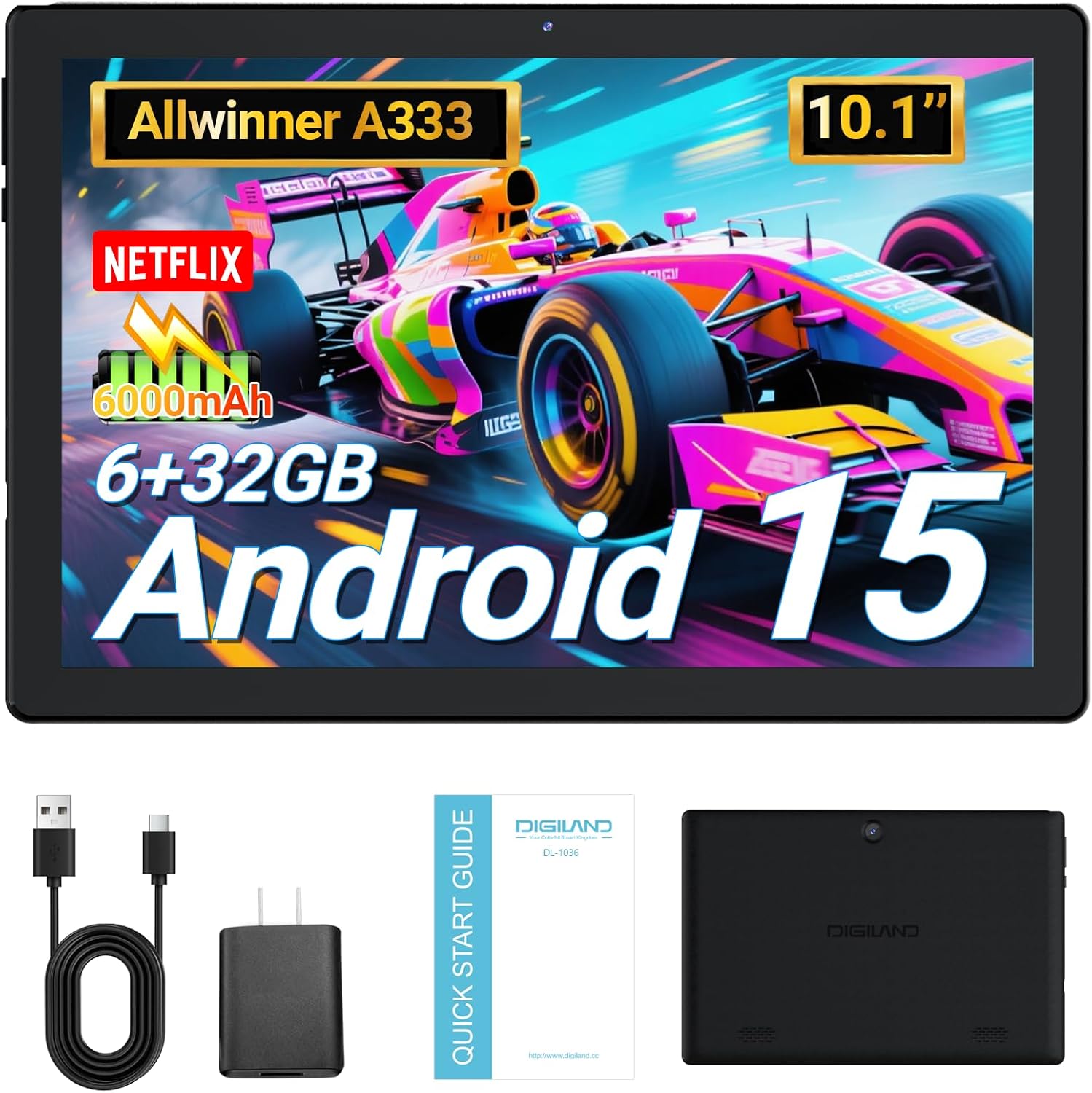
Image: DigiLand 10.1-inch Android Tablet MID1050.
2. Карактеристики на производот
- Latest Android 15 System: Experience enhanced compatibility, faster response times, and smoother operation. The tablet is GMS certified and comes with Google Play pre-installed, supporting popular social applications.
- Високи перформанси: Equipped with a high-performance Octa-core CPU, 6GB RAM (expandable to 3+3GB), and 32GB ROM. Storage can be expanded up to 1TB using an SD card.
- Мултифункционален дизајн: Features a 5MP rear camera and a 2MP front camera. Includes Bluetooth 5.0, built-in GPS, 5G WiFi, FM radio, dual-speakers, and a 3.5mm headphone jack.
- 10.1-инчен HD екран: Enjoy a clear and vibrant visual experience with an 800x1280 IPS display. The 6000mAh rechargeable battery provides 8-10 hours of mixed use.

Слика: Надview of DigiLand Android Tablet features.
3. Што има во кутијата
Upon unboxing your DigiLand tablet, please ensure all the following items are present:
- 1 x DigiLand 10.1-inch Android Tablet
- 1 x USB кабел
- 1 x 5V/1A Power Adapter (US regulations)
- 1 x Упатство за употреба (овој документ)
- 1 x Гарантна картичка
- 1 x Children's Silicone Case
4. Водич за поставување
4.1 Полнење на таблетот
Before first use, fully charge your tablet. Connect the provided USB cable to the tablet's Type-C port and the power adapter. Plug the adapter into a standard electrical outlet. The battery indicator on the screen will show charging status.
4.2 Вклучување/исклучување
- За вклучување: Press and hold the Power button (located on the side) until the DigiLand logo appears.
- За исклучување: Притиснете и задржете го копчето за вклучување, а потоа изберете „Исклучи“ од опциите на екранот.
4.3 Почетно поставување
При првото вклучување, следете ги упатствата на екранот за да го конфигурирате таблетот:
- Изберете го претпочитаниот јазик.
- Поврзете се на Wi-Fi мрежа.
- Најавете се со вашата сметка на Google или креирајте нова.
- Review и прифатете ги условите и одредбите.
- Поставете заклучување на екранот (PIN, шема или лозинка).
4.4 Вметнување на MicroSD картичка
To expand storage, locate the MicroSD card slot on the side of the tablet. Gently insert the MicroSD card (up to 1TB supported) into the slot until it clicks into place. Ensure the card is oriented correctly.

Image: Diagram showing the location of ports and buttons on the DigiLand Android Tablet.
5. Упатства за работа
5.1 Основна навигација
The tablet uses a multi-touch display. Common gestures include:
- Допрете: Изберете ставка или отворете апликација.
- Повлечете: Скролувајте низ екраните или листите.
- Штипење: Зголемување или намалување на сликите и web страници.
- Долг печат: Пристапете до контекстуални менија или преместете икони.
5.2 Поврзување на Wi-Fi
За да се поврзете на интернет:
- Одете на Поставки > Мрежа и интернет > Wi-Fi.
- Вклучи/исклучи Wi-Fi On.
- Изберете ја саканата мрежа од листата.
- Внесете ја лозинката доколку се побара, а потоа допрете Поврзете се.
5.3 Спарување преку Bluetooth
За поврзување со Bluetooth уреди:
- Одете на Поставки > Поврзани уреди > Bluetooth.
- Вклучете Bluetooth On.
- Проверете дали вашиот Bluetooth уред е во режим на спарување.
- Select your device from the 'Available devices' list and follow any on-screen instructions to complete pairing.
5.4 Употреба на камерата
Таблетот има предна камера од 2 мегапиксели и задна камера од 5 мегапиксели.
- Отворете го Камера апликацијата од почетниот екран или фиоката со апликации.
- Допрете го копчето за бленда за да фотографирате.
- Префрлувајте се помеѓу предните и задните камери користејќи ја иконата на камерата.
- Изберете видео режим за снимање видеа.

Image: Capturing moments with the tablet's cameras.
5.5 Управување со апликации
Download and manage applications:
- Инсталирајте апликации: Отворете го Google Play Store апликација, пребарајте ја саканата апликација и допрете Инсталирајте.
- Деинсталирајте апликации: Long-press an app icon on the home screen or app drawer, then drag it to 'Uninstall' or go to Поставки > Апликации > изберете ја апликацијата > Деинсталирајте.

Image: The tablet's screen showing various applications.
5.6 Split Screen Multitasking
The tablet supports split-screen mode for multitasking:
- Отворете ја првата апликација што сакате да ја користите.
- Повлечете нагоре од дното на екранот и задржете за да пристапите до неодамнешните апликации.
- Tap the app icon at the top of the first app's card, then select 'Split screen'.
- Choose the second app from your recent apps or app drawer to fill the other half of the screen.

Image: Tablet displaying two applications simultaneously in split-screen mode.
5.7 Video Playback Demonstration
Watch this video for a demonstration of the tablet's functions and video playback capabilities.
Video: Android 15 Tablet Product Function Demonstration by GuYi-USA. This video showcases the tablet's interface and media playback.
6. Одржување
6.1 Чистење на вашиот таблет
Use a soft, lint-free cloth to clean the screen and body of the tablet. Avoid using abrasive cleaners, alcohol, or harsh chemicals, as these can damage the screen and finish.
6.2 Грижа за батерии
- Избегнувајте изложување на таблетата на екстремни температури (топли или ладни).
- Charge the battery regularly, but avoid leaving it fully charged or fully depleted for extended periods.
- Користете го само испорачаниот полнач или сертифициран компатибилен полнач.
6.3 Ажурирања на софтверот
Regularly check for and install software updates to ensure your tablet has the latest features, security patches, and optimal performance. Go to Поставки > Систем > Системско ажурирање.
6.4 Управување со складирање
To maintain optimal performance, periodically manage your tablet's storage:
- Деинсталирајте ги неискористените апликации.
- Исчисти кеш меморија на апликацијата (Поставки > Апликации > изберете апликација > Складирање и кеш > Исчистете го кешот).
- Префрли голем files (фотографии, видеа) во облак складирање или надворешна MicroSD картичка.
7 Смена на проблеми
Доколку наидете на проблеми со вашиот таблет, погледнете ги следните вообичаени проблеми и решенија:
| Проблем | Решение |
|---|---|
| Таблетот не се вклучува | Ensure the battery is sufficiently charged. Connect the tablet to the charger for at least 30 minutes before attempting to power on again. |
| Проблеми со Wi-Fi конекцијата | Check if your Wi-Fi router is working correctly. Restart both the router and the tablet. Forget the network in tablet settings and reconnect. |
| Апликациите се уриваат или замрзнуваат | Clear the app's cache (Settings > Apps > [App Name] > Storage & cache > Clear cache). If the problem persists, try uninstalling and reinstalling the app. |
| Бавни перформанси | Close unnecessary background applications. Free up storage space by deleting old files or uninstalling unused apps. Restart the tablet. |
| Екранот не реагира | Извршете присилно рестартирање со држење на копчето за вклучување околу 10-15 секунди додека таблетот не се рестартира. |
8. Спецификации
Key technical specifications for the DigiLand 10.1-inch Android Tablet MID1050:
| Карактеристика | Детал |
|---|---|
| Број на модел | СРЕДИНА1050 |
| Оперативен систем | Андроид 15 |
| Големина на екранот | 10.1 инчи |
| Максимална резолуција на екранот | 800x1280 IPS |
| Процесор | Octa-core (A133P) |
| RAM меморија | 6 GB |
| Внатрешно складирање | 32GB (може да се прошири до 1TB преку TF картичка) |
| Предна камера | 2 MP |
| Задна камера | 5 MP |
| Капацитет на батеријата | 6000mAh (Approx. 8-10 hours mixed use) |
| Безжично поврзување | 5G WiFi (802.11g) |
| Bluetooth | 5.0 |
| Димензии (ДxШxВ) | 10.1 x 5.5 x 0.3 инчи |
| Тежина на ставката | 2.01 фунти |
9. Гаранција и поддршка
9.1 Гаранција за производот
The DigiLand 10.1-inch Android Tablet MID1050 comes with a one-year warranty from the date of purchase. This warranty covers manufacturing defects and ensures the product meets quality standards.
9.2 Поддршка за корисници
For any quality problems, technical assistance, or warranty claims, please contact our customer service team. You can reach us via your Amazon Purchase Record. We are committed to ensuring customer satisfaction and providing the best possible service.


