1. Вовед
The TABWEE 10.1 Inch WiFi Digital Calendar, Model P10, is an interactive touchscreen display designed to streamline family organization. It integrates calendars, task management, meal planning, and digital photo frame capabilities into a single device. This manual provides detailed instructions to help you set up and utilize all features of your new digital calendar.

Слика 1.1: The TABWEE Digital Calendar in use, showcasing its calendar interface and mobile app synchronization.
2. Информации за безбедност
- Уверете се дека уредот е поставен на стабилна, рамна површина за да спречите случајни паѓања.
- Користете го само испорачаниот адаптер за напојување. Употребата на неовластени адаптери може да го оштети уредот и да ја поништи гаранцијата.
- Чувајте го уредот подалеку од вода, влага и екстремни температури.
- Do not attempt to open or repair the device yourself. Refer to qualified service personnel for any maintenance or repair needs.
- Да се чува подалеку од дофат на мали деца за да се спречи случајно голтање на мали делови или оштетување на уредот.
3. Содржина на пакетот
Проверете дали сите артикли се присутни во пакувањето:
- TABWEE 10.1 Inch WiFi Digital Calendar (Model P10)
- Адаптер за напојување
- Упатство за употреба (овој документ)
4. Производот завршиview
Familiarize yourself with the physical components of your TABWEE Digital Calendar.

Слика 4.1: Technical details and component layout of the TABWEE Digital Calendar.
- Копче за вклучување / исклучување: Located on the side for turning the device on or off.
- Копчиња за зголемување / намалување на јачината на звукот: Adjust the device's audio output.
- Сензор за светлина: Автоматски ја прилагодува осветленоста на екранот врз основа на амбиенталната светлина.
- Support Stand: Integrated stand for desk placement.
5. Поставување
5.1 Почетно вклучување
- Connect the provided power adapter to the device's power port.
- Plug the adapter into a standard electrical outlet. The device will automatically power on.
- Следете ги упатствата на екранот за да го изберете вашиот јазик и регион.
5.2 мрежно поврзување
- On the initial setup screen, select your Wi-Fi network from the list.
- Enter your Wi-Fi password and tap 'Connect'.
- Ensure the device is connected to a stable internet connection for full functionality.
5.3 Инсталација на апликација и креирање сметка
To fully utilize the calendar's features, download and set up the companion 'eCalendar' app on your smartphone (iOS or Android).

Слика 5.1: Steps for downloading and creating an account on the eCalendar app.
- Scan the QR code displayed on the calendar screen or search for 'eCalendar' in your device's app store (Google Play Store for Android, Apple App Store for iOS).
- Преземете ја и инсталирајте ја апликацијата.
- Open the eCalendar app and follow the prompts to create a new account or log in if you already have one.
- Согласете се со Договорот за корисникот и Политиката за приватност.
5.4 Device Linking
Link your TABWEE Digital Calendar to your eCalendar app account.

Слика 5.2: Linking the calendar device to the eCalendar app and setting up your unique calendar email.
- In the eCalendar app, select the option to 'Add Device' or 'Activate a new eCalendar Frame'.
- Follow the on-screen instructions to pair your device. This may involve scanning a QR code displayed on the calendar or entering a pairing code.
- Once linked, you can set up your unique calendar email address within the app.
6. Операција
6.1 Основна навигација
The TABWEE Digital Calendar features a responsive touchscreen. Navigate through menus and features by tapping, swiping, and pinching as you would on a tablet device.
6.2 Управување со календари
The core function of your device is calendar management, allowing for seamless synchronization and event organization.
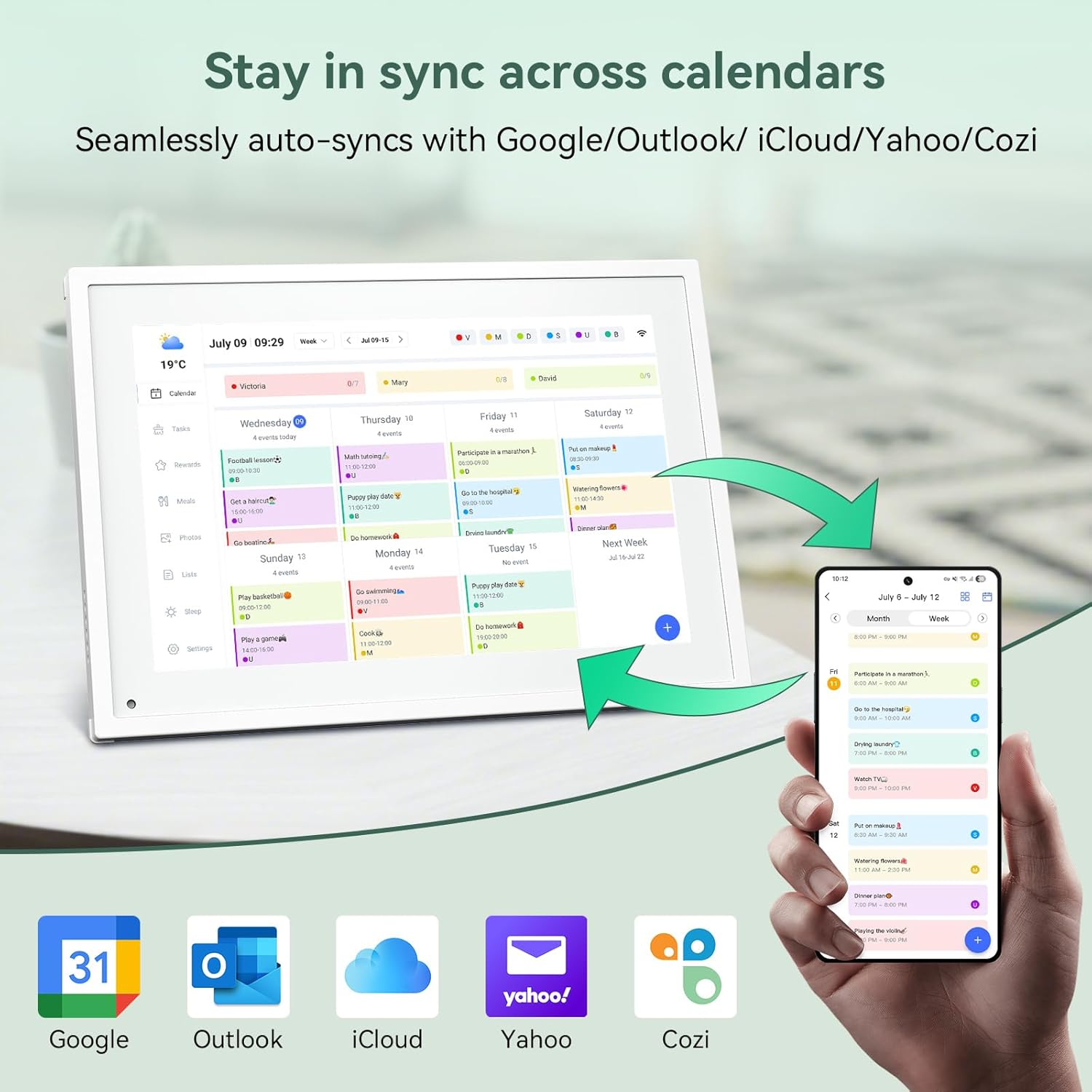
Слика 6.1: Seamless synchronization of the digital calendar with various external calendar services.
- Syncing External Calendars: Within the eCalendar app settings, you can link your Google, Apple, Outlook, Yahoo, or Cozi calendars. Events from these linked accounts will automatically appear on your TABWEE Digital Calendar.
- Adding/Editing Events: Tap on a date or time slot on the calendar display or use the eCalendar app to add new events. You can specify event details, set reminders, and assign participants.
- Прилагодено Views: Switch between day, week, or month views directly on the device or through the app.
6.3 Task Management (Chore Chart)
Organize tasks and chores for family members with a built-in reward system.
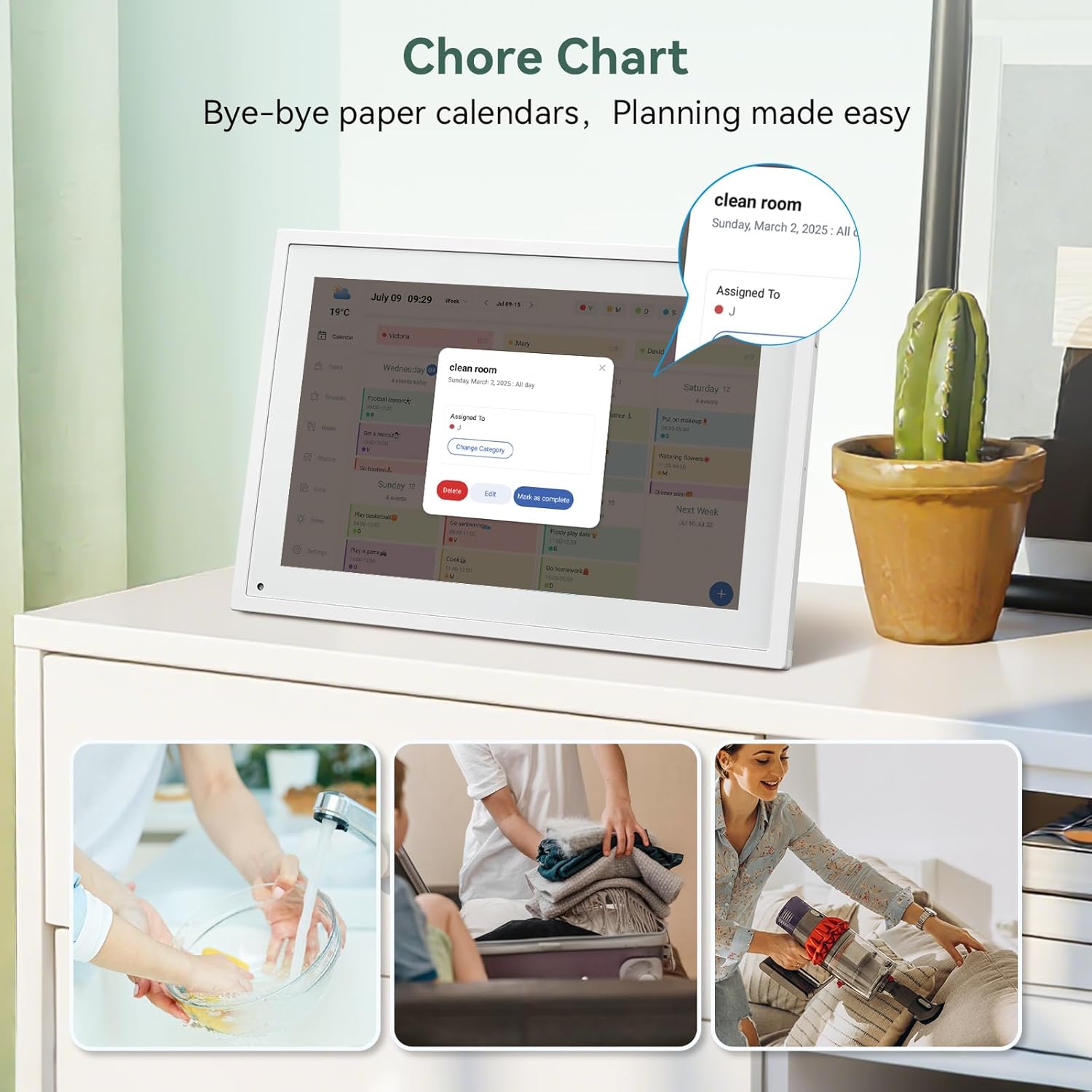
Слика 6.2: Managing tasks and chores on the digital calendar interface.
- Креирање задачи: Use the 'Tasks' section on the device or app to create new tasks. Assign them to specific individuals, set due dates, and configure recurring tasks.
- Следење на напредокот: Users can mark tasks as complete. The system tracks completion and can be configured to award points.
- Систем за награди: Set up a star-point reward system within the app. Points earned from completed tasks can be redeemed for custom rewards, encouraging participation.

Слика 6.3: The task manager and rewards interface, designed for engaging users.
6.4 Meal Planning
Plan your meals directly on the device or through the app.

Слика 6.4: Visual meal planning interface on the digital calendar.
- Create Meal Plans: Access the 'Meals' section to plan breakfasts, lunches, dinners, and snacks for the week.
- Рецепти по нарачка: Upload and store your favorite recipes.
- Grocery Lists: Generate grocery lists based on your meal plans.
6.5 Digital Photo Frame Functionality
The device can also function as a digital photo frame.

Слика 6.5: The digital calendar switching between calendar and photo frame modes, in both landscape and portrait orientations.
- Префрлување режими: Navigate to the 'Photos' section on the device or app to activate the digital photo frame mode.
- Поставување фотографии: Upload your favorite memories directly from your smartphone via the eCalendar app.
- Ориентација: The device supports both landscape and portrait orientations, automatically adjusting the display.
6.6 Други карактеристики
The TABWEE Digital Calendar includes additional smart features to enhance usability.
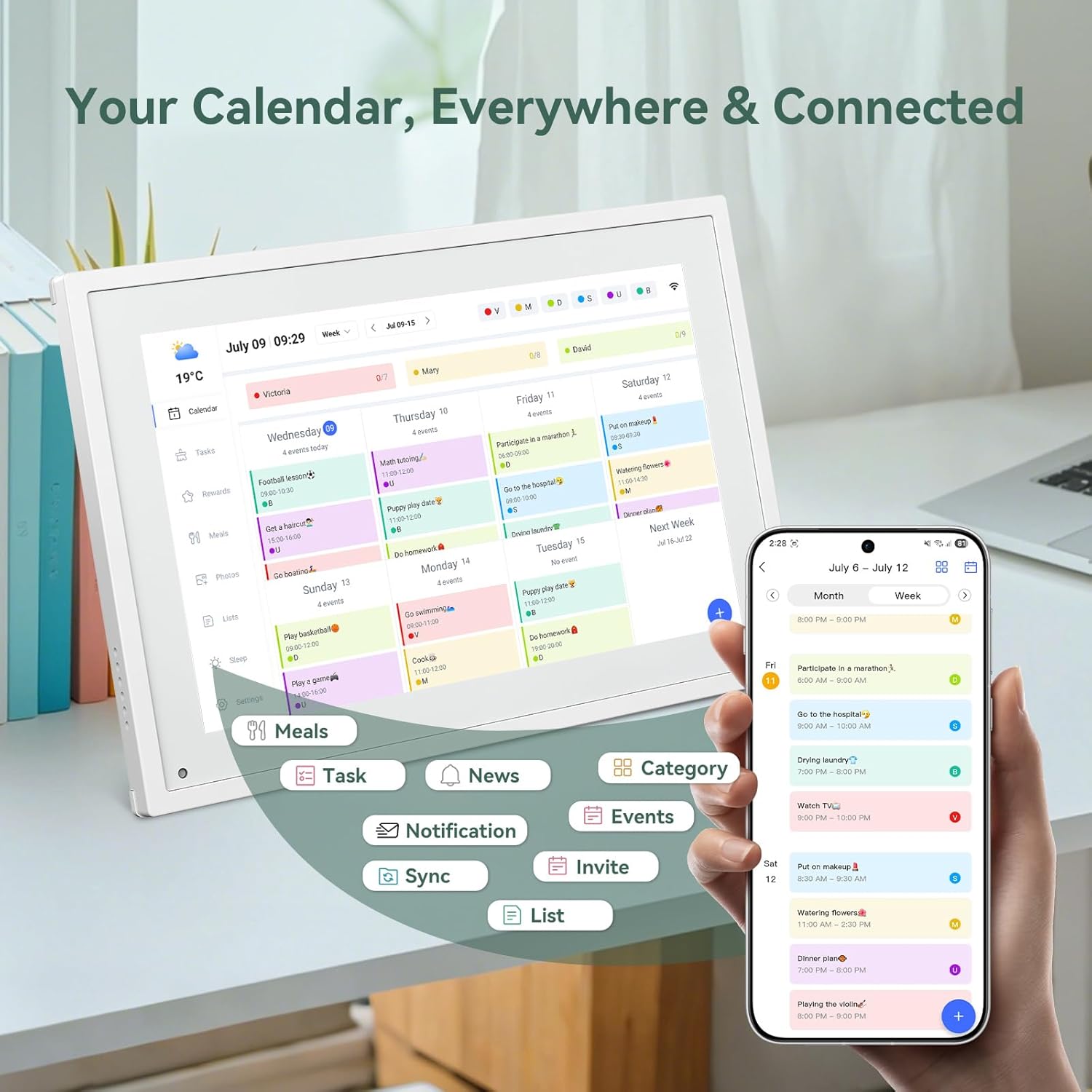
Слика 6.6: Во текот наview of smart features and app connectivity.
- Live Weather Forecasts: Ги прикажува моменталните временски услови и прогнози.
- Автоматска осветленост: The built-in light sensor automatically adjusts screen brightness for optimal viewинг.
- Режим на спиење: Configure scheduled times for the device to enter a low-power sleep mode.
- Custom Lists: Create and manage various lists (e.g., shopping lists, packing lists).
- Кодирање во боја: Assign different colors to events or tasks for easy visual identification.
7. Одржување
7.1 Чистење на уредот
- Нежно избришете го екранот со мека крпа што не остава влакненца. За тврдокорни дамки, малку избришете гоampИзмијте ја крпата со вода или раствор за чистење екрани.
- Избегнувајте употреба на груби хемикалии, абразивни материјали или аеросолни спрејови директно на уредот.
- Уверете се дека уредот е исклучен и исклучен од струја пред да го чистите.
7.2 Ажурирања на софтверот
The device may receive periodic software updates to improve performance and add new features. Ensure your device is connected to Wi-Fi to receive these updates. You will typically be notified on-screen when an update is available.
8 Смена на проблеми
| Проблем | Можна причина | Решение |
|---|---|---|
| Уредот не се вклучува. | Адаптерот за напојување не е поврзан или е неисправен. | Осигурајте се дека адаптерот за напојување е безбедно поврзан со уредот и со функционален штекер. |
| Не може да се поврзе на Wi-Fi. | Неточна лозинка, надвор од опсег или проблем со мрежата. | Verify Wi-Fi password. Move the device closer to the router. Restart your router. |
| Calendar events are not syncing. | App not linked, external calendar not connected, or internet issue. | Check app-device linking. Ensure external calendars are correctly linked in the eCalendar app. Verify internet connection. |
| Екранот не реагира. | Привремен софтверски дефект. | Рестартирајте го уредот со држење на копчето за вклучување додека не се исклучи, а потоа повторно вклучете го. |
9. Спецификации
| Карактеристика | Детал |
|---|---|
| Број на модел | P10 |
| Големина на екранот | 10.1 инчи |
| Тип на дисплеј | Екран на допир |
| Поврзување | WiFi |
| Димензии на производот | 10.51 x 0.91 x 7.32 инчи (26.7 x 2.3 x 18.6 см) |
| Тежина на ставката | 2.58 фунти (1.17 кг) |
| Тип на монтирање | Desk Mount (not wall-mountable) |
| Извор на енергија | Plug-in (no internal battery) |
| Боја | Бело |
10. Гаранција и поддршка
The TABWEE Digital Calendar comes with a standard manufacturer's warranty. For specific warranty terms and conditions, please refer to the warranty card included in your product packaging or visit the official TABWEE webсајт.
For technical support, troubleshooting assistance, or any inquiries regarding your product, please contact TABWEE customer service through their official webстраницата или информациите за контакт наведени во документацијата за вашиот производ.


