1. Вовед
The FiiO/Snowsky Melody is a portable Digital-to-Analog Converter (DAC) and headphone amplifier designed to enhance your audio experience across various devices. It features dual DACs, 10-band parametric equalization (PEQ), and both 3.5mm single-ended and 4.4mm balanced headphone outputs. This manual provides instructions for setting up, operating, maintaining, and troubleshooting your Melody device.
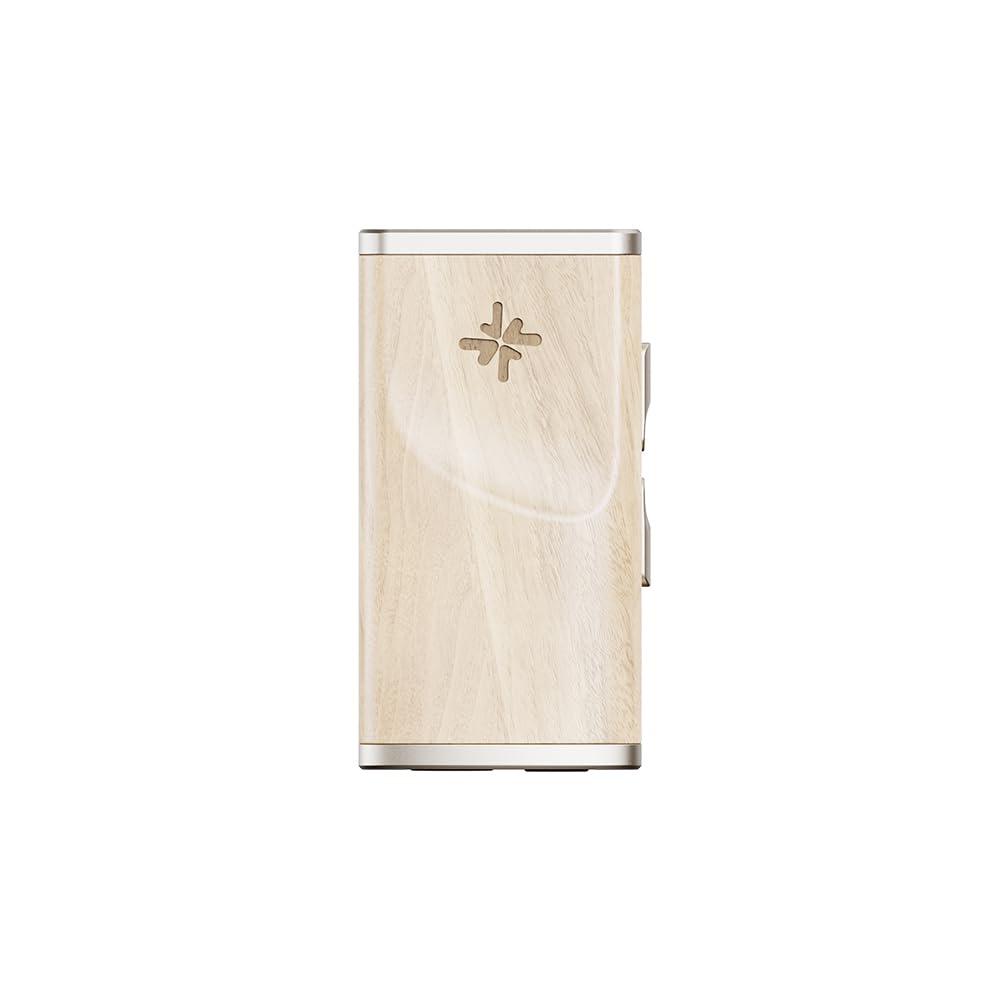
Figure 1: FiiO/Snowsky Melody Portable DAC Headphone Amplifier (Maple)
2. Производот завршиview
2.1 Содржина на пакетот
- FiiO/Snowsky Melody Portable DAC Headphone Ampживописен
- Кабел од тип C до тип C
- Упатство за употреба
2.2 Клучни карактеристики
- Premium Solid Wood Design: Crafted from hand-selected wood (Maple), featuring CNC carving, polishing, and oil-finishing.
- Custom 10-Band PEQ Tuning: High-performance DSP for audio customization via the FiiO Control App/web interface. Supports 3 custom PEQ presets.
- Dual DAC Audio Engine: Features dual CS43131 DACs, supporting PCM 384kHz/32-bit and DSD256 decoding. Hi-Res Audio certified.
- Разновидни излези: 3.5mm single-ended and 4.4mm balanced headphone outputs. The 3.5mm output also supports SPDIF coaxial output with an adapter cable.
- Smart User-Centric Features: Low-heat design, power management IC, 3.5mm combo jack (supports mics/headset controls), fast/slow volume ramping, customizable button modes, auto-sleep, and RGB sample-rate indicator.
- Универзална компатибилност: Detachable cables for use with Android, iOS, PC, Mac, PS5, and Nintendo Switch (UAC 1.0/2.0 toggle).
Слика 2: Детално view of the Melody's wooden housing.
3. Поставување
3.1 Connecting to a Source Device
- Identify the appropriate cable for your source device (e.g., the included Type-C to Type-C cable for Android phones or PCs).
- Connect one end of the cable to the USB-C input port on the FiiO/Snowsky Melody.
- Connect the other end of the cable to the USB port of your source device (smartphone, tablet, computer, gaming console).
- The Melody will typically be recognized automatically by most operating systems.
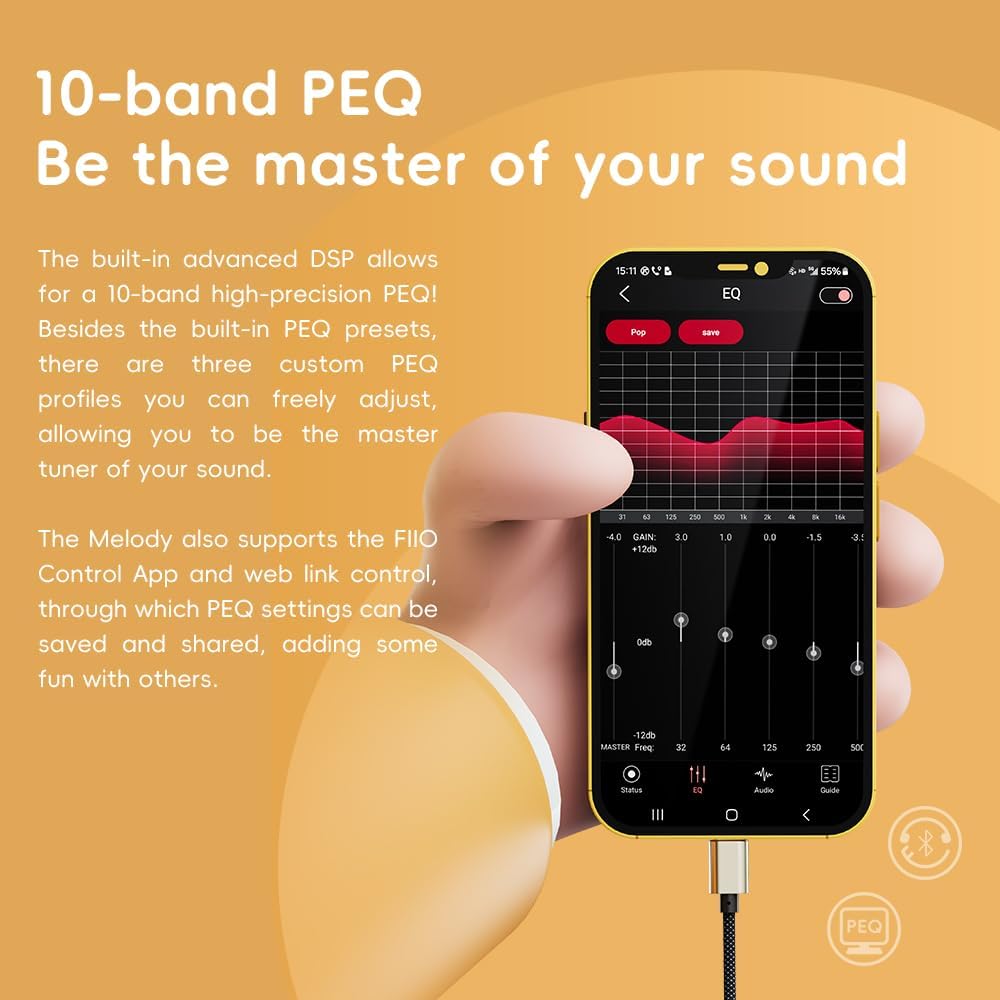
Figure 3: Connecting the Melody to a smartphone.
3.2 Поврзување слушалки
- For headphones with a 3.5mm connector, plug them into the 3.5mm single-ended output jack on the Melody.
- For headphones with a 4.4mm balanced connector, plug them into the 4.4mm balanced output jack on the Melody.

Figure 4: 3.5mm Single-Ended and 4.4mm Balanced Outputs.
3.3 UAC 1.0/2.0 Mode Toggle
The Melody supports switching between UAC 1.0 and UAC 2.0 modes. UAC 1.0 mode is compatible with devices like PS5 and Nintendo Switch for improved gaming compatibility. Refer to the FiiO Control App or web interface for instructions on how to toggle this mode.

Figure 5: Multi-platform compatibility with detachable cable.
4. Упатства за работа
4.1 Основна репродукција на аудио
Once connected, the Melody will act as the primary audio output device. Play audio from your source device, and the sound will be routed through the Melody to your connected headphones.
4.2 Volume Control and Button Modes
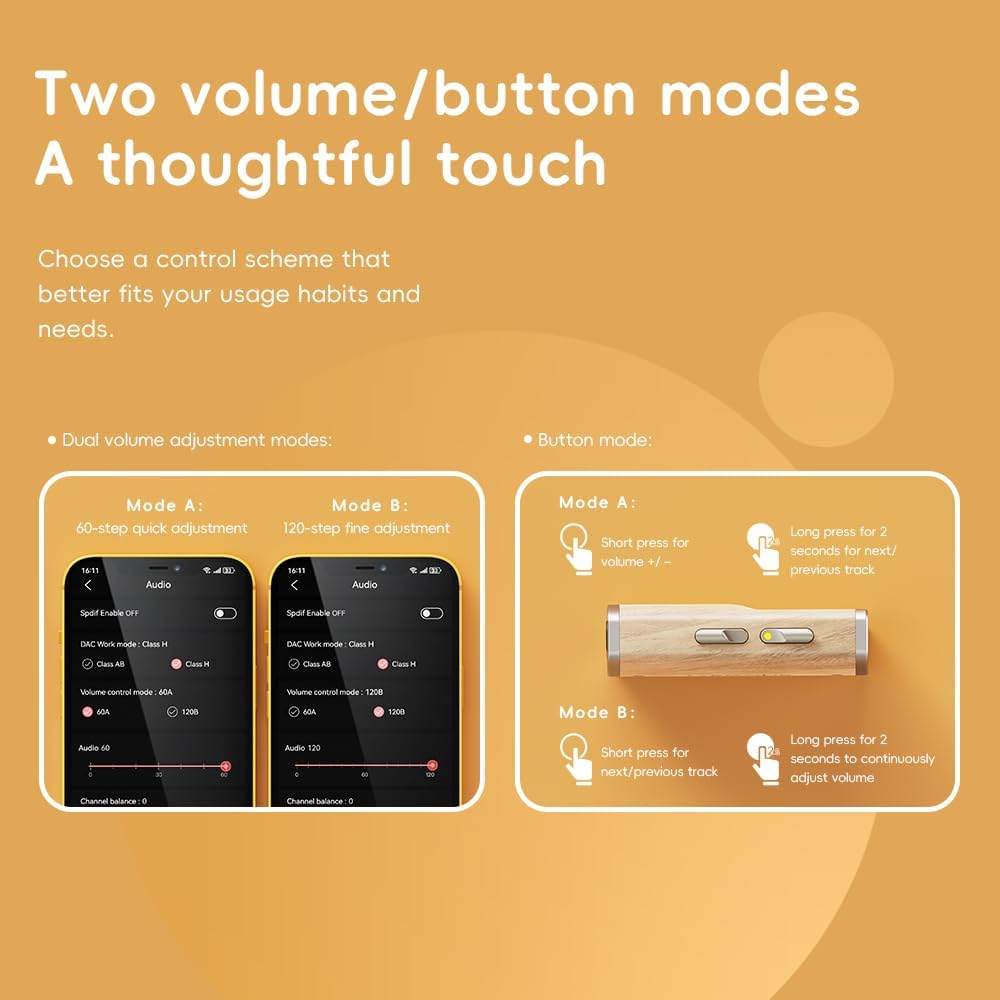
The Melody features tactile buttons for volume adjustment and track control. It offers two distinct volume adjustment modes and two button modes, which can be configured to suit your preferences.
- Volume Adjustment Modes: Choose between a 60-step quick adjustment or a 120-step fine adjustment for precise volume control.
- Button Modes: Configure the buttons for short presses to adjust volume (+/-) and long presses for next/previous track, or short presses for next/previous track and long presses for continuous volume adjustment.
These modes can be customized via the FiiO Control App or web интерфејс.

Figure 6: Volume and Button Control Modes.
4.3 In-line Controls and Microphones
The 3.5mm jack supports in-line controls and call recording with compatible headsets. You can use your headphones' in-line controls to play, pause, skip tracks, and adjust volume. Note: iOS and some Android devices may restrict headset controls due to system permissions. In-line controls and mics are supported on Huawei phones when Melody is in UAC 1.0 mode.

Figure 7: Using in-line controls with the Melody.
5. Прилагодување
5.1 10-Band Parametric Equalization (PEQ)
The Melody features a built-in advanced DSP for 10-band high-precision PEQ. You can customize your audio profile using the FiiO Control App or web interface. The device allows you to save and share up to three custom PEQ presets, in addition to using built-in profiles.

Figure 8: 10-Band PEQ interface in the FiiO Control App.
5.2 FiiO Control App / Web Интерфејс
To access advanced settings, PEQ customization, and firmware updates, download the FiiO Control App for your smartphone or use the web interface on a computer. Ensure your Melody is connected to the device running the app/web интерфејс.
6. Одржување
6.1 Општа нега
- Одржувајте го уредот чист и без прашина. Користете мека, сува крпа за чистење.
- Избегнувајте изложување на уредот на екстремни температури, влажност или директна сончева светлина.
- Handle the wooden housing with care to prevent scratches or damage.
6.2 Управување со енергија
The Melody features an ultra-low standby power consumption mode, dropping below 10mA when music playback stops. It also includes an auto-sleep function that transitions the device into sleep mode after a specified period of inactivity, helping to conserve your phone's battery.
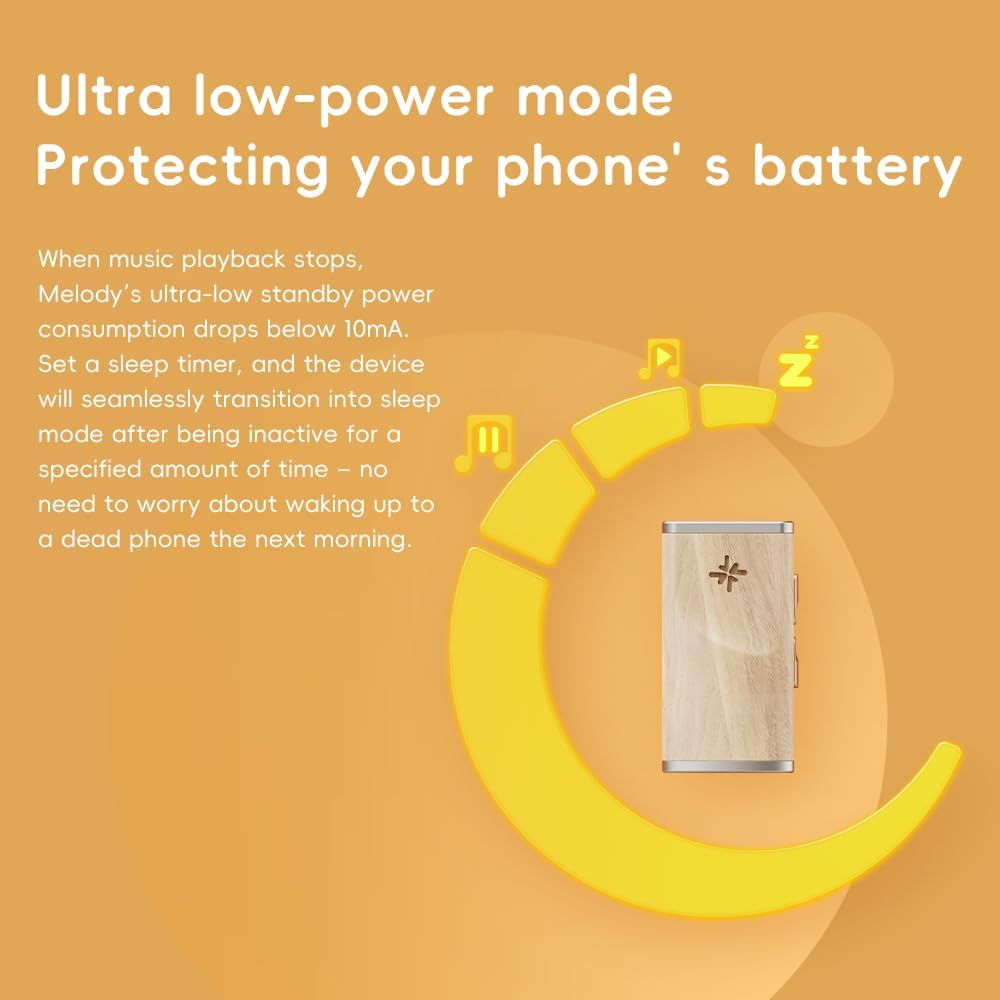
Figure 9: Ultra Low-Power Mode for battery protection.
7 Смена на проблеми
- Нема излез на звук:
- Ensure all cables are securely connected to both the Melody and your source device.
- Verify that your headphones are properly plugged into the correct output jack (3.5mm or 4.4mm).
- Check the volume level on both the Melody and your source device.
- Confirm that the Melody is selected as the audio output device in your source device's sound settings.
- FiiO Control App Not Recognizing Device:
- Ensure the Melody is powered on and correctly connected to your smartphone or computer.
- Try restarting the app and reconnecting the device.
- Check for firmware updates for the Melody via the FiiO webстраница или апликација.
- If using an iPhone, some users report needing to connect to a computer and use the web browser interface to configure settings and flash them to the device due to iOS restrictions.
- In-line Headset Controls Not Working:
- This can be a limitation of iOS or certain Android devices due to system permissions.
- Ensure your headset is fully compatible with the 3.5mm combo jack.
- If using a Huawei phone, ensure the Melody is in UAC 1.0 mode.
- Excessive Battery Drain on Source Device:
- While the Melody has low power consumption, continuous use of any external DAC/amp will draw power from the source device.
- Ensure the auto-sleep function is enabled for periods of inactivity.
8. Спецификации
| Карактеристика | Спецификација |
|---|---|
| Име на моделот | Мелодија |
| Технологија за поврзување | Wired (USB, USB Type C) |
| DAC Chips | Двојно CS43131 |
| Поддржани аудио формати | PCM 384kHz/32-bit, DSD256 |
| Излези за слушалки | 3.5mm Single-Ended, 4.4mm Balanced |
| Посебни карактеристики | 10-Band PEQ, Hi-Res Audio Certified, UAC 1.0/2.0 Toggle |
| Материјал | Дрво |
| Тежина на ставката | 2.89 унци |
| Димензии на пакетот | 6.54 x 3.66 x 1.06 инчи |

Figure 10: Internal components showing dual DACs.
9. Гаранција и поддршка
For detailed warranty information and technical support, please refer to the official FiiO website or contact FiiO customer service directly. The included User Manual may also contain specific warranty terms and contact details.


