Вовед
Thank you for choosing the Doohoeek Bluetooth Keyboard Case. This manual provides essential information for setting up, operating, and maintaining your keyboard case. Please read it carefully before use.
Компатибилност
Оваа футрола за тастатура е специјално дизајнирана за Samsung Galaxy Tab S11 11-inch 2025 (model numbers: SM-X730/SM-X736B). To verify your tablet model, navigate to "Settings" > "About Tablet" on your device.

Image: The keyboard case shown with a Samsung Galaxy Tab S11, illustrating compatibility.
Содржина на пакетот
- Keyboard Case x1
- USB-C кабел x1
- Упатство за употреба x1
Поставување
Полнење на тастатурата
Before initial use, fully charge the keyboard. Connect the provided USB-C cable to the keyboard's charging port and a power source. The keyboard has a 650mAh battery capacity, requiring approximately 2-3 hours for a full charge. A full charge provides up to 300 hours of standby time without lighting.

Image: The keyboard case connected via USB-C cable for charging, highlighting battery life features.
Attaching Your Tablet
Carefully place your Samsung Galaxy Tab S11 11-inch 2025 into the case. Ensure all cutouts align with the tablet's ports, buttons, and camera. The case provides secure, full-body protection.

Слика: Детална view of the case's precise cutouts for ports and a dedicated pen slot, along with an illustration of scissor-switch keys.
Bluetooth спарување
- Осигурајте се дека тастатурата е наполнета и вклучена.
- On your Samsung Galaxy Tab S11, go to "Settings" > "Connected devices" > "Bluetooth" and turn Bluetooth on.
- На тастатурата, притиснете и задржете го „Фн“ клучот и „Ц“ key simultaneously for 3 seconds. The Bluetooth indicator light on the keyboard will begin to flash, indicating it is in pairing mode.
- On your tablet, select the keyboard (e.g., "Bluetooth Keyboard") from the list of available devices.
- Follow any on-screen prompts to complete the pairing process. The indicator light on the keyboard will stop flashing once successfully paired.
Упатства за работа
Користење на тастатурата со позадинско осветлување
The keyboard features 7 customizable backlight colors and 3 brightness levels for comfortable typing in various lighting conditions.
- To change backlight color: Press the "RGB" key (often combined with a function key).
- To adjust brightness: Press the „Фн“ клучот и "Light Bulb" key (usually located on the top row) repeatedly to cycle through brightness levels or turn off the backlight.

Image: The keyboard illuminated with various backlight colors, demonstrating the 7-color lighting and 3 brightness levels.
Using the Multi-Touch Trackpad
The responsive trackpad supports multi-finger gestures for precise cursor control and enhanced productivity.
- Основни гестови: Refer to your tablet's operating system for specific multi-touch gesture functions.
- Отфрлање на дланката: To prevent accidental touches while typing, you can lock the trackpad. Press and hold the „Фн“ копче и потоа притиснете го "Space Bar" to toggle the trackpad lock on or off.
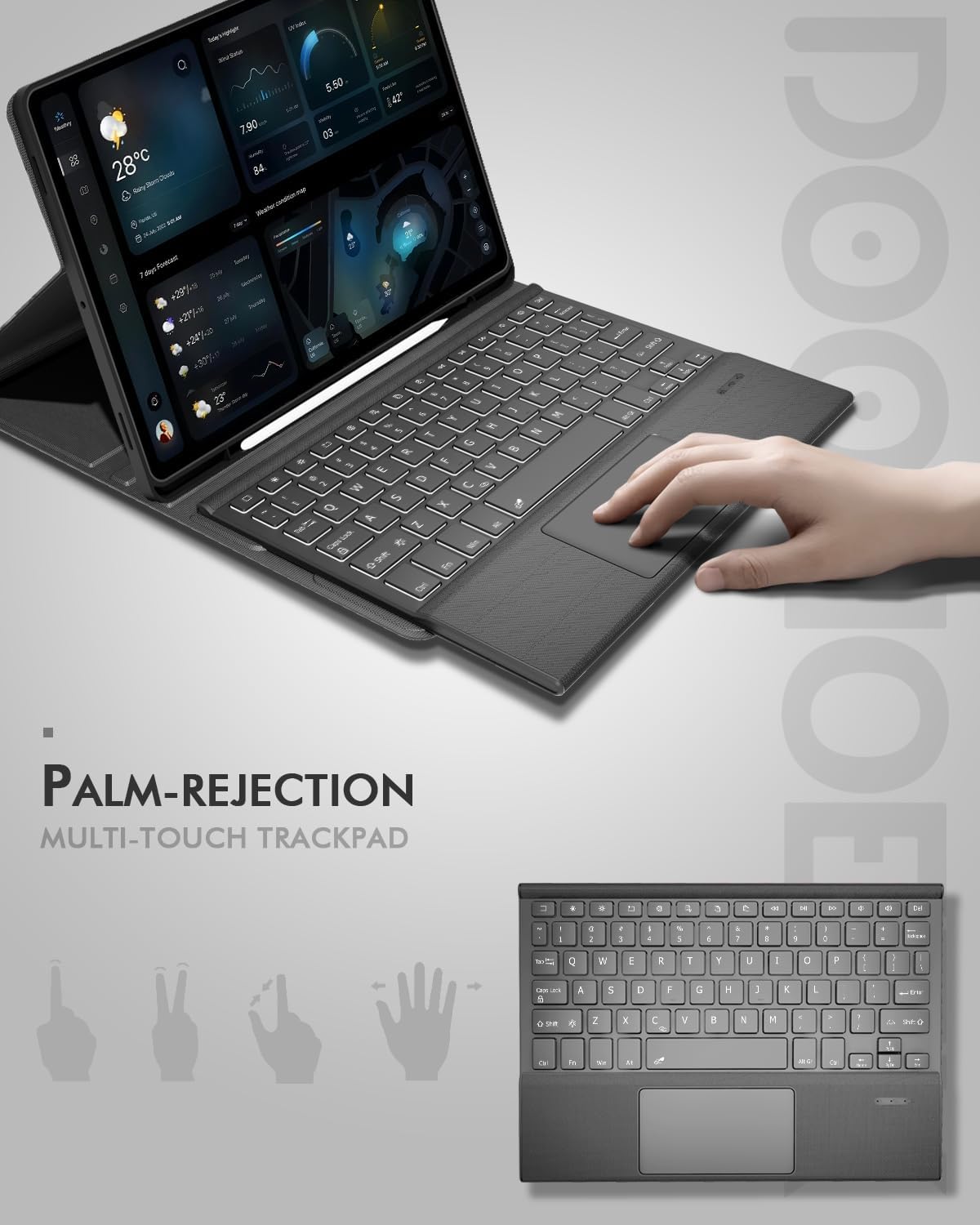
Image: A hand demonstrating use of the multi-touch trackpad, highlighting the palm-rejection feature.
Adjusting the Kickstand and Removing the Keyboard
The case features a 3-angle kickstand for comfortable viewing and typing. The keyboard is magnetically attached and can be easily removed for reading, sketching, or media consumption.
- Kickstand Adjustment: Fold the back cover to create a stable stand. Adjust the angle by positioning the tablet in one of the three grooves.
- Keyboard Removal: Gently detach the keyboard from its magnetic connection to the case.

Слика: Страничен професионалецfile of the keyboard case illustrating the three adjustable viewing angles of the kickstand.
Одржување
Чистење
- Wipe the case exterior with a soft, damp крпа. Избегнувајте груби хемикалии или абразивни средства за чистење.
- For the keyboard, use a soft, dry cloth. A can of compressed air can be used to remove debris from between keys.
Нега на батерии
- Избегнувајте често целосно празнење на батеријата.
- Доколку ја складирате тастатурата подолг период, наполнете ја до околу 50% и чувајте ја на ладно и суво место.
Решавање проблеми
Keyboard Not Connecting/Responding
- Осигурајте се дека тастатурата е вклучена и целосно наполнета.
- Verify Bluetooth is enabled on your tablet and the keyboard is in pairing mode (flashing indicator).
- Обидете се да ја распарите и повторно да ја спарите тастатурата од поставките за Bluetooth на вашиот таблет.
- Ресетирање на тастатурата: If issues persist, you can reset the keyboard by pressing down the first and last key at the top row of the keyboard simultaneously until all indicators flash. Then attempt to re-pair.
Задно осветлување не работи
- Осигурајте се дека тастатурата има доволно полнење на батеријата.
- Притиснете го „Фн“ + "Light Bulb" keys to cycle through brightness levels.
Тракпедот не реагира
- Check if the trackpad is locked. Press „Фн“ + "Space Bar" to toggle the lock.
- Проверете дали тастатурата е правилно поврзана преку Bluetooth.
Спецификации
| Бренд | Doohoeek |
| Компатибилни уреди | Samsung Galaxy Tab S11 11 inch 2025 (SM-X730/SM-X736B) |
| Технологија за поврзување | Bluetooth |
| Распоред на тастатура | QWERTY |
| Посебни карактеристики | Backlit, Integrated Stand, Rechargeable |
| Материјал | Fabric (Twill) |
| Извор на енергија | Напојувано со батерии (вклучена е 1 батерија од 9V) |
| Капацитет на батеријата | 650 mAh |
| Време на полнење | 2-3 часа |
| Време на мирување | 300 hours (without lighting) |
| Тежина на ставката | 1.74 фунти |
| Димензии на пакетот | 11.26 x 8.15 x 1.34 инчи |
Гаранција и поддршка
For warranty information or technical support, please refer to the documentation included with your purchase or contact Doohoeek customer service directly. Contact details can typically be found on the product packaging or the official Doohoeek webсајт.


