1. Вовед
This manual provides detailed instructions for the setup, operation, and maintenance of your POLONO PM220S Label Maker Machine. Please read this manual thoroughly before using the device to ensure proper function and longevity.
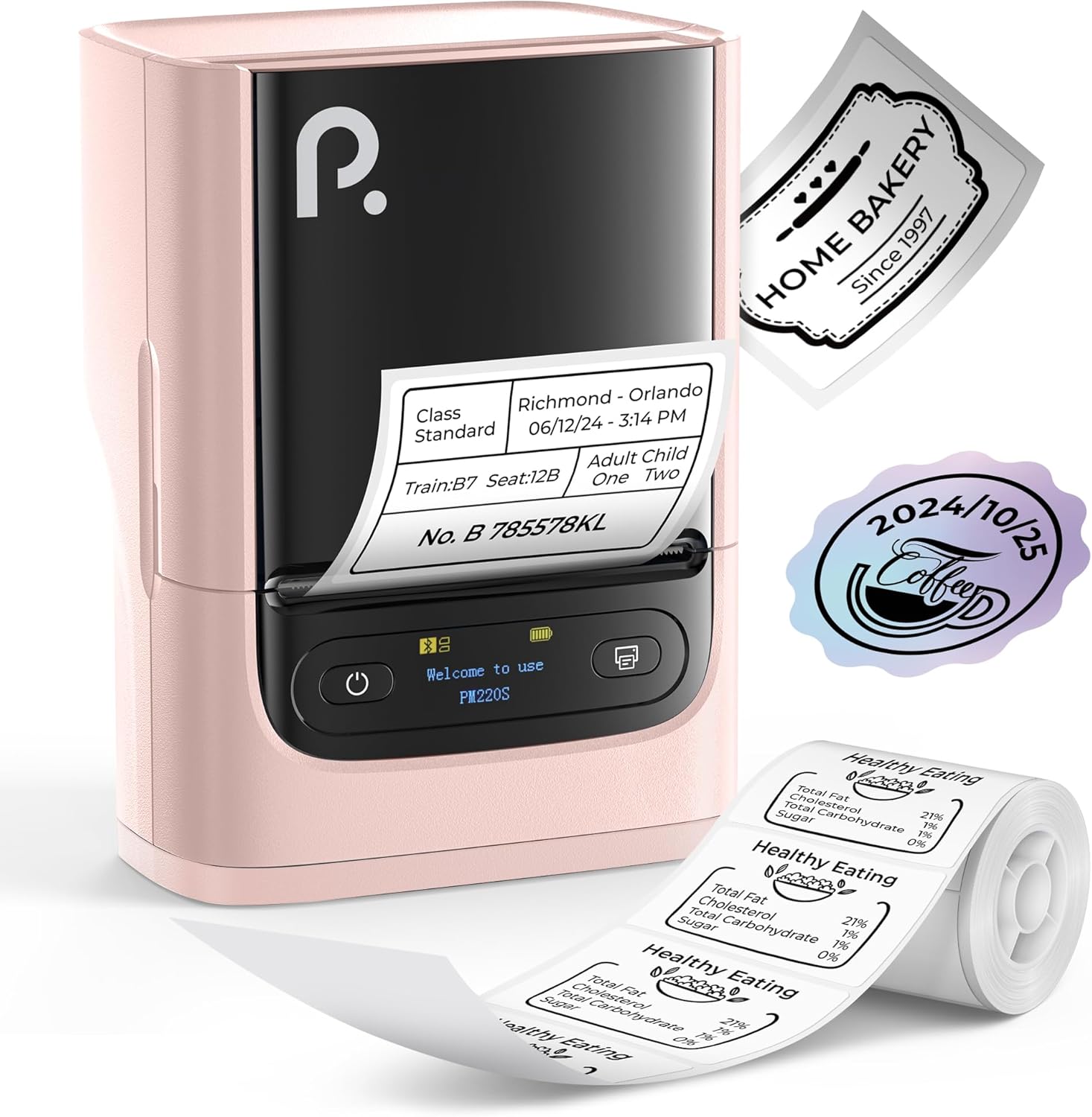
Figure 1: POLONO PM220S Label Maker Machine with sampетикетите.
2. Производот завршиview
2.1 Вклучени компоненти
- POLONO PM220S Label Maker Machine
- Label Tape (50x30mm, pre-installed or included)
- USB кабел за полнење
- Упатство за употреба (овој документ)
2.2 Клучни карактеристики
- Bluetooth поврзување: Seamless connection with iOS, Android, and PC devices.
- Intuitive LED Screen: Displays battery level, Bluetooth connection status, and alerts for paper shortages or timed shutdowns.
- Feature-Rich "Labelnize" App: Offers label templates, supports QR codes, barcodes, tables, text, icons, 90+ fonts, 14+ languages, and 450+ material presets.
- Premium Thermal Printing: BPA-Free Direct Thermal Technology with 203 DPI for high-definition, inkless printing.
- Компатибилност со широка етикета: Supports label widths from 23-54mm (0.91"-2.12").
- Преносен дизајн: Компактен и лесен за лесен транспорт и употреба во различни средини.
3. Упатства за поставување
3.1 Полнење на уредот
Before first use, fully charge the label maker using the provided USB cable. The LED screen will indicate charging status.
3.2 App Installation and Driver Download
For mobile devices (iOS/Android), download the "Labelnize" app from your respective app store. For PC users, visit polono.com to download the necessary driver and application.

Figure 2: Universal compatibility with smartphones and laptops for app and driver installation.
3.3 Поврзување преку Bluetooth
- Ensure the PM220S is powered on.
- On your mobile device, open the "Labelnize" app.
- Within the app, search for and connect to the PM220S via Bluetooth. Do not connect directly via your device's Bluetooth settings for mobile devices.
- For PC, ensure the driver is installed, then connect through the downloaded application.
3.4 Loading Label Tape
- Open the label compartment cover.
- Вметнете ја ролната за етикети со површината за печатење свртена нагоре.
- Adjust the paper slot guides to secure the tape according to its width (23-54mm) for precise alignment.
- Затворете го капакот.

Figure 3: Proper loading of label tape into the PM220S.
4. Упатства за работа
4.1 Using the "Labelnize" App
- Open the "Labelnize" app on your connected device.
- Select from various pre-designed templates or create your own custom labels.
- The app allows you to add text, barcodes, QR codes, tables, icons, and more.
- Customize labels using a selection of over 90 fonts and 14 languages.
- Utilize the 450+ material presets for different label applications.
- Важно: For optimal results, use specialized POLONO labels. Avoid tearing the green back sticker to prevent printing issues.
4.2 Understanding the LED Screen Display
The integrated LED screen provides real-time feedback on the printer's status:
- Ниво на батерија: Indicates the current charge of the device.
- Bluetooth конекција: Shows if the device is successfully connected via Bluetooth.
- Хартија Шорtagд предупредување: Notifies when the label roll is low or empty.
- Временско исклучување: Displays countdown for automatic power-off to conserve battery.

Figure 4: LED screen display functions for real-time status monitoring.
4.3 Печатење на етикета
- Design your label within the "Labelnize" app.
- Review the label preview за да се обезбеди точност.
- Tap the "Print" button in the app.
- The label maker will print the label using thermal technology.
- Carefully tear off the printed label.
5. Одржување
5.1 Општа нега
- Чувајте го уредот чист и без прашина и остатоци.
- Избегнувајте изложување на уредот на екстремни температури или директна сончева светлина.
- Чувајте го уредот на суво место кога не е во употреба.
5.2 Чистење на главата за печатење
If print quality degrades, the thermal print head may need cleaning:
- Turn off the label maker and disconnect it from any power source.
- Отворете ја преградата за етикети.
- Нежно избришете ја термичката глава за печатење со памукче лесно dampобложена со изопропил алкохол.
- Allow the print head to dry completely before closing the cover and resuming use.
6 Смена на проблеми
| Проблем | Можна причина | Решение |
|---|---|---|
| Уредот не се вклучува | Проблем со слаба батерија или напојување. | Charge the device fully. Ensure the power button is pressed correctly. |
| Не може да се поврзе преку Bluetooth | Incorrect connection method or app issue. | Ensure you are connecting through the "Labelnize" app, not directly via phone settings. Restart both the device and the app. For PC, verify driver installation. |
| Poor print quality / Faint printing | Dirty print head, incorrect label type, or low battery. | Clean the print head (see Section 5.2). Ensure you are using thermal labels. Charge the device. |
| Labels are misaligned or jammed | Improper label loading or paper slot adjustment. | Open the cover, remove any jammed labels, and reload the tape ensuring the paper slot guides are adjusted correctly for the label width. Avoid tearing the green back sticker. |
| "Paper Shortage" alert | Label roll is empty or incorrectly loaded. | Replace the label roll or re-seat it correctly. |
7. Спецификации
| Бренд | POLONO |
| Име на моделот | PM220S |
| Технологија за поврзување | Bluetooth |
| Технологија на печатење | Термички |
| Максимална резолуција за печатење | 203 DPI |
| Максимална брзина на печатење (монохроматски) | 45.0 mm/s |
| Поддржани големини на медиуми | 23-54mm (0.91"-2.12") width, 50x30mm included |
| Димензии на производот | 3.3"Д x 4.4"Ш x 2.5"В (8.4 x 11.2 x 6.4 см) |
| Тежина на ставката | 13.4 унци (380 g) |
| Специјална карактеристика | Portable, Inkless Printing, LED Display |
8. Гаранција и поддршка
For warranty information, technical support, or to purchase accessories and replacement labels, please visit the official POLONO webсајт на polono.com or contact POLONO customer service directly.
Ве молиме чувајте го вашиот доказ за купување за барањата за гаранција.


