1. Вовед
This manual provides detailed instructions for the installation and operation of the ANYFAR Decoder Adapter (Model RM-MZDU01). This device enables USB Wired CarPlay and Android Auto functionality in compatible Mazda vehicles, enhancing your in-car infotainment experience while retaining original vehicle controls.
2. Производот завршиview
The ANYFAR Decoder Adapter integrates seamlessly with your Mazda's existing infotainment system. Key features include:
- USB Wired CarPlay & Android Auto: Access navigation, music, calls, messaging, and voice assistants directly from your car's display by connecting your smartphone via USB.
- In-Car Hi-Fi Audio: Digital audio transmission ensures high-quality, uninterrupted sound without signal interference, preserving your car's original audio fidelity.
- Retain Original Car Controls: Continue to use your vehicle's touchscreen, voice control, physical buttons, and control knobs after installation.
- Паметен гласовен асистент: Utilize voice commands for navigation, music playback, calls, and other functions.

Figure 2.1: The ANYFAR Decoder Adapter unit, featuring USB and AUX ports for connectivity.

Слика 2.2: Готовоview of the Smart CarPlay Module for Mazda, highlighting features like Bluetooth, CarPlay, Android Auto, Voice Control, Live Map, and support for original knob controls.
3. Компатибилност
This decoder adapter is compatible with specific Mazda models and model years. Please verify your vehicle's compatibility before installation.
| Модел на автомобил | Инч на екранот | Години на модел |
|---|---|---|
| МХ-5 | N/A | 2016-2020 |
| CX-3 | N/A | 2016-2019 |
| CX-5 | N/A | 2015-2020 |
| CX-9 | N/A | 2016-2020 |
| Мазда 2 | N/A | 2016-2019 |
| Мазда 3 | N/A | 2014-2018 |
| Мазда 6 | N/A | 2016-2020 |
| FIAT 124 | N/A | 2017-2021 |
Note: The "Screen inch" column was not specified in the source data for individual models, hence "N/A" is used. If you are unsure about your system's compatibility, please contact customer support.

Figure 3.1: Compatibility chart for Mazda vehicles.
4. Содржина на пакетот
Проверете дали сите артикли наведени подолу се вклучени во вашиот пакет:
- ANYFAR Decoder Adapter Unit (RM-MZDU01)
- USB кабел (x2)
- Sponge Tape (x2)
- Product Manuals (Documentation)
- Tie Wraps (x10)

Figure 4.1: Contents included in the ANYFAR Decoder Adapter package.
5. Поставување и инсталација
Installation involves replacing the existing USB hub unit in your Mazda. This process requires careful handling of vehicle trim and wiring. It is recommended to consult online video tutorials specific to your Mazda model for detailed trim removal instructions.
5.1 Чекори пред инсталација
- Ensure your vehicle's infotainment system is running version 70 or newer.
- Gather necessary tools, including trim removal tools and screwdrivers.
- Watch relevant YouTube videos for your specific Mazda model to understand trim removal and wire routing.
5.2 Постапка за инсталација
- Remove Old USB Hub Unit: Carefully remove the vehicle's trim panels to access the existing USB hub unit. Disconnect the gray/green and gray/blue cables from the old USB hub unit and the CMU (Connectivity Master Unit).
- Remove Old Gray USB Cable: Disconnect and remove the old gray USB cable.
- Prepare New Cables: Straighten out the new cables provided in the package. Wrap any disconnected automobile cable harness connectors with the sponge tape (100 x 30 mm) to prevent noise and rattling. If there are two automotive wiring harness connectors, apply the same procedure to both.
- Install New USB Hub Unit: Connect the new USB hub unit (RM-MZDU01) to the CMU using the provided cables. Ensure the gray/green and gray/blue cables are securely connected.
- Кабли за маршрута: Feed the cables through to the center console, leaving enough slack on both ends for future access. Any remaining slack can be hidden in the panel beside the glove box.
- Transfer SD Card: Do not forget to transfer your SD card from the old hub to the new one.
- Secure Leftover Cables: There may be a leftover cable that remains installed but disconnected on both ends. Secure this cable and add padding to prevent rattling.
- Повторно склопете ја облогата: Carefully reassemble all trim panels.

Figure 5.1: Wiring diagram for the installation of the ANYFAR Decoder Adapter.
6. Упатства за работа
6.1 USB Wired CarPlay and Android Auto
After installation, connect your iPhone or Android smartphone to the USB port of the new hub unit using a compatible USB cable. The system will automatically switch to CarPlay or Android Auto mode.
- Навигација: Use Google Maps, Apple Maps, or Waze for real-time navigation, traffic conditions, and updated speed limits.
- Музика и медиуми: Play music, podcasts, and audiobooks from your preferred apps.
- Calls & Messaging: Make and receive calls, and send/receive messages using voice commands or the car's controls.
- Пристап до апликацијата: Access other compatible applications displayed on your car's screen.

Figure 6.1: Apple CarPlay interface examples on the Mazda display.
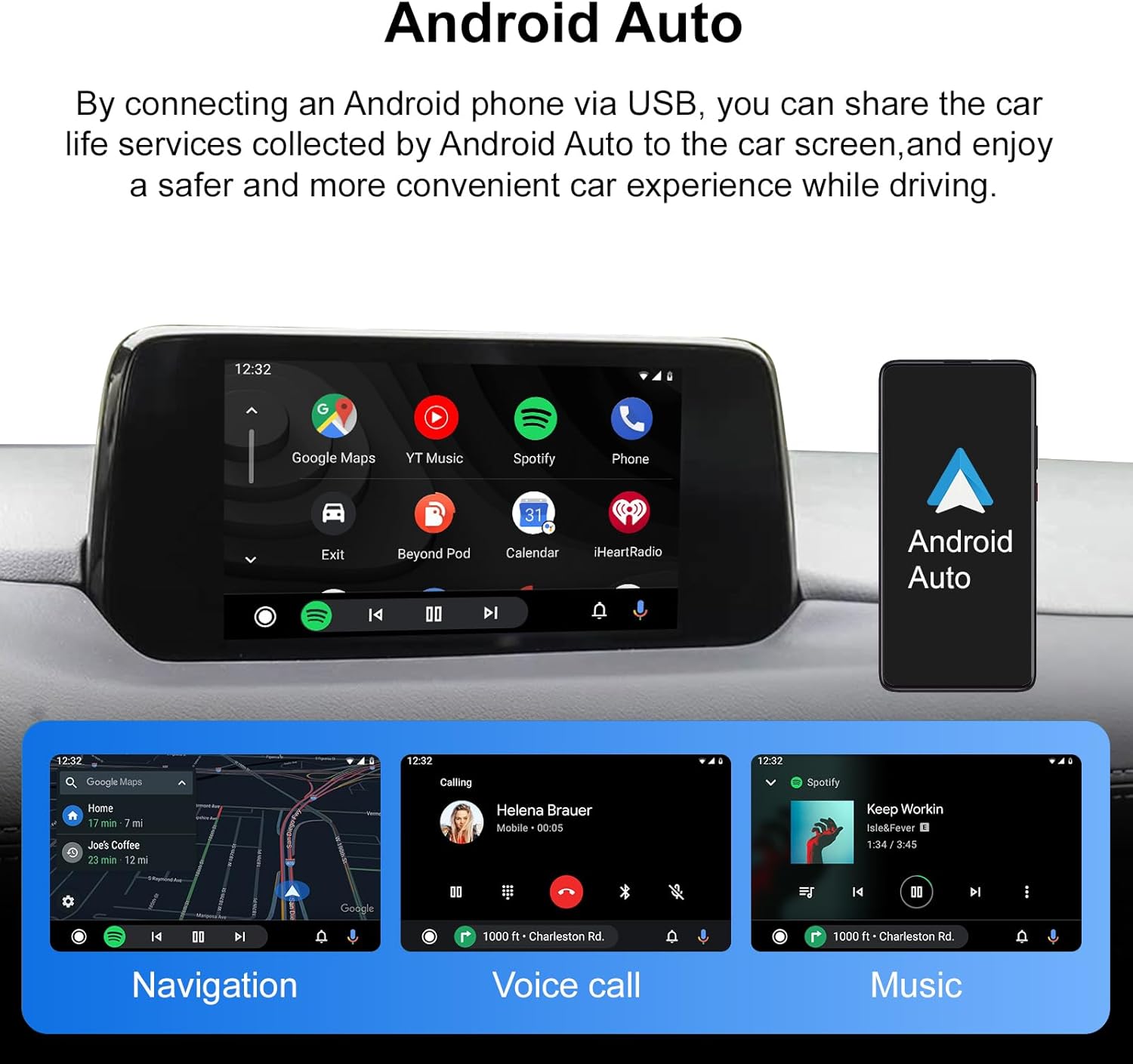
Figure 6.2: Android Auto interface examples on the Mazda display.
6.2 Задржување на оригиналните контроли на автомобилот
The adapter ensures full functionality of your vehicle's original control mechanisms:
- Контроли на копчињата: Use the central control knob to navigate menus and select options within CarPlay or Android Auto.
- Копчиња на воланот: Control audio playback, volume, and answer/end calls using your steering wheel buttons.
- Гласовни асистенти: Activate your phone's voice assistant (Siri for CarPlay, Google Assistant for Android Auto) using the dedicated voice control button or a "Hey Google" command.
- Екран на допир: The original touchscreen functionality is retained for direct interaction with the display.
To return to the original Mazda infotainment system settings, access the dedicated Mazda app within CarPlay or Android Auto.
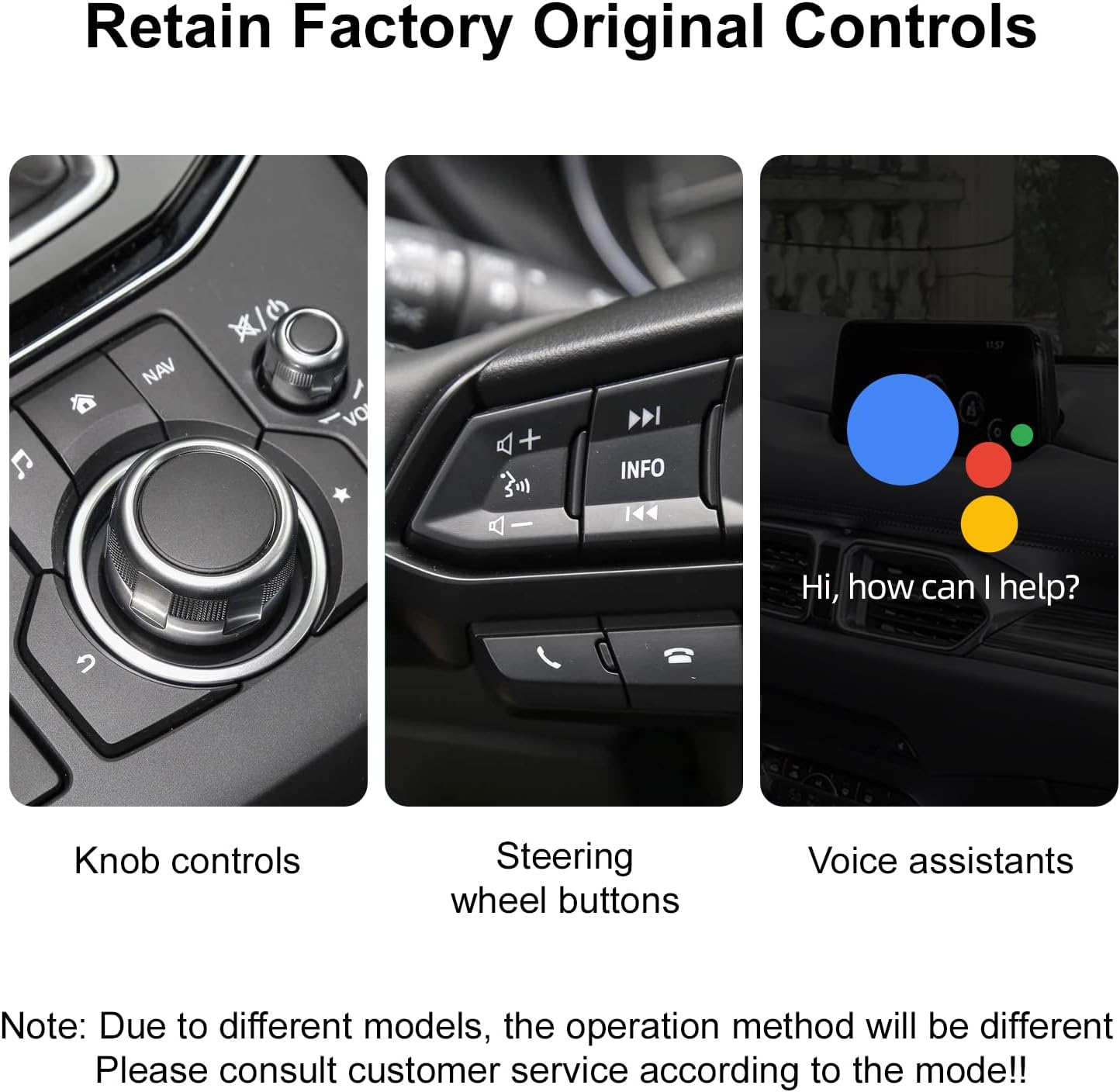
Слика 6.3: Прamples of retained factory controls: knob, steering wheel buttons, and voice assistant.

Figure 6.4: Smart Voice Assistant interface.
7 Смена на проблеми
- Screen Lock-up: If the screen becomes unresponsive, disconnect the USB cable from your phone and then reconnect it. This often resolves temporary display issues.
- Music Auto-Play/Incorrect Audio Source: Some phones or apps may automatically start playing music upon connection, or resume from an unexpected audio source. This behavior can vary by phone and app settings. Manually select your desired audio source or app if this occurs.
- Voice Assistant Volume: Adjusting the volume of the voice assistant relative to media playback may not be directly controllable through the adapter. Adjust overall system volume as needed.
- "Ghost Touch" Problem: If your car experiences the "ghost touch" issue (unintended screen inputs), consider disconnecting the touch panel from the display during installation. All functions can still be accessed via the control knob.
- Control Knob Lock-out: Excessive or rapid use of the control knob while driving may temporarily lock it out as a safety measure. Wait a few seconds for it to reset.
8. Спецификации
| Карактеристика | Детал |
|---|---|
| Број на модел | RM-MZDU01 |
| Бренд | АНИФАР |
| Компатибилни уреди | Smartphone (for CarPlay/Android Auto) |
| Тип на конектор | Micro USB (for adapter connection) |
| Боја | Црното |
| Број на пристаништа | 1 (USB for phone connection, plus AUX) |
| Димензии на пакетот | 2.76 x 1.14 x 1.1 инчи |
| Тежина на ставката | 12.7 унци |
| Производител | Huizhou Rhythm Technology Co, Ltd |
| Датум прв на располагање | 11 септември 2025 година |
9. Гаранција и поддршка
ANYFAR provides a 12-month product update period, indicating ongoing support and potential software enhancements for your device. For technical assistance, troubleshooting, or warranty claims, please contact ANYFAR customer support through their official channels or the retailer where the product was purchased.
За дополнителни информации и поддршка, посетете ја ANYFAR Store on Amazon.


