1. Вовед
The Mercusys Halo H3600BE (2-Pack) is a Whole Home Mesh Wi-Fi 7 System designed to provide extensive and high-speed wireless coverage throughout your home. This system combines advanced Wi-Fi 7 technology with a mesh network architecture to eliminate dead zones and deliver seamless connectivity for multiple devices. This manual provides instructions for setting up, operating, and maintaining your Halo H3600BE system.
2. Содржина на пакетот
Проверете дали сите артикли се присутни во вашиот пакет:
- 2 × Halo H3600BE Units
- 1 × RJ45 етернет кабел
- 2 × Адаптери за напојување
- Водич за брза инсталација
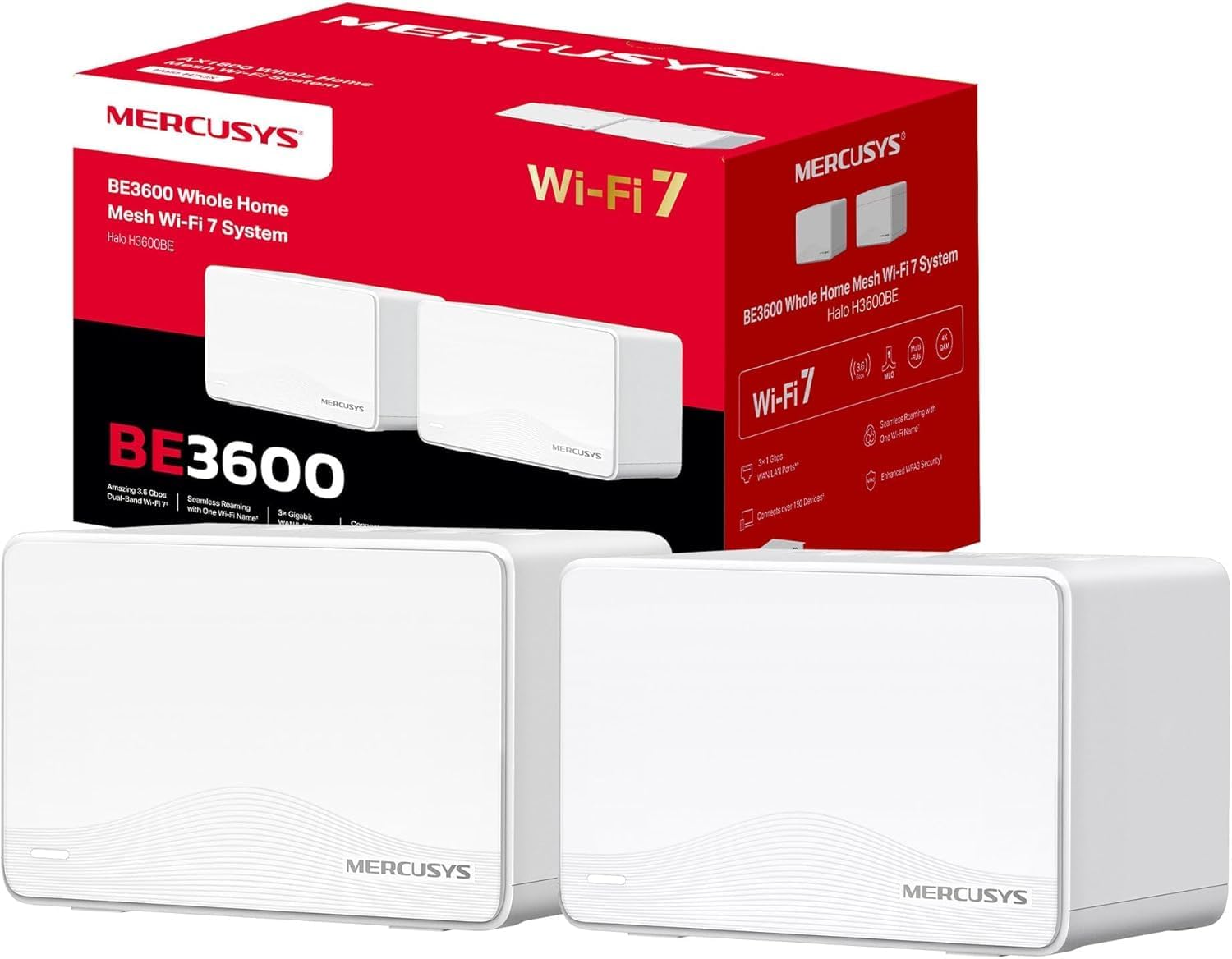
Image: The Mercusys Halo H3600BE (2-Pack) Mesh WiFi 7 System, showing two units and their retail packaging.
3. Водич за поставување
Follow these steps to set up your Mercusys Halo H3600BE Mesh WiFi System:
- Step 1: Unpack the Devices. Отстранете ги сите компоненти од пакувањето.
- Step 2: Connect the Main Halo Unit.
- Connect one Halo unit to your modem or existing router using the provided Ethernet cable. Plug one end into any of the Gigabit ports on the Halo unit (these ports are auto-sensing WAN/LAN) and the other end into your modem/router's LAN port.
- Connect the power adapter to the main Halo unit and plug it into an electrical outlet. Wait for the LED indicator on the Halo unit to turn solid white, indicating it is ready for setup.
- Step 3: Download and Configure via Mercusys App.
- Download the Mercusys app from the App Store (iOS) or Google Play Store (Android).
- Open the app and follow the on-screen instructions to create a Mercusys ID and set up your main Halo unit. The app will guide you through creating your Wi-Fi network name (SSID) and password.
- Step 4: Add Additional Halo Units.
- Place the second Halo unit in a central location within your home, ideally between the main Halo unit and the area needing improved coverage.
- Connect the power adapter to the additional Halo unit and plug it into an electrical outlet.
- The additional unit will automatically detect and join the existing mesh network. The LED indicator will turn solid white once successfully connected.
- Step 5: Verify Connection. Once all units are set up, check the Mercusys app to ensure all Halo units are online and functioning correctly.

Image: A visual representation of the Mercusys Halo H3600BE setup process, including connecting power, Ethernet, and using the mobile application for configuration.
4. Упатства за работа
4.1. Network Management via Mercusys App
The Mercusys app provides comprehensive control over your mesh network. Key features include:
- Родителска контрола: Управувајте со времето на пристап до интернет и содржината за одредени уреди.
- Мрежа за гости: Создадете посебна Wi-Fi мрежа за гостите, со што вашата главна мрежа ќе биде безбедна.
- Статус на уредот: View connected devices, their signal strength, and manage their access.
- Квалитет на услуга (QoS): Prioritize bandwidth for specific applications or devices.
- Месечни извештаи: Receive summaries of network usage and security events.
4.2. Seamless Roaming
The Halo H3600BE system supports seamless roaming, meaning your devices will automatically switch to the strongest Wi-Fi signal as you move around your home, without experiencing drops or interruptions.
4.3. Wi-Fi 7 технологија
This system utilizes Wi-Fi 7 (802.11be) technology, offering:
- Работа со двоен опсег: Combines 5GHz (up to 2880Mbps) and 2.4GHz (up to 688Mbps) bands for high-speed data transfer.
- Висок капацитет: Supports over 150 devices simultaneously.
- Ниска латентност: Optimized for demanding applications like 4K/8K streaming and VR/AR gaming.
- WPA3 безбедност: Enhanced security protocols for your wireless network.

Слика: Надview of Mercusys Halo H3600BE features, including Wi-Fi 7 dual-band speeds, device capacity, and Gigabit ports.
5. Одржување
- Ажурирања на фирмверот: Regularly check the Mercusys app for available firmware updates to ensure optimal performance and security.
- Поставување: Ensure Halo units are placed in open areas, away from obstructions and sources of interference (e.g., microwaves, cordless phones).
- Чистење: Gently wipe the units with a soft, dry cloth. Do not use liquid cleaners or aerosols.
- Рестартирајте: If you experience network issues, try restarting your Halo units and modem.
6 Смена на проблеми
- Нема пристап до Интернет:
- Проверете дали вашиот модем работи правилно.
- Ensure the Ethernet cable between the main Halo unit and the modem is securely connected.
- Restart your modem and all Halo units.
- Слаб Wi-Fi сигнал или мртви зони:
- Relocate the additional Halo units closer to the main unit or to a more central location.
- Ensure there are no major physical obstructions (thick walls, large metal objects) between the units.
- Не може да се поврзе на Wi-Fi:
- Потврдете дека го користите точното име на Wi-Fi мрежата (SSID) и лозинка.
- Обидете се да го рестартирате уредот што се обидувате да го поврзете.
- Check the Mercusys app to ensure the network is broadcasting.
- Бавни брзини:
- Осигурајте се дека вашиот давател на интернет услуги (ISP) ги испорачува очекуваните брзини.
- Minimize interference by moving other wireless devices away from the Halo units.
- Проверете дали има ажурирања на фирмверот.
7. Спецификации
| Карактеристика | Детал |
|---|---|
| Бренд | ERУБОВСТВО |
| Име на моделот | Halo H3600BE |
| Тип на безжична врска | 802.11.be (Wi-Fi 7) |
| Класа на фреквентен опсег | Двојна лента |
| Посебни карактеристики | Parental Control, Guest Networks, Mesh, WPA3 |
| Компатибилни уреди | Smartphone, Laptop, Smart TV, IoT Devices |
| Препорачана употреба | Дома |
| Број на единици | 2-пакет |
| Покриеност (пакет од 2) | Up to 460m² / 5,000 ft² |
| Макс поврзани уреди | Над 150 |
| Ethernet Ports per Unit | 3 Gigabit (Auto-sensing WAN/LAN) |
| Димензии (по единица) | Приближно 21.9 x 16.4 x 15.9 cm |
| Тежина (по единица) | Приближно 660 гр |
| Оперативен систем | TP-Link OS |

Слика: Заден дел view of a Mercusys Halo H3600BE unit, displaying the power input, reset button, and three Gigabit WAN/LAN ports.
8. Гаранција и поддршка
For warranty information and technical support, please refer to the official Mercusys website or contact Mercusys customer service. The Quick Installation Guide included in your package may also contain specific warranty details for your region.
Можете да најдете повеќе информации и ресурси за поддршка на Mercusys Brand Store.


