Вовед
This manual provides detailed instructions for the installation, operation, and maintenance of your Imagebon 11.3-inch QLED Android Car Navigation System. Please read this manual thoroughly before using the product to ensure proper function and safety. Keep this manual for future reference.
Клучни карактеристики
- High-Performance 8-Core Android System: Equipped with an 8-core Android processor, 4GB RAM, and 64GB storage for smooth operation and ampслободен простор за апликации и медиуми.
- Компатибилност со Google Play: Download and use your favorite apps directly from Google Play. Pre-installed with popular apps like YouTube and Netflix.
- Multitasking with Split-Screen: Simultaneously display navigation and entertainment apps for enhanced convenience while driving.
- Dual-Band Wi-Fi & Bluetooth: Supports 2.4GHz/5GHz Wi-Fi for stable streaming and Bluetooth for seamless smartphone connectivity and hands-free calling.
- 1080P камера за бекап: Includes a high-definition backup camera with adjustable guidelines for safe and easy parking.
- 11.3-inch IN-CELL QLED Display: Features a large, vibrant QLED screen for clear visuals and responsive touch control.
- Flexible Navigation Options: Supports CarPlay, Android Auto, and direct installation of navigation apps like Google Maps or Waze, with online and offline map capabilities.
- Гласовна контрола: Operate navigation, music, and phone calls hands-free for increased safety and convenience.
- Ажурирања преку интернет (OTA): Easily update software and apps wirelessly to ensure you always have the latest features and improvements.
Поставување
Содржина на пакетот
Пред да започнете со инсталацијата, проверете дали сите компоненти се присутни:
- Imagebon 11.3-inch QLED Android Car Navigation System
- Задна камера од 10 метри
- AUX кабел
- GPS антена
- Лепило за монтирање
- Полнач за автомобил (адаптер за запалка)
- Упатство за употреба

Image: All components included with the Imagebon car navigation system, including the main unit, rear camera, cables, and mounts.
Чекори за инсталација
- Монтирање на единицата: Securely attach the main unit to your dashboard using the provided adhesive mount. Ensure the unit is positioned to not obstruct your view или да се мешаат со контролите на возилото.
- Поврзување за напојување: Connect the car charger to your vehicle's cigarette lighter socket and the Type-C port on the navigation unit.
- GPS Antenna Connection: Connect the GPS antenna to the designated port on the unit and place it in a location with a clear view на небото за оптимален прием на сигналот.
- Инсталација на задна камера (опционално): If using the backup camera, install it at the rear of your vehicle and route the cable to the main unit. Connect the camera cable to the AV-IN port.
- Аудио излез: For audio output, you can use the built-in speaker, FM transmission, AUX cable connection, or Bluetooth connection to your car's audio system.
Упатства за работа
Initial Power On and System Overview
Upon first power-on, the system will boot into the Android interface. You can customize the home screen, access apps, and adjust settings.
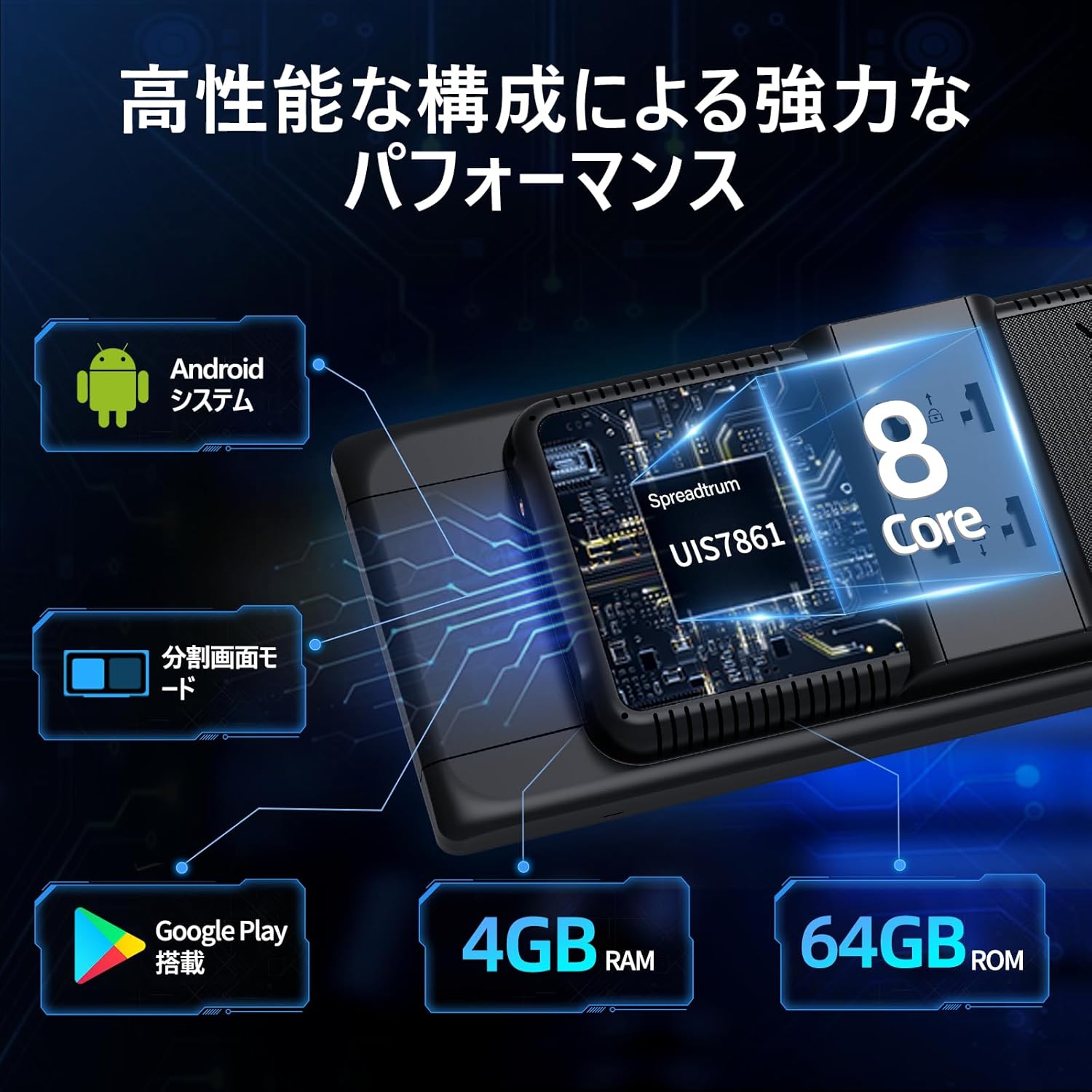
Image: The main interface of the Imagebon car navigation system, showing various app icons and the time display.
Поврзување (Wi-Fi и Bluetooth)
The unit supports dual-band Wi-Fi (2.4GHz/5GHz) and Bluetooth for seamless connectivity.
- Wi-Fi конекција: Одете во Поставки > Мрежа и интернет > Wi-Fi. Изберете ја саканата мрежа и внесете ја лозинката.
- Спарување на Bluetooth: Go to Settings > Connected devices > Bluetooth. Turn on Bluetooth and search for available devices. Select your smartphone to pair.

Image: The Imagebon car navigation system demonstrating dual-band Wi-Fi and Bluetooth connectivity, showing a phone call and navigation simultaneously.
Google Play and App Installation
Пристапете до Google Play Store за да преземете и инсталирате дополнителни апликации.
- Ensure the unit is connected to Wi-Fi.
- Tap the "Google Play Store" icon on the home screen.
- Најавете се со вашата сметка на Google.
- Browse or search for apps and tap "Install" to download.
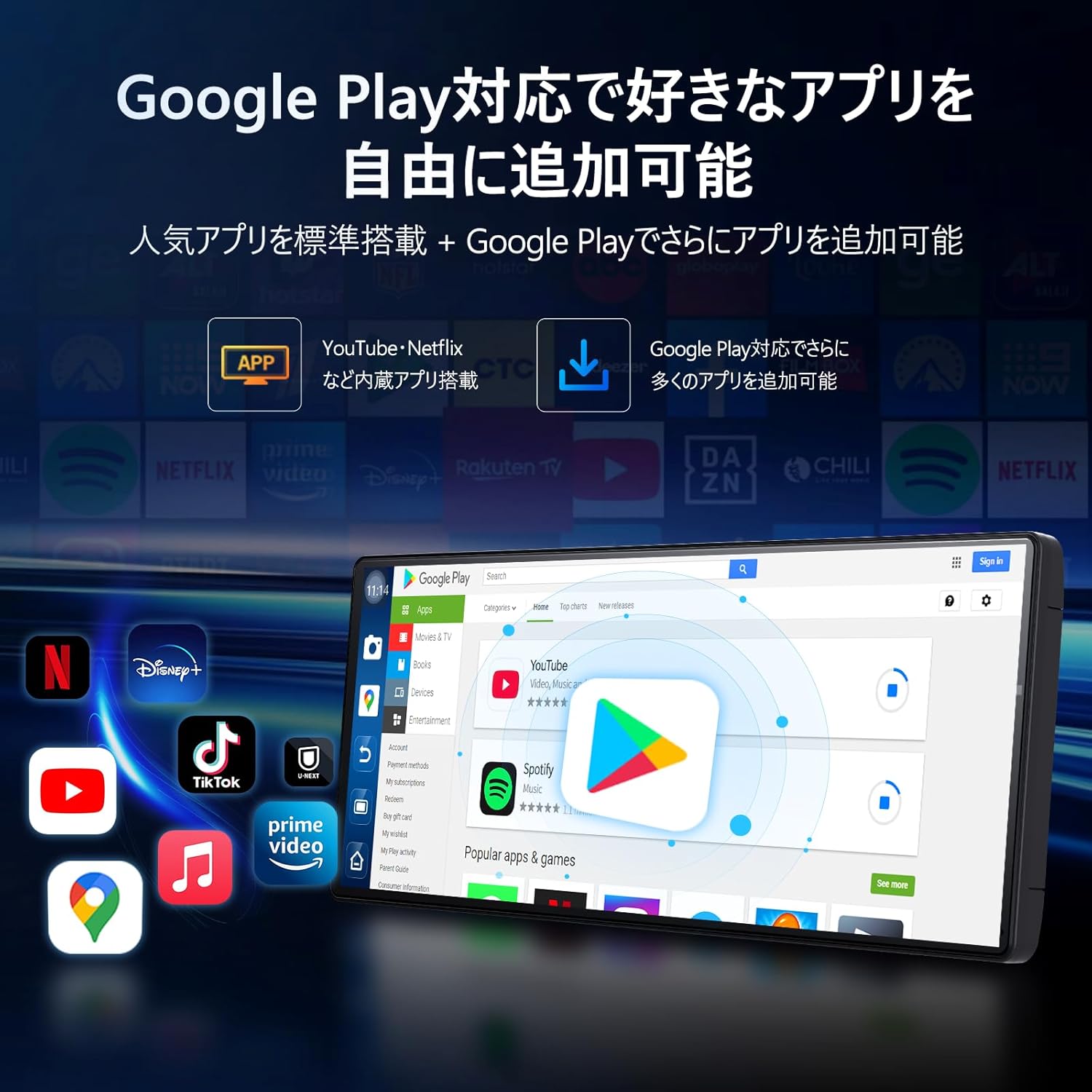
Image: The Imagebon car navigation system displaying the Google Play Store interface, showing various apps available for download.
Navigation (CarPlay / Android Auto / Built-in GPS)
The system offers multiple navigation options.
- CarPlay: Connect your iPhone via Bluetooth. A prompt will appear on your phone to allow CarPlay. Follow the on-screen instructions.
- Android Auto: Connect your Android phone via Bluetooth. A pairing request will appear. Confirm pairing and wait for the screen to cast.
- Вграден GPS: Use pre-installed navigation apps or download your preferred ones from Google Play. The system supports both online and offline maps.

Image: The Imagebon car navigation system showing both Google Maps interface and a smartphone connected via CarPlay/Android Auto for navigation.
Функционалност на поделен екран
To use split-screen mode:
- Отворете ја првата апликација што сакате да ја користите.
- Tap the split-screen button (usually represented by two rectangles) or swipe up to view неодамнешни апликации.
- Drag the second application to the other half of the screen.
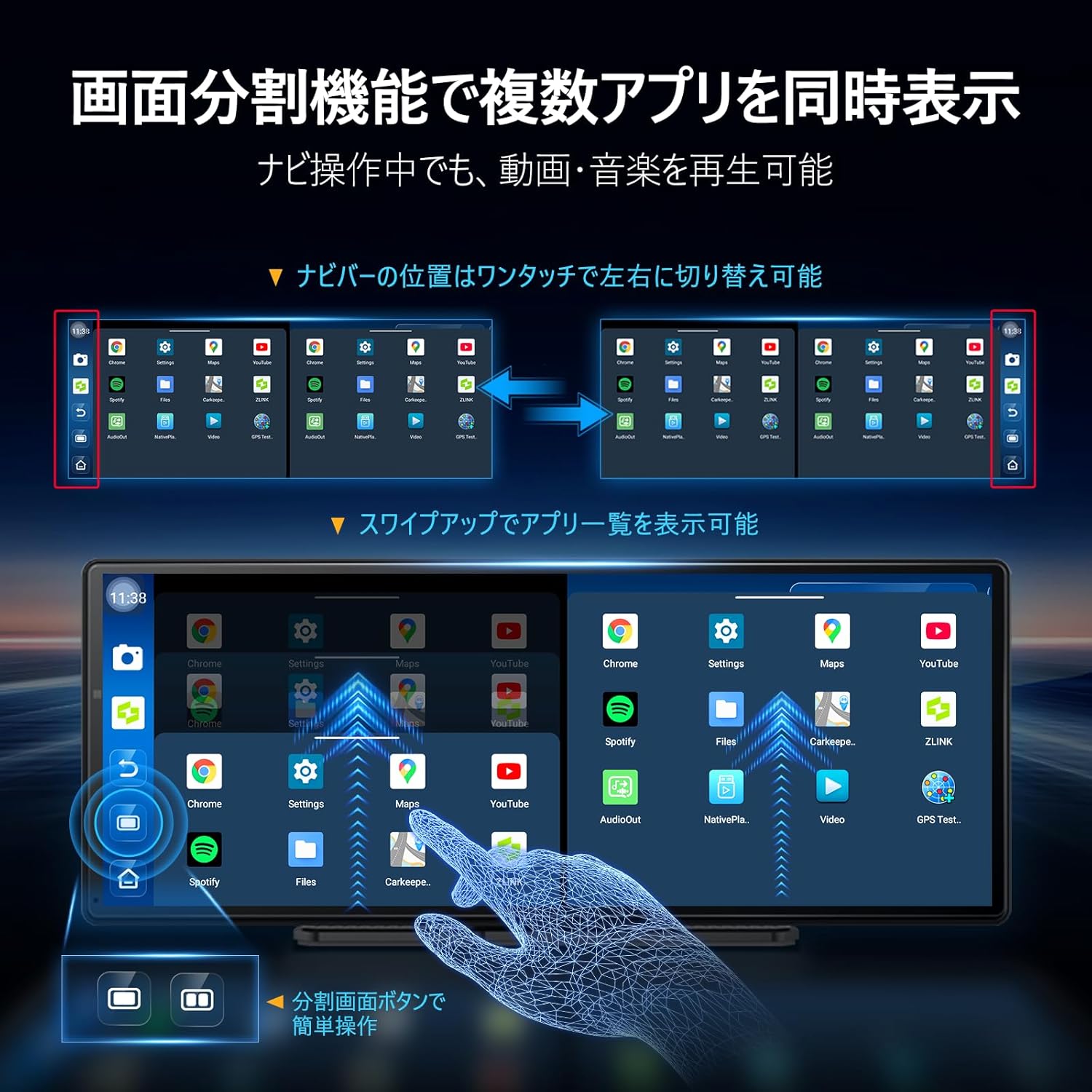
Image: The Imagebon car navigation system demonstrating split-screen functionality, showing two applications running side-by-side.
Гласовна контрола
Activate voice control by saying "Hey Siri" (for CarPlay) or "OK Google" (for Android Auto/Android system) or by tapping the microphone icon. You can issue commands such as:
- "Navigate to [destination]"
- "Play [song/artist]"
- "Call [contact name]"
- "Increase/Decrease volume"
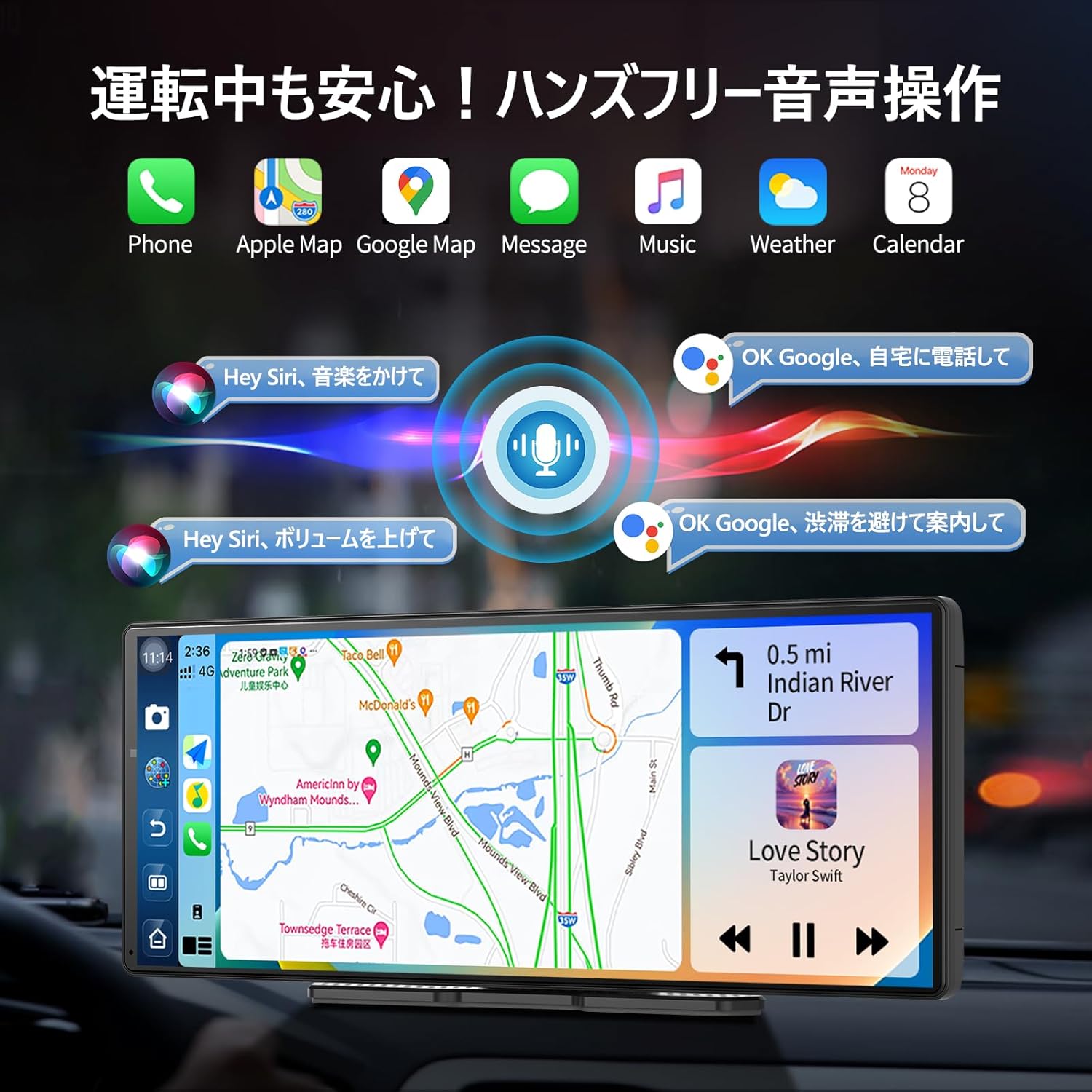
Image: The Imagebon car navigation system illustrating voice control commands for navigation, music, and calls, with a visual representation of sound waves.
Работа со задната камера
When the vehicle is shifted into reverse, the display will automatically switch to the rear camera view. Adjustable guidelines assist with parking.

Image: The Imagebon car navigation system displaying the 1080P rear camera view with adjustable parking guidelines, showing a car reversing into a parking spot.
Новости на ОТА
The system supports Over-The-Air (OTA) updates to keep your software and maps current.
- Ensure the unit is connected to Wi-Fi.
- Go to "App List" > "Settings".
- Select "Updater" from the "Device Information" menu.
- Follow the on-screen prompts to download and install updates. The unit will restart automatically after the update is complete.
Одржување
- Чистење: Користете мека, сува крпа за чистење на екранот и надворешноста. Избегнувајте абразивни средства за чистење или растворувачи.
- Ажурирања на софтверот: Regularly check for and install OTA updates to ensure optimal performance and access to new features.
- Температура: Избегнувајте изложување на уредот на екстремни температури.
- Управување со кабли: Ensure all cables are securely connected and not interfering with vehicle operation.
Решавање проблеми
| Проблем | Можна причина | Решение |
|---|---|---|
| Уредот не се вклучува | Power cable not connected or faulty; vehicle's power outlet issue. | Check power cable connection. Ensure vehicle's cigarette lighter socket is functional. |
| Нема GPS сигнал | GPS антената не е правилно поврзана или е попречена view на небото. | Ensure GPS antenna is securely connected and placed in an unobstructed location. |
| Проблеми со Wi-Fi/Bluetooth конекција | Incorrect password; device out of range; interference. | Verify password. Ensure devices are within range. Restart unit and connecting device. |
| Камерата за бек не се прикажува | Camera cable loose or faulty; vehicle not in reverse. | Check camera cable connection. Ensure vehicle is in reverse gear. |
| Екранот на допир не реагира | Привремен софтверски дефект. | Restart the unit. If problem persists, perform a factory reset (data will be lost). |
Спецификации
| Карактеристика | Детал |
|---|---|
| Големина на екранот | 11.3 инчи |
| Тип на дисплеј | QLED |
| Процесор | 8-Core Android |
| RAM меморија | 4 GB |
| Складирање | 64 GB |
| Поврзување | Bluetooth, USB, Wi-Fi (2.4GHz/5GHz) |
| Контролен метод | Допир, глас |
| Посебни карактеристики | Android Auto, Apple CarPlay, Built-in Bluetooth, Hands-free calling, 1080P Backup Camera |
| Режим за излез на звук | Стерео |
| Тежина на ставката | 0.95 кг |
| Димензии (пакет) | 31.1 x 14.7 x 11.2 cm |
| Број на модел | W60N-JP |
Гаранција и поддршка
This product comes with a standard manufacturer's warranty. For specific warranty details, please refer to the warranty card included in your package or contact Imagebon customer support.
For technical support, troubleshooting assistance, or any questions regarding your Imagebon car navigation system, please contact our customer service team. Contact information can be found on our official webна локацијата или на пакувањето на производот.
Видеа со производи
Производот завршиview
Видео: Генерал надview of the Imagebon 11.3-inch QLED Android Car Navigation System, highlighting its main features and design. (Duration: 1:15)
Split-Screen Demonstration
Video: A demonstration of the split-screen functionality, showing how to run two applications simultaneously on the display. (Duration: 0:44)
CarPlay и Android Auto поврзување
Video: This video illustrates the process of connecting and using Apple CarPlay and Android Auto with the navigation system. (Duration: 2:07)
Карактеристики за гласовна контрола
Video: A short demonstration of the voice control capabilities, showing how to issue commands for navigation and media playback. (Duration: 0:23)
Функционалност на камерата за бек-зона
Video: This video showcases the 1080P backup camera in action, including the adjustable guidelines for safe parking. (Duration: 2:00)


