1. Производот завршиview
The OnePlus 15 is an advanced Android smartphone designed for high performance and extended usage. It features a powerful Snapdragon 8 Elite Gen 5 processor, a large 7,300mAh battery, and a vibrant 6.78-inch 165 Hz AMOLED display. The device is equipped with a triple 50 MP camera system for detailed photography and offers robust durability with IP66/IP68/IP69 and IP19K ratings for dust and water resistance.
Клучни карактеристики:
- Massive 7,300 mAh Battery: Provides extended power for all-day use and beyond.
- Tri-Chip System: Integrates the Snapdragon 8 Elite Gen 5, a dedicated Wi-Fi chip, and a CPU scheduler for optimized performance, connectivity, and efficiency.
- Triple 50 MP Camera System: Captures high-quality images with wide, ultra-wide, and telephoto capabilities.
- Издржлив дизајн: Built to resist dust and water, with IP66/IP68/IP69 and IP19K ratings for enhanced protection.
- 6.78-inch 165 Hz AMOLED Display: Delivers vivid colors, smooth motion, and exceptional clarity.
2. Што има во кутијата
Проверете дали сите артикли се присутни во пакувањето на вашиот производ:
- OnePlus 15 Smartphone x1
- Полнач x1
- USB податочен кабел x1
- SIM Ejector Tool x1
- Брз водич x1
- Safety Guide x1

Image: Contents of the OnePlus 15 retail box, showing the smartphone, charger, USB data cable, SIM ejector tool, quick guide, and safety guide.
3. Поставување
3.1 Инсталација на SIM картичка
- Locate the SIM card tray on the side of your OnePlus 15.
- Insert the provided SIM ejector tool into the small hole on the SIM tray. Press firmly until the tray pops out.
- Place your Nano-SIM card(s) into the tray with the gold contacts facing down. Ensure they are correctly oriented according to the tray's outline.
- Carefully push the SIM tray back into the phone until it is flush with the device.
3.2 Првично вклучување и конфигурација
- Притиснете и задржете го копчето за вклучување (се наоѓа на десната страна од уредот) додека не се појави логото на OnePlus.
- Следете ги упатствата на екранот за да го изберете вашиот јазик, да се поврзете на Wi-Fi мрежа и да ја поставите вашата сметка на Google.
- You may be prompted to transfer data from an old device. Follow the instructions or skip this step to set up as a new device.
- Configure security settings such as fingerprint unlock, face unlock, or a PIN/pattern.

Слика: напред view of the OnePlus 15 smartphone, showcasing its display and front camera.
4. Ракување со вашиот уред
4.1 Screen and Navigation
The OnePlus 15 features a 6.78-inch 165 Hz AMOLED display. Navigate the interface using touch gestures:
- Допрете: Изберете ставка или активирајте функција.
- Повлечете: Скролувајте низ екраните или листите.
- Штипење: Зголемување или намалување на сликите и web страници.
- Долг печат: Пристапете до контекстуални менија или преместете икони.
4.2 Копчиња и порти
Familiarize yourself with the physical controls and connections:
- Копче за вклучување: Located on the right side. Press to wake/sleep the screen, long press to power off or restart.
- Копчиња за јачина на звук: Located on the left side. Adjust media volume, ringtone volume, and alarm volume.
- Приклучок за USB Type-C: Located at the bottom. Used for charging, data transfer, and connecting Type-C headphones.
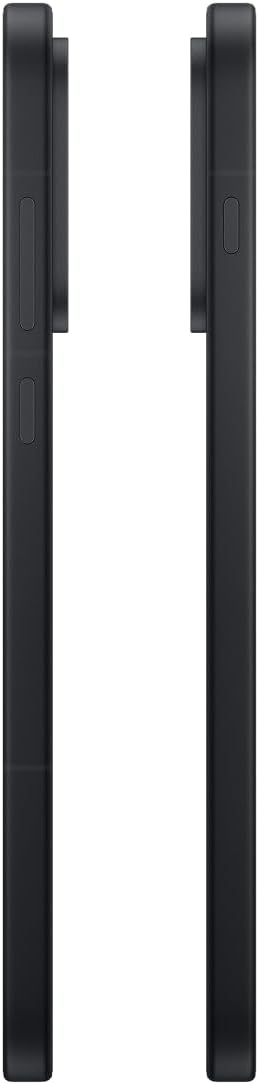
Слика: Страна view of the OnePlus 15, showing the placement of the power and volume buttons.
4.3 Употреба на камерата
The OnePlus 15 features a versatile triple 50 MP camera system. To open the camera app, tap the camera icon on your home screen or lock screen.
- Префрли режими: Swipe left or right on the screen to switch between Photo, Video, Portrait, and other modes.
- Зумирајте: Pinch in or out on the viewfinder, or tap the zoom icons (e.g., 0.6x, 1x, 2x) to adjust magnification.
- Снимајте: Допрете го копчето за бленда за да фотографирате или да започнете/запрете снимање видео.
- Поставки: Access camera settings for features like flash, timer, aspect ratio, and more.

Слика: Назад view of the OnePlus 15, highlighting the triple 50 MP camera system.
4.4 Управување со батерии
Your OnePlus 15 is equipped with a 7,300 mAh battery. To optimize battery life:
- Adjust screen brightness and set a shorter screen timeout.
- Исклучете Wi-Fi, Bluetooth и GPS кога не ги користите.
- Затворете ги апликациите во позадина што трошат енергија.
- Utilize Battery Saver mode when your battery is low.
- Use the provided charger and USB cable for optimal fast charging.
5. Одржување
5.1 Чистење на вашиот уред
To clean your OnePlus 15:
- Користете мека крпа што не остава влакненца за да го избришете екранот и задниот панел.
- За тврдокорни дамки, малку дampИзмијте ја крпата со вода или средство за чистење екрани.
- Избегнувајте употреба на груби хемикалии, абразивни материјали или компримиран воздух.
5.2 Ажурирања на софтверот
Редовните ажурирања на софтверот обезбедуваат нови функции, подобрувања на безбедноста и поправки на грешки. За да проверите за ажурирања:
- Одете на Поставки > За уредот > OxygenOS version.
- Допрете Проверете дали има ажурирања.
- If an update is available, follow the on-screen instructions to download and install it. Ensure your device has sufficient battery and is connected to Wi-Fi before updating.
6 Смена на проблеми
If you encounter issues with your OnePlus 15, try the following common troubleshooting steps:
- Уредот не реагира: Притиснете и задржете го копчето за вклучување околу 10 секунди за да го натерате рестартирањето.
- Паѓање на апликации: Clear the cache and data for the problematic app in Поставки > Апликации > [Име на апликација] > Складирање и кеш.
- Батеријата брзо се троши: Review користење на батеријата во Поставки > Батерија to identify power-hungry apps. Adjust settings as described in Section 4.4.
- Проблеми со мрежно поврзување: Toggle Airplane Mode on and off, restart your device, or reset network settings in Поставки > Системски поставки > Бекап и ресетирање > Ресетирајте го телефонот > Ресетирајте Wi-Fi, мобилен и Bluetooth.
- Screen protector installation: For assistance with screen protector installation, refer to the following video guide:
Video: Installation guide for a screen protector on the OnePlus 15 5G. This video demonstrates the steps to correctly apply a screen protector to your device.
7. Спецификации
| Име на моделот | OnePlus 15 |
| Број на модел на ставка | CPH2749 |
| Димензии на производот | 6.36 x 3.02 x 0.33 инчи |
| Тежина на ставката | 1.29 фунти |
| Оперативен систем | Андроид 16 |
| Модел на процесорот | Snapdragon 8 Elite Gen 5 |
| Брзина на процесорот | 4.61 GHz |
| Големина на инсталирана RAM меморија | 12 GB |
| Капацитет за складирање на меморија | 256 GB |
| Големина на екранот | 6.78 инчи |
| Резолуција | 2772*1272 г |
| Стапка на освежување | 165 Hz |
| Капацитет на батеријата | 7300 милиониamp Часови |
| Време за разговор на телефон | 68.7 часа |
| Технологии за поврзување | Bluetooth, инфрацрвен, NFC, USB, Wi-Fi |
| Посебни карактеристики | Dual SIM, Wireless Charging |
| Производител | OnePlus |
8. Важни безбедносни информации
Ве молиме прочитајте ги сите безбедносни информации пред да го користите вашиот уред за да обезбедите безбедна и правилна употреба. Неправилната употреба може да предизвика оштетување на уредот или телесна повреда.
- Не го изложувајте уредот на екстремни температури или директна сончева светлина подолг временски период.
- Use only approved chargers, batteries, and accessories.
- Избегнувајте испуштање или изложување на уредот на силен удар.
- Keep the device away from water and liquids, despite its water resistance ratings, to prevent potential damage.
- Не обидувајте се да го расклопите или менувате уредот.
9. Гаранција и поддршка
Your OnePlus 15 is covered by a manufacturer's warranty. For detailed warranty information, technical support, or service inquiries, please visit the official OnePlus webсајт или контактирајте со службата за корисници.
Можете да најдете дополнителна поддршка и информации за производот на OnePlus Store.